4K 120Hz on PS5 or Xbox Starts With a TV Port Setting
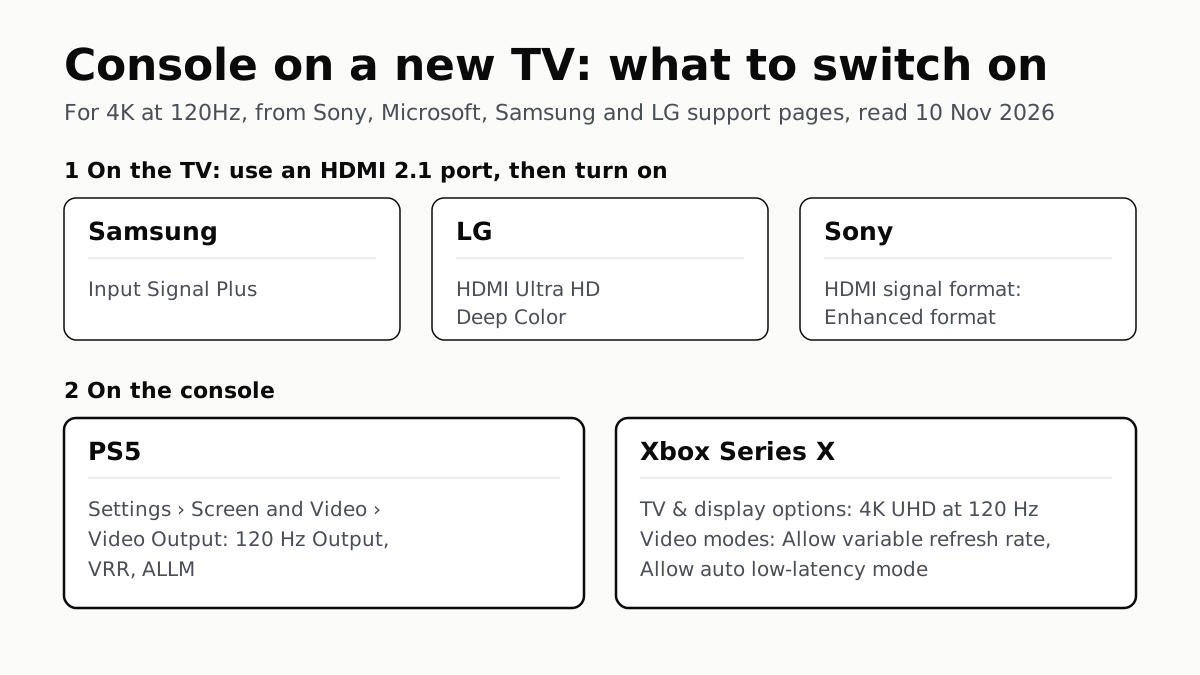
Samsung calls it Input Signal Plus, LG HDMI Ultra HD Deep Color, Sony Enhanced format. Then turn on 120Hz, VRR and ALLM on the console.
If you buy through our links, we may earn a commission. It never affects our verdicts or scores — how that works. As an Amazon Associate I earn from qualifying purchases.
To get 4K at 120Hz from a PS5 or Xbox Series X, plug it into an HDMI 2.1 port on the TV and switch on that port’s full-bandwidth setting first: Input Signal Plus on Samsung, HDMI Ultra HD Deep Color on LG, Enhanced format on Sony. Then turn on 120Hz, VRR and ALLM on the console, where each is its own switch.
Sony’s PS5 support page says HDMI 2.1 support “may require that you change settings via the TV”, and Samsung’s pages say that without Input Signal Plus a PlayStation reports no HDR and an Xbox does not see 4K. The TV’s port setting comes before anything on the console.
Step 1: the TV
Use the HDMI port the TV lists as HDMI 2.1 or 4K 120Hz, and the cable that came with the console. Sony and Microsoft both recommend the console’s own cable; our guide to HDMI cable tiers covers what to buy if you need a longer one. Not every input on a TV carries 4K at 120Hz: Samsung’s 2026 series pages list 4K 60Hz inputs on some sets and 4K 120Hz or faster on others.
| TV maker | Turn on for the console’s port | Game setting | Where, as the maker’s page gives it |
|---|---|---|---|
| Samsung | Input Signal Plus (also called HDMI UHD Color) | Game Mode, On or Auto | Settings › All Settings › Connection (or General) › External Device Manager › Input Signal Plus, then the port. Game Mode: All Settings › Connection › Game Mode Settings |
| LG | HDMI Ultra HD Deep Color, On for the port | Game Optimizer (2021 webOS 6.0); Instant Game Response (2020 webOS 5.0) | All Settings › Picture › Additional Settings › HDMI Ultra HD Deep Color (2020 path). Game Optimizer: All Settings › General › Game Optimizer (2021 path) |
| Sony | HDMI signal format: Enhanced format (4K120, 8K) or Enhanced format (VRR) | Picture mode: Game | Settings › Channels & Inputs › External inputs › HDMI signal format, then the input (2022 Help Guide). Picture mode: Dashboard › All settings › Display & Sound › Display (2026 BRAVIA 6) |
Each of these is set per HDMI input, so turning it on for HDMI 1 does nothing for a console in HDMI 3.
LG says its game optimization mode works only once HDMI Ultra HD Deep Color is on for the console’s port. Sony lists five HDMI signal formats, says 4K at 100 or 120Hz “depends on your model/region/country” and VRR “depends on your model”, and asks for an Ultra High Speed HDMI cable rated to 48 Gbps for 4K 120Hz.
Samsung’s Xbox page adds one model-specific line: “Use HDMI 4 if you have a Neo QLED TV and an Xbox Series X.” Its PlayStation page says to use HDMI 1 or the next free port. Where the two differ, use an input your set’s spec sheet lists for 4K at 120Hz.
Each TV maker’s page notes that its screens or options vary by model. LG’s two pages give paths for its 2020 and 2021 TVs only, and Sony’s 2026 BRAVIA 6 guide uses a new Dashboard menu, so the names in the table are the ones to look for if the path differs on your set.
Step 2: the console
| PS5 (affiliate link to Amazon, opens in a new tab) | Xbox Series X (affiliate link to Amazon, opens in a new tab) | |
|---|---|---|
| Menu | Settings › Screen and Video › Video Output | Profile & system › Settings › General › TV & display options |
| Resolution | Automatic or 2160p | 4K UHD |
| 120Hz | 120 Hz Output: On | Refresh rate: 120 Hz |
| VRR | VRR: On (Apply to Unsupported Games is optional) | Video modes › Allow variable refresh rate |
| Low lag | ALLM | Video modes › Allow auto low-latency mode |
| Check it worked | Information for the Connected HDMI Device | 4K TV details |
PS5. Sony’s page lists 120 Hz Output, VRR and ALLM as separate entries in Video Output. 120 Hz Output applies to “games that support 120 Hz frame rate”. ALLM switches the TV to low-latency mode while you play, and Sony says that even with ALLM off, the PS5 does the same whenever VRR output is on. If the picture flickers, Sony suggests setting Video Transfer Rate to −1 or −2, which limits 4K 120Hz among other formats; leave it on Automatic otherwise.
Xbox Series X (affiliate link to Amazon, opens in a new tab). Microsoft’s 4K 120Hz page asks for a Series X, an Ultra High Speed HDMI cable and an HDMI 2.1 TV, then 4K UHD and 120 Hz in TV & display options. Its general display page still says 120Hz is “only available for 1080p and 1440p”, a page that also covers the Xbox One S and One X; the Series X page is the one that describes 4K at 120Hz. Microsoft says VRR needs a TV with HDMI-VRR or AMD FreeSync, and that ALLM tells the display to change latency modes when a game starts.
Xbox Series S (affiliate link to Amazon, opens in a new tab). Microsoft says the Series S can run 120Hz at a lower resolution, and that 4K at 120Hz on a Series S needs “a certified Ultra High Speed HDMI cable”. The cable in the Series S box is a High Speed one.
If a soundbar or receiver sits in between
Microsoft recommends plugging the console straight into the TV, and says a receiver in the chain can cause VRR display issues; for 4K 120Hz trouble through a receiver, it says to use the Ultra High Speed cable from the box. Sending sound back to a soundbar over eARC keeps the video path direct. If you are still choosing the TV, check its spec sheet for the number of 4K 120Hz inputs before anything on our TV shortlist.
Questions people ask
Why won’t my PS5 do 4K 120Hz?
Check three things Sony’s support page lists: the PS5 is in an HDMI 2.1 port on the TV, that port’s HDMI 2.1 setting is on in the TV’s menu, and Video Output has Resolution on Auto or 2160p and Video Transfer Rate on Auto. Then turn on 120 Hz Output.
How do I turn on 4K 120Hz on Xbox Series X?
Press the Xbox button, then Profile & system, Settings, General, TV & display options. Set Resolution to 4K UHD and Refresh rate to 120 Hz. Microsoft says this needs an HDMI 2.1 TV and an Ultra High Speed HDMI cable, which comes in the Series X box.
What is Input Signal Plus on a Samsung TV?
It is the per-port setting that lets a Samsung TV accept a console’s full signal. Samsung’s pages say without it a PlayStation reports no HDR and an Xbox does not see 4K. It is under Settings, Connection or General, External Device Manager.
Do I need Game Mode on the TV if the console has ALLM?
ALLM is the console asking the TV to switch to its low-latency mode when a game starts, so on a TV that supports it, the switch happens without you. Microsoft says the TV gets low latency by turning off processing, which can change how the picture looks.
Should I turn on VRR on my PS5?
Turn it on if your TV supports VRR. Sony says it lets the refresh rate adjust in real time with TVs and games that support it, and that results vary by TV. With VRR on, the PS5 also switches the TV to low-latency mode even if ALLM is off.
Which HDMI port should my console use?
One the TV lists as HDMI 2.1 or 4K 120Hz. Sony and Microsoft both ask for an HDMI 2.1 port. On Neo QLED sets, Samsung’s Xbox page names HDMI 4 for a Series X at 120Hz; your TV’s spec sheet lists which inputs support 4K at 120Hz.
How we researched this
No one at bitcritiq has handled this product. Everything here comes from published sources, listed below.
- What this cannot tell you
- We have not connected a console to these TVs; this is what each maker's support page says. Menu paths change with TV model year and software, and each TV maker says so: LG's pages give paths for its 2020 and 2021 webOS versions only, and Sony's 2026 BRAVIA 6 guide uses a different menu layout from its 2022 guide. Sony's own support articles on 4K 120Hz from a PS5 could not be read on 10 November, so the Sony row rests on its Help Guides. Samsung's PlayStation page gives PS4-era console menu names, so the PS5 steps here come from Sony Interactive's page. Nintendo Switch 2 is left out: we did not read a Nintendo page on its output modes. Other TV brands are not covered.
How we chose this, and what we did
- Why this subject
- A console is a common gift this month, and the first question after plugging one in is why it is not running at 4K and 120Hz. Our HDMI cable guide covers which cable carries 4K at 120Hz and our TV series pages list which inputs support it, but nothing on the site gave the menu names to change on the console and on each TV brand. This answers that from each maker's own support pages.
- How we looked at it
- All first-party support pages, read through a browser on 10 November 2026. Sony Interactive: PlayStation Support 'How to change PS5 console resolution', including its collapsed setting descriptions and 4K 120Hz troubleshooting list. Microsoft: Xbox Support 'Set up 4K gaming at 120 Hz on Xbox Series X' (with its collapsed 'Enable 120 Hz without 4K' section), 'How to change the TV display settings on your Xbox' and 'Advanced video settings for Xbox consoles'. Samsung US: support answers ANS10005264 (PlayStation), ANS10006955 (Xbox) and ANS10001584 (Game Bar). LG US: Help Library 'How can I enter the game mode?' and 'How To Turn On Game Optimizer'. Sony Electronics: the BRAVIA Help Guide pages on HDMI signal format (a 2022 Google TV guide) and Picture Mode (the 2026 BRAVIA 6 guide). Menu names are quoted as each page prints them.
What this rests on
6 claims, all official. Nothing here was measured by bitcritiq — see how we test for why. Open a claim to read the source it came from.
Sony asks for the PS5 to be connected to an HDMI 2.1 port on the TV, and says HDMI 2.1 support may need a TV setting changed.Official
PlayStation Support: “If there is an HDMI port that supports HDMI 2.1, please use it to connect your PS5 console.” Its 4K 120Hz checklist: “Is the PS5 console connected to an appropriate HDMI port (2.1) on the TV? Check the TV manual for more information. HDMI 2.1 support may require that you change settings via the TV.”
On PS5, 120Hz, VRR and ALLM are separate switches under Settings, Screen and Video, Video Output.Official
PlayStation Support: “Go to Settings > Screen and Video. Select Video Output.” The list includes “VRR”, “120 Hz Output” and “ALLM”. “120 Hz Output: Turn on to enable 120 Hz video output for your TV and games that support 120 Hz frame rate.”
On Xbox Series X, 4K at 120Hz is set by choosing 4K UHD and 120 Hz in TV & display options.Official
Xbox Support: “select Profile & system > Settings > General > TV & display options. Make sure that your Resolution is set to 4K UHD and your Refresh rate is set to 120 Hz.” Requirements: “An XBOX Series X console, An Ultra High Speed HDMI cable that supports HDMI 2.1, A TV that supports HDMI 2.1”.
Samsung says its TVs need Input Signal Plus turned on for the console's HDMI port, or the console will not see HDR or 4K.Official
Samsung ANS10005264: “PlayStations will say the QLED TV does not support HDR unless Input Signal Plus is turned on.” ANS10006955: “Make sure Input Signal Plus (HDMI UHD Color) is enabled on your TV, or your Xbox will not recognize the 4K functionality.”
LG says HDMI Ultra HD Deep Color must be on for the console's port before its game optimization mode can be used.Official
LG Help Library: “Make sure to set the HDMI Ultra HD Deep Color function of the HDMI port connected to the device to On to enable the game optimization mode.”
Sony's BRAVIA HDMI signal format setting offers Enhanced format (4K120, 8K) and Enhanced format (VRR), set per input.Official
Sony BRAVIA Help Guide: “[Settings] — [Channels & Inputs] — [External inputs] — [HDMI signal format] — the HDMI input you want to set.” Options: “Standard format, Enhanced format, Enhanced format (Dolby Vision), Enhanced format (4K120, 8K), Enhanced format (VRR)”. “Support for the display of 4K 100/120 Hz and 8K picture depends on your model/region/country.”
Sources 11
- How to change PS5 console resolution — PlayStation SupportOfficialaccessed Nov 10, 2026
- Set up 4K gaming at 120 Hz on Xbox Series X — Xbox SupportOfficialaccessed Nov 10, 2026
- How to change the TV display settings on your Xbox — Xbox SupportOfficialaccessed Nov 10, 2026
- Advanced video settings for Xbox consoles — Xbox SupportOfficialaccessed Nov 10, 2026
Show 7 more · 7 official or standards
- Set up your PlayStation on your Samsung QLED TV — Samsung US SupportOfficialaccessed Nov 10, 2026
- Set up your Xbox and your Samsung QLED TV — Samsung US SupportOfficialaccessed Nov 10, 2026
- Game Bar on your Samsung TV — Samsung US SupportOfficialaccessed Nov 10, 2026
- [LG TV Settings] How can I enter the game mode? — LG USA SupportOfficialaccessed Nov 10, 2026
- LG TV - How To Turn On Game Optimizer — LG USA SupportOfficialaccessed Nov 10, 2026
- Settings for viewing pictures through HDMI input with higher quality — Sony BRAVIA Help GuideOfficialaccessed Nov 10, 2026
- Picture Mode — Sony BRAVIA 6 Help GuideOfficialaccessed Nov 10, 2026
Pass it on
Know someone weighing this up? Send them the answer.
bitcritiq.com/m5t2The link is permanent: it opens this article for good, even if the title changes.
No email, no account
Follow bitcritiq
Every new article, in whatever reader you already use.
Subscribe by RSSAll the ways to follow
Using Chrome on Android? Open the browser menu and tap Follow. New articles then turn up in the Following tab in Discover.
read next
PS5 and Xbox Controllers Pair With PCs and Phones
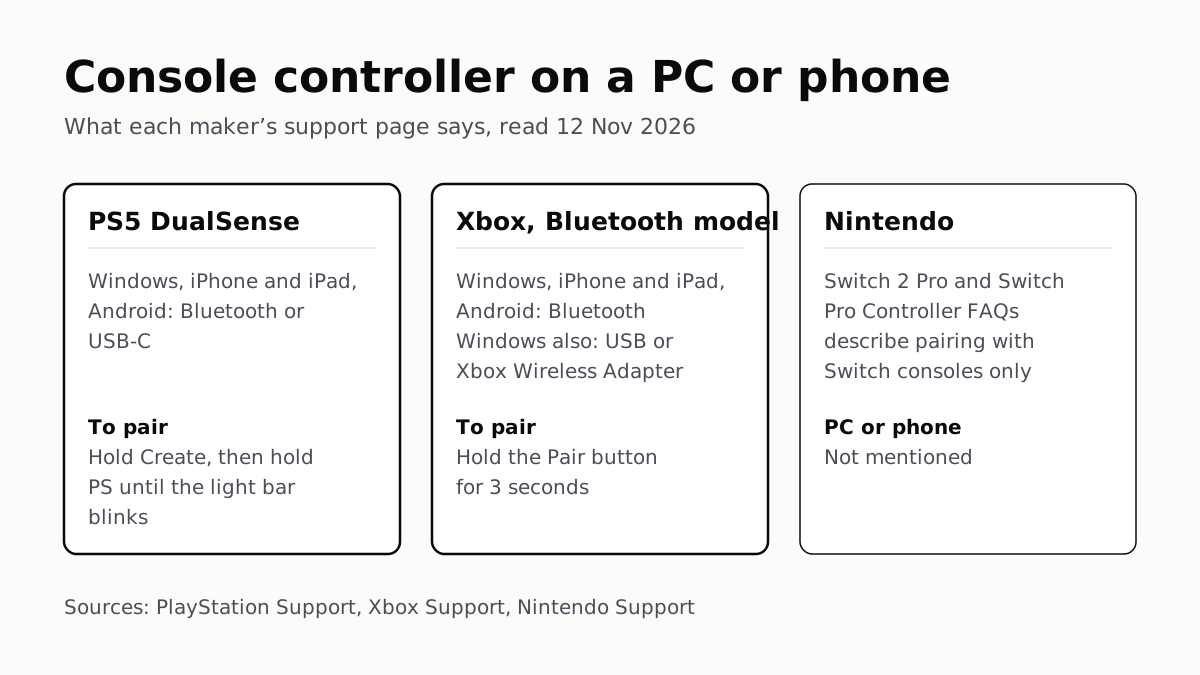
Hold Create and PS on a DualSense, or Pair on a Bluetooth Xbox pad. Nintendo’s Pro Controller FAQs mention no PC or phone.
Before You Sell a Console, Unlink It, Then Reset It
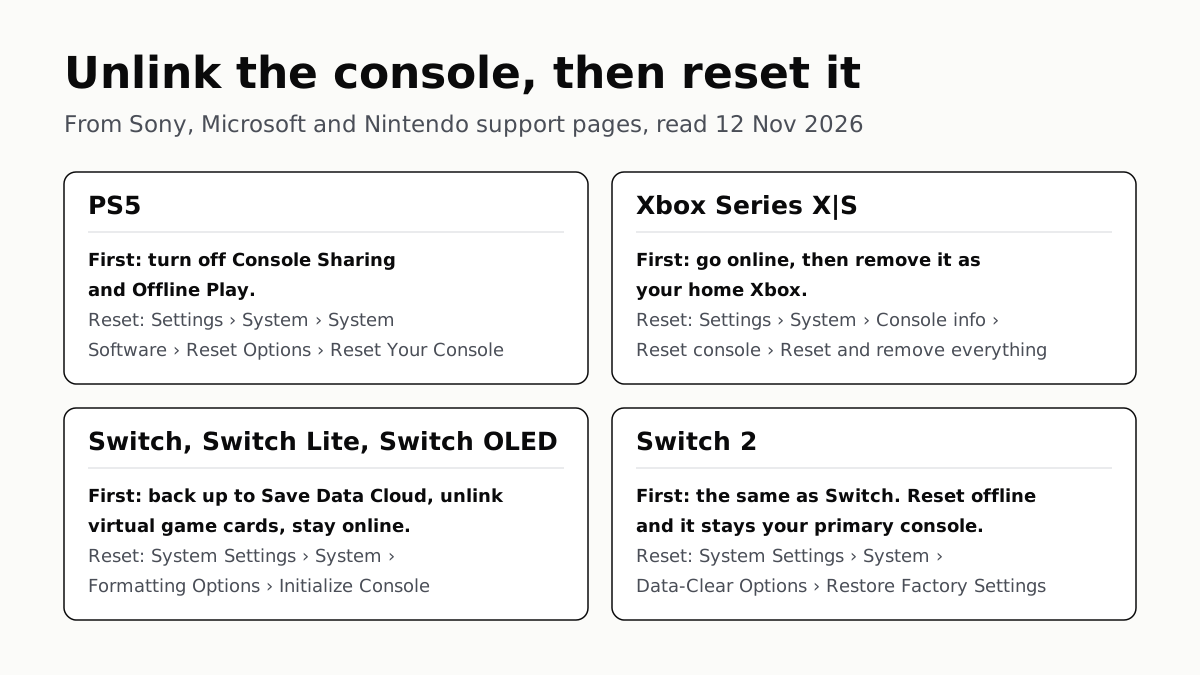
Each maker has a setting that ties a console to your account. Switch it off and back up your saves before the wipe.
PS5, Xbox and Switch 2 Games Aren’t Region-Locked
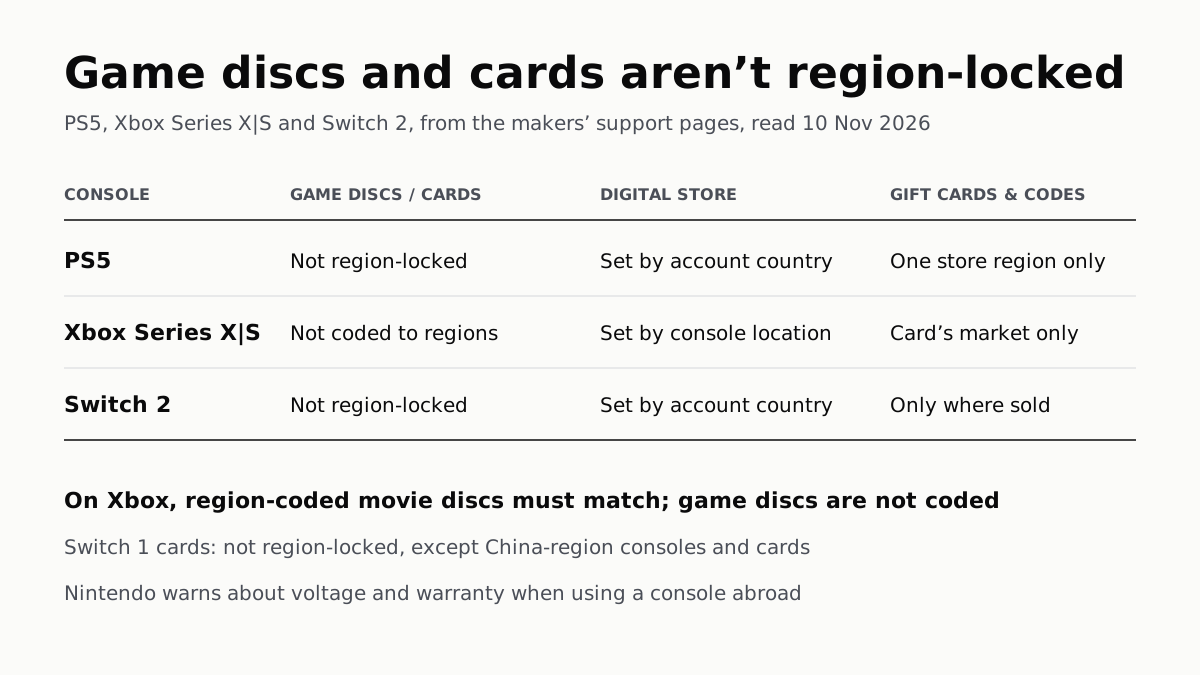
Your account’s or console’s country decides what you can buy; gift cards, subscription codes and some add-ons stay in one region.
Switch 2 Game-Key Cards Hold a Key, Not the Game
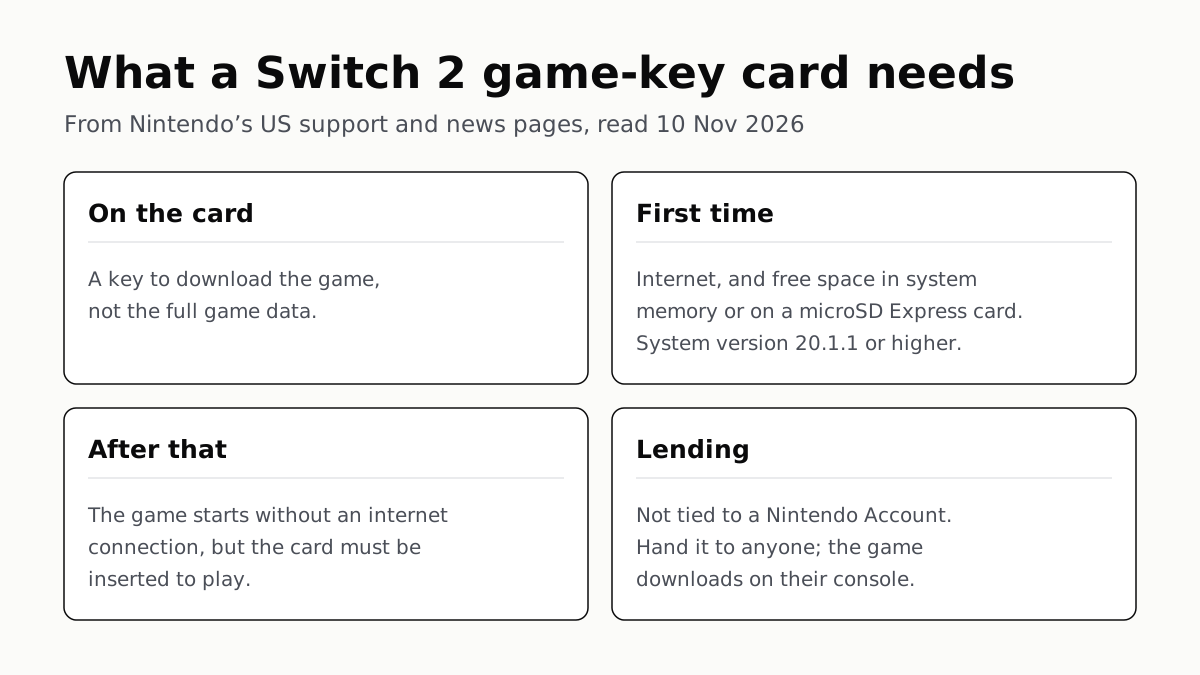
Internet for the first launch, free space for the download, and the card in the slot every time you play. You can lend it to anyone.