7 TV Makers Build AirPlay Into Some Sets, No Apple TV Needed
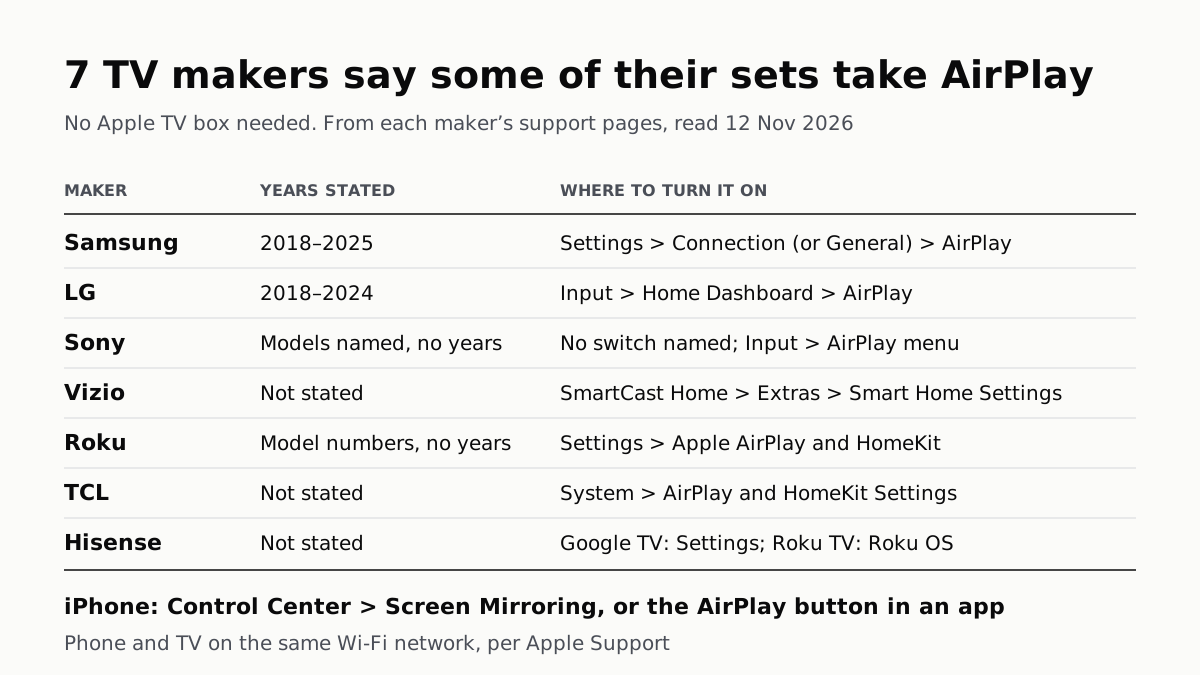
Samsung lists 2018–2025 sets and LG 2018–2024. Switch AirPlay on in the TV’s settings, then use Screen Mirroring in Control Center.
If you buy through our links, we may earn a commission. It never affects our verdicts or scores — how that works. As an Amazon Associate I earn from qualifying purchases.
Yes: you can AirPlay or mirror an iPhone to a smart TV with no Apple TV box, as long as the TV has AirPlay built in. Turn AirPlay on in the TV’s settings, put both on the same Wi‑Fi, then tap Screen Mirroring in Control Center or the AirPlay button in an app. All 7 makers in the table below (Samsung, LG, Sony, Vizio, Roku, TCL and Hisense) have a support page saying some of their sets take AirPlay. Samsung names 2018 to 2025 models, and LG 2018 to 2024.
The catch is the model. Apple’s support page names an “AirPlay-compatible smart TV” as a target, but Apple’s US site no longer links to a list of them, so the maker’s own page is the place to check.
Which TVs take AirPlay, and where the switch is
| TV maker | AirPlay, per the maker | Model years stated | Where to turn it on |
|---|---|---|---|
| Samsung | Yes, “select Samsung TV models” (also Smart Monitors) | 2018–2025 | Settings (All Settings) > Connection, or General on older sets > Apple AirPlay Settings > AirPlay |
| LG | Yes, AirPlay 2 | 2018 (webOS 4.0) to 2024 (webOS 24) | Input button > Home Dashboard > AirPlay > AirPlay and HomeKit settings > AirPlay On |
| Sony | Yes, on the Google TV models its help guide covers | Models named, not years | No on/off switch named; Input button > AirPlay opens HomeKit setup. Needs Google TV setup and an internet connection |
| Vizio | Yes, on TVs that support AirPlay 2 and HomeKit | Not stated; Vizio points to Apple’s list | V or Home button > SmartCast Home > Extras > Smart Home Settings > AirPlay > On |
| Roku | Yes, Roku TVs and players, by model number | Not stated; Roku OS 9.4 or 10.0 needed on listed models | Settings > Apple AirPlay and HomeKit > AirPlay On |
| TCL (Google TV) | Yes, “on supported models” | Not stated | Home > Settings > All settings > System > AirPlay and HomeKit Settings |
| Hisense | Yes, on its Google TV and Roku TV sets | Not stated | Google TV: AirPlay in Settings (no fuller path given); Roku TV: as Roku |
Every row comes from the maker’s own support page, read on 12 November 2026. “Not stated” means the page covers AirPlay but gives no model years.
Samsung: 2018 to 2025
Samsung’s US page says AirPlay 2 is on “select Samsung TV models (2018 - 2025)”. To switch it on, go to Settings (All Settings), then General, then Apple AirPlay Settings. Samsung moved the menu to Connection on newer sets, but its own page gives two cut-offs: “2023 and newer” in one paragraph and “2022-2025 TVs” in another. On a 2022 Samsung, look under both Connection and General.
The same menu has Require Code, for a passcode on first connection or every time, and Reset Paired Devices. Samsung adds a warning that matters in a new home: “If you use a mobile hotspot for your internet connection, AirPlay will not work.”
LG: every OLED and QNED from 2021
LG’s table runs from 2018 (webOS 4.0) to 2024 (webOS 24). From 2021 on, each year lists “All OLED Models” and “All QNED Models”, plus named UHD and NANO series; 2018 to 2020 list OLED and UHD series by name. The page is dated September 2026 but its table stops at 2024 sets, so it does not say either way for 2025 or 2026 models.
To turn it on, press Input on the remote, open Home Dashboard, select AirPlay, then AirPlay and HomeKit settings, and set AirPlay On. LG says the iPhone needs iOS 12.4 or newer.
Sony: Google TV sets
Sony’s US-English help guide for the BRAVIA 9, 8, 8 II, 7, 5, A95L, XR8B and XR8C says “This TV supports AirPlay 2”, and that Google TV setup and an internet connection are required to use it. HomeKit setup starts from the Input button, then AirPlay. Sony’s store FAQ for the 2026 BRAVIA 6 also says it supports AirPlay 2. Neither page gives a range of model years.
Vizio: check Apple’s list
Vizio’s page says your TV “must support AirPlay 2 and HomeKit”, and tells you to check your model against Apple’s list, without linking one. If it is supported, AirPlay lives under SmartCast Home, Extras, Smart Home Settings. Vizio says the AirPlay icon may also sit near the Cast icon on the SmartCast Home screen, and that menu names vary by model and software.
Roku: by model number
Roku says its Select and Plus Series TVs support AirPlay “regardless of Roku OS version”. For other Roku TVs and its players, it lists model numbers that need Roku OS 9.4 or higher (for example Roku TV models starting A, C or 7) or 10.0 (Roku TV 5xxx and 6xxx). Find yours under Settings > System > About. The switch is under Settings > Apple AirPlay and HomeKit. If you are choosing a player rather than a TV, our guide to Roku’s four players sets out how they differ.
Roku adds that a Roku TV may drop off Wi‑Fi when it is off; turning on Fast TV start keeps it connected, at the cost of more standby power.
TCL and Hisense
TCL’s Google TV settings guide, based on the 65QM850G, lists AirPlay and HomeKit Settings under System “on supported models”, without naming them. Hisense’s FAQ says its Roku TVs have AirPlay through Roku’s software and that “With a Google TV, you’ll have AirPlay support”, then says only to turn AirPlay on in Settings.
The iPhone side: Screen Mirroring or AirPlay from an app
Apple’s support page gives two routes. Screen Mirroring shows your whole screen: on iPhone X or later, swipe down from the top-right corner to open Control Center, tap Screen Mirroring and pick the TV. If a passcode appears on the TV, type it on the phone. To stop, open Control Center, tap Screen Mirroring, then Stop Mirroring.
AirPlay from an app sends just the video, song or photo: tap the AirPlay button in the app and choose the TV. In Photos, tap Share first, then AirPlay. Apple notes that some video apps might not support AirPlay. Under Settings > General > AirPlay & Continuity > Automatically AirPlay, you can choose Never, Ask or Automatic for suggested connections.
If your TV is not on any list
Apple’s US AirPlay page links “See all AirPlay‑enabled smart TVs” to a Home accessories page that lists AirPlay speakers and receivers but no TVs. The only Apple list of AirPlay TVs we found is on its Egypt site, and it stops at 2021 sets. Vizio’s page suggests an HDMI cable or a streaming device if your TV lacks AirPlay. An Apple TV box is one such device; our tvOS 27 guide says which Apple TV models get the current software. AirPlay also needs the TV on your network, which rules it out on a set kept offline. And if the TV is still on the gift list, our shortlist of TVs from the reviews is a starting point; it does not rank AirPlay.
We did not cover Fire TV sets: we found no Amazon page outside amazon.com about AirPlay on them, and we do not use amazon.com as a source.
Questions people ask
Can I AirPlay to my TV without an Apple TV?
Yes, if the TV has AirPlay built in. Apple’s support page lists an “AirPlay-compatible smart TV” as a target alongside Apple TV, and Samsung, LG, Sony, Vizio, Roku, TCL and Hisense each have a page saying some of their sets take AirPlay. Phone and TV must be on the same Wi‑Fi network.
How do I mirror my iPhone to my TV?
Join the iPhone and the TV to the same Wi‑Fi network, swipe down from the top-right corner to open Control Center, tap Screen Mirroring and pick the TV. If the TV shows a passcode, type it on the phone. To stop, open Control Center, tap Screen Mirroring, then Stop Mirroring.
How do I turn on AirPlay on a Samsung TV?
Samsung says to go to Settings (All Settings), then Connection on newer sets or General on older ones, then Apple AirPlay Settings, and turn AirPlay on. Samsung’s page dates the change to Connection as both “2023 and newer” and “2022-2025”, so check both menus.
Which LG TVs support AirPlay?
LG lists AirPlay 2 on its 2018 to 2024 TVs: all OLED and QNED models from 2021, plus named UHD and NANO series, and earlier OLED and UHD series by name. Turn it on from the Input button: Home Dashboard, AirPlay, AirPlay and HomeKit settings, AirPlay On.
Why does my TV not show up in the AirPlay list?
The makers’ pages give the same first checks: the TV must support AirPlay 2, AirPlay must be switched on in its settings, and both devices must be on the same Wi‑Fi network. Samsung says AirPlay will not work over most mobile hotspots, and Vizio warns that guest, hotel and dorm networks can block it.
What is the difference between Screen Mirroring and AirPlay?
Both use AirPlay. The AirPlay button inside an app sends that video, song or photo to the TV. Screen Mirroring in Control Center shows the whole iPhone screen. Apple notes that some video apps might not support AirPlay.
How we researched this
No one at bitcritiq has handled this product. Everything here comes from published sources, listed below.
- What this cannot tell you
- We have not tried AirPlay on any of these TVs ourselves. Vizio, Roku, TCL and Hisense name no model years, and Sony’s help guide names models rather than years; we did not infer years for them. Sony’s main US support articles on AirPlay could not be read on 12 November, so Sony rests on its Help Guide and one product FAQ. Apple’s only TV list we found is old and on a non-US site. Hisense’s page does not say which of its Google TV models take AirPlay or give a full menu path. We left out Fire TV: we found no first-party Amazon page outside amazon.com that covers AirPlay, and we do not use amazon.com as a source. Menus can move with software updates; Samsung’s own page gives two different year ranges for its menu change.
How we chose this, and what we did
- Why this subject
- Gift season puts new TVs in homes with iPhones, and the first thing many owners try is putting the phone’s photos or a video on the big screen. The common belief is that this needs an Apple TV box. Each TV maker answers the question on its own help page, with its own model years and menu names, so one table can put them side by side.
- How we looked at it
- Read through a browser on 12 November 2026: Apple Support 102661 ('Use AirPlay to stream video or mirror the screen of your iPhone or iPad', published 15 May 2026); Apple’s AirPlay page; Apple’s US Home accessories page; Apple’s Egypt 'Apple TV app – Devices' page; Samsung US Support ANS10005274; LG USA Support’s 'Which LG TVs Support AirPlay 2?' (dated 09/03/2026); Sony’s BRAVIA Help Guide in US English (BRAVIA 9, 8, 8 II, 7, 5, A95L, XR8B, XR8C); Sony’s US store FAQ for the BRAVIA 6 (2026); Vizio Support’s 'How to Fix AirPlay Not Working on Your TV'; Roku Support’s 'How to use AirPlay and HomeKit with your Roku streaming device' (modified 23 June 2026); TCL Support’s 'TCL Google TV Walkthrough: Settings'; Hisense USA’s TV common questions. The table has 7 maker rows, counted by hand: Samsung, LG, Sony, Vizio, Roku, TCL and Hisense, each with a first-party page saying some of its TVs take AirPlay. Absence control: Apple’s US AirPlay page links 'See all AirPlay‑enabled smart TVs' to its Home accessories page, which carries 'AirPlay-Enabled Speakers' and 'AirPlay-Enabled Receivers' sections and no TV section or TV maker name; the only Apple TV list we found is on its Egypt site, covering 2016 to 2021 sets.
What this rests on
6 claims, all official. Nothing here was measured by bitcritiq — see how we test for why. Open a claim to read the source it came from.
Apple says AirPlay can stream or mirror an iPhone or iPad to an AirPlay-compatible smart TV, not only to an Apple TV, with both on the same Wi‑Fi network.Official
Apple Support 102661: “Use AirPlay to stream or share content from your Apple devices to your Apple TV, AirPlay-compatible smart TV, or Mac.” And: “Connect your iPhone or iPad to the same Wi-Fi network as your Apple TV, AirPlay-compatible smart TV, or Mac.”
To mirror, open Control Center and tap Screen Mirroring; to stream from an app, tap its AirPlay button, which in Photos sits behind the Share button.Official
Apple Support 102661: “Tap the Screen Mirroring button. Select your TV or Mac from the list.” And: “Tap the AirPlay button. In some apps, you might need to tap a different button first. For example, in the Photos app, tap the Share button, then tap the AirPlay button.”
Samsung says AirPlay 2 is on select Samsung TV models from 2018 to 2025, switched on under Apple AirPlay Settings.Official
Samsung US Support ANS10005274: “With AirPlay 2 available on select Samsung TV models (2018 - 2025)” and “navigate to Settings (All Settings), select General (on 2023 and newer models select Connection), and then select Apple AirPlay Settings. From here, you can turn on the feature.” The same page later says “General (Connection on 2022-2025 TVs)”.
LG lists AirPlay 2 on its TVs from 2018 (webOS 4.0) to 2024 (webOS 24), including all OLED and QNED models from 2021 on.Official
LG USA Support table, 'AirPlay 2 Supported Models': “2024(webOS 24) OLED: All OLED Models QNED:All QNED Models UHD: UT Series, NANO Series” through “2018(webOS 4.0) OLED: B8/C8/E8/W8/Z8 UHD: UK Series, SK Series”; 2021 (webOS 6.0) to 2024 each list “All OLED Models” and “All QNED Models”. Steps: “Select [AirPlay] in [Home Dashboard]… Change to [AirPlay On] in [AirPlay and HomeKit settings].”
Vizio says AirPlay is turned on under SmartCast Home, Extras, Smart Home Settings, and that the TV must support AirPlay 2 and HomeKit.Official
Vizio Support: “Your TV must support AirPlay 2 and HomeKit to use AirPlay. Check your TV model against Apple’s list of TVs that support AirPlay 2 and HomeKit.” And: “Open SmartCast Home. Select Extras… Select Smart Home Settings. Select AirPlay. Set AirPlay to On.”
Roku says its Select and Plus Series TVs support AirPlay on any Roku OS version, and lists other Roku TVs and players by model number that need Roku OS 9.4 or 10.0.Official
Roku Support: “Roku Select and Plus Series TVs support Apple AirPlay and HomeKit regardless of Roku OS version.” And: “The Roku devices listed below must be running Roku OS 9.4 or higher to support Apple HomeKit and streaming with AirPlay 2.” Toggle: “Go to Settings > Apple AirPlay and HomeKit and make sure AirPlay is set to On.”
Sources 12
- Use AirPlay to stream video or mirror the screen of your iPhone or iPad — Apple Support 102661 (15 May 2026)Officialaccessed Nov 12, 2026
- AirPlay — AppleOfficialaccessed Nov 12, 2026
- Home Accessories — Apple (US)Officialaccessed Nov 12, 2026
- Apple TV app – Devices — Apple (Egypt)Officialaccessed Nov 12, 2026
Show 8 more · 8 official or standards
- How to stream from an iPhone using AirPlay 2 — Samsung US SupportOfficialaccessed Nov 12, 2026
- LG TV – Which LG TVs Support AirPlay 2? — LG USA Support (09/03/2026)Officialaccessed Nov 12, 2026
- Displaying the iPhone/smartphone or iPad/tablet app screen on the TV — Sony BRAVIA Help Guide (US English)Officialaccessed Nov 12, 2026
- BRAVIA 6 77-inch Class OLED (2026), K-77A60, FAQ — Sony Electronics USOfficialaccessed Nov 12, 2026
- How to Fix AirPlay Not Working on Your TV — Vizio SupportOfficialaccessed Nov 12, 2026
- How to use AirPlay and HomeKit with your Roku streaming device — Roku Support (modified 23 June 2026)Officialaccessed Nov 12, 2026
- TCL Google TV Walkthrough: Settings — TCL SupportOfficialaccessed Nov 12, 2026
- TV Common Questions — Hisense USAOfficialaccessed Nov 12, 2026
Pass it on
Know someone weighing this up? Send them the answer.
bitcritiq.com/37nwThe link is permanent: it opens this article for good, even if the title changes.
No email, no account
Follow bitcritiq
Every new article, in whatever reader you already use.
Subscribe by RSSAll the ways to follow
Using Chrome on Android? Open the browser menu and tap Follow. New articles then turn up in the Following tab in Discover.
read next
To Use One TV Remote, Turn On HDMI-CEC at Both Ends
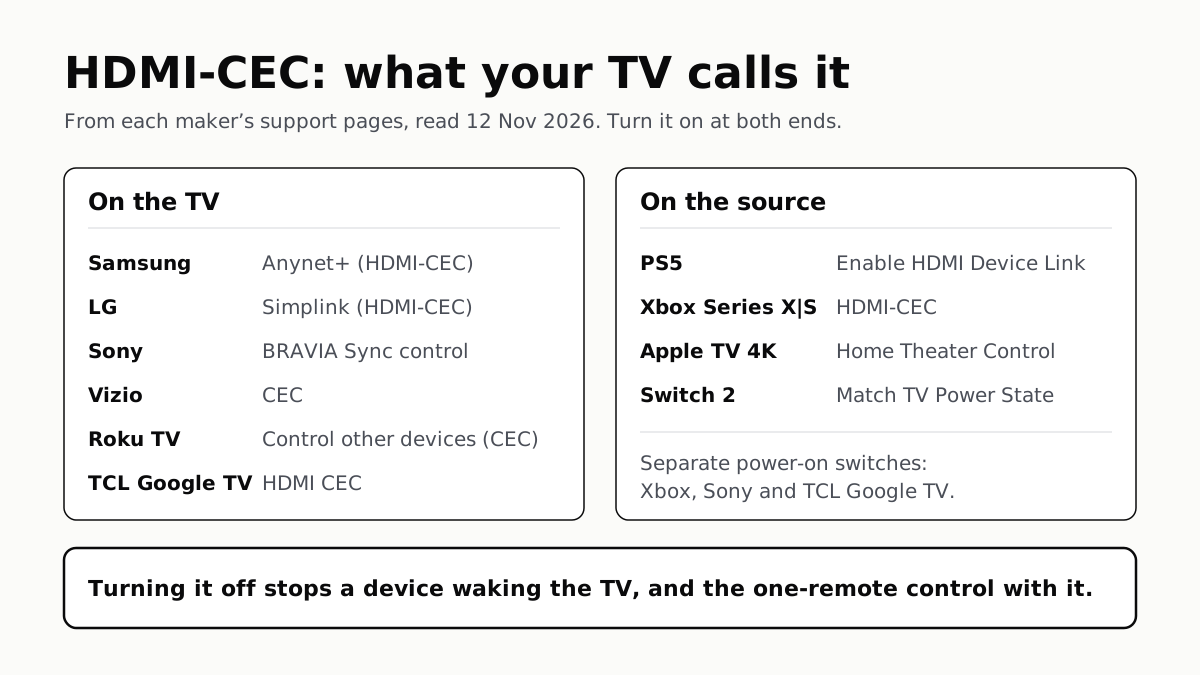
Samsung calls it Anynet+, LG Simplink, Sony BRAVIA Sync, Vizio CEC. Consoles, Apple TV and Switch 2 have their own switch.
Soap Opera Effect: Set the TV’s Motion Setting to Off
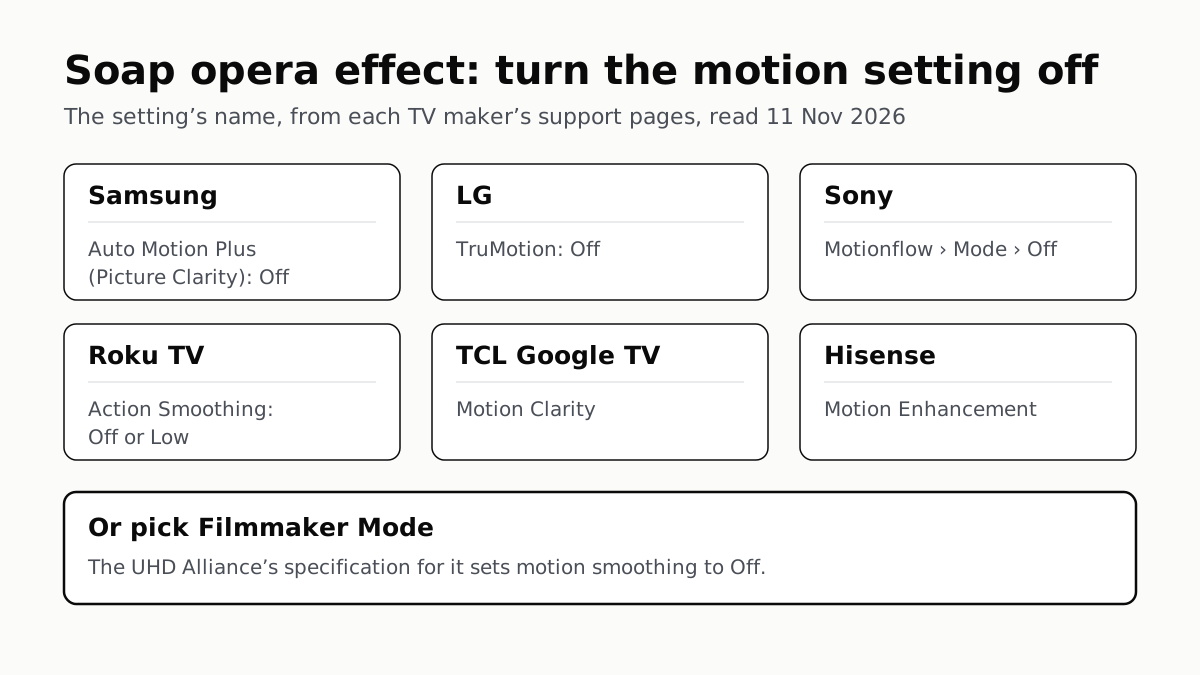
Samsung calls it Auto Motion Plus, LG TruMotion, Sony Motionflow, Roku Action Smoothing. Filmmaker Mode switches it off where offered.
4 of 5 TV Platforms: Antenna and HDMI Work Without Sign-In
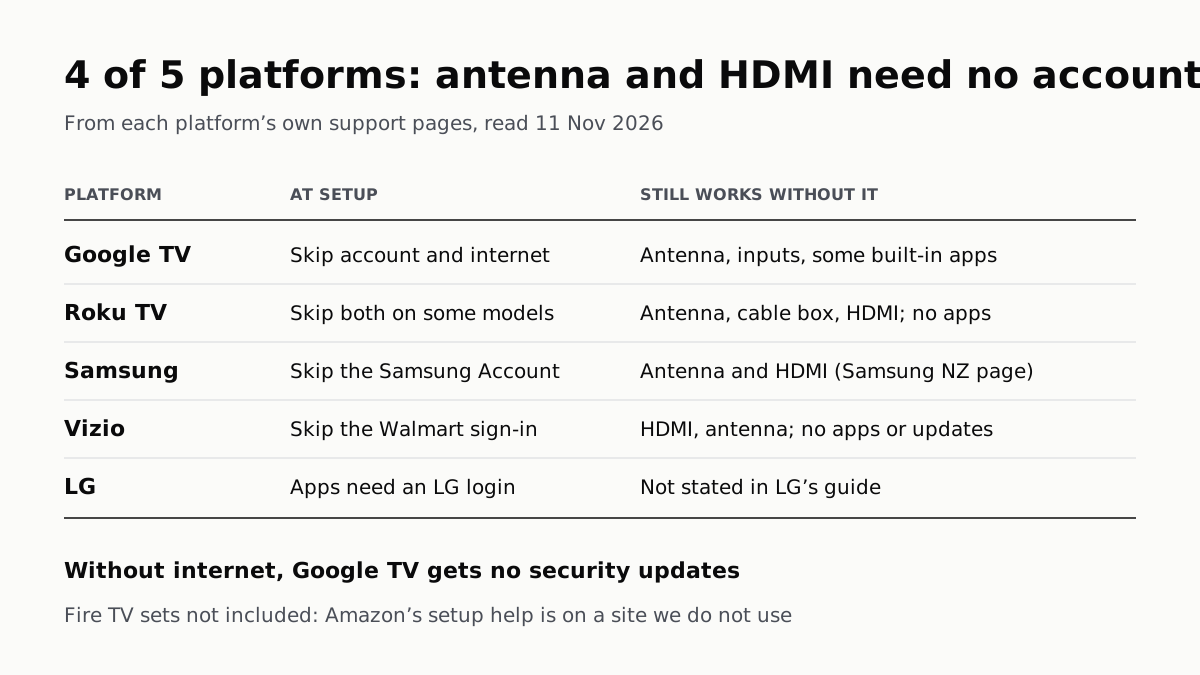
Google TV’s basic mode needs no account or internet. Vizio and Samsung let you skip signing in; on Roku it depends on the model.
LG, Apple TV and Newer Samsung TVs Play to Two Headphones
Roku, Google TV, Fire TV and Vizio pair them too, each with its own limits. Roku’s phone app lets up to four people listen.