Backing Up an iPhone? Tick the Encrypt Box
Apple turns encryption off by default on computer backups, and an unencrypted one leaves your Health history and saved passwords behind.

If you buy through our links, we may earn a commission. It never affects our verdicts or scores — how that works. As an Amazon Associate I earn from qualifying purchases.
If you back up to a Mac or PC, encryption is off unless you turn it on — and an unencrypted backup silently drops your Health history and your saved passwords.
Apple states it in its own comparison of the two methods. iCloud “always encrypts your backups”. A computer “offers encrypted backups (off by default)”.
And here is what that default costs you. Apple’s list of what a computer backup does not include ends with: Activity, Health, and Keychain data (to back up this content, you’ll need to create an encrypted backup).
Years of step counts, workouts and health records, plus every password in your keychain. Gone from the backup, and you find out on the new phone.
Tick the box
On a Mac — connect the phone, open Finder, select the device in the sidebar, and under General tick Encrypt local backup before you click Back Up Now. Set a password and store it somewhere you will still have it in three years, because Apple cannot reset it and a backup you cannot open is not a backup.
On Windows, the same option sits in the Apple Devices app or iTunes on the device summary screen.
Do this once and it stays on for future backups.
The iCloud trap is the opposite shape
iCloud encrypts everything automatically, so the problem there is not encryption. It is that an iCloud backup is a copy of what is not already in iCloud.
Apple’s list of what iCloud backups do not include is explicit about why: notes already synced, “Photos, if you turned on iCloud Photos”, messages “if you sync messages with iCloud”, and data held in other services like Gmail and Exchange.
That is sensible engineering — no point storing a second copy of something already stored. But it means “iCloud Backup is on” does not mean “everything is safe”. Your photos are safe because iCloud Photos holds them, not because the backup does. Delete one from iCloud Photos and it is gone from both.
What neither method carries
Worth knowing before you assume the new phone will be identical:
- Face ID and Touch ID settings — you set those up again either way.
- Apple Pay information and settings — cards are re-added on the new device.
- Apple Mail data, and anything in another cloud service.
- Offline maps.
None of that is loss, exactly. It is just work you will do on the other side, and it is better to expect it than to conclude the restore failed.
Restoring onto a different kind of device
If you are moving an iPad backup onto an iPhone or the reverse, Apple says you can — but photos will not transfer unless you use iCloud Photos, messages will not unless you sync them with iCloud, Voice Memos will not, and apps built only for the other device will not.
Voice Memos is the one that catches people, because there is no second copy anywhere.
What to actually do, in order
- Back up to iCloud first, from Settings → your name → iCloud → iCloud Backup → Back Up Now. It is encrypted by default and it needs only Wi-Fi. If it says you are out of space, buy the smallest tier for one month — it is cheaper than losing the lot, and you can cancel after.
- Then make a second, encrypted computer backup. Two copies in different places is the whole of backup practice, and the local one is the fast way to restore.
- Check the date. Under Back Up Now, Apple shows the date and time of the last backup. Look at it. A backup that ran three weeks ago is not a backup of today.
- Do not wipe or trade in the old phone until the new one is up and you have opened the things you care about — Health, Photos, Messages, Voice Memos. The old device is your real backup until you have confirmed the new one.
- Write the encryption password down. Not in the keychain on the phone you are replacing.
How we researched this
No one at bitcritiq has handled this product. Everything here comes from published sources, listed below.
- What this cannot tell you
- This covers what the two backup types contain and how to make them complete. It is not a recovery guide for a backup that has already failed, and it does not cover moving to or from Android, which is a different process with different losses. Apple changes these lists between iOS versions; the page cited carries its own published date, and it is worth re-reading rather than trusting this one next year.
How we chose this, and what we did
- Why this subject
- New phone season is when people move their lives across, and it is the one moment a backup is actually tested. The default settings quietly leave things out — Apple documents exactly what, and almost nobody reads the page before the moment they need it rather than after.
- How we looked at it
- Took the list of what each backup type omits from Apple's own comparison of backup methods, and the steps from its iCloud backup page, quoting the exclusions in Apple's wording rather than summarising them. The omissions are the whole point, so they are reproduced rather than paraphrased.
Sources 2
- Backup methods for iPhone or iPad — Apple SupportOfficialaccessed Aug 30, 2026
- How to back up your iPhone or iPad with iCloud — Apple SupportOfficialaccessed Aug 30, 2026
Pass it on
Know someone weighing this up? Send them the answer.
bitcritiq.com/293bThe link is permanent: it opens this article for good, even if the title changes.
No email, no account
Follow bitcritiq
Every new article, in whatever reader you already use.
Subscribe by RSSAll the ways to follow
Using Chrome on Android? Open the browser menu and tap Follow. New articles then turn up in the Following tab in Discover.
read next
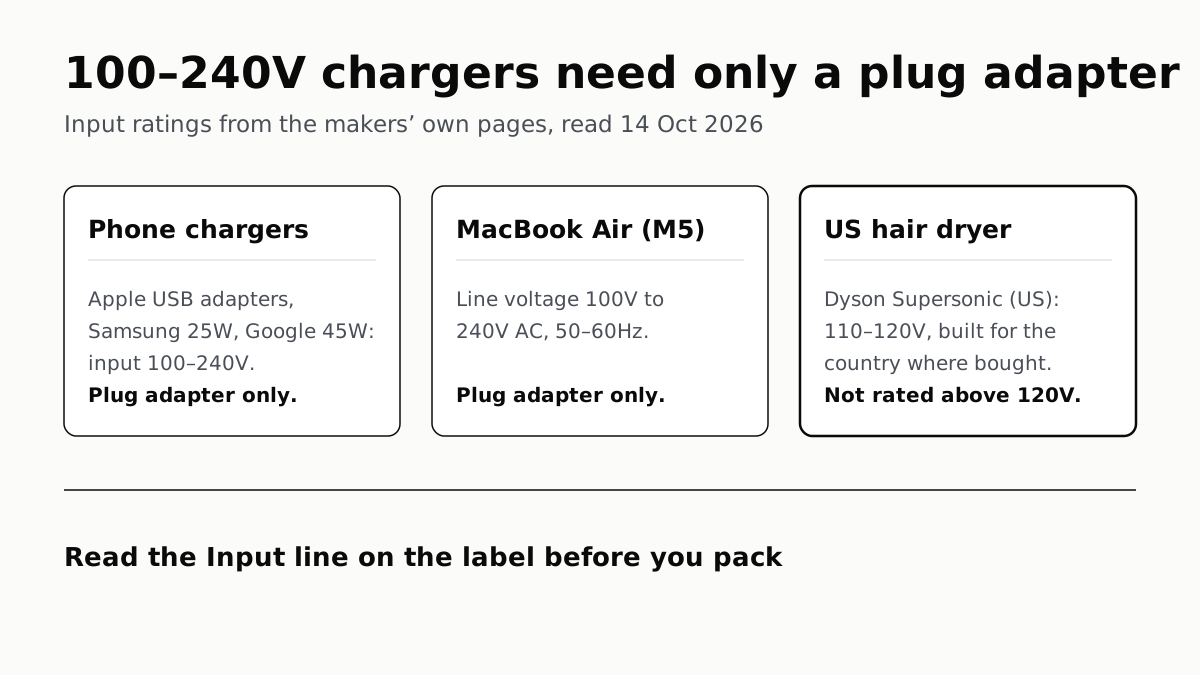
Chargers Rated 100–240V Need Only a Plug Adapter Abroad
Apple, Samsung and Google rate their chargers, and the MacBook Air, for 100–240V. A hair dryer built for 110–120V is a different case.
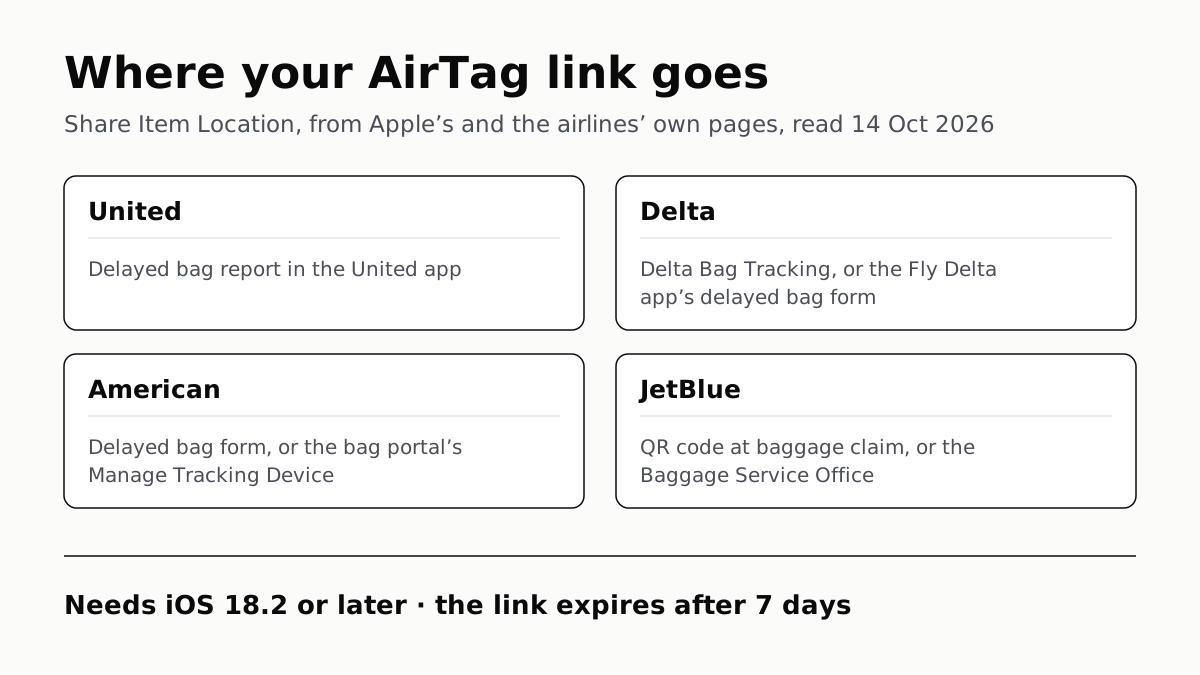
Send Your AirTag Link to United, Delta, American, JetBlue
Find My’s Share Item Location makes a seven-day link a bag agent can open. Apple says more than 50 airlines accept it.
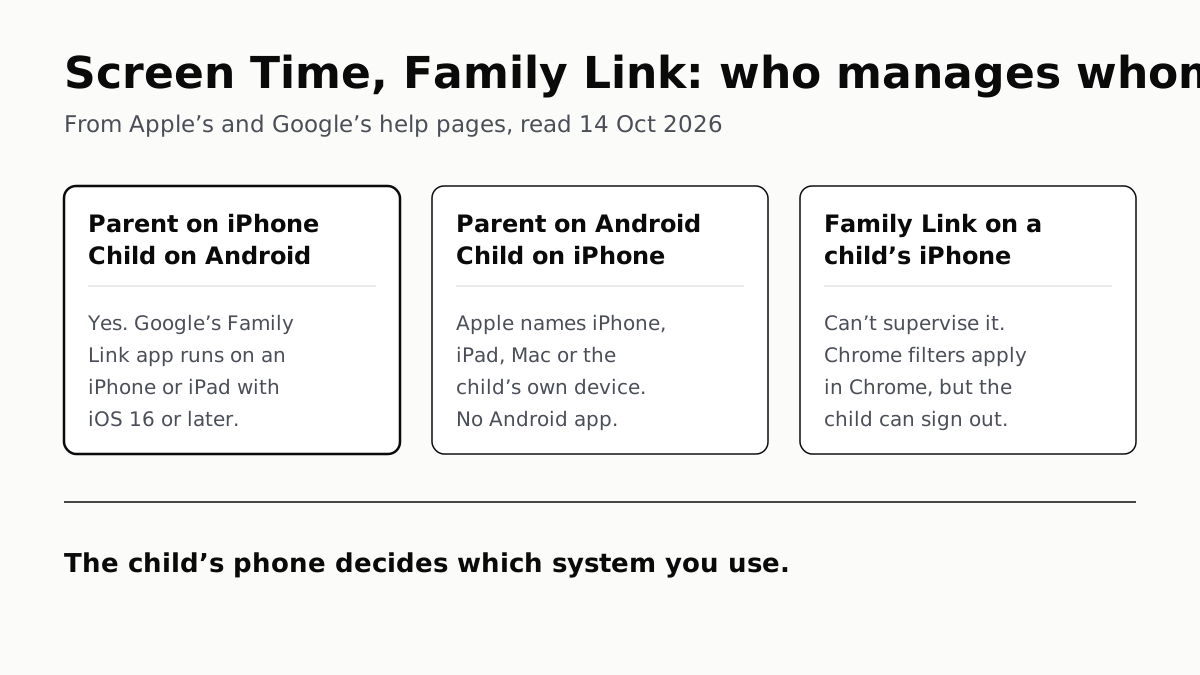
Family Link Works From an iPhone. Screen Time Needs Apple
Neither app supervises the other maker’s phones. App limits, downtime, web filters and more, side by side, with iOS 27’s changes.
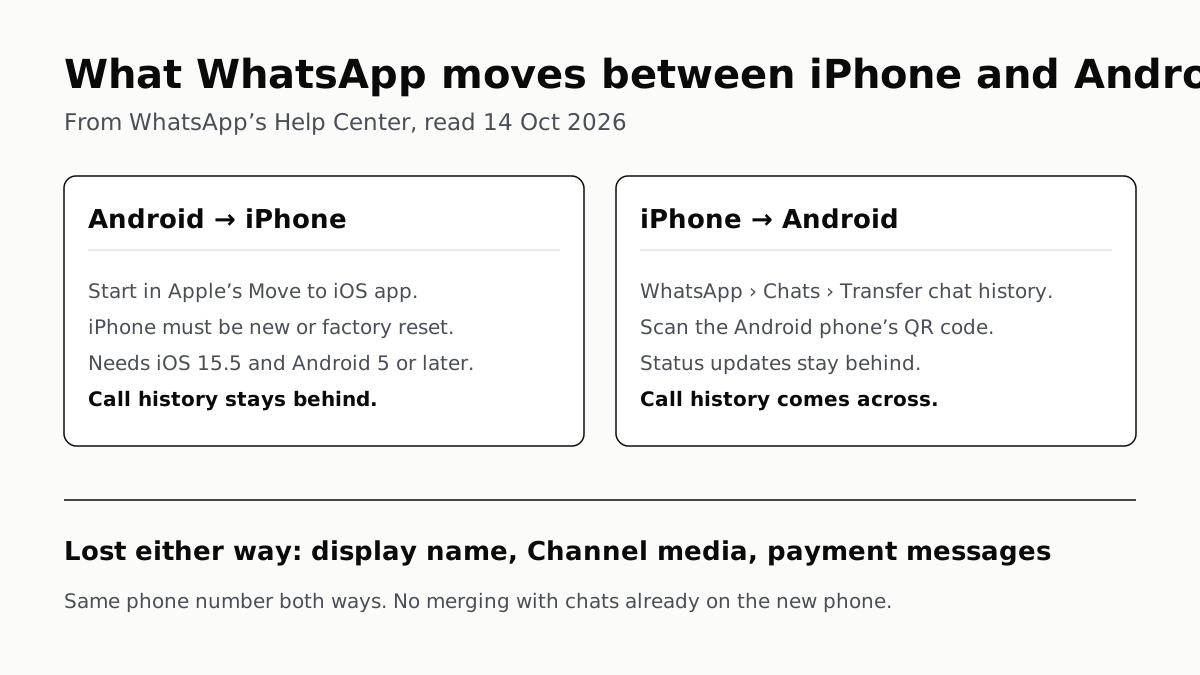
WhatsApp Chats Can Cross Between iPhone and Android
Messages, media and settings move both ways. Display names, Channel media and payment messages don’t, and call logs reach Android alone.