Family Link Works From an iPhone. Screen Time Needs Apple
Neither app supervises the other maker’s phones. App limits, downtime, web filters and more, side by side, with iOS 27’s changes.
If you buy through our links, we may earn a commission. It never affects our verdicts or scores — how that works. As an Amazon Associate I earn from qualifying purchases.
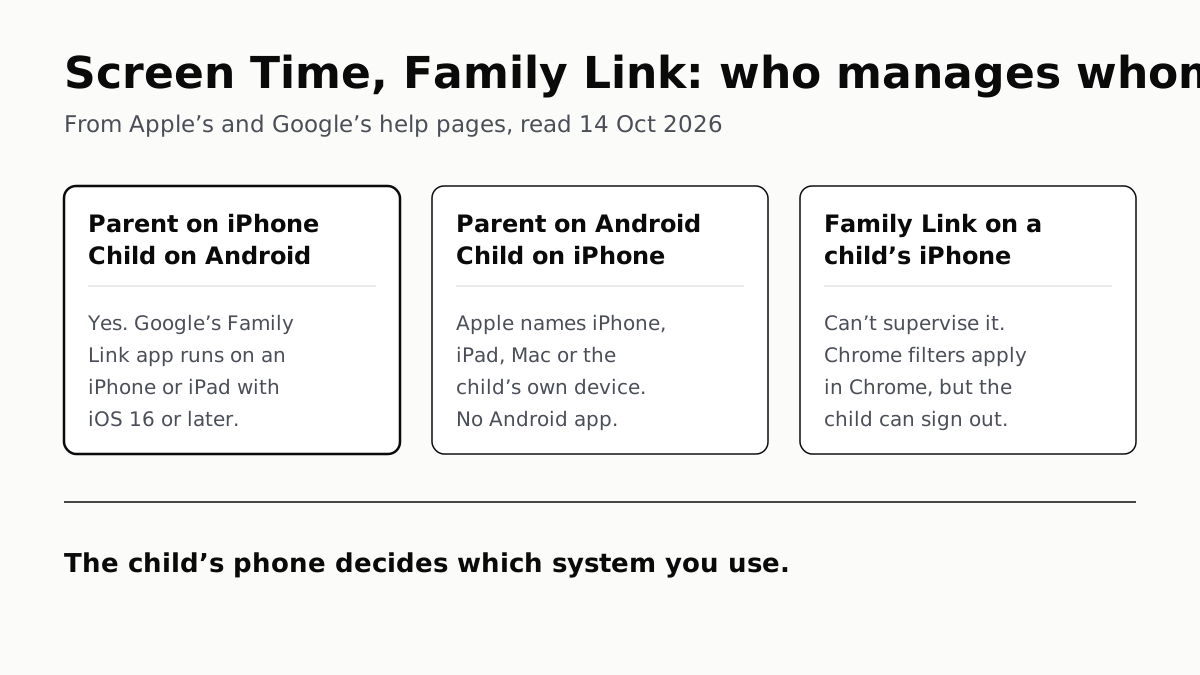
A parent with an iPhone can supervise a child’s Android phone, because Google’s Family Link app runs on an iPhone or iPad with iOS 16 or later. The reverse is not offered: Apple describes Screen Time for a child as set from a parent’s iPhone, iPad or Mac, or on the child’s own device, and Family Link cannot supervise an iPhone at all.
So in a mixed family, the child’s phone decides which system you use. An Android child means Family Link, whatever the parent carries. An iPhone child means Apple’s Screen Time and Family Sharing, and Apple’s instructions assume the parent has an Apple device to run it from.
What each one controls
Both cover the same ground in broad strokes. The clearest difference is in time limits: Family Link sets them app by app, while iOS 27 sets them by category of app.
| Control | Apple Screen Time (iOS 27) | Google Family Link |
|---|---|---|
| App time limits | Time Allowances per category (Entertainment, Games, Social Media) plus an overall daily budget; apps can be moved between categories | A time limit per app; daily limit per device; system apps can’t be limited |
| Downtime | Screen Time Schedules with time windows such as Before School, School and After School, separate for weekdays and weekends | Bedtime, downtime and school time schedules; lock the device remotely; bonus time |
| Content ratings | Age ratings for content in Music, Apple TV, Books and more; the child can ask for an exception to an app’s age rating | Google Play content restrictions by maturity level |
| Purchase approval | Ask to Buy, on by default under 13 | Decide which apps the child can download or buy; approval covers Google Play’s billing system only |
| Location | Family location sharing in Find My; parent can lock the Share My Location setting | Location of the child’s Android device or compatible Fitbit |
| Web filtering | Ask to Browse (on by default under 13) and Limit Adult Websites (on by default under 18), in Safari and supported browsers | Chrome content filter, “Try to block explicit sites”, allow and block lists; Incognito off |
| Parent can be on the other platform | Not described: Apple names iPhone, iPad and Mac | Yes: iPhone or iPad on iOS 16 or later |
| Child can be on the other platform | No: Apple’s controls are for Apple devices | No: “iPhones, iPads, and computers other than Chromebooks can’t be supervised” |
Apple adds two controls the table does not cover: Allowed Contacts, which decides who the child can reach in Phone, FaceTime and Messages, and Communication Safety, which steps in when the child sends or receives photos and videos detected to contain nudity, gore or violence. Defaults on both systems also vary by country and by the child’s age; Apple says that in some places Ask to Buy and content restrictions for apps can’t be turned off for a child.
Parent on iPhone, child on Android
This is the combination both makers support. Google’s requirements for the parent are a Google Account, being 18 or over (or the local age), living in the same country as the child, and a phone or tablet to run Family Link on: Android 6.0 or later, an iPhone or iPad on iOS 16 or later, or a Chromebook that runs Android apps. Some settings also work in a browser at familylink.google.com.
The child needs a Google Account and an Android device on 6.0 or later, a Chromebook on ChromeOS 71 or later, or a compatible Fitbit. Screen time limits need Android 7 or later. Google also counts daily limits per device: set two hours, and the child gets two hours on each Android device or Chromebook they use.
Parent on Android, child on iPhone
Apple’s help pages describe one route for a parent: Settings, then Family, then the child’s name, on the parent’s own iPhone or iPad, or System Settings on a Mac. None of the Apple pages we read describes managing Screen Time from an Android app or a web dashboard. Apple does say a parent can “adjust the parental controls directly on the child’s device”, which is the route left to a parent with no Apple device, but it does not set out how much of the system works that way, so we do not claim it all does.
Two more details matter in that household. Apple says a child’s requests reach a parent in Messages and can also be approved on the child’s device, and Ask to Buy offers to “approve in person”. And a Family Sharing group needs an adult organizer, whose setup steps Apple gives for an iPhone, iPad or Mac.
Family Link offers a partial bridge. If the child signs in to Chrome on the iPhone with a Google Account that Family Link supervises, its content filter, site lists and site permissions apply in Chrome. Google is plain about the gap: the child can sign out of Chrome, or open another browser, and the filters stop applying.
Before you set up a first iPhone
Apple’s new Screen Time arrived with iOS 27, and Apple says it needs every device in the Family Sharing group on version 27; families that can’t update everything keep the previous version. iOS 27 runs on the iPhone 11 and later, so check a hand-me-down against which iPhones get iOS 27 first.
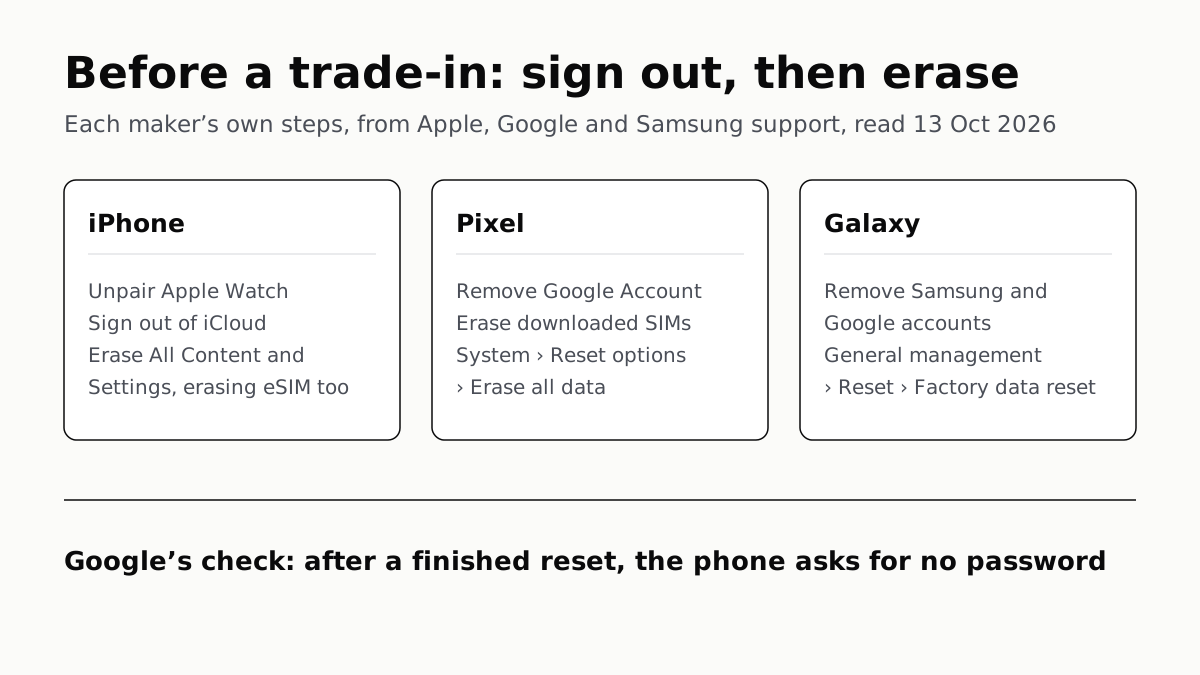
If the phone was someone else’s, it must be clear of their account before your child can set it up: a gifted phone with Activation Lock still on will not switch on until the previous owner removes it. And if you are the one handing a phone down, sign out of your accounts before you wipe it, the same steps as for a trade-in.
Questions people ask
Can I use Family Link on an iPhone to control my child’s Android phone?
Yes. Google lists an iPhone or iPad on iOS 16 or later as a parent device for the Family Link app, beside Android 6.0 or later and Chromebooks. You also need to be 18 or over and live in the same country as your child, and some settings work at familylink.google.com.
Can I use Family Link to manage my child’s iPhone?
No. Google states that iPhones and iPads can’t be supervised with Family Link. If your child signs in to Chrome on an iPhone with a supervised Google Account, Family Link’s Chrome filters apply there, but Google says the child can sign out of Chrome or use another browser.
Can an Android parent use Apple Screen Time?
Not from the Android phone. Apple’s pages describe managing Screen Time from the parent’s own iPhone, iPad or Mac, and name no Android app or web dashboard. Apple does mention adjusting parental controls directly on the child’s device, which is the route open to a parent with no Apple device.
Does Screen Time have app limits like Family Link?
In iOS 27, Screen Time limits time by category through Time Allowances — Entertainment, Games and Social Media come set up — and you can move an app to another category or give uncategorised apps their own allowance. Family Link sets a time limit for an individual app.
Do I need iOS 27 for the new Screen Time controls?
Yes, and so does everyone else in the family group. Apple says every device in your Family Sharing group needs version 27 for the new controls; otherwise you keep the previous version of Screen Time. iOS 27 runs on iPhone 11 and later and iPhone SE (2nd generation) and later.
Can Family Link see where my child is?
Yes, for a child’s Android device or compatible Fitbit, in the Family Link app’s Location tab. Apple does it differently: location is shared with the family through Find My, and a parent can stop the child changing their Share My Location setting.
How we researched this
No one at bitcritiq has handled this product. Everything here comes from published sources, listed below.
- What this cannot tell you
- We have not set up either system on a child's device; this is what Apple and Google say their controls do. Apple mentions adjusting parental controls directly on the child's device, but does not set out how far that goes for a parent with no Apple device at all, so we do not claim it covers everything. Availability and defaults vary by country and by the child's age on both systems, and Google says Family Link may not be available everywhere. Third-party parental control apps, which some families use across platforms, are outside this piece.
How we chose this, and what we did
- Why this subject
- A first phone is a common gift, and in plenty of households the parent and the child end up on different platforms. The question readers bring is practical: what can each system control, and does it work if my phone is the other kind. Our iOS 27 piece mentions the redesigned Screen Time and child accounts only in passing; this answers it from both makers' own pages.
- How we looked at it
- All from first-party help pages, read through a browser on 14 October 2026. Apple: Support 108806 'Use Screen Time to manage your child's iPhone or iPad' (published 22 September 2026), 105121 'Set up parental controls to manage your child's iPhone or iPad', 105062 'How Family Sharing works', 108380 'How to set up Family Sharing', 119854 'Family Sharing and parental controls overview for kids and teens', and the Apple Devices for Kids and Families guide page on Screen Time Schedules and Time Allowances. Google: Family Link Help 7101025 'Get started with Family Link', 7103340 'Manage your child's screen time', 7087030 'Chrome & your child's Google Account', and Google Play Help 1075738 on content restrictions. The statement that Apple's pages name no Android or web route for Screen Time is an absence claim. The control: the same pages do name the devices a parent manages from — 'your own iPhone, iPad, or Mac' in 108806, and Settings on iPhone or iPad and System Settings on Mac in the guide's steps — and the article text of 108806 and 105121 contains no mention of Android.
What this rests on
6 claims, all official. Nothing here was measured by bitcritiq — see how we test for why. Open a claim to read the source it came from.
A parent can run Family Link on an iPhone or iPad, but Family Link cannot supervise a child's iPhone or iPad.Official
Google, Get started with Family Link: the parent needs to 'Have an Android device (6.0+), iPhone or iPad (iOS 16+), or a Chromebook that supports Android Apps to download the Family Link app on.' The same page: 'iPhones, iPads, and computers other than Chromebooks can't be supervised with Family Link.'
Family Link supervises a child's Android device (6.0 or later), Chromebook (ChromeOS 71 or later) or compatible Fitbit device.Official
Google, Get started with Family Link: the child needs to 'Have an Android device (6.0+), a Chromebook (running Chrome OS 71 or higher), or a compatible Fitbit device.'
Apple describes managing a child's Screen Time from the parent's own iPhone, iPad or Mac, or on the child's device.Official
Apple Support 108806: 'you can set up and manage your child's Screen Time and parental controls from your own iPhone, iPad, or Mac.' It adds: 'If you can't update every device in your Family Sharing group, you can continue to use the previous version of Screen Time and parental controls, or adjust the parental controls directly on the child's device.'
Apple's new parental controls need every device in the Family Sharing group on version 27.Official
Apple Support 108806: 'To access these updated parental controls, make sure every device in your Family Sharing group is using these software versions.'
Ask to Browse is on by default for children under 13, and Limit Adult Websites for children under 18.Official
Apple Support 108806: 'Ask to Browse is on by default for children under 13 and Limit Adult Websites is on by default for children under 18.'
Family Link's Chrome settings reach a child's iPhone only inside Chrome, and the child can sign out of Chrome.Official
Google, Chrome & your child's Google Account: 'On iPhone and iPad: Your child can sign out of Chrome, which takes them to a browsing experience where Family Link settings for Chrome won't apply. They may also have access to other browsers where Family Link settings for Chrome won't apply.'
Sources 10
- Use Screen Time to manage your child's iPhone or iPad — Apple Support 108806Officialaccessed Oct 14, 2026
- Set up parental controls to manage your child's iPhone or iPad — Apple Support 105121Officialaccessed Oct 14, 2026
- How Family Sharing works — Apple Support 105062Officialaccessed Oct 14, 2026
- How to set up Family Sharing on your iPhone or iPad — Apple Support 108380Officialaccessed Oct 14, 2026
Show 6 more · 6 official or standards
- Family Sharing and parental controls overview for kids and teens — Apple Support 119854Officialaccessed Oct 14, 2026
- Set up Screen Time Schedules and Time Allowances on your kid’s device — Apple Devices for Kids and FamiliesOfficialaccessed Oct 14, 2026
- Get started with Family Link — Google For Families HelpOfficialaccessed Oct 14, 2026
- Manage your child's screen time — Google For Families HelpOfficialaccessed Oct 14, 2026
- Chrome & your child's Google Account — Google For Families HelpOfficialaccessed Oct 14, 2026
- How to set up content restrictions on Google Play — Google Play HelpOfficialaccessed Oct 14, 2026
Pass it on
Know someone weighing this up? Send them the answer.
bitcritiq.com/x6snThe link is permanent: it opens this article for good, even if the title changes.
No email, no account
Follow bitcritiq
Every new article, in whatever reader you already use.
Subscribe by RSSAll the ways to follow
Using Chrome on Android? Open the browser menu and tap Follow. New articles then turn up in the Following tab in Discover.
read next
Chargers Rated 100–240V Need Only a Plug Adapter Abroad
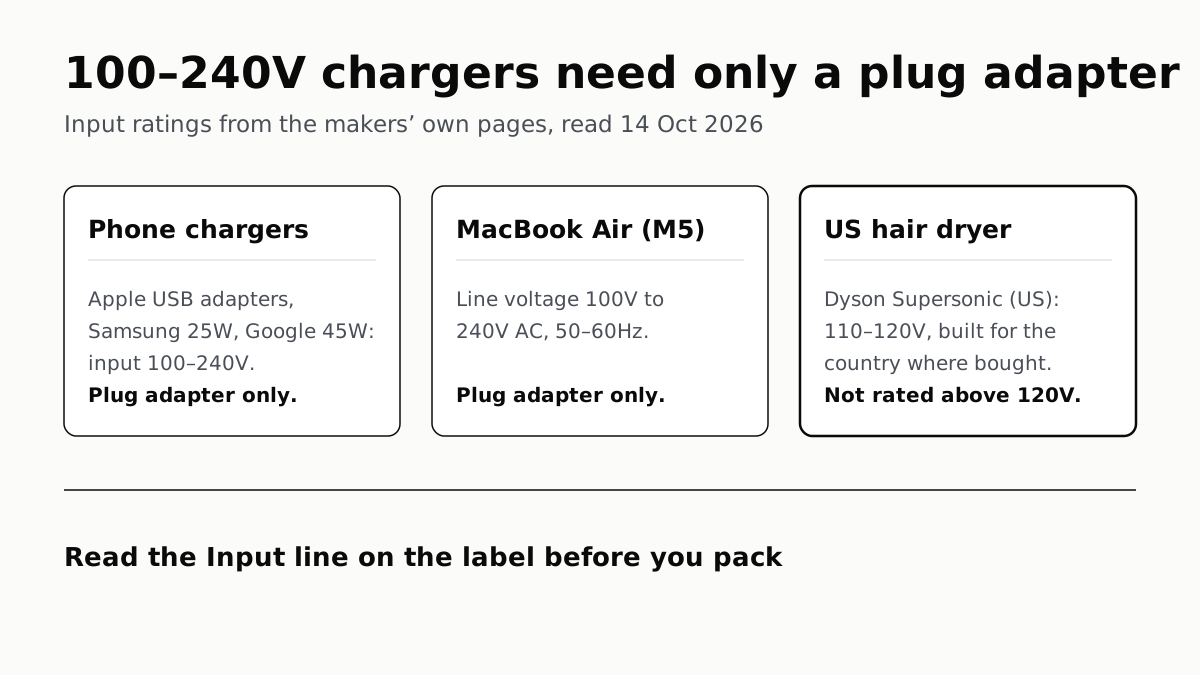
Apple, Samsung and Google rate their chargers, and the MacBook Air, for 100–240V. A hair dryer built for 110–120V is a different case.
Send Your AirTag Link to United, Delta, American, JetBlue
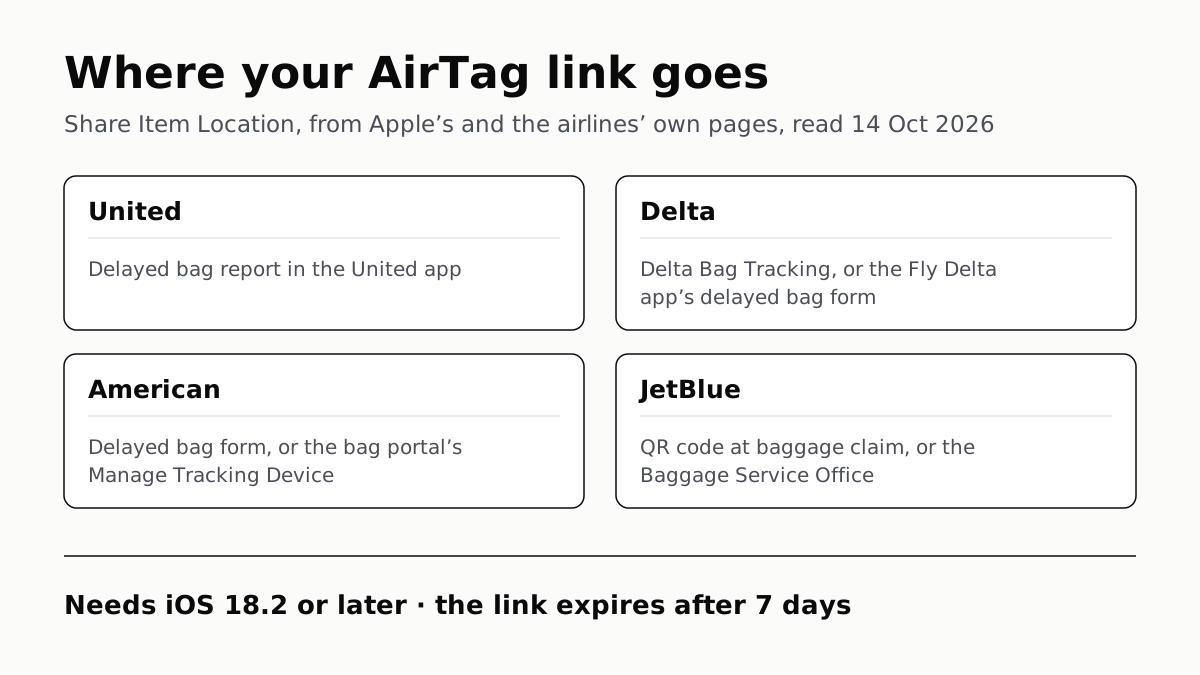
Find My’s Share Item Location makes a seven-day link a bag agent can open. Apple says more than 50 airlines accept it.
WhatsApp Chats Can Cross Between iPhone and Android
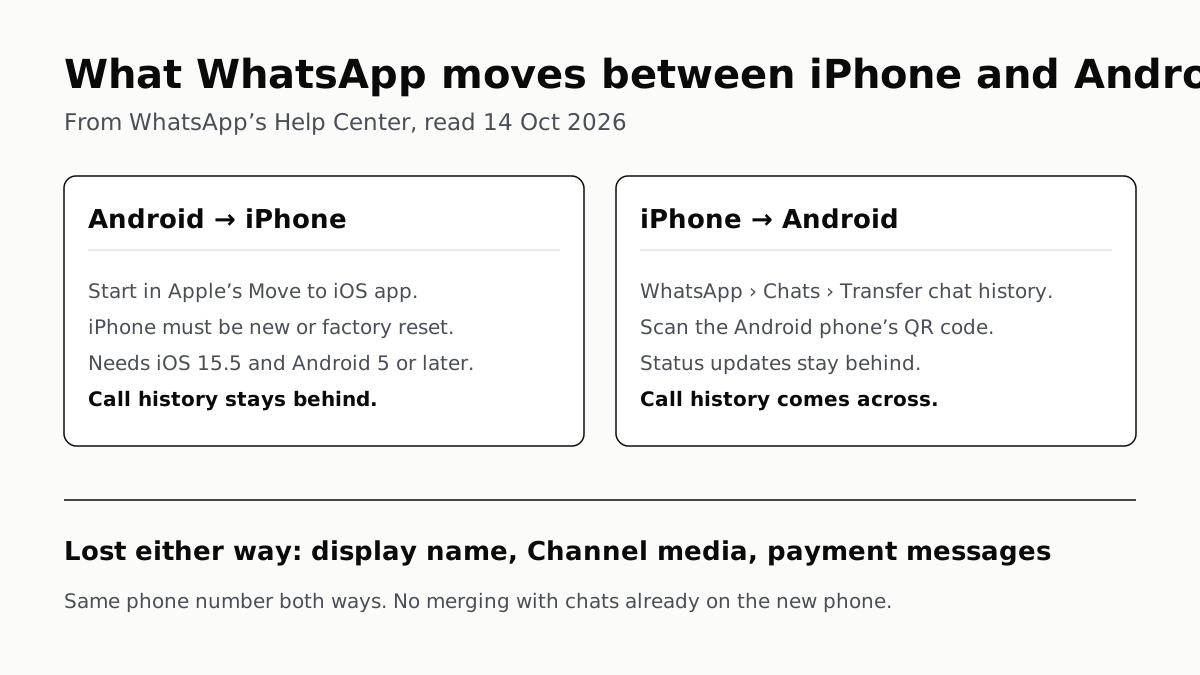
Messages, media and settings move both ways. Display names, Channel media and payment messages don’t, and call logs reach Android alone.
Sign Out Before You Wipe a Phone for Trade-In
Google returns trade-ins that are still locked, and Samsung won’t accept them. Back up, sign out, unpair, then erase.