WhatsApp Chats Can Cross Between iPhone and Android
Messages, media and settings move both ways. Display names, Channel media and payment messages don’t, and call logs reach Android alone.
If you buy through our links, we may earn a commission. It never affects our verdicts or scores — how that works. As an Amazon Associate I earn from qualifying purchases.
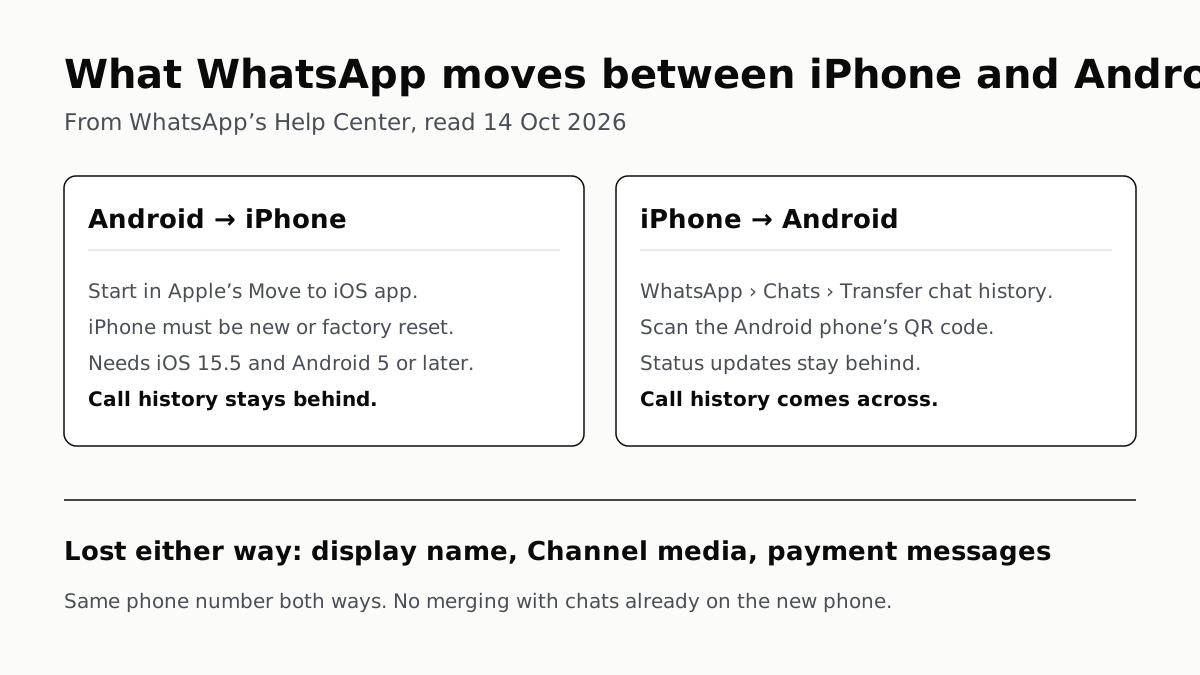
You can move WhatsApp chats between iPhone and Android in either direction, with media, settings and group chats, as long as both phones use the same number. Going to an iPhone, you start from Apple’s Move to iOS app on a new or freshly reset iPhone; going to Android, you start from WhatsApp on the iPhone.
A few things do not come across. WhatsApp lists your display name, media received over Channels and peer-to-peer payment messages as staying behind in both directions. Call history moves from iPhone to Android, but not from Android to iPhone.
What moves, by direction
| Android → iPhone | iPhone → Android | |
|---|---|---|
| Starts from | Apple’s Move to iOS app on the Android phone | WhatsApp on the iPhone: Chats › Transfer chat history |
| Software | Android 5 or above; iOS 15.5 or above | Android 6 or above (how-to page); Android 10 or above and iOS 15.5 or above (troubleshooting page) |
| New phone | Must be factory new or factory reset | New or freshly reset (troubleshooting page) |
| Chats, groups, communities, media, settings | Move | Move |
| Channel updates | Move | Move |
| Call history | Stays behind | Moves |
| Display name | Stays behind | Stays behind |
| Media received over Channels | Stays behind | Stays behind |
| Peer-to-peer payment messages | Stays behind | Stays behind |
| Status updates | Not mentioned | Stays behind |
| WhatsApp Business app | Not possible | Not possible |
Everything in the table is from WhatsApp’s Help Center as read on 14 October 2026.
Before you start, either direction
- Use the same phone number on the new phone. WhatsApp says chats cannot go to a new number. If yours is changing, change it in WhatsApp on the old phone first. If the number is also moving from a SIM card to an eSIM, get that working on the new phone before you begin, because WhatsApp verifies by that number.
- Do not set up WhatsApp on the new phone yet. The transfer has to run before WhatsApp is activated on the new device, and WhatsApp says old and new chats cannot be merged.
- Update WhatsApp on both phones to the latest version from the App Store and Google Play.
- Plug both phones in and put them on the same Wi-Fi.
Android to iPhone
The iPhone has to be factory new or factory reset, because the move runs inside Apple’s setup. WhatsApp says that if you have already set up and used the iPhone, the transfer is not available until you wipe it and start over. If that iPhone already holds anything you want, back it up first.
- On the Android phone, open the Move to iOS app and follow the prompts.
- Enter the code the iPhone shows on the Android phone, then tap Continue.
- On the Transfer Data screen, select WhatsApp.
- Tap Start and wait while WhatsApp prepares the data. You are signed out of WhatsApp on the Android phone at this point.
- Tap Next to return to Move to iOS, then Continue, and wait for it to confirm the transfer is complete.
- On the iPhone, install WhatsApp from the App Store, log in with the same number, and tap Start when prompted.
If the phones are not on the same Wi-Fi, WhatsApp says you can connect the Android phone to the iPhone’s hotspot instead. It also says other data transfer apps are not supported for this direction. The moved data does not go to cloud storage until you make an iCloud backup on the iPhone.
iPhone to Android
- On the iPhone, open WhatsApp and go to Chats › Transfer chat history › Transfer to Android.
- When the chats are prepared, tap Continue, allow camera access if asked, and keep the iPhone unlocked.
- On the Android phone, open WhatsApp and verify the same number.
- Tap Allow so the phones can connect. A QR code appears.
- Scan it with the iPhone’s camera, then tap Join to connect to the Wi-Fi network the transfer uses.
- When it finishes, tap Next on the Android phone.
WhatsApp’s own pages disagree on the Android phone. The how-to asks for Android 6 or above. The troubleshooting page asks for Android 10 or above on a phone that is new or freshly reset, because, it says, “the transfer runs as part of setting up a new device”. A new or reset phone on Android 10 or later meets both.
That troubleshooting page also names Samsung Smart Switch and Google’s Data Restore Tool. If either of those quits or fails, WhatsApp says it cannot resolve third-party apps and refers you to Samsung or Google.
Why your cloud backup will not do it
WhatsApp’s backups go to iCloud on an iPhone and to your Google Account on Android. Its iOS backup page says the way to transfer a backup “to another iPhone” is iCloud or WhatsApp cloud storage, and the Android page says the same for “another Android device” with a Google Account. Neither names the other platform, and WhatsApp’s troubleshooting sends cross-platform movers to the two direct transfers above.
WhatsApp cloud storage, a backup kept by WhatsApp itself, is new and, in WhatsApp’s words, still being built and tested. Its pages do not say whether it restores across platforms.
After the move
WhatsApp says the old phone keeps its chats until you delete WhatsApp or wipe it, and a failed or stuck transfer does not delete them. Open the chats you care about on the new phone before you sign out and wipe the old one for trade-in.
Questions people ask
Can I transfer WhatsApp from Android to iPhone after setting up the iPhone?
Not as WhatsApp describes it. The iPhone has to be factory new or factory reset to pair with Move to iOS. If you have already set it up, WhatsApp says you need to wipe it and start over, so back up anything new on it first.
Does WhatsApp call history transfer to a new phone?
It depends on the direction. WhatsApp lists call history as transferable from iPhone to Android, and says it cannot be transferred from Android to iPhone.
Can I restore a WhatsApp iCloud backup on Android?
WhatsApp does not offer that route. Its iOS backup page names restoring to another iPhone, and its Android page names another Android device. To change platform it points to the direct transfer, which needs the old phone in hand.
Can I move WhatsApp chats to a new phone number?
Not directly. WhatsApp says chats cannot be transferred to a new number. Change your number in WhatsApp on the old phone first, then transfer to the new phone using that number.
Does the WhatsApp transfer delete chats from my old phone?
No. WhatsApp says the old phone keeps its data until you delete WhatsApp or wipe it. Keep it untouched until the new phone shows your chats.
Can I transfer WhatsApp Business chats between iPhone and Android?
No. WhatsApp says it is currently not possible to transfer chats between Android and iPhone in either direction on the WhatsApp Business app.
How we researched this
No one at bitcritiq has handled this product. Everything here comes from published sources, listed below.
- What this cannot tell you
- WhatsApp’s iPhone-to-Android pages disagree with each other: the how-to asks for Android 6 or above, the troubleshooting page for Android 10 or above on a device that is new or freshly reset. We give both and suggest meeting the stricter one. WhatsApp’s pages do not say whether its new WhatsApp cloud storage backup, which it describes as still in testing, can be restored on the other platform. We have not timed a transfer; WhatsApp says only that it depends on how much you are moving.
How we chose this, and what we did
- Why this subject
- Upgrade season brings platform switchers, and the WhatsApp question is the one that decides whether years of chats survive. Our switching and trade-in guides cover passwords, backups and wiping, but not WhatsApp, which keeps its history on the phone rather than on its servers.
- How we looked at it
- Everything is from WhatsApp’s own Help Center (faq.whatsapp.com), read through a browser on 14 October 2026: the two cross-platform articles (Android to iPhone, iPhone to Android), the two matching troubleshooting articles, ‘Can’t transfer chat history’, and the Android and iOS versions of ‘How to back up your chat history’ and ‘How to restore your chat history’. For the absence claim about backups, the control was each backup page’s own sentence naming where a backup can be restored (‘another iPhone’ on iOS, ‘another Android device’ on Android); neither page names the other platform.
What this rests on
6 claims, all official. Nothing here was measured by bitcritiq — see how we test for why. Open a claim to read the source it came from.
Moving WhatsApp from Android to iPhone uses Apple’s Move to iOS app and needs an iPhone that is factory new or factory reset.Official
WhatsApp Help Center: “To move your WhatsApp chats from an Android phone to an iPhone, use the Move to iOS app.” “Your iPhone needs to be factory new, or already factory reset, to pair with the Move to iOS app.”
The Android-to-iPhone move needs Android 5 or above and iOS 15.5 or above.Official
WhatsApp Help Center: “Android OS Lollipop, SDK 21 or above, or Android 5 or above installed on your Android device. iOS 15.5 or above installed on your iPhone.”
Call history does not move from Android to iPhone, but does move from iPhone to Android.Official
Android to iPhone: “You can't transfer your call history, display name, or media received over WhatsApp Channels.” iPhone to Android, transferable: “Chat history, Call history, Media and settings.”
In both directions WhatsApp lists the display name, media received over Channels and peer-to-peer payment messages as not transferable.Official
iPhone to Android: “You can’t transfer your display name, status updates, or media received over WhatsApp Channels.” Both articles: “You can transfer personal messages, but you can’t transfer peer-to-peer payment messages.”
The transfer needs the same phone number on both phones and must run before WhatsApp is activated on the new one; old and new chats cannot be merged.Official
WhatsApp Help Center: “Use the same phone number as your old phone on your new device.” “You can only restore your WhatsApp history before you've activated WhatsApp on your new device… It's not possible to merge the new and old history.”
WhatsApp’s two iPhone-to-Android pages state different Android requirements.Official
How-to: “An Android device with Android 6 or above.” Troubleshooting: “Your Android device needs to be new, or already factory reset, with Android 10 or above.”
Sources 6
- How to move chats from an Android device to an iPhone — WhatsApp Help CenterOfficialaccessed Oct 14, 2026
- How to move chats from an iPhone to an Android device — WhatsApp Help CenterOfficialaccessed Oct 14, 2026
- Can’t move chats from an iPhone to an Android device — WhatsApp Help CenterOfficialaccessed Oct 14, 2026
- Can’t transfer chat history — WhatsApp Help CenterOfficialaccessed Oct 14, 2026
Show 2 more · 2 official or standards
- How to back up your chat history (Android and iOS) — WhatsApp Help CenterOfficialaccessed Oct 14, 2026
- How to restore your chat history (Android) — WhatsApp Help CenterOfficialaccessed Oct 14, 2026
Pass it on
Know someone weighing this up? Send them the answer.
bitcritiq.com/p6caThe link is permanent: it opens this article for good, even if the title changes.
No email, no account
Follow bitcritiq
Every new article, in whatever reader you already use.
Subscribe by RSSAll the ways to follow
Using Chrome on Android? Open the browser menu and tap Follow. New articles then turn up in the Following tab in Discover.
read next
Chargers Rated 100–240V Need Only a Plug Adapter Abroad
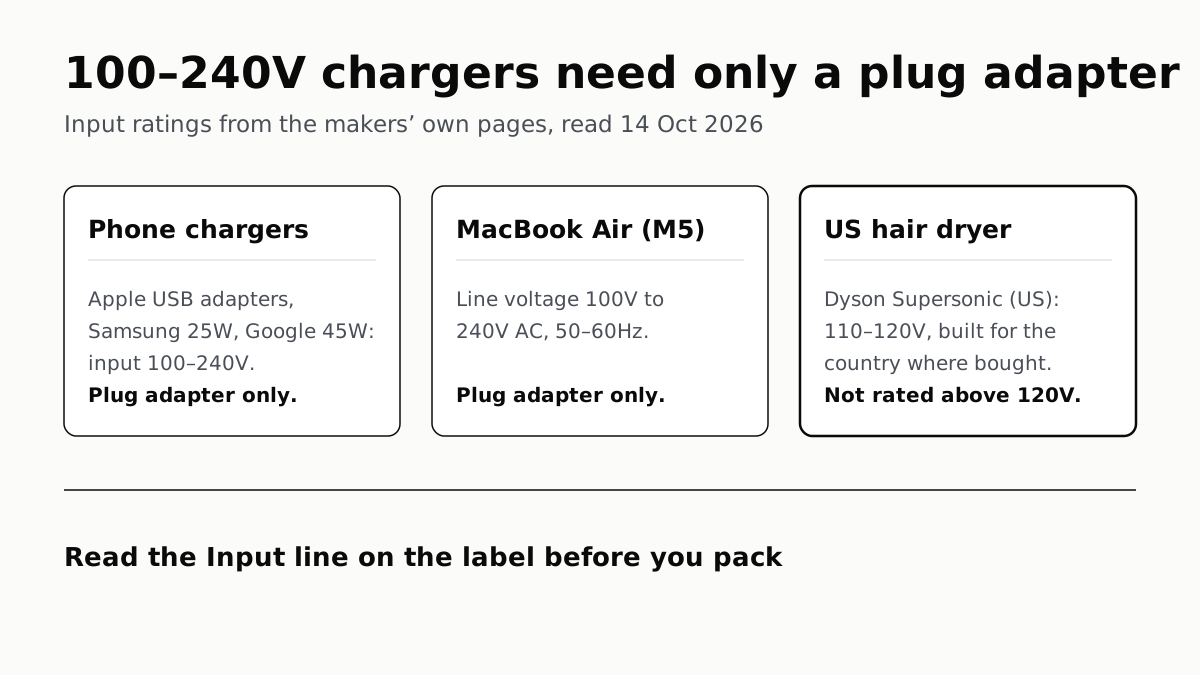
Apple, Samsung and Google rate their chargers, and the MacBook Air, for 100–240V. A hair dryer built for 110–120V is a different case.
Send Your AirTag Link to United, Delta, American, JetBlue
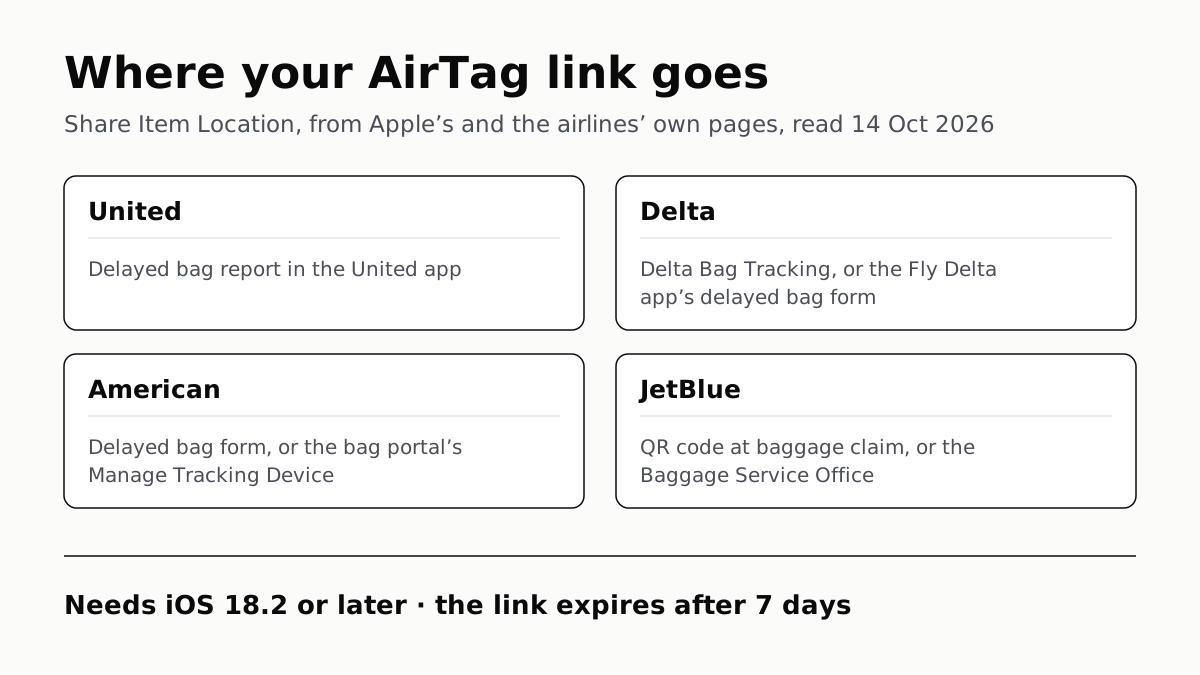
Find My’s Share Item Location makes a seven-day link a bag agent can open. Apple says more than 50 airlines accept it.
Family Link Works From an iPhone. Screen Time Needs Apple
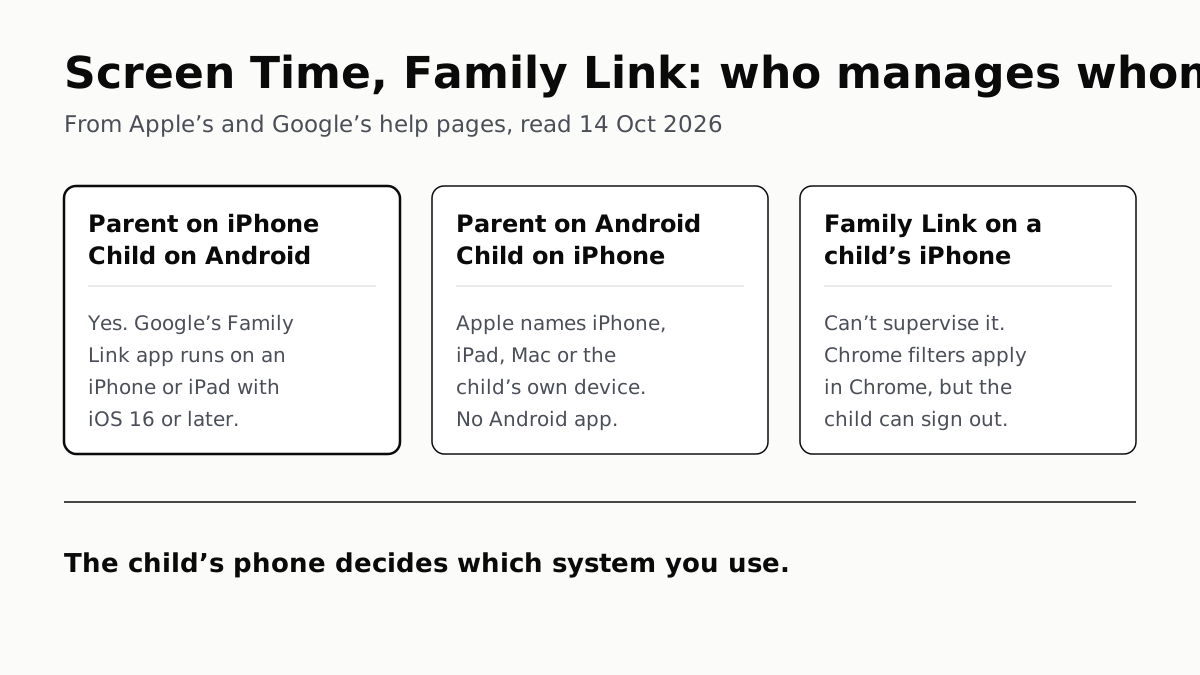
Neither app supervises the other maker’s phones. App limits, downtime, web filters and more, side by side, with iOS 27’s changes.
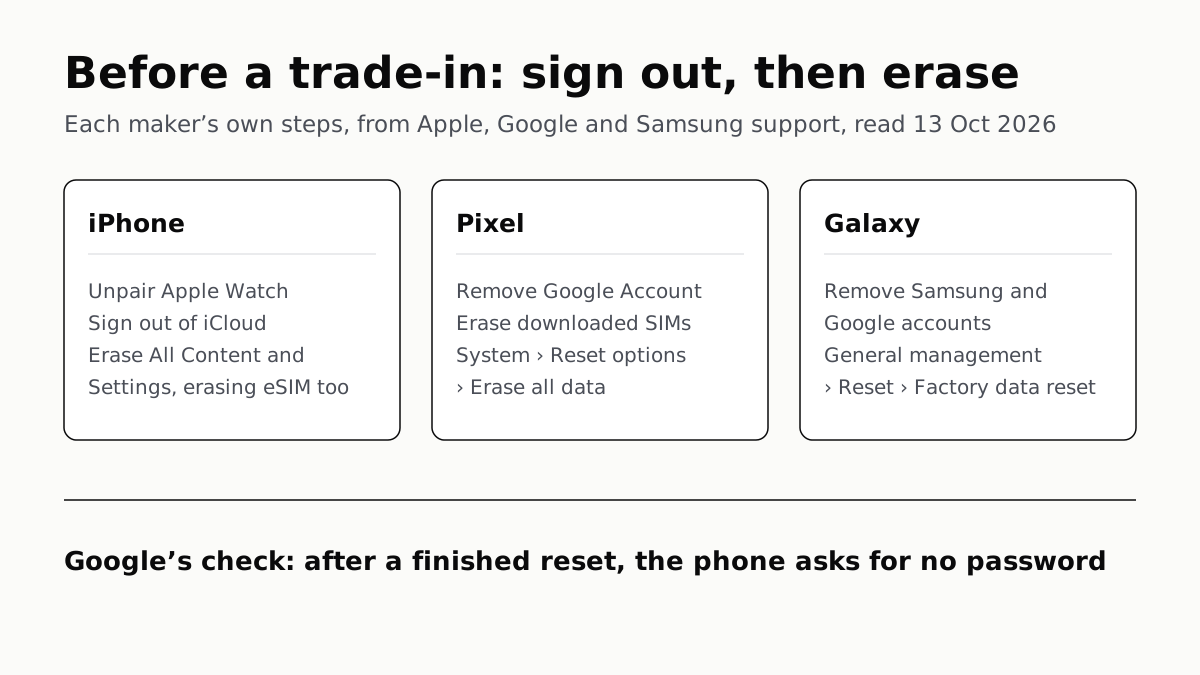
Sign Out Before You Wipe a Phone for Trade-In
Google returns trade-ins that are still locked, and Samsung won’t accept them. Back up, sign out, unpair, then erase.