Why Your Laptop Fan Is Loud, and What the Makers Say to Do
Apple, Microsoft, Dell, HP and Lenovo name the same few causes. Most need no screwdriver, and a grinding sound is a different problem.

If you buy through our links, we may earn a commission. It never affects our verdicts or scores — how that works. As an Amazon Associate I earn from qualifying purchases.
When a laptop fan is loud, it is removing heat, and the five makers we read name the same causes: an app or process keeping the processor busy, which Dell says usually explains a fan that runs constantly, then vents that are dusty or blocked, a warm room, and background work after setup or an update. A rushing-air sound under heavy work is normal, Apple and Microsoft say. Grinding, whining or ticking is not, and that one goes to the maker’s support.
Update, 21 September 2026. Rewritten from Apple, Microsoft, Dell, HP and Lenovo’s own support pages. We removed three pieces of advice none of them publishes: holding the fan still with a cocktail stick through the vent (Apple says not to put anything into a laptop’s ventilation openings), capping Windows’ maximum processor state at 99%, and a three-to-five-year life for thermal paste. The symptom table and the questions at the end are new.
What the sound means, symptom by symptom
| Symptom | What the maker says it usually means | What to do |
|---|---|---|
| Loud when nothing seems to be running | Something is. HP: even a constant 3% to 4% load can make the fans spin faster | Sort Task Manager or Activity Monitor by CPU; close what you do not need. Mac still loud: restart it (Apple) |
| Suddenly loud after setup, a migration or an update | Background work. Microsoft: updates and syncing in a Surface’s first 24 hours. Apple: Spotlight indexing after migrating. Dell: Windows updates | Leave it to finish. Dell says the fan settles once the work is done |
| Loud for a few seconds at power-on | Normal for five to twenty seconds, HP says | Nothing |
| Loud while charging (Surface) | Extra cooling until the battery is full, Microsoft says | Nothing; it should ease when charged |
| Loud in a game or video export | Normal. Lenovo: expected above 50% CPU with a graphics-heavy program | Choose a quieter power mode (below) |
| Loud on a bed, sofa or lap | Soft surfaces block the vents (Apple, Dell, HP) | Use a hard, flat surface. HP asks for 6 in (15.25 cm) around each vent |
| Loud in a warm room | Fans start sooner and run faster (Apple). Microsoft: above 25°C | Move somewhere cooler |
| Loud all the time | Clogged vents or dust on the cooling fins (Dell, HP); out-of-date BIOS (Dell, HP, Lenovo) | Clean the vents from outside; update the BIOS |
| Grinding, whining, ticking or growling | Abnormal (Microsoft). An issue with the fan (HP) | Run the maker’s diagnostics, then contact support |
| Loud and too hot to touch, or shutting down | Overheating (Dell, Microsoft) | Shut it down to cool, then contact support |
Check what is running first
Every maker lists this check, it costs nothing, and it is the cause Dell names for a fan that runs constantly but passes its diagnostics: “a heavy workload causing high CPU usage”.
- Windows: Ctrl+Shift+Esc opens Task Manager. Select the CPU column to sort by usage.
- Mac: open Activity Monitor and sort by % CPU. Apple says to look for “malfunctioning processes that can put a significant load on the CPU”.
Lenovo draws the line at 50%: with a graphics-heavy program such as a game running above that, fan noise is normal. Below it, with nothing heavy open, Lenovo moves on to the vents. HP adds the reason “nothing is running” can still be loud: a low but constant 3% to 4% load is enough to speed the fans. Lenovo suggests closing a program from its own window rather than from Task Manager, which it says can cause unexpected issues.
Dell and HP both suggest stopping apps from launching at startup, using the Startup apps tab in Task Manager. Dell adds one exception: leave the antivirus alone.
Mac still loud with nothing heavy running and the vents clear? Apple says to close and open the lid or restart on a Mac with Apple silicon, and to reset the System Management Controller on an Intel-based Mac. Not sure which yours is? The macOS 27 compatibility list shows where the Intel line ends.
The fixes, cheapest first
- Put it on a hard, flat surface. Apple, Dell and HP all say a bed, pillow, sofa or lap can block the vents, and Apple says the fans “might run more” there. HP asks for at least 6 in (15.25 cm) of clearance around each vent.
- Clean the vents from outside. Turn the laptop off and unplug it. Dell says lint and dust stop air flowing around the cooling fins and make the fan work harder. HP says it is not necessary to open the computer to clean the vents. Use compressed air on the vents: Dell tells you not to use a vacuum, because it can generate static electricity. HP’s fan-noise page does suggest a vacuum, while its overheating page says canned air, so the makers do not agree. Apple says not to put anything into a Mac laptop’s ventilation openings.
- Move somewhere cooler. Apple says the fans turn on sooner and run faster when the room is warm, and gives 10° to 35°C (50° to 95°F) as the range to use a Mac laptop in. Microsoft says a Surface fan may run more above 25°C, and rates Surface for 0° to 35°C. Apple’s battery page adds that ambient temperatures above 35°C “can permanently damage battery capacity”.
- Pick a quieter power mode. On Windows 11, Settings → System → Power & battery → Power mode. Microsoft says Recommended “helps limit the fan speed and provides quieter operation”; HP suggests Balanced or Best power efficiency. The cost is speed, and Microsoft says so: the performance modes let the laptop get warmer and the fan spin faster.
- Use the maker’s quiet setting, if your model has one. HP Command Center’s Thermal Profile tab has a quiet mode on select HP laptops. On the Dell Pro 14 and 16 models in its grinding-noise article, Dell points to Thermal Management in Dell Optimizer, set to Quiet.
- Update the BIOS and drivers. Dell says its BIOS manages fan speed, and asks for the latest Intel Dynamic Tuning driver too. HP and Lenovo also list a BIOS update; Microsoft points Surface owners to the Surface app for driver and firmware updates. Use the maker’s own tool or site: HP warns against drivers from third-party websites.
Dell also says a cooling pad improves airflow during long sessions. It is an addition to a clear surface, not a substitute for cleaning.
When it is the hardware
A fan that grinds, whines, ticks or growls is a hardware question, not a settings one. Microsoft says of Surface that “at no point should it sound like there is something broken”, and HP says a fan making a loud growling noise or not moving has an issue.
Run the maker’s own test before calling. Dell has SupportAssist and a preboot diagnostic (F12 at the Dell logo); expect the fans to run at high speed during it, which Dell says is normal. HP points to its hardware-failure tests. Then contact support: every one of the five makers lists that as the step after its own fixes, and Lenovo says outright that when the symptom persists, “hardware failure is possible”.
Stop using it and contact the maker if:
- The case is too hot to touch, or you see heat damage to the casing (Dell).
- A Surface shuts down and shows a thermometer icon. Microsoft says to turn it off, move it somewhere cooler and let it cool for at least five minutes, and to contact it if the icon keeps coming back.
Do not open a sealed laptop or touch its battery to get at the fan. None of these pages asks you to, and HP says vent cleaning needs no disassembly.
What the makers warn against
Temperature apps as a diagnosis. Apple says third-party apps do not measure the external case temperature, and to “never use third-party apps to diagnose possible hardware issues”.
Drivers from anywhere but the maker. HP warns that third-party driver sites can create additional problems.
Switching off the antivirus to lighten the load. Dell’s startup-apps advice excludes it specifically.
The same pattern shows up on phones: an update still finishing in the background can look like a fault. Battery drain after an iPhone update covers Apple’s version of that.
Questions people ask
Why is my laptop fan so loud?
The fan speeds up to remove heat. Apple, Microsoft, Dell, HP and Lenovo all name the same main causes: an app or process working the processor hard, vents that are dusty or blocked by a soft surface, and a warm room. A loud rushing-air sound during heavy work is normal, Apple and Microsoft say.
Why is my laptop fan so loud when nothing is running?
Something usually is. HP says even a low but constant 3% to 4% processor load can make the fans spin faster. Sort Task Manager or Activity Monitor by CPU and close what you do not need. If the fan still runs fast on a ventilated Mac that is doing little, Apple says to restart it, or reset the SMC on an Intel-based Mac.
Why is my laptop fan suddenly so loud?
Look for background work first. Microsoft says a new Surface spends its first 24 hours installing updates and syncing files, and the fans may spin faster until that finishes. Apple names Spotlight indexing after you migrate data, and Dell names Windows updates. A new grinding or ticking sound is different: Microsoft calls it abnormal.
Why is my laptop fan always so loud?
A fan that runs loudly all the time points at airflow or heat. Dell says a fan running constantly may mean clogged air vents, and HP says dust makes the fans work harder than normal. Clean the vents from outside with compressed air, use the laptop on a hard, flat surface, and update the BIOS as Dell, HP and Lenovo advise.
Should I be worried if my laptop fan is loud?
Not about a rushing-air sound during heavy work, which Apple and Microsoft call normal. Worry about grinding, whining or ticking, which Microsoft calls abnormal, or a fan HP describes as growling or not moving. Dell says to contact it if the case is too hot to touch, and Microsoft says to contact it if a Surface keeps shutting down with a thermometer icon.
Why is my laptop fan loud when charging?
Microsoft says a Surface may need additional cooling until it is fully charged, so the fan may come on more often. It is expected on a Surface, and it should settle once the battery is full.
How do I make my laptop fan quieter?
Close apps you do not need, use it on a hard, flat surface, and clean the vents from outside. On Windows, Microsoft says the Recommended power mode limits fan speed, and HP suggests Balanced or Best power efficiency. Some makers add a quiet mode: HP Command Center on select models, and Dell Optimizer on some Dell Pro laptops.
How we researched this
No one at bitcritiq has handled this product. Everything here comes from published sources, listed below.
- What this cannot tell you
- We have not tested any laptop. Makers write for their own machines: a Surface page does not promise the same behaviour from an HP, and the charging row rests on Microsoft alone. Where makers disagree, as Dell and HP do on vacuuming, the article says so. Nothing here involves opening the laptop or touching the battery.
How we chose this, and what we did
- Why this subject
- Search Console shows people finding this page for more than twenty wordings of the same question, from 'laptop fan loud' to 'should I be worried if my laptop fan is loud', and the page did not answer most of them directly. Each wording maps to a symptom that at least one maker's support page addresses.
- How we looked at it
- Rebuilt on 21 September 2026 from the support pages of five makers: Apple, Microsoft (Surface), Dell, HP and Lenovo. Each row of the symptom table is taken from at least one of them, and rows no maker supports were left out. Three pieces of earlier advice that no maker publishes were removed; the note in the article lists them.
What this rests on
5 claims, all official. Nothing here was measured by bitcritiq — see how we test for why. Open a claim to read the source it came from.
A loud fan during heavy work is normal cooling, not a fault.Official
Apple calls the rushing-air sound 'a normal part of the cooling process'; Microsoft says faster, louder fan speed under load is normal behaviour; Lenovo says it is normal above 50% CPU with a graphics-intensive program running.
Even a small constant processor load can make the fans spin faster.Official
HP: 'Even a low but constant 3% to 4% load can cause the fans to spin faster.'
Dust in the vents makes the fan work harder.Official
Dell says lint and dust stop air flowing around the cooling fins and make the fan work harder; HP says dust obstructs airflow and makes the fans work harder than normal.
Grinding, whining or ticking is not normal fan noise.Official
Microsoft's Surface fan page: 'Noises like grinding, whining, or ticking are abnormal.' HP says a loud growling noise means there is an issue with the fan.
Makers disagree on vacuuming the vents.Official
Dell says not to use a vacuum because it can generate static electricity; HP's fan-noise page says to use a vacuum, while HP's overheating page says canned air.
Sources 12
- About fans and fan noise in your Apple product — Apple Support (published 27 May 2026)Officialaccessed Sep 21, 2026
- Keep your Mac laptop within acceptable operating temperatures — Apple Support (published 2 April 2026)Officialaccessed Sep 21, 2026
- Maximizing battery performance — AppleOfficialaccessed Sep 21, 2026
- Fan behavior and fan noise in a Surface device — Microsoft SupportOfficialaccessed Sep 21, 2026
Show 8 more · 7 official or standards
- What to try if your Surface feels too warm — Microsoft SupportOfficialaccessed Sep 21, 2026
- How to Troubleshoot Fan Issues — Dell (last modified 17 June 2026)Officialaccessed Sep 21, 2026
- Identifying High Temperature, Heat, Thermal Concerns, Fan Noise on Dell Laptops — Dell (last modified 19 April 2026)Officialaccessed Sep 21, 2026
- Dell Pro Laptop Grinding Fan Noise — Dell (last modified 23 May 2026)Officialaccessed Sep 21, 2026
- HP Notebook PCs - Fan is noisy and spins constantly (Windows) — HP SupportOfficialaccessed Sep 21, 2026
- HP Notebook PCs - Reduce heat inside the laptop to prevent overheating in Windows — HP SupportOfficialaccessed Sep 21, 2026
- Fan runs at a higher than expected speed - Windows — Lenovo Support (last modified 18 February 2026)Officialaccessed Sep 21, 2026
- Close-up of laptop cooling system components — Pexelsaccessed Aug 27, 2026
Pass it on
Know someone weighing this up? Send them the answer.
bitcritiq.com/5jpkThe link is permanent: it opens this article for good, even if the title changes.
No email, no account
Follow bitcritiq
Every new article, in whatever reader you already use.
Subscribe by RSSAll the ways to follow
Using Chrome on Android? Open the browser menu and tap Follow. New articles then turn up in the Following tab in Discover.
read next
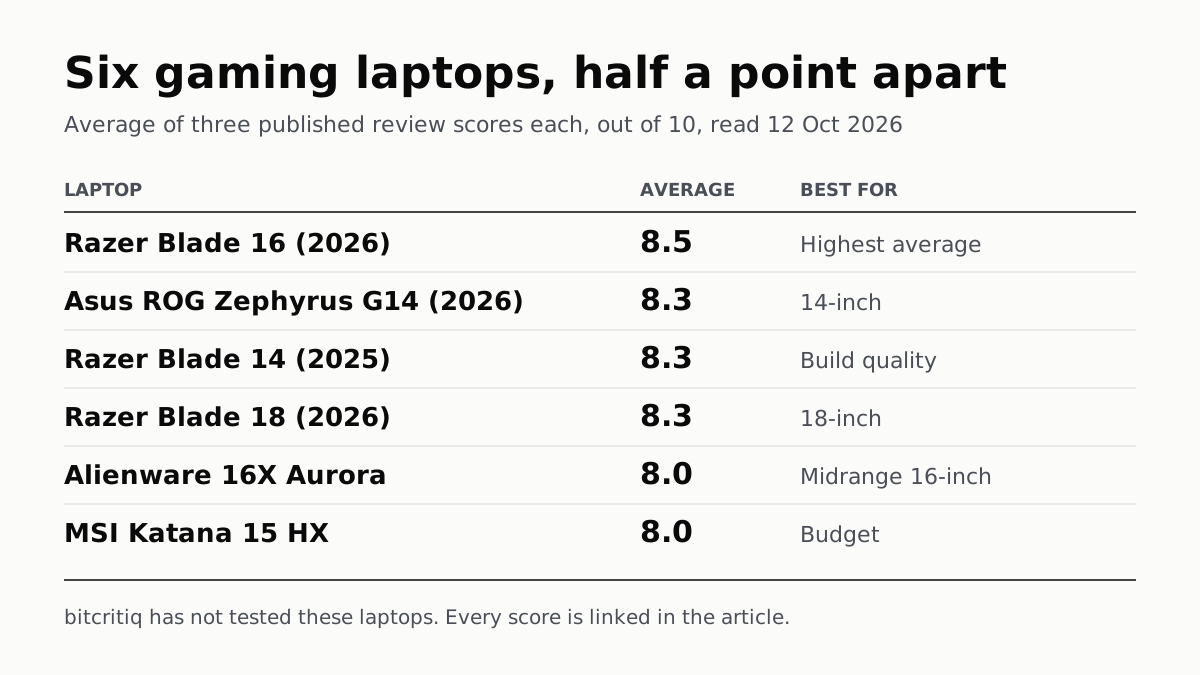
Razer Blade 16 Tops Gaming Laptop Reviews, by Half a Point
Eighteen review scores from eight outlets, all read on 12 October. Six laptops land within half a point, so pick by size and price.
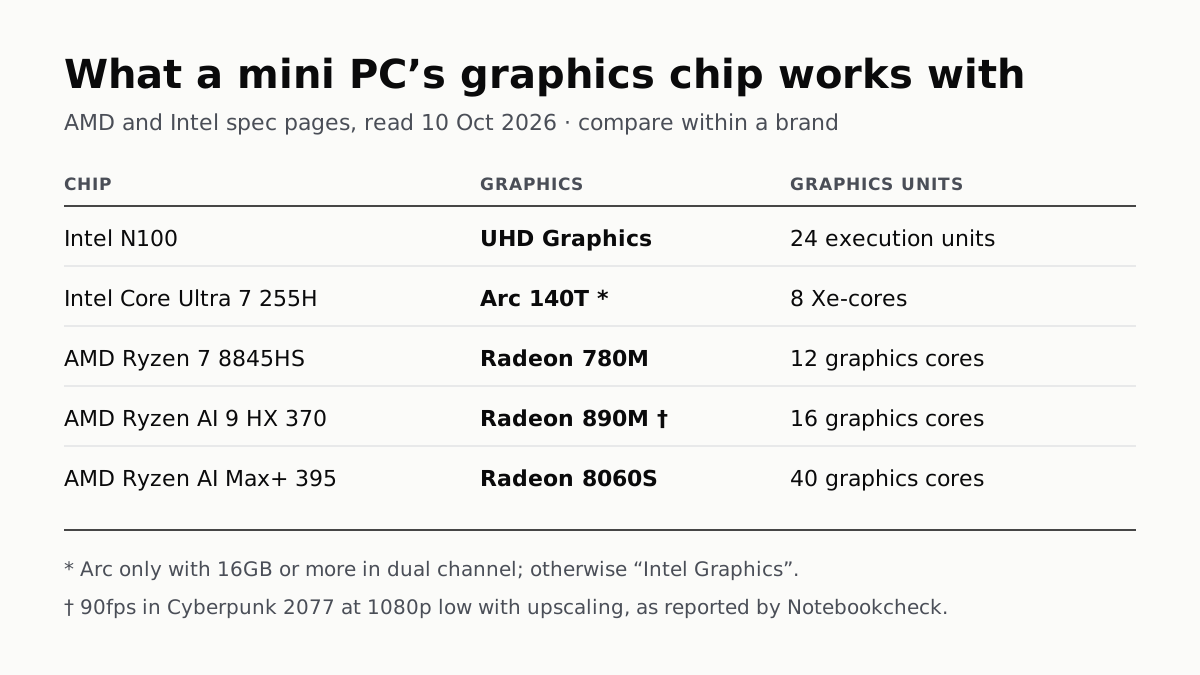
A Mini PC Can Game, but Its Graphics Chip Sets the Ceiling
Balatro's minimum is integrated graphics; Cyberpunk 2077's is a GTX 1060. A Radeon 890M ran Cyberpunk at 1080p low in one reported test.
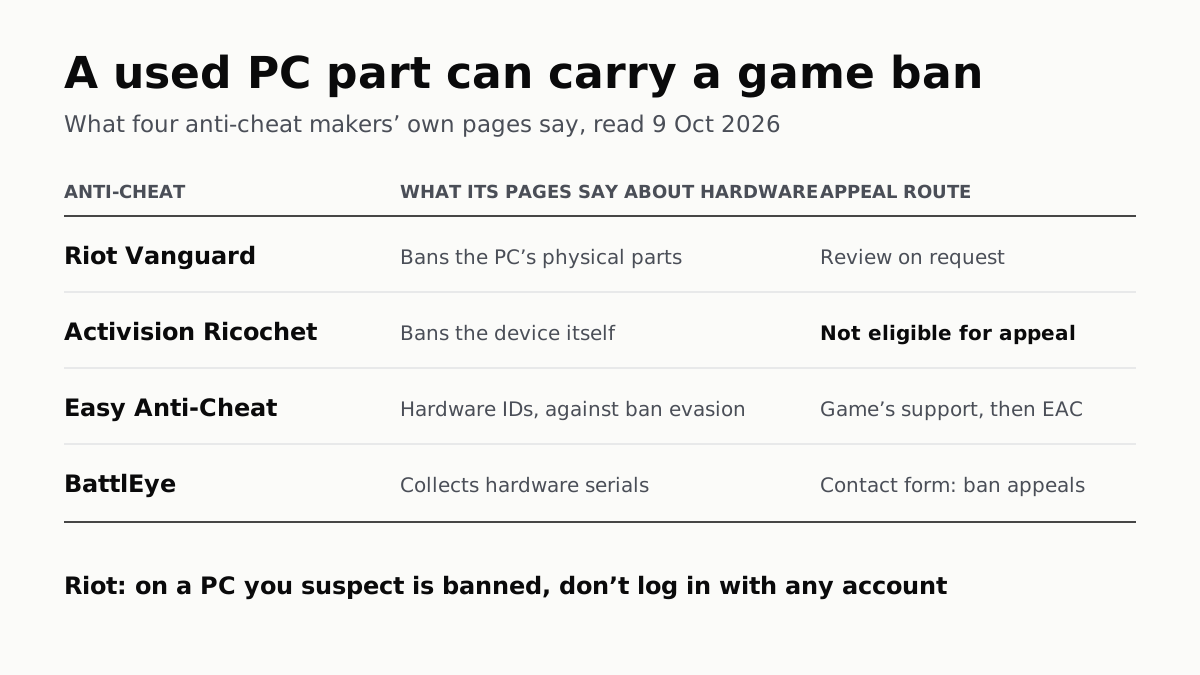
A Used PC or CPU Can Carry Its Last Owner’s Game Ban
Riot and Activision ban hardware, not only accounts. Riot will re-check one on request; Activision rules out an appeal.
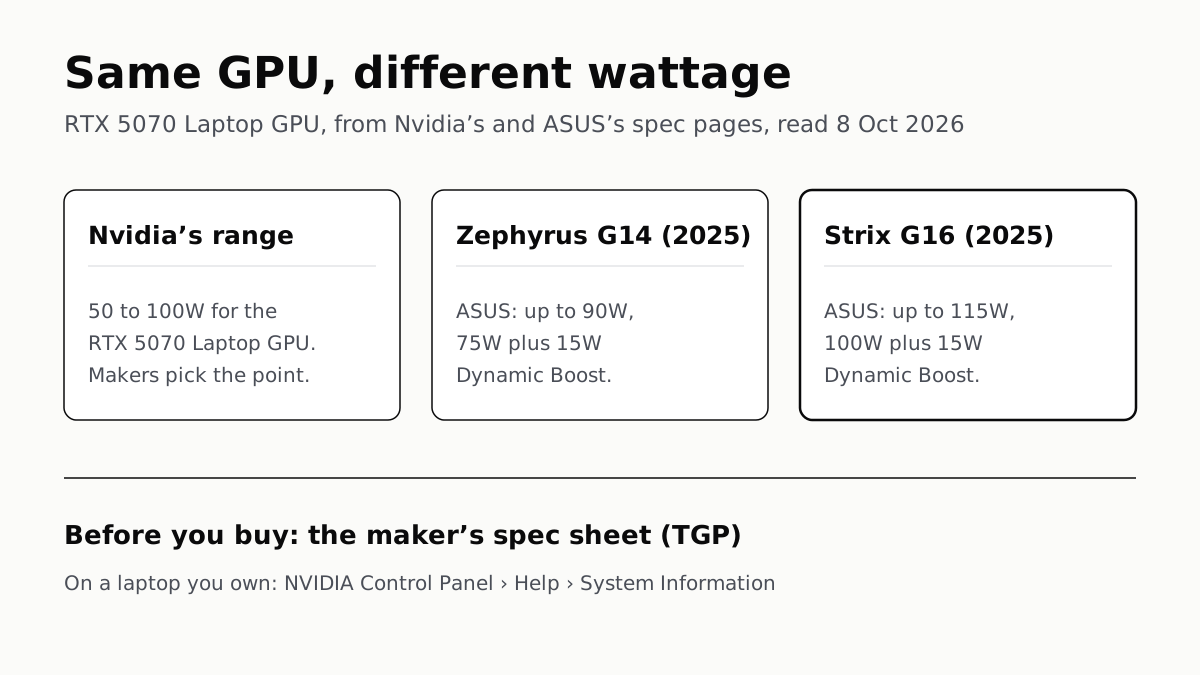
The Same RTX 5070 Laptop GPU Runs at 90W or 115W
Nvidia publishes a power range for each laptop GPU and the maker picks a point in it. The spec sheet, or Nvidia Control Panel, shows which.