iPhone Storage Still Full? What Other Actually Is
Most of the blob you cannot delete is cache, and iOS clears it on its own when it needs the room. Apple says so in its own documentation.

If you buy through our links, we may earn a commission. It never affects our verdicts or scores — how that works. As an Amazon Associate I earn from qualifying purchases.
It is mostly cache, and you are not supposed to manage it. iOS clears that space itself when it needs it — Apple’s wording is that when a device is low on storage, “it frees up space by removing items that you can redownload or aren’t needed, like unused apps and temporary files.”
Which is why the block has no delete button. It is not an oversight.
What is actually in there
Apple publishes the contents rather than leaving you to guess, and the list explains the size:
Other: “Non-removable mobile assets, like Siri voices, fonts, dictionaries, non-removable logs and caches, Spotlight index, and system data, such as Keychain and CloudKit Database.”
System: “Space taken by the operating system. This can vary based on your device and model.”
Siri voices are large. The Spotlight index grows with everything you own. Caches expand to fill available space by design, because a cache that refuses to grow is a cache that stops working. None of it is lost files — it is the phone using space it will give back.
Why the numbers refuse to add up
The second half of the frustration, and Apple states the cause plainly: “Cached data and temporary data might not count as usage.”
So the bar at the top, the per-app figures and your own arithmetic will disagree, and none of them is lying. You are looking at a moving quantity measured at different moments. Chasing the discrepancy is not a solvable problem.
What actually frees space
In order of how much they return for the effort.
Turn on Offload Unused Apps. Settings → Apps → App Store → Offload Unused Apps. Apple: “When storage is low, iPhone removes the app but keeps your documents and data. The app icon stays on your Home Screen with a cloud symbol—tap it to reinstall.” This is the single best setting on this page — it acts only under pressure and it costs you nothing you notice.
Read the recommendations. Settings → General → iPhone Storage. Apple surfaces device-specific suggestions there, and they are computed against your actual contents rather than a generic list.
Offload rather than delete, per app. Tapping an app in that list offers both. Offload “frees up storage used by the app, but keeps its documents and data” — delete removes the data too. For a large app whose data you want, the distinction matters.
Then look at what is genuinely yours. Downloaded video is almost always the real answer — the TV app’s watched downloads, and files in the Files app. Apple points at both.
What does not work
- Cleaner apps. They cannot reach the caches described above. iOS does not grant that access, and the space they report reclaiming is space iOS was going to reclaim anyway.
- Restarting to clear Other. It may move the number. It has not solved anything, and the number was going to move regardless.
- Deleting and reinstalling apps to shrink caches. You are doing manually, worse, what Offload Unused Apps does automatically and reversibly.
What to actually do
- Turn on Offload Unused Apps and stop thinking about Other. That is the whole recommendation. The category you cannot control is managed for you, and the setting that manages it is off by default.
- Judge storage by whether the phone is warning you, not by whether the bar looks alarming. A phone at 90% with a healthy cache is behaving normally.
- Delete video before photos. One film is hundreds of photos, and people always start with the photos.
- If it is genuinely your own files, no setting fixes that. Move them off the device or buy more storage next time — and buy more than you think, because what to check before you upgrade is the moment that decision gets made.
How we researched this
No one at bitcritiq has handled this product. Everything here comes from published sources, listed below.
- What this cannot tell you
- Paths and category names are Apple's, for iOS. Android reports storage differently and this does not cover it. This also does not endorse third-party cleaner apps, which cannot access the caches in question on a non-jailbroken device, and it will not recover space on a phone that is genuinely full of your own files — at that point the only honest answer is fewer files or a bigger phone.
How we chose this, and what we did
- Why this subject
- This is one of the most common and most frustrating phone questions there is: someone deletes photos and apps, the free space barely moves, and a large unexplained block sits there with no delete button. Apple documents what that block is and what happens to it, and the documentation contradicts most of the advice written about it.
- How we looked at it
- Took the category definitions, the automatic reclamation behaviour and the settings paths from Apple's own storage documentation and the iPhone User Guide, and quoted the category list in full rather than summarising it, because the contents are the argument.
What this rests on
3 claims, all official. Nothing here was measured by bitcritiq — see how we test for why.
The Other category is non-removable system assets and caches, not lost files.Official
Apple lists it as Siri voices, fonts, dictionaries, non-removable logs and caches, the Spotlight index, Keychain and CloudKit Database.
iOS reclaims space automatically when storage runs low.Official
Apple: when the device is low on storage it frees up space by removing items you can redownload or that are not needed.
The figures in Settings do not always add up.Official
Apple notes that cached and temporary data might not count as usage.
Sources 2
- How to check the storage on your iPhone and iPad — Apple SupportOfficialaccessed Aug 30, 2026
- Manage storage on iPhone — Apple Support (iPhone User Guide)Officialaccessed Aug 30, 2026
Pass it on
Know someone weighing this up? Send them the answer.
bitcritiq.com/da7xThe link is permanent: it opens this article for good, even if the title changes.
No email, no account
Follow bitcritiq
Every new article, in whatever reader you already use.
Subscribe by RSSAll the ways to follow
Using Chrome on Android? Open the browser menu and tap Follow. New articles then turn up in the Following tab in Discover.
read next
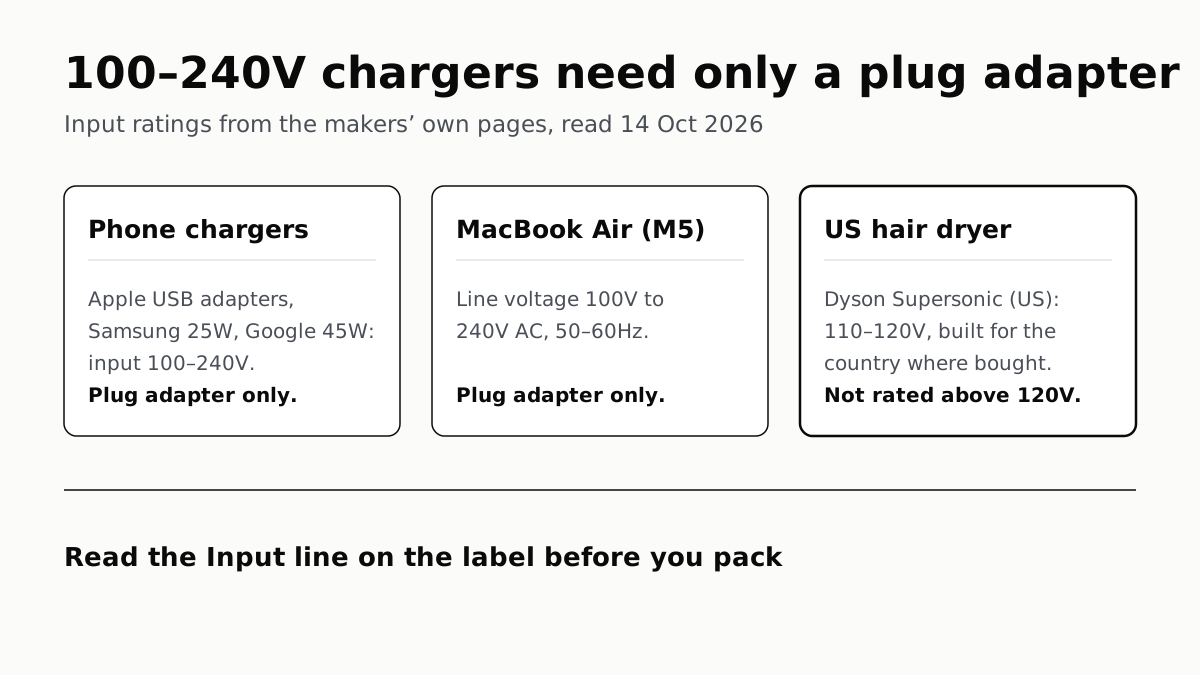
Chargers Rated 100–240V Need Only a Plug Adapter Abroad
Apple, Samsung and Google rate their chargers, and the MacBook Air, for 100–240V. A hair dryer built for 110–120V is a different case.
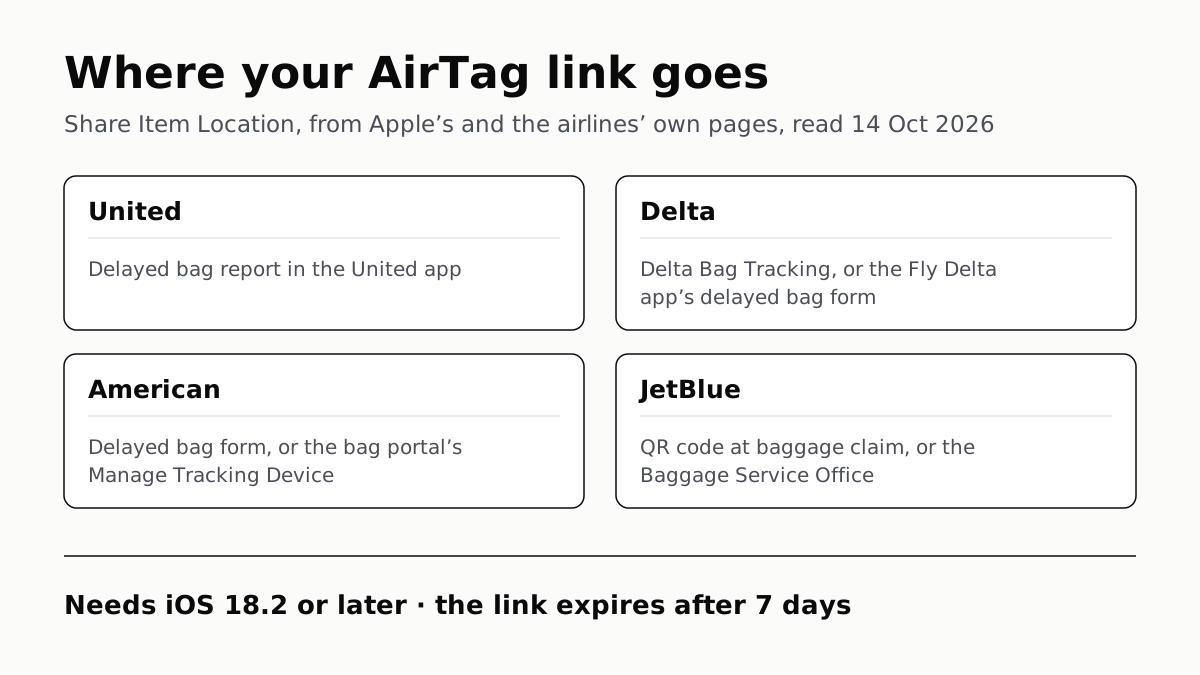
Send Your AirTag Link to United, Delta, American, JetBlue
Find My’s Share Item Location makes a seven-day link a bag agent can open. Apple says more than 50 airlines accept it.
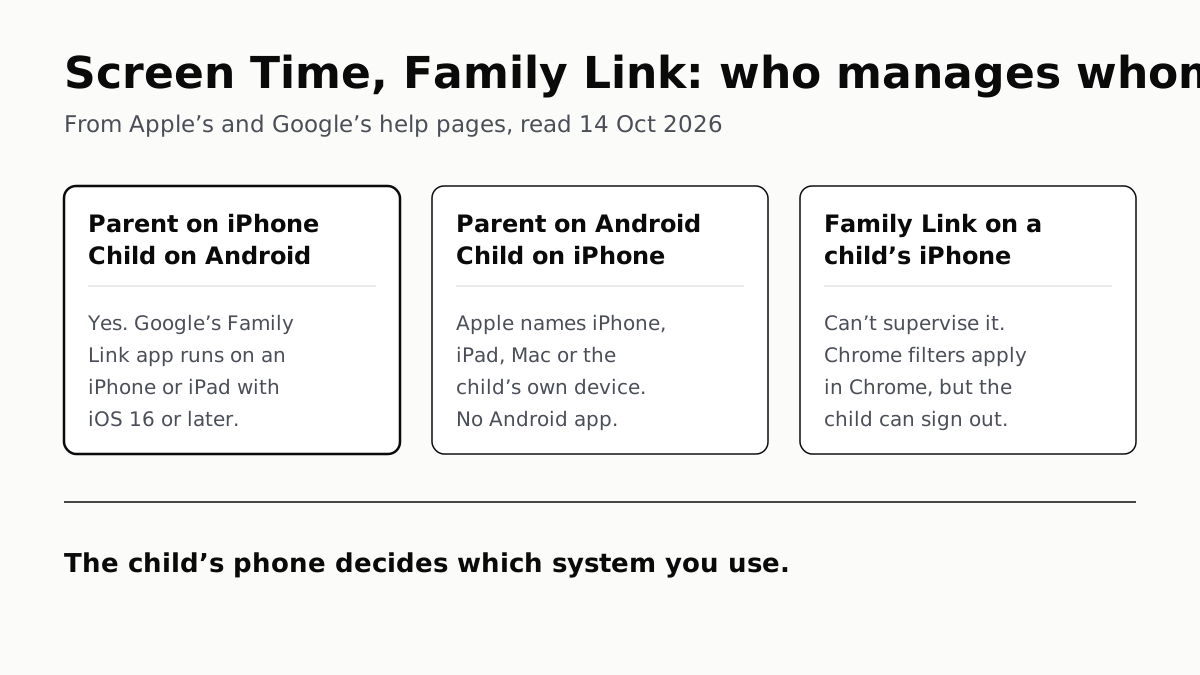
Family Link Works From an iPhone. Screen Time Needs Apple
Neither app supervises the other maker’s phones. App limits, downtime, web filters and more, side by side, with iOS 27’s changes.
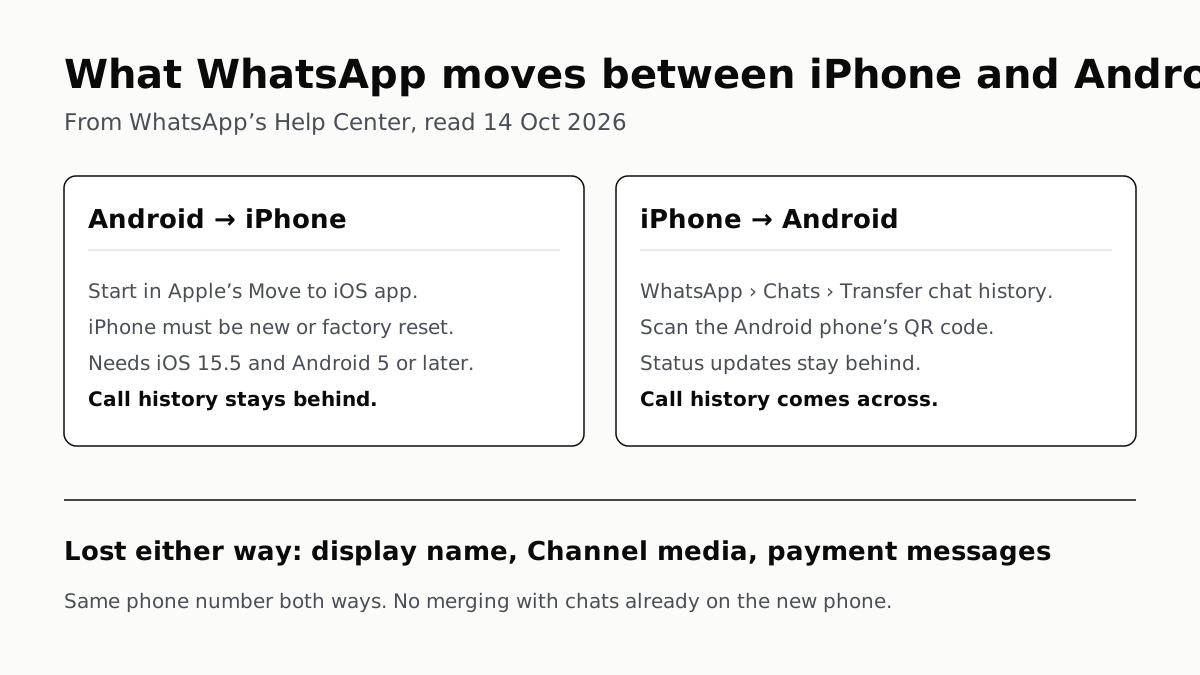
WhatsApp Chats Can Cross Between iPhone and Android
Messages, media and settings move both ways. Display names, Channel media and payment messages don’t, and call logs reach Android alone.