Leaving S Mode Is Free, but You Can’t Turn It Back On
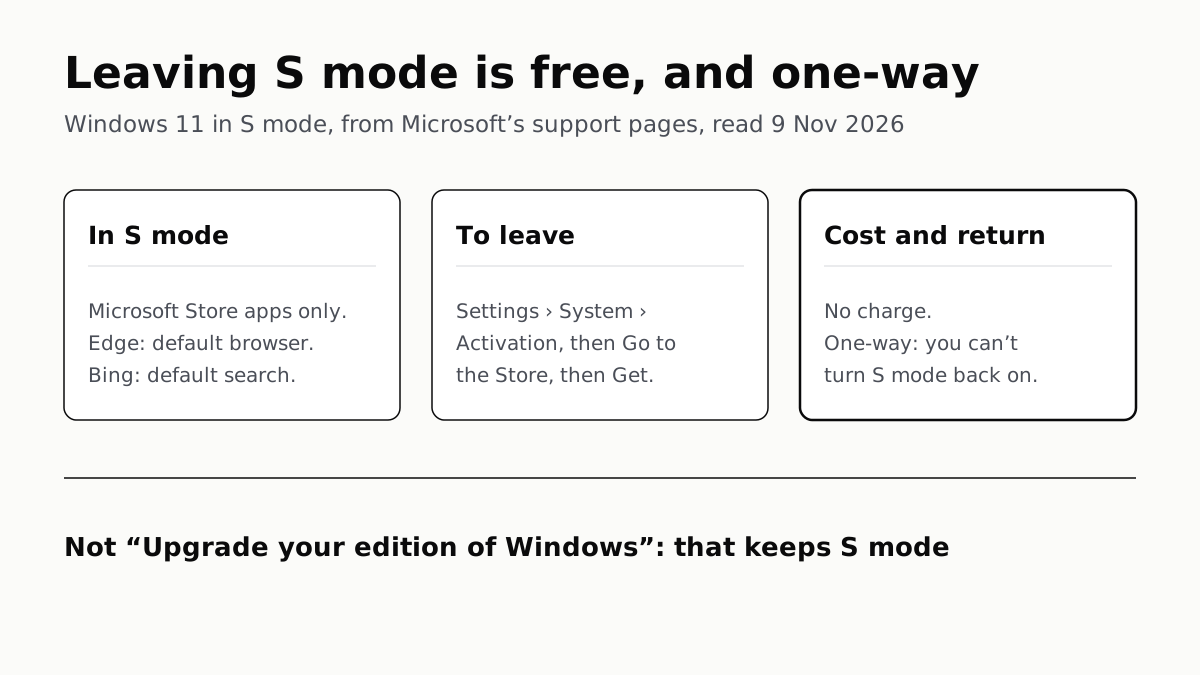
S mode limits you to Microsoft Store apps and keeps Edge and Bing as defaults. Leaving takes three steps in Settings and the Store.
If you buy through our links, we may earn a commission. It never affects our verdicts or scores — how that works. As an Amazon Associate I earn from qualifying purchases.
Switching a laptop out of Windows 11 S mode costs nothing and takes three steps, but Microsoft says it is one-way: once you leave, you can’t turn S mode back on. S mode is what stops an installer downloaded from the web: it allows apps from the Microsoft Store only, and keeps Edge as the default browser and Bing as the default search engine.
Microsoft’s support pages say Windows 11 in S mode “is only available in the Windows 11 Home edition”. If a new Windows 11 Home laptop refuses to run a program you downloaded from the web, S mode is one reason that happens.
What S mode allows, and what changes when you leave
| Windows 11 in S mode | Standard Windows 11, after switching | |
|---|---|---|
| Where apps come from | The Microsoft Store only | The Store, plus x86 Windows apps from elsewhere |
| Default browser | Edge, always | Your choice |
| Default search engine | Bing | Your choice |
| Other browsers | Those in the Microsoft Store | Ones from outside the Store too |
| Antivirus | Windows Defender, the one Microsoft says is “known to be compatible” | No S mode limit; on Snapdragon PCs third-party antivirus can’t be installed (below) |
| Joining a work domain | Not available | Needs an upgrade to Windows 11 Pro or Enterprise as well |
| Going back to S mode | — | Not possible from Windows |
Inside S mode you are not stuck with Bing for every search. Microsoft says you “can navigate to any other search engine website” and install any browser that is in the Store. What you cannot do is make one of them the default.
How to switch out of S mode
- Open Settings › System › Activation.
- Find the Switch to Windows 11 Pro section and select Go to the Store.
- On the Store page called Switch out of S mode (or similar), select Get, then confirm.
After the confirmation, Microsoft says, “you’ll be able to install apps from outside Microsoft Store.”
Do not use the link under Upgrade your edition of Windows. It sits on the same Activation page, and Microsoft says it is “a different process that will keep you in S mode.” The section label mentions Pro, but Microsoft’s pages describe the result as “the standard version of Windows 11”, and its FAQ says joining a work domain needs a separate upgrade to Pro or Enterprise after leaving S mode. What Windows 11 Pro adds over Home covers that upgrade and the rest of the difference.
Is it free, and is it really permanent?
There is no charge. Both Microsoft support pages say so in the same words: “There’s no charge to switch out of S mode.”
On permanence they are just as plain: “Switching out of S mode is one-way.” There is no setting to turn it back on. The one route back we found is on an archived Microsoft Learn page for IT staff running Windows 10, which says the switch “can only be undone by a wipe and reload of the operating system”. It gives no steps for home users, so plan on the switch being for good.
What Microsoft says you give up
Microsoft says S mode is “streamlined for security and performance”, and that leaving it means you “lose the security and performance benefits that come with S mode.” It does not put a number on either. The mechanism it describes is the Store-only rule plus Edge: apps come through Microsoft’s Store, and it says “by exclusively using apps from Microsoft Store and browsing safely with Microsoft Edge, Windows 11 in S mode keeps you running more quickly and securely.”
The trade, then, is a narrower choice of software against a lock that you can open once. If everything you need is in the Store, Microsoft’s pages give no reason you have to leave. If one program you rely on is not, the switch is the way to run it.
Before you switch on a Snapdragon laptop
S mode also ships on PCs with Qualcomm Snapdragon processors. To see which chip yours has, open Settings › System › About and read the line next to Processor. On a Snapdragon PC, leaving S mode lets you install x86 Windows apps, but Microsoft lists limits that apply “whether you’re running Windows 11 in S mode or not”:
- Drivers for hardware, games and apps work only if they are built for Windows 11 on Snapdragon.
- Games won’t work if they use OpenGL newer than 1.1 or rely on anti-cheat drivers.
- Third-party antivirus software can’t be installed on any edition.
- Client Hyper-V is supported only once S mode is off.
So on a Snapdragon laptop, check that the program you want has an Arm-compatible driver or version before you make a switch you cannot reverse.
If the switch is blocked
Microsoft’s only troubleshooting note on these pages is for managed devices: “If you’re blocked from switching and your device belongs to an organization, check with your administrator. Your organization can choose to keep all devices in S mode.” A school or work laptop may stay in S mode until its administrator changes that.
Older PCs still on Windows 10 in S mode
Windows 10 Home in S mode can move to Windows 11 Home in S mode free, through Windows Update, if the PC meets Windows 11’s minimum hardware requirements; if PC Health Check says yours doesn’t, two of the usual failures can be switched on in firmware. Windows 10 Pro, Enterprise or Education in S mode has to leave S mode first, because S mode does not exist in those Windows 11 editions. Microsoft ended Windows 10 support on 14 October 2025; our Windows 10 security updates guide covers how long its extended updates run.
If you are still choosing a laptop rather than fixing one, S mode is worth checking on the listing, and our laptop shortlist is where to start comparing.
Questions people ask
What is Windows 11 S mode?
A version of Windows 11 Home that Microsoft says is streamlined for security and performance. It installs apps from the Microsoft Store and nowhere else, and keeps Edge as the default browser and Bing as the default search engine.
How to get out of S mode?
Open Settings, then System, then Activation. Under Switch to Windows 11 Pro, select Go to the Store, not the link under Upgrade your edition of Windows. On the Store’s Switch out of S mode page, select Get and confirm.
Is switching out of S mode free?
Yes. Microsoft’s support pages say there is no charge to switch out of S mode. The Upgrade your edition of Windows link on the same Settings page is a different process, and Microsoft says it keeps you in S mode.
Can I go back to S mode?
Not from Windows. Microsoft calls the switch one-way and says you won’t be able to turn S mode back on. An archived Windows 10 page for IT staff says only a wipe and reload of the operating system undoes it, and gives no steps for home users.
Can I use Chrome in S mode?
Not as your default, and not from Google’s site. Microsoft says Edge is always the default browser in S mode. You can install a browser that is in the Microsoft Store; anything else needs you to leave S mode first.
Why can’t I switch out of S mode?
If the PC belongs to a school or employer, Microsoft says to ask the administrator, because an organisation can choose to keep its devices in S mode. Microsoft’s S mode pages give no further troubleshooting steps.
How we researched this
No one at bitcritiq has handled this product. Everything here comes from published sources, listed below.
- What this cannot tell you
- Microsoft’s pages do not say in one sentence which edition a Windows 11 Home in S mode PC runs after the switch; they call it ‘the standard version of Windows 11’, and the FAQ says domain join needs an upgrade to Pro or Enterprise after leaving S mode. Microsoft publishes no measured performance or security difference between S mode and standard Windows. The only route back to S mode we found is on an archived Windows 10 page for IT staff, which mentions a wipe and reload of the operating system without consumer steps. The newest dated note on the support pages is Windows 10’s end of support on 14 October 2025; we found no 2026 change to S mode. We did not switch a PC ourselves.
How we chose this, and what we did
- Why this subject
- Budget laptops often reach readers with Windows 11 Home in S mode, and the first thing most owners hit is an installer that will not run. No bitcritiq post explained S mode, so this answers the owner’s questions in their order: what it blocks, how to leave, what it costs, and whether it can be undone.
- How we looked at it
- Everything is from Microsoft’s own pages, read through a browser on 9 November 2026: the Microsoft Support articles ‘Windows 10 and Windows 11 in S mode FAQ’ (including its collapsed sections, read from the page text) and ‘Switching out of S mode in Windows’, and the archived Microsoft Learn page ‘Windows Pro in S mode’ for Windows 10 (last updated 25 April 2023). The statement that Microsoft gives no performance or security figures for S mode was checked against a control on the same FAQ: it does state the mechanism, that S mode is ‘streamlined for security and performance’ by allowing Store apps only and requiring Edge. The statement that Microsoft’s pages give no troubleshooting steps beyond asking an organisation’s administrator was checked against the same FAQ’s question ‘How do I switch out of S mode?’, which carries that administrator note and nothing further.
What this rests on
6 claims, all official. Nothing here was measured by bitcritiq — see how we test for why. Open a claim to read the source it came from.
Switching out of S mode costs nothing and cannot be reversed from Windows.Official
Microsoft Support, S mode FAQ: “There’s no charge to switch out of S mode, but you won’t be able to turn it back on.” and “Switching out of S mode is one-way. If you switch out of S mode, you’ll need to keep using the standard version of Windows 11.”
Windows 11 in S mode installs apps from the Microsoft Store only and requires Microsoft Edge.Official
Microsoft Support, S mode FAQ: “For better security, it allows users to only install the apps from Microsoft Store and requires Microsoft Edge for safe browsing.”
In S mode Edge is the default browser and Bing the default search engine, though other Store browsers and other search sites can be used.Official
Microsoft Support, S mode FAQ: “When you’re using Windows 11 in S mode, Microsoft Edge is always the default web browser, and Bing is the default search engine. But you can access other browsers and search engines while in S mode. You can download any browser available in Microsoft Store in Windows, and you can navigate to any other search engine website.”
On Windows 11 the switch starts at Settings, System, Activation, under Switch to Windows 11 Pro, and finishes with Get on the Store’s Switch out of S mode page.Official
Microsoft Support, S mode FAQ: “open Settings > System > Activation. Find the Switch to Windows 11 Pro section, then select the Go to the Store link… Don’t select the link under Upgrade your edition of Windows. That’s a different process that will keep you in S mode… select the Get button.”
Windows 11 in S mode exists only in the Home edition.Official
Microsoft Support, Switching out of S mode in Windows: “Windows 11 in S mode is only available in the Windows 11 Home edition.”
An organisation can keep its devices in S mode and block the switch.Official
Microsoft Support, S mode FAQ: “If you’re blocked from switching and your device belongs to an organization, check with your administrator. Your organization can choose to keep all devices in S mode.”
Sources 3
- Windows 10 and Windows 11 in S mode FAQ — Microsoft SupportOfficialaccessed Nov 9, 2026
- Switching out of S mode in Windows — Microsoft SupportOfficialaccessed Nov 9, 2026
- Windows Pro in S mode (Windows 10, previous versions) — Microsoft Learn, last updated 25 April 2023Officialaccessed Nov 9, 2026
Pass it on
Know someone weighing this up? Send them the answer.
bitcritiq.com/u4gyThe link is permanent: it opens this article for good, even if the title changes.
No email, no account
Follow bitcritiq
Every new article, in whatever reader you already use.
Subscribe by RSSAll the ways to follow
Using Chrome on Android? Open the browser menu and tap Follow. New articles then turn up in the Following tab in Discover.
read next
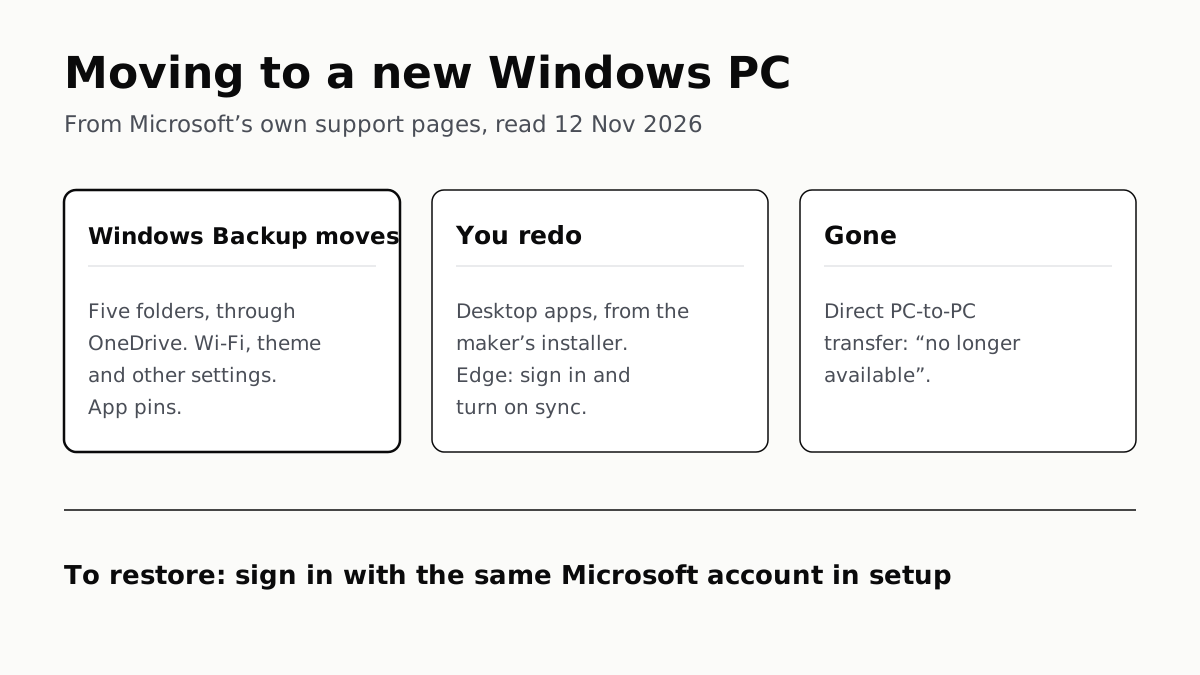
Windows Backup Moves Files and Settings, Not Desktop Apps
Sign in with the same Microsoft account during setup to restore. Files travel through OneDrive, whose free tier is 5 GB.
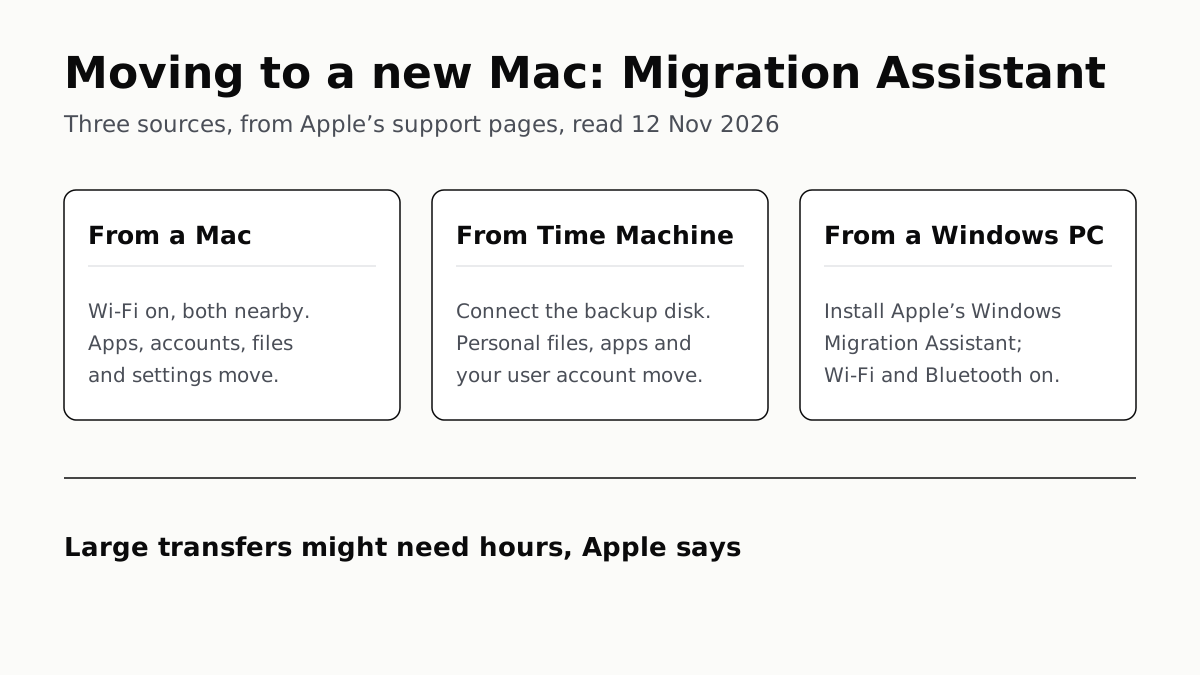
Migration Assistant Moves Your Old Mac or PC to a New Mac
It comes with your Mac. A PC needs Apple’s Windows Migration Assistant, and Apple warns large transfers might need hours.
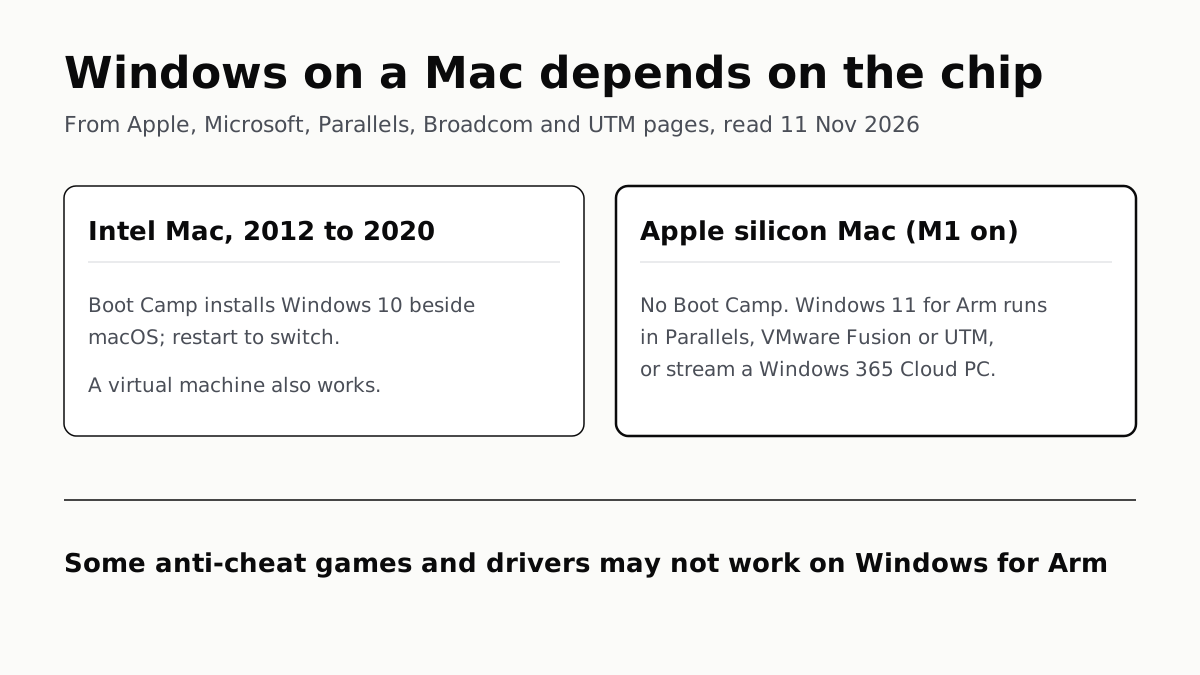
A Mac Can Run Windows, but Apple Silicon Means No Boot Camp
Microsoft authorizes Parallels on M1 to M3; Fusion and UTM are free. All run Windows 11 for Arm, where some games may not work.
Windows 11 Pro Adds BitLocker, Remote Desktop and VMs
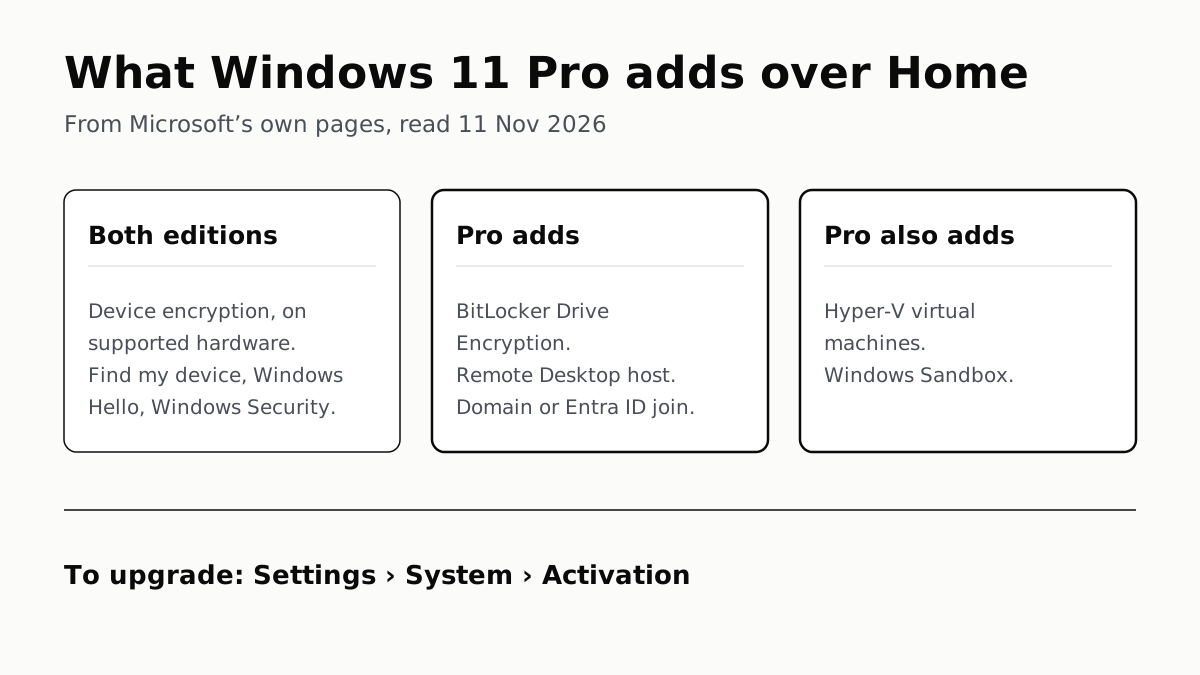
Home can encrypt the drive on supported laptops. Pro adds a Remote Desktop host, Hyper-V, Windows Sandbox and domain join.