Migration Assistant Moves Your Old Mac or PC to a New Mac
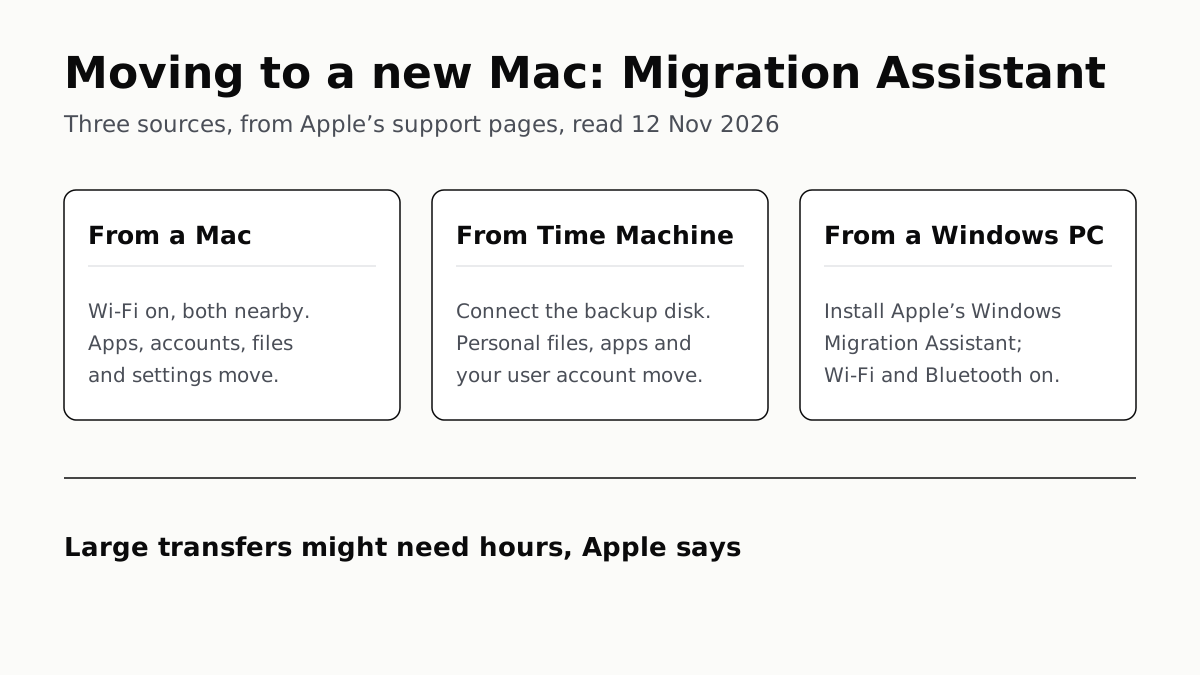
It comes with your Mac. A PC needs Apple’s Windows Migration Assistant, and Apple warns large transfers might need hours.
If you buy through our links, we may earn a commission. It never affects our verdicts or scores — how that works. As an Amazon Associate I earn from qualifying purchases.
Use Migration Assistant, the app that comes with your Mac: it copies your apps, user accounts, files and settings from an old Mac, a Time Machine backup or a Windows PC. A new Mac offers it during setup; a PC needs Apple’s Windows Migration Assistant installed first.
Apple says the app “doesn’t delete information from your old Mac or replace the operating system (macOS) on your new Mac”, and that large transfers “might need hours to complete”.
Three sources, side by side
| Moving from | What moves, per Apple | What you need |
|---|---|---|
| Another Mac | Documents, apps, user accounts and settings | macOS updated on both (the same version is not required); both Macs nearby with Wi-Fi on; the same Wi-Fi network as well if either runs OS X El Capitan or earlier |
| A Time Machine backup | All personal files, including apps and everything in your user account | The backup disk connected and turned on; macOS reinstalled first if the Mac will not start up |
| A Windows PC | Email, contacts, calendars, media, browser bookmarks, home-folder files and some settings | Windows Migration Assistant on the PC (3.2.1.0 needs Windows 10 or later and macOS Sonoma 14.4 or later); Wi-Fi and Bluetooth on, both nearby |
If you skipped it during setup, open it later from the Utilities folder in Applications, or on macOS 27 Golden Gate from System Settings › General › Transfer or Reset › Open Migration Assistant.
From an old Mac
Update macOS on both Macs, and turn off any antivirus, firewall or VPN software until you are done. Apple’s User Guide also says to plug a laptop into power.
- On the new Mac, open Migration Assistant and choose From a Mac, Time Machine, or startup disk.
- On the old Mac, open Migration Assistant and choose To another Mac.
- On the new Mac, select the old Mac. On the old Mac, check the security code matches.
- On the new Mac, wait while it calculates the space your data uses, then tick what to bring.
The macOS 27 User Guide names five categories: Applications, User accounts, Other Files & Folders, Privacy & Security Settings and System & Network. You can open any of them and pick single items.
An administrator account asks you to set a password; a standard account gets a temporary one shown on screen, which you should write down. If the new Mac already has an account with the same name, you choose between replacing it and renaming the old one so both survive.
An old Mac on OS X 10.8 or earlier has a separate route: Apple’s User Guide says to connect it by Thunderbolt cable and hold T while restarting it.
From a Time Machine backup
Connect the backup disk and turn it on, choose From a Mac, Time Machine, or startup disk, then select the disk. Pick a backup; to use an older one, click the disclosure arrow next to the one shown. The rest matches a Mac-to-Mac move. If the Mac starts up to a flashing question mark, Apple says to reinstall macOS before you begin.
From a Windows PC
Update Windows and macOS, quit apps on the PC, and turn on Wi-Fi and Bluetooth on both. Apple notes that an older PC without Bluetooth Low Energy may ask for a USB Bluetooth adapter. If the Mac uses macOS 13 or earlier, connect both computers to the same network or by Ethernet cable.
Download the Windows Migration Assistant that matches your Mac’s macOS:
| Windows Migration Assistant | PC | Mac |
|---|---|---|
| 3.2.1.0 | Windows 10 or later | macOS Sonoma 14.4 or later, up to macOS 27 Golden Gate |
| 2.4.5.0 | Windows 7 or later | macOS Ventura 13, Monterey 12 |
| 2.3.1.0 | Windows 7 or later | macOS Big Sur 11 |
On the Mac, choose From a Windows PC. Open Windows Migration Assistant on the PC and type in the code the Mac shows. Then tick what to move, as on a Mac. It moves one Windows account per run: to bring another, sign in to that account on the PC and repeat.
Apple’s support article lists where things land:
| From the PC | On the Mac |
|---|---|
| Outlook and Windows Mail email and settings | |
| Contacts from People, Outlook and the Contacts folder | Contacts |
| Calendar and Outlook appointments | Calendar |
| Outlook tasks (Mac on macOS 13 or later) | Reminders |
| Music, podcasts, audiobooks, movies and TV shows | Music, Podcasts, Books and TV |
| Bookmarks from Chrome, Edge, Firefox, Internet Explorer and Safari | Safari |
| Documents and other home-folder files | Home folder |
| Photos | Home folder, to add to Photos yourself |
| Desktop pictures, language and location settings | System Settings |
Photos from a PC land in your home folder, not in the Photos app. Apple’s two pages disagree on networks: the support article lists known Wi-Fi networks for a Mac on macOS 13 or later, while the macOS 27 User Guide says “Network settings and passwords aren’t transferred.” Plan to re-enter passwords. If you still need a Windows-only program, see the ways a Mac can run Windows.
If the move fails, Apple suggests running chkdsk on the PC, and otherwise copying files across with an external drive or file sharing.
What Apple says may not come across
- Email may need setting up again. Apple says it transfers your email, “but to access it you might first need to set up your email account again”.
- Some apps. Incompatible apps, or ones with a newer version already on the new Mac, “may not be transferred or may not be usable”. A migration summary appears if Apple found problems.
- Purchases. After a PC move, Apple says to authorize the Mac with your Apple Account before syncing or playing content bought from Apple.
Apple’s migration pages do not mention Intel apps or Rosetta. Moving from an Intel Mac to Apple silicon, check your apps against which ones stop running in macOS 28.
Space matters too: Migration Assistant shows how much storage your data needs before it starts, so check what the old machine holds before you order the new one. On a current Mac mini, memory is chosen at purchase and can’t be upgraded later, which makes it a decision to settle at checkout as well.
Questions people ask
How do I transfer everything from my old Mac to my new Mac?
Use Migration Assistant. On the new Mac choose “From a Mac, Time Machine, or startup disk”; on the old Mac choose “To another Mac”. Check the codes match, tick what you want and click Continue. Keep both Macs near each other with Wi-Fi on.
Where is Migration Assistant on a Mac?
It is part of the setup assistant on a new Mac. After setup, it is in the Utilities folder inside Applications, or on macOS 27 in System Settings, General, Transfer or Reset, Open Migration Assistant.
Can I transfer from a Windows PC to a Mac?
Yes. Download Apple’s Windows Migration Assistant on the PC; version 3.2.1.0 needs Windows 10 or later and a Mac on macOS Sonoma 14.4 or later. On the Mac choose “From a Windows PC”, then enter the code it shows on the PC.
How long does Migration Assistant take?
Apple gives no figure. Its pages say large transfers might need hours and might seem to pause occasionally. Apple’s User Guide also says to connect a laptop to power first.
Do both Macs need the same version of macOS?
No. Apple says it is not necessary for both Macs to use the same macOS version, but to update macOS on each one first.
Does Migration Assistant transfer email?
It transfers your email, Apple says, but you might need to set up your email account again in your email app before you can read it.
Does Migration Assistant delete anything from my old computer?
No. Apple says it does not delete information from your old Mac or PC, and does not replace macOS on the Mac you are moving to.
How we researched this
No one at bitcritiq has handled this product. Everything here comes from published sources, listed below.
- What this cannot tell you
- Apple gives no transfer time beyond 'Large transfers might need hours'. Two Apple pages differ on network settings from a PC: support article 102565 lists 'known Wi-Fi networks' when the Mac uses macOS 13 or later, while the Mac User Guide for macOS 27 says 'Network settings and passwords aren't transferred'. We report both. 102565 lists Windows Migration Assistant 3.2.1.0 for macOS Sonoma 14 and later; its download page says Sonoma 14.4 or later, so we use 14.4. We did not run a migration ourselves.
How we chose this, and what we did
- Why this subject
- New-Mac season, and readers searching for Mac mini alternatives and new laptops. The question is the first one after unboxing: how do I get my old computer's things onto this one? Apple answers it with one app, Migration Assistant, documented across four support articles and the Mac User Guide.
- How we looked at it
- Everything is from Apple's own pages, read through a browser on 12 November 2026: Apple Support 102613 'Transfer to a new Mac with Migration Assistant' (published 10 February 2026), 102565 'Transfer from PC to Mac with Migration Assistant' (published 9 November 2026), 102551 'Restore your Mac from a backup' (published 10 November 2025), 118595 'Download Windows Migration Assistant v3.2.1.0' (published 9 November 2026), and the Mac User Guide page 'Transfer your information to Mac from another computer or device' with macOS 27 Golden Gate selected. Menu paths are copied from those pages. For the absence claim that Apple's migration pages do not mention Intel apps or Rosetta, the control is the User Guide's sentence on 'Incompatible apps', which is on the same page and which we quote; neither 102613 nor the User Guide page contains 'Intel' or 'Rosetta'.
What this rests on
6 claims, all official. Nothing here was measured by bitcritiq — see how we test for why. Open a claim to read the source it came from.
Migration Assistant moves documents, apps, user accounts and settings from one Mac to another, without deleting anything from the old Mac.Official
Apple Support 102613: “Migration Assistant transfers documents, apps, user accounts, and settings from one Mac to another. It doesn’t delete information from your old Mac or replace the operating system (macOS) on your new Mac.”
The two Macs do not need the same macOS version; for a wireless transfer both need Wi-Fi on and must be near each other.Official
Apple Support 102613: “It’s not necessary for each Mac to be using the same version of macOS. To transfer wirelessly, make sure that both computers have Wi-Fi turned on and are near each other. If either Mac is using OS X El Capitan or earlier, or you’re not sure, also connect them to the same Wi-Fi network.”
Windows Migration Assistant 3.2.1.0 needs Windows 10 or later on the PC and macOS Sonoma 14.4 or later on the Mac.Official
Apple Support 118595: “System Requirements: macOS Sonoma 14.4 or later, Windows 10 or later.” Apple Support 102565 lists it “For migrating from Windows 10 or later to: macOS 27 Golden Gate, macOS Tahoe 26, macOS Sequoia 15, macOS Sonoma 14”.
A Time Machine backup can restore all personal files, including apps and everything in the user account.Official
Apple Support 102551: “If you made a Time Machine backup of your Mac, Migration Assistant can use that backup to restore all of your personal files, including your apps and everything in your user account.”
Apple says large transfers might need hours.Official
Apple Support 102613, 102565 and 102551: “Large transfers might need hours to complete, and might seem to pause occasionally.”
Incompatible apps may not be transferred or may not be usable.Official
Mac User Guide, macOS 27 Golden Gate: “Applications: Transfer apps to your new Mac. Incompatible apps or apps with newer versions already installed may not be transferred or may not be usable.”
Sources 5
- Transfer to a new Mac with Migration Assistant — Apple Support 102613Officialaccessed Nov 12, 2026
- Transfer from PC to Mac with Migration Assistant — Apple Support 102565Officialaccessed Nov 12, 2026
- Restore your Mac from a backup — Apple Support 102551Officialaccessed Nov 12, 2026
- Download Windows Migration Assistant v3.2.1.0 — Apple Support 118595Officialaccessed Nov 12, 2026
- Transfer your information to Mac from another computer or device — Mac User Guide (macOS 27 Golden Gate)Officialaccessed Nov 12, 2026
Pass it on
Know someone weighing this up? Send them the answer.
bitcritiq.com/d744The link is permanent: it opens this article for good, even if the title changes.
No email, no account
Follow bitcritiq
Every new article, in whatever reader you already use.
Subscribe by RSSAll the ways to follow
Using Chrome on Android? Open the browser menu and tap Follow. New articles then turn up in the Following tab in Discover.
read next
Windows Backup Moves Files and Settings, Not Desktop Apps
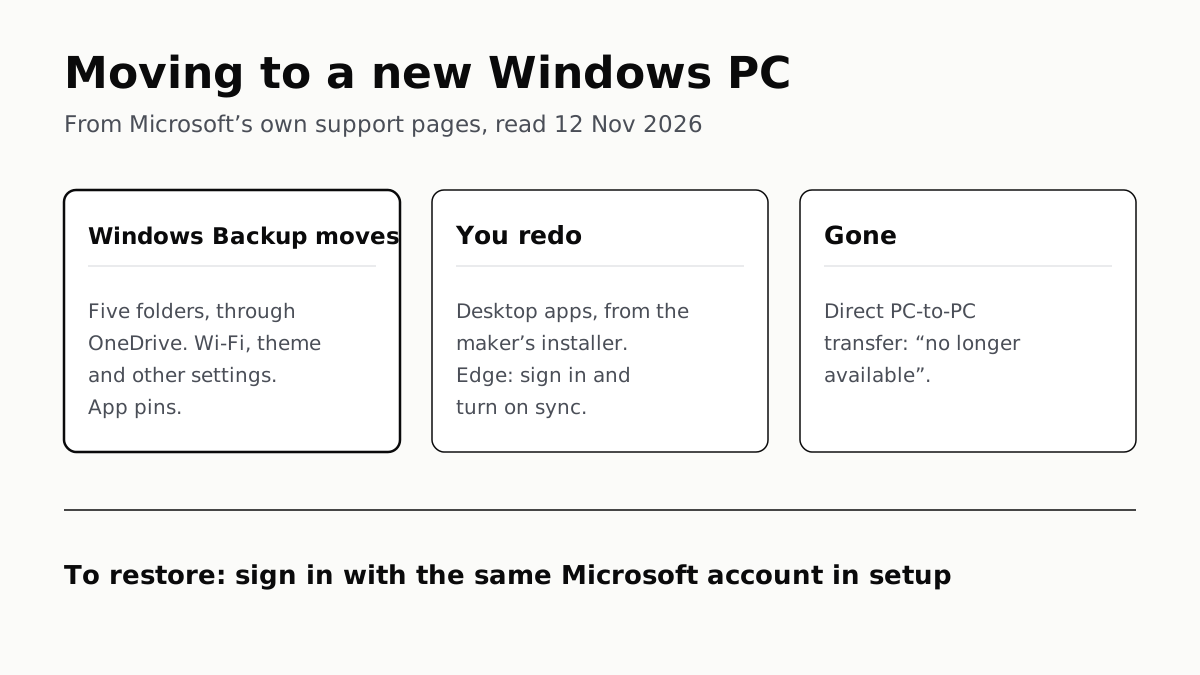
Sign in with the same Microsoft account during setup to restore. Files travel through OneDrive, whose free tier is 5 GB.
A Mac Can Run Windows, but Apple Silicon Means No Boot Camp
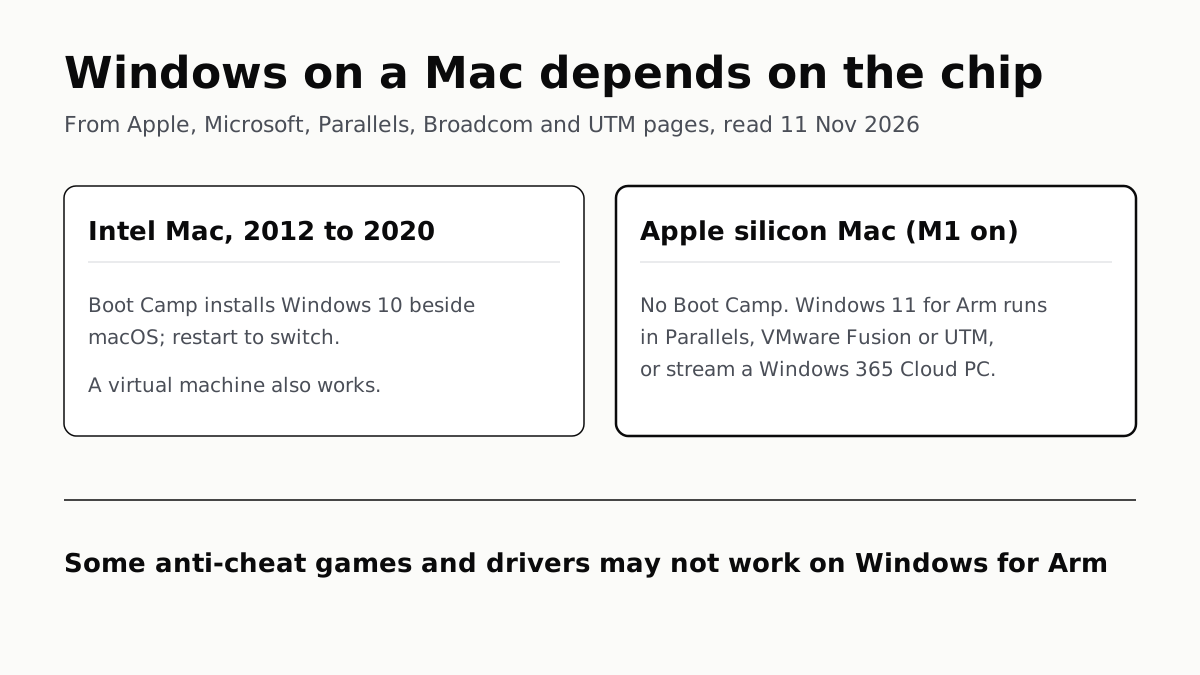
Microsoft authorizes Parallels on M1 to M3; Fusion and UTM are free. All run Windows 11 for Arm, where some games may not work.
Windows 11 Pro Adds BitLocker, Remote Desktop and VMs
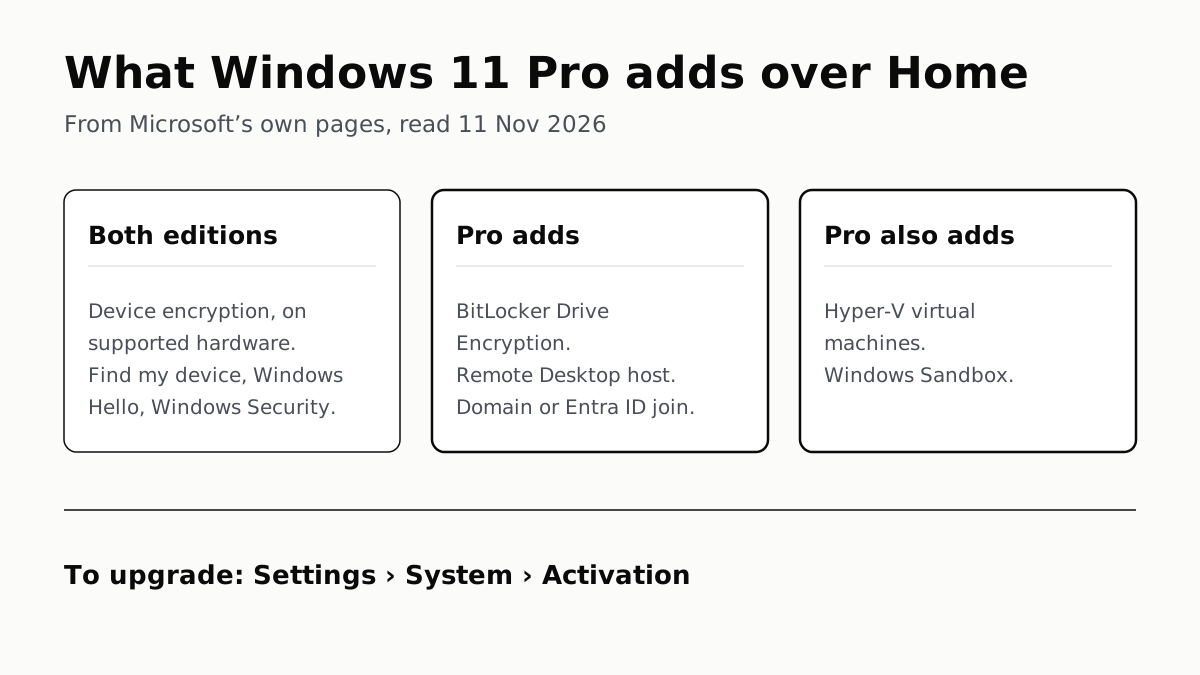
Home can encrypt the drive on supported laptops. Pro adds a Remote Desktop host, Hyper-V, Windows Sandbox and domain join.
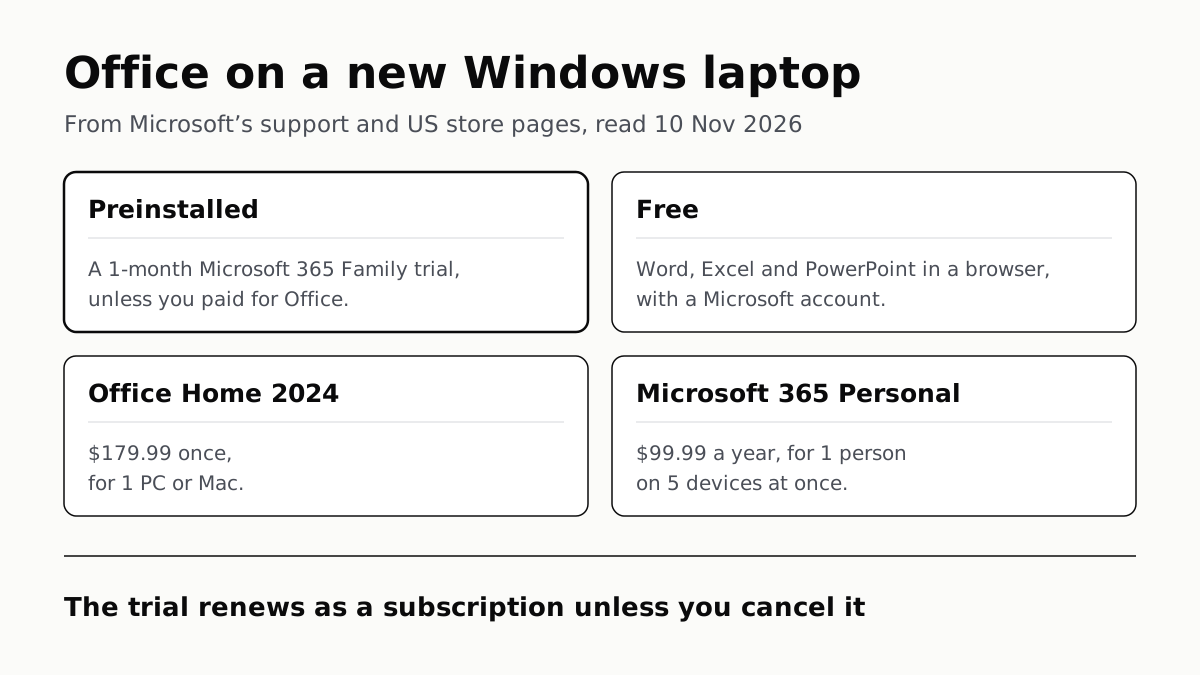
Office on a New Windows Laptop Is a Trial Unless You Paid
It is a one-month Microsoft 365 Family trial. Word, Excel and PowerPoint stay free in a browser, or you can buy Office once.