Windows 11 Pro Adds BitLocker, Remote Desktop and VMs
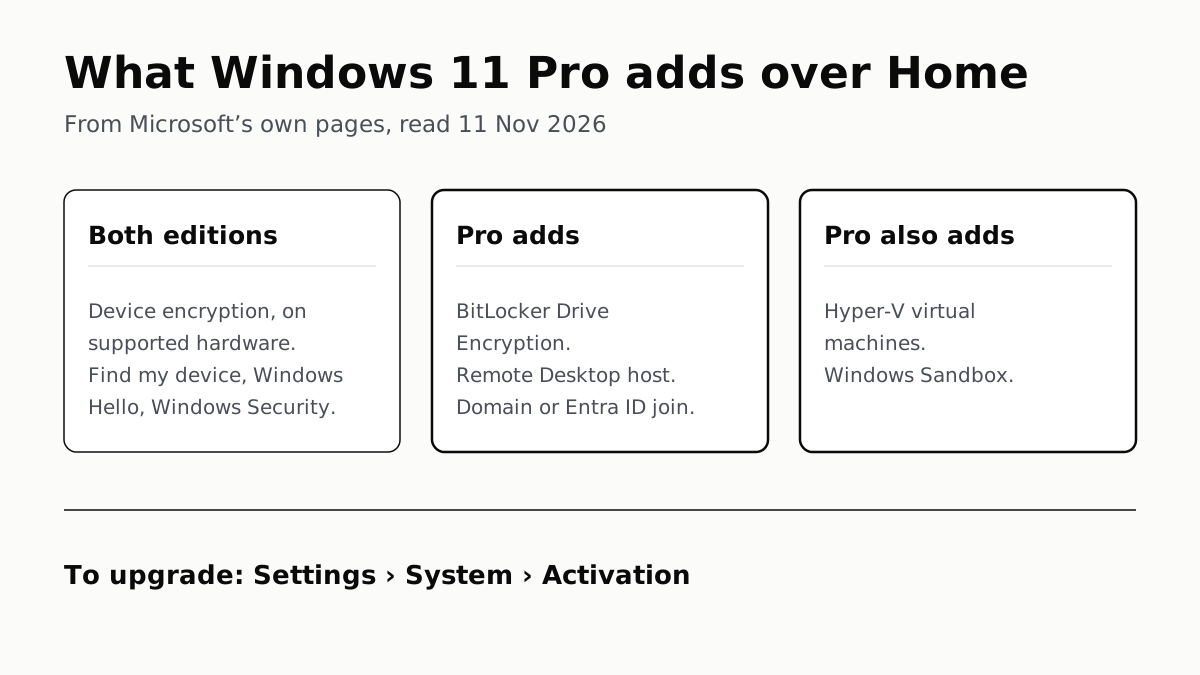
Home can encrypt the drive on supported laptops. Pro adds a Remote Desktop host, Hyper-V, Windows Sandbox and domain join.
If you buy through our links, we may earn a commission. It never affects our verdicts or scores — how that works. As an Amazon Associate I earn from qualifying purchases.
Windows 11 Pro adds BitLocker Drive Encryption, the ability to be reached with Remote Desktop, joining a work domain or Microsoft Entra ID, and two virtual-machine features, Hyper-V and Windows Sandbox. If you need none of those, Home covers the rest of Microsoft’s own security list, including device encryption on supported laptops.
Microsoft’s support page puts the Pro difference in one line: “Pro editions of Windows offer more advanced security and business networking features, including: BitLocker Drive Encryption. Remote Desktop. The ability to join a domain or Microsoft Entra ID.” Its Learn pages for IT staff add Hyper-V and Windows Sandbox.
Home vs Pro, feature by feature
| Feature | Windows 11 Home | Windows 11 Pro | Microsoft’s wording |
|---|---|---|---|
| BitLocker Drive Encryption | No | Yes | Comparison table: ticked for Pro only. Support: “available on Windows Pro, Enterprise, or Education editions” |
| Device encryption | Yes, on supported hardware | Yes | “available on a wider range of devices, including those running Windows Home” |
| Remote Desktop: being connected to | No | Yes | “The PC you want to connect to (the remote PC) must be running Windows Pro edition of Windows.” |
| Remote Desktop: connecting out | Yes | Yes | The client “can be running any edition of Windows (Pro or Home)” |
| Join a domain or Microsoft Entra ID | No | Yes | “The ability to join a domain or Microsoft Entra ID” |
| Hyper-V | No | Yes | “The Hyper-V role can’t be installed on Windows 10 Home or Windows 11 Home.” |
| Windows Sandbox | Not listed | Yes | “included in the supported Windows editions like Pro, Enterprise, and Education” |
| Find my device, firewall, parental controls, Secure Boot, Windows Hello, Windows Security | Yes | Yes | Comparison table: ticked for both |
| Microsoft Store US list price, new licence | $139.00 | $199.99 | Read 11 November 2026 |
Microsoft’s consumer comparison table has nine security rows, and BitLocker is the one it ticks for Pro alone. Everything else Pro adds sits on its support and Learn pages.
Encryption: what Home already does
Microsoft calls device encryption “a Windows feature that enables BitLocker encryption automatically for the Operating System drive and fixed drives”. So on a laptop that supports it, a Home laptop’s drive can be encrypted without Pro.
Two conditions apply. The hardware has to qualify: Microsoft’s comparison table footnotes device encryption with “Requires InstantGo/AOAC/HSTI-compliant.” And the switch-on is automatic only with an online account: “When you first sign in or set up a device with a Microsoft account, or work or school account, Device Encryption is turned on and a recovery key is attached to that account. If you’re using a local account, Device Encryption isn’t turned on automatically.”
To check yours, sign in as an administrator and open Settings › Privacy & security › Device encryption. If it isn’t there, Microsoft’s page says to run System Information as administrator and read Device Encryption Support (or Automatic Device Encryption Support); “Meets prerequisites” means it is available. Other values name the cause, such as “TPM is not usable” or “PCR7 binding is not supported”.
If your laptop shows no device encryption and you want the drive encrypted, that is when BitLocker, and so Pro, comes into it.
Remote Desktop: Pro is needed on the PC you reach
Microsoft is specific about which end needs Pro. “The PC you want to connect to (the remote PC) must be running Windows Pro edition of Windows. The device you connect from (the client device) can be running any edition of Windows (Pro or Home), or even a different operating system altogether.”
So a Home laptop can open a session on a Pro desktop at work, but nobody can open a Remote Desktop session on the Home laptop. On Pro, the setting is at Settings › System › Remote Desktop.
Virtual machines: Hyper-V and Windows Sandbox
Hyper-V runs full virtual machines. Microsoft Learn lists it for “Windows 11 (Pro or Enterprise)” and says “The Hyper-V role can’t be installed on Windows 10 Home or Windows 11 Home.” It also needs a 64-bit processor with Second Level Address Translation and at least 4GB of memory.
Windows Sandbox is a throwaway desktop for opening a file or program you don’t trust: Microsoft says “closing it deletes all software, files, and state.” Its edition table lists Windows Pro, Enterprise, Pro Education/SE and Education; Home is not on it. It needs virtualization switched on in the firmware, at least 4GB of memory (Microsoft recommends 8GB) and two CPU cores.
What a home user would notice
Microsoft does not say how many home users need Pro, so here is what changes day to day. On a laptop that supports device encryption and is set up with a Microsoft account, Home already encrypts the drive. Windows Security, the firewall, Windows Hello, Find my device and parental controls are ticked for both editions. If security is your reason for looking at Pro, start with the antivirus a new Windows 11 laptop already has.
The Pro features you would notice are narrower: reaching this laptop from another device with Remote Desktop, running Hyper-V virtual machines or Windows Sandbox, and joining an employer’s domain or Entra ID.
How to upgrade, and what it costs
Microsoft’s support page says the best route is the Microsoft Store, and the steps apply “only to devices currently running an activated copy of Windows 11 Home.”
- Open Settings › System › Activation and check the edition and the activation state.
- With a Windows 11 Pro product key, select Change next to Change product key, enter the 25-character key and select Next.
- Without a key, expand Upgrade your edition of Windows and select Open Store next to Upgrade in the Microsoft app. Buy Pro while signed in with your Microsoft account, then install and restart.
Microsoft’s US web store lists the full Windows 11 Pro licence at $199.99, a version it says “is designed for PCs that need a new license for Windows”, which a new laptop with Home already has. The Home-to-Pro upgrade is bought in the Store app, and we could not find its price on Microsoft’s web store on 11 November 2026, so check it in the app before you buy.
If the laptop is in S mode, Microsoft says “Windows 11 Pro does not offer Windows 11 Pro in S mode, so you will need to switch out of S mode to upgrade”; leaving S mode is free and one-way. If you are still choosing the laptop, check which edition the listing names; our laptop shortlist is a place to start comparing.
Questions people ask
What is the difference between Windows 11 Home and Pro?
Microsoft names BitLocker Drive Encryption, Remote Desktop and joining a domain or Microsoft Entra ID as Pro features. Its Learn pages add Hyper-V and Windows Sandbox. Microsoft’s own comparison table ticks the other security features it lists, such as device encryption and Windows Hello, for both editions.
Does Windows 11 Home have BitLocker?
Not the full BitLocker Drive Encryption, which Microsoft lists for Pro, Enterprise and Education. Home has device encryption on supported hardware, which Microsoft says turns BitLocker encryption on automatically for the system drive and fixed drives.
Can Windows 11 Home use Remote Desktop?
It can connect out to another PC, but it cannot be connected to. Microsoft says the remote PC must run a Pro edition, while the device you connect from can run Home or another operating system.
Can I run Hyper-V or Windows Sandbox on Windows 11 Home?
No, according to Microsoft. Its Hyper-V page says the role can’t be installed on Windows 11 Home, and its Windows Sandbox page lists Pro, Enterprise and Education editions only.
How do I upgrade Windows 11 Home to Pro?
On an activated Windows 11 Home PC, open Settings, then System, then Activation. With a Pro key, select Change next to Change product key. Without one, expand Upgrade your edition of Windows, select Open Store, buy Pro while signed in with your Microsoft account, then install and restart.
Do I need Windows 11 Pro for a work laptop?
If your employer needs the laptop joined to its domain or to Microsoft Entra ID, yes: Microsoft lists the ability to join a domain or Microsoft Entra ID among the features of the Pro editions, not Home.
How we researched this
No one at bitcritiq has handled this product. Everything here comes from published sources, listed below.
- What this cannot tell you
- Microsoft’s Home-to-Pro upgrade is bought inside the Microsoft Store app on the PC, and we could not find it on Microsoft’s US web store on 11 November 2026, so this article gives no first-party price for the upgrade. Group Policy is not named on any of the Microsoft pages we read; the statements we found that it is missing from Home were answers on Microsoft’s community Q&A, not Microsoft documentation, so it is not in our table. Microsoft does not say what share of home users need Pro, so we describe which features a home user would notice rather than how many need them. The device encryption page does not list what full BitLocker offers beyond it. We did not upgrade a PC ourselves.
How we chose this, and what we did
- Why this subject
- New-laptop season brings the question of whether to pay for Windows 11 Pro. bitcritiq had covered S mode, antivirus and Office on a new laptop, but not what Pro adds over Home. This answers it from Microsoft’s own pages, feature by feature, in the order a buyer meets them: encryption, remote access, virtual machines, work sign-in, then the upgrade and its cost.
- How we looked at it
- Everything is from Microsoft’s own pages, read through a browser on 11 November 2026: the Windows 11 Home vs Pro comparison table on microsoft.com (whose tick marks are icons, so we read which cells carry a tick from the page’s HTML); the Microsoft Support articles ‘Device Encryption in Windows’, ‘How to use Remote Desktop’ and ‘Upgrade Windows Home to Windows Pro’; the Microsoft Learn pages ‘Install Hyper-V in Windows and Windows Server’ (Windows pivot) and ‘Windows Sandbox’; the Windows 11 Pro for Business page; and the Microsoft Store US product pages for Windows 11 Pro and Windows 11 Home. Prices are the list prices those store pages showed; each page’s original price matched its current price, so neither was on sale. The statement that the comparison table marks BitLocker as Pro only was checked against a control in the same table: the Device encryption row carries a tick in both the Home and Pro columns. The statement that Windows Sandbox is not listed for Home was checked against the Sandbox page’s own edition table, which lists Windows Pro, Enterprise, Pro Education/SE and Education.
What this rests on
6 claims, all official. Nothing here was measured by bitcritiq — see how we test for why. Open a claim to read the source it came from.
Microsoft names BitLocker, Remote Desktop and joining a domain or Microsoft Entra ID as features of the Pro editions.Official
Microsoft Support, Upgrade Windows Home to Windows Pro: “Pro editions of Windows offer more advanced security and business networking features, including: BitLocker Drive Encryption. Remote Desktop. The ability to join a domain or Microsoft Entra ID.”
Windows Home has device encryption, which turns BitLocker on automatically, on supported devices.Official
Microsoft Support, Device Encryption in Windows: “Device Encryption is a Windows feature that enables BitLocker encryption automatically for the Operating System drive and fixed drives.” and “Unlike BitLocker Drive Encryption, which is available on Windows Pro, Enterprise, or Education editions, Device Encryption is available on a wider range of devices, including those running Windows Home.”
Device encryption turns on by itself only when you set up with a Microsoft account or a work or school account.Official
Microsoft Support, Device Encryption in Windows: “When you first sign in or set up a device with a Microsoft account, or work or school account, Device Encryption is turned on and a recovery key is attached to that account. If you're using a local account, Device Encryption isn't turned on automatically.”
A PC must run Pro to be connected to with Remote Desktop; a Home PC can still connect out to one.Official
Microsoft Support, How to use Remote Desktop: “The PC you want to connect to (the remote PC) must be running Windows Pro edition of Windows. The device you connect from (the client device) can be running any edition of Windows (Pro or Home), or even a different operating system altogether.”
Hyper-V cannot be installed on Windows 11 Home.Official
Microsoft Learn, Install Hyper-V (Windows): “Windows 10 (Pro or Enterprise), or Windows 11 (Pro or Enterprise)” and “The Hyper-V role can't be installed on Windows 10 Home or Windows 11 Home.”
Microsoft lists Windows Sandbox for Pro, Enterprise and Education editions, not Home.Official
Microsoft Learn, Windows Sandbox: “Everything required for this feature is included in the supported Windows editions like Pro, Enterprise, and Education.” Its edition table lists Windows Pro, Windows Enterprise, Windows Pro Education/SE and Windows Education, each “Yes”.
Sources 9
- Compare Windows 11 versions: Windows 11 Home vs. Pro — MicrosoftOfficialaccessed Nov 11, 2026
- Device Encryption in Windows — Microsoft SupportOfficialaccessed Nov 11, 2026
- How to use Remote Desktop — Microsoft SupportOfficialaccessed Nov 11, 2026
- Upgrade Windows Home to Windows Pro — Microsoft SupportOfficialaccessed Nov 11, 2026
Show 5 more · 5 official or standards
- Install Hyper-V in Windows and Windows Server — Microsoft LearnOfficialaccessed Nov 11, 2026
- Windows Sandbox — Microsoft LearnOfficialaccessed Nov 11, 2026
- Windows 11 Pro for Business — MicrosoftOfficialaccessed Nov 11, 2026
- Windows 11 Pro (Download) — Microsoft Store USOfficialaccessed Nov 11, 2026
- Windows 11 Home (Download) — Microsoft Store USOfficialaccessed Nov 11, 2026
Pass it on
Know someone weighing this up? Send them the answer.
bitcritiq.com/a6cuThe link is permanent: it opens this article for good, even if the title changes.
No email, no account
Follow bitcritiq
Every new article, in whatever reader you already use.
Subscribe by RSSAll the ways to follow
Using Chrome on Android? Open the browser menu and tap Follow. New articles then turn up in the Following tab in Discover.
read next
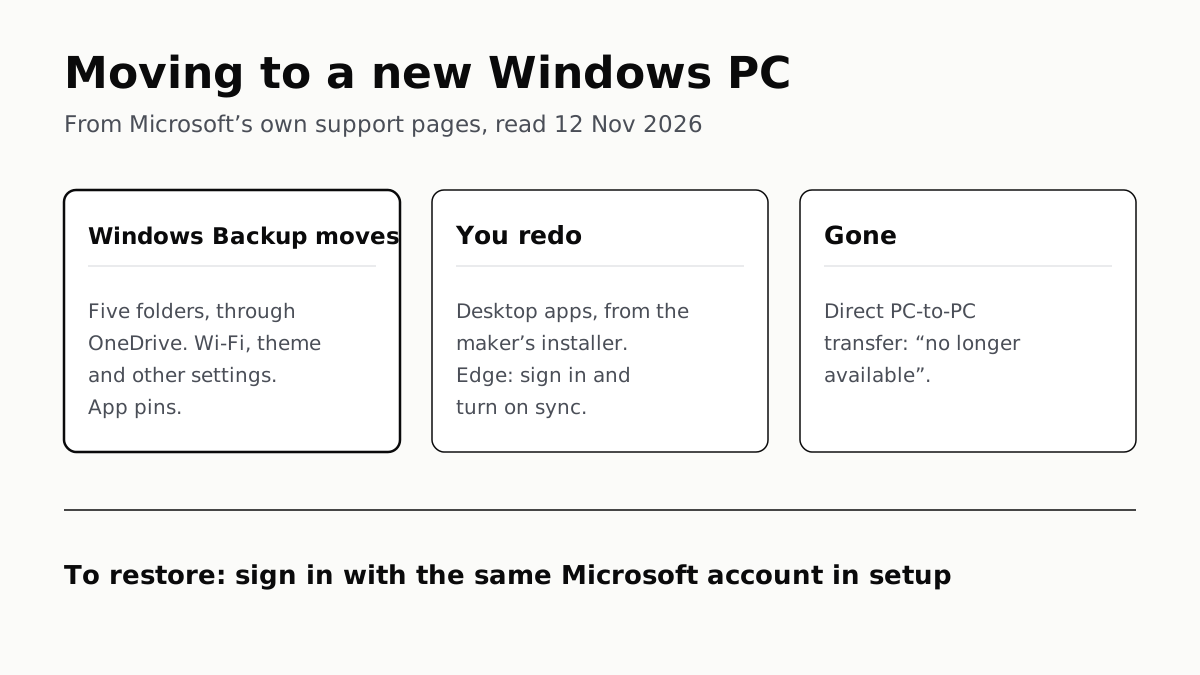
Windows Backup Moves Files and Settings, Not Desktop Apps
Sign in with the same Microsoft account during setup to restore. Files travel through OneDrive, whose free tier is 5 GB.
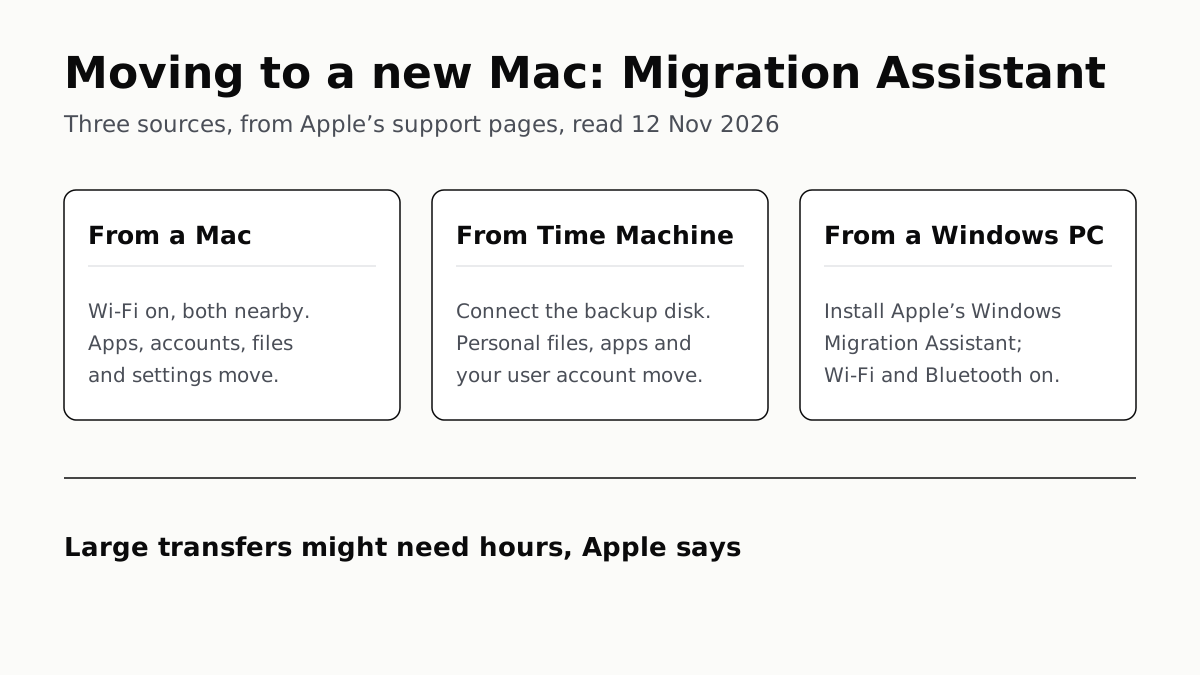
Migration Assistant Moves Your Old Mac or PC to a New Mac
It comes with your Mac. A PC needs Apple’s Windows Migration Assistant, and Apple warns large transfers might need hours.
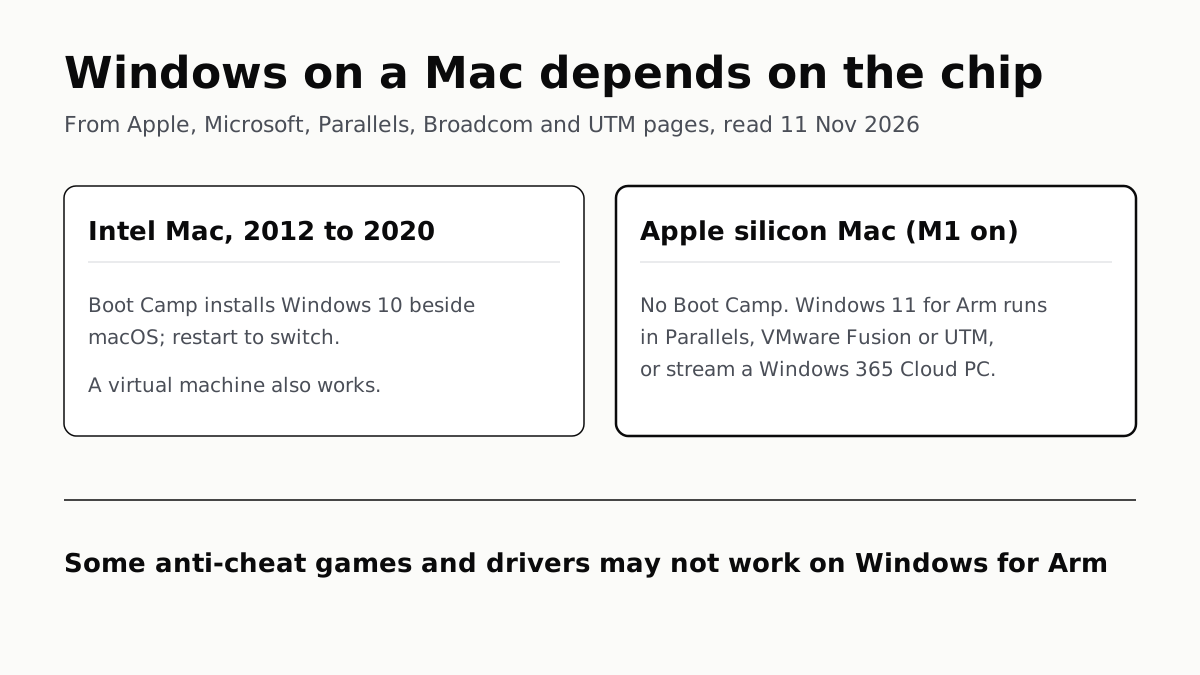
A Mac Can Run Windows, but Apple Silicon Means No Boot Camp
Microsoft authorizes Parallels on M1 to M3; Fusion and UTM are free. All run Windows 11 for Arm, where some games may not work.
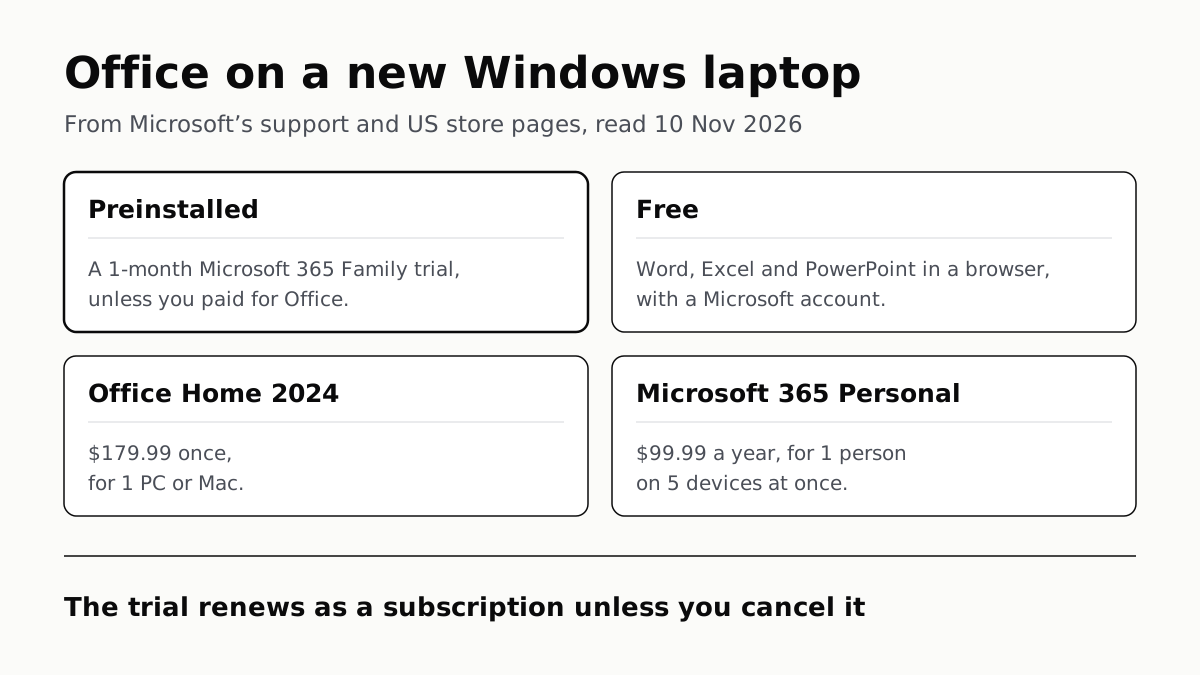
Office on a New Windows Laptop Is a Trial Unless You Paid
It is a one-month Microsoft 365 Family trial. Word, Excel and PowerPoint stay free in a browser, or you can buy Office once.