A New Windows 11 Laptop Already Has Antivirus Built In
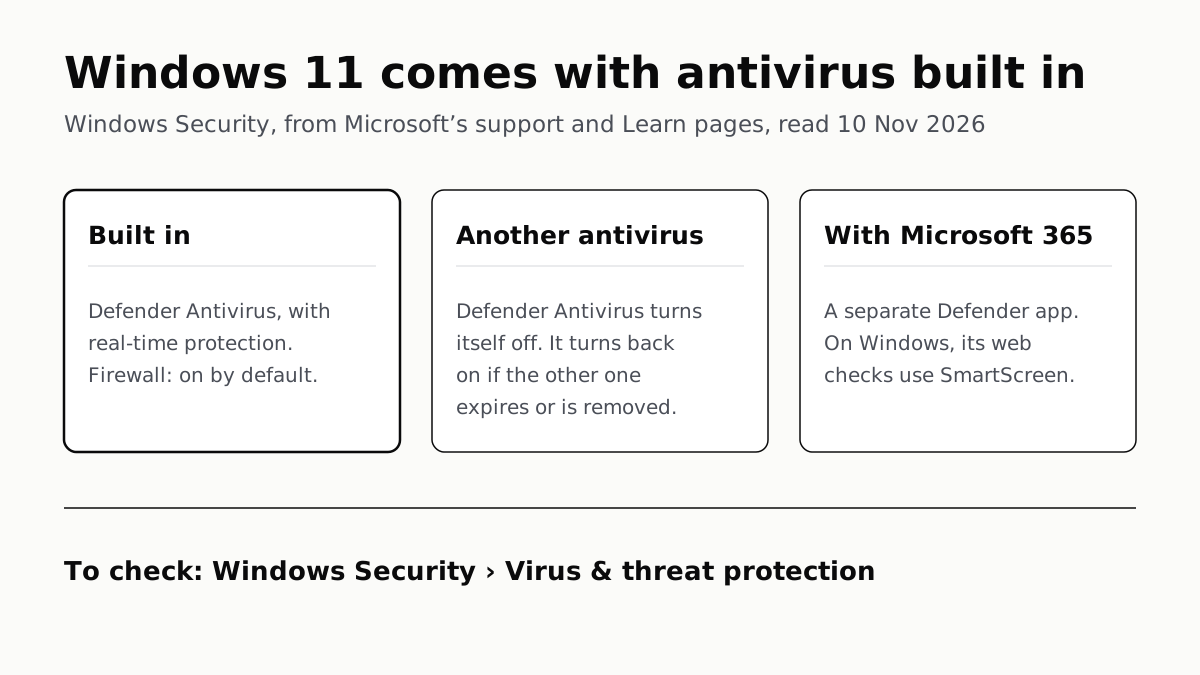
Microsoft says Defender Antivirus turns itself off when another antivirus is installed, and back on when that one expires or is removed.
If you buy through our links, we may earn a commission. It never affects our verdicts or scores — how that works. As an Amazon Associate I earn from qualifying purchases.
You don’t have to buy antivirus to have it on a new Windows 11 laptop: Windows Security, built into Windows 11, includes Microsoft Defender Antivirus with real-time protection, and a firewall that Microsoft says is on by default. If the laptop came with another company’s antivirus trial, Microsoft says Defender Antivirus turns itself off while that app is installed and turned on, and turns back on when it is removed.
Microsoft describes the Windows Security app as “built into Windows, ensuring that your device is protected from the moment you start it up.” What Microsoft’s pages do not give is a detection rate, so this page sets out what each piece does in Microsoft’s words, and how to see which antivirus is running on yours.
What Windows 11 includes, and what the Microsoft 365 app adds
Microsoft offers a second product with a similar name. Windows Security is built into Windows. Microsoft Defender is a separate app that Microsoft says is “included as part of your Microsoft 365 Family, or Personal, subscription at no extra cost.”
| Protection | Windows Security (built into Windows 11) | Microsoft Defender app (with Microsoft 365) | Note |
|---|---|---|---|
| Antivirus scanning in real time | Yes: Defender Antivirus “continuously scans your device” | Yes: real-time anti-malware “runs whenever your device is on” | The app “works alongside your existing antimalware solutions” |
| Scans on demand | Quick, full, custom and offline scans | A scan from the Device protection page, plus daily quick scans | Offline scan restarts the PC |
| Threat definition updates | Downloaded “as part of Windows Update” | Not described on the app pages we read | |
| Firewall | Windows Defender Firewall, on by default | Not part of the app | Built into Windows either way |
| Dangerous sites and downloads | Microsoft Defender SmartScreen, for apps, files and Edge | Web protection; on Windows “provided by Microsoft Defender SmartScreen in the Microsoft Edge browser” | Same feature on a Windows PC |
| Ransomware folder lock | Controlled folder access, off until you turn it on | Not described on the app pages we read | Works only with Defender Antivirus active |
| Untrusted app blocking | Smart App Control, on new Windows 11 installs only | Not described on the app pages we read | Starts in evaluation mode |
| Phones and Macs | Windows only | Windows, Mac, iPhone and Android; up to 5 devices per person | Anti-malware on Windows, Mac and Android only |
| Identity theft monitoring | No | Listed, with Experian, for US customers only | Not confirmed in the app |
The Windows Security home page splits all of this into 8 protection areas, from Virus & threat protection to Protection history. Microsoft’s overview says the green, yellow and red icons on each one mean, in turn, nothing to do, a safety recommendation, and something that “needs your immediate attention”.
On a Windows PC, the web protection row is the same feature in both columns. Microsoft’s own Defender app page says web protection on Windows is SmartScreen in Edge, which Windows Security already includes.
What happens to Defender when another antivirus is installed
The support page is plain: “If you have another antivirus app installed and turned on, Microsoft Defender Antivirus turns off automatically. If you uninstall the other app, Microsoft Defender Antivirus turns back on automatically.” A second Microsoft page says the same in fewer words: “If you install a compatible non-Microsoft antivirus program Microsoft Defender antivirus will automatically turn itself off.”
Microsoft Learn, written for IT staff, names the states. On a Windows 11 PC that is not enrolled in a business service, Defender Antivirus is in active mode when it is the main antivirus, and in disabled mode when another product is, which it says “happens automatically”. The exception is Smart App Control: with it on, or still in evaluation, Defender Antivirus goes into passive mode instead. In disabled mode, Microsoft says, “Files aren’t scanned and threats aren’t remediated” by Defender.
When a trial runs out, Microsoft’s Learn page on limited periodic scanning says Defender Antivirus “also turns on if the other product is out-of-date, expired, or not working.” Its compatibility page is more cautious, saying Defender “can be re-enabled automatically” in those cases, so it is worth checking the Security providers page (below) after a trial ends.
Two things stop working while another antivirus is in charge. Controlled folder access needs Defender Antivirus “enabled and in Active mode”, and Microsoft says it “doesn’t work in any other modes”. And the one Defender option left beside the other product, limited periodic scanning, is narrow: Microsoft says it “uses only a small part of Microsoft Defender Antivirus to find threats. It can’t detect most malware or unwanted software.” Installing another antivirus also takes Controlled folder access out of use. Smart App Control, by Microsoft’s account, “works alongside” non-Microsoft antivirus tools, and the pages we read describe the antivirus turning off, not the firewall or SmartScreen.
How to check which antivirus is on
- Open Windows Security from the Start menu.
- Select Virus & threat protection.
- Under Who’s protecting me?, select Manage providers. Under Antivirus, the Security providers page names the one that is on, for example “Microsoft Defender Antivirus is turned on”.
- Back on Virus & threat protection, Manage settings shows the Real-time protection toggle. Microsoft says that if you switch it off, it “will turn back on automatically after a short while”.
For a second check, Microsoft Learn says Defender Antivirus runs as MsMpEng.exe on the Details tab of Task Manager. In PowerShell, Get-MpComputerStatus | select AMRunningMode returns “Normal, Passive, or EDR Block Mode” when antivirus protection is on.
Settings worth knowing, in Microsoft’s words
- Tamper protection “helps prevent malicious apps from changing important Microsoft Defender Antivirus settings”, such as real-time and cloud-delivered protection. An administrator can still change them in the app.
- Controlled folder access is off by default. Once on, Microsoft says it protects “common folders such as Documents, Pictures, Videos, Music, and Desktop” from untrusted apps. It is under Virus & threat protection › Manage ransomware protection.
- Smart App Control can be used “on new Windows 11 installs only”. It starts in evaluation mode and, if Windows judges you a good candidate, turns itself on; once it is on or off, you can’t return to evaluation without resetting Windows.
- Exclusions stop Defender scanning a file, folder, file type or process in real time. Microsoft calls an exclusion “safer than turning the entire antivirus protection off”, and warns it “could leave your device and data vulnerable”.
Before you keep or remove a trial
A laptop in S mode, or one with a Snapdragon chip, has antivirus rules of its own: our S mode guide covers which antivirus Microsoft lists as compatible in S mode, and a limit it gives for third-party antivirus on Snapdragon PCs. If you also want a VPN, what a VPN hides and what it doesn’t explains why one is not a substitute for antivirus. And on a Windows 10 PC you are replacing, Defender’s definitions run longer than the operating system’s own fixes, as our Windows 10 security updates guide sets out.
If you remove the trial, Microsoft says Defender Antivirus turns back on by itself. If you keep it and pay, Windows hands antivirus duty to it and switches off Defender’s own scanning and its ransomware folder lock while it does.
Questions people ask
Do I need to buy antivirus for Windows 11?
You do not need to buy one to have antivirus. Windows 11 includes Microsoft Defender Antivirus in the Windows Security app, with real-time protection, and Windows Defender Firewall, which Microsoft says is on by default.
Is Windows Defender enough for Windows 11?
Microsoft describes what Defender does, not how it compares: real-time scanning, cloud-delivered protection, tamper protection, SmartScreen and an optional ransomware folder lock. Microsoft’s pages publish no detection rates, and we have not tested it against a paid suite.
Does Windows Defender turn off when I install another antivirus?
Yes. Microsoft says that if another antivirus app is installed and turned on, Defender Antivirus turns off automatically. Its Learn page calls this disabled mode, or passive mode on Windows 11 when Smart App Control is on or in evaluation.
What happens when my antivirus trial expires?
Microsoft’s Learn page says Defender Antivirus turns on if the other product is out of date, expired or not working, and the support page says it turns back on if you uninstall the other app. Check the Security providers page in Windows Security to confirm.
How do I check if Windows Defender is on?
Open Windows Security, select Virus & threat protection, then under Who’s protecting me? select Manage providers. Under Antivirus, the Security providers page shows which antivirus is on. Manage settings, on the same page, shows the Real-time protection toggle.
What does Microsoft Defender in Microsoft 365 add?
It is a separate app for Windows, Mac, iPhone and Android, included with Microsoft 365 Personal or Family. It adds one dashboard for up to 5 devices per person; on Windows, Microsoft says its web protection is SmartScreen in Edge.
How we researched this
No one at bitcritiq has handled this product. Everything here comes from published sources, listed below.
- What this cannot tell you
- Microsoft’s pages describe what each feature does; they publish no detection rates, and we did not read any independent lab’s results or test any antivirus ourselves, so this page does not compare Defender’s detection with a paid suite. Microsoft’s pages do not mention preinstalled trials by name; what they describe is any installed non-Microsoft antivirus. Two Learn pages word the hand-back differently: one says Defender Antivirus ‘turns on’ if the other product is expired, the other that it ‘can be re-enabled automatically’. The Defender app’s identity theft monitoring is described as US-only on the getting-started page; we did not confirm in the app that it is still offered. Microsoft 365 prices are not covered here.
How we chose this, and what we did
- Why this subject
- A new Windows 11 laptop often arrives with a third-party antivirus trial, and the owner’s first question is whether they have to buy it when it runs out. No bitcritiq post covered what Windows 11 includes for malware protection, so this sets out, from Microsoft’s own pages, what is built in, what happens when another antivirus is installed, what the Microsoft 365 Defender app adds, and how to see which one is running.
- How we looked at it
- Everything is from Microsoft’s own pages, read through a browser on 10 November 2026: the Microsoft Support articles ‘Stay protected with the Windows Security app’, ‘Windows Security App Overview’, ‘Virus and Threat Protection in the Windows Security App’, ‘App & browser control in the Windows Security App’, ‘Getting started with Microsoft Defender’, ‘Getting started with anti-malware in Microsoft Defender’ and ‘Getting started with web protection in Microsoft Defender’; and the Microsoft Learn pages ‘Microsoft Defender Antivirus compatibility with other security products’ (last updated 21 August 2026), ‘Enable the limited periodic Microsoft Defender Antivirus scanning feature’ (15 July 2026) and ‘Protect folders from ransomware with controlled folder access’ (17 July 2026). Collapsed sections were read from the page text. Where the table says a Defender app feature is not described, the control is the feature list on ‘Getting started with Microsoft Defender’, which names anti-malware, web protection, identity theft monitoring and adding devices, and does not name a firewall or ransomware folder protection. The count of 8 protection areas is the list on the Windows Security App Overview’s home-page section, counted by hand.
What this rests on
6 claims, all official. Nothing here was measured by bitcritiq — see how we test for why. Open a claim to read the source it came from.
Windows Security in Windows 11 includes Microsoft Defender Antivirus, which turns off when another antivirus is installed and turned on, and back on when that app is uninstalled.Official
Microsoft Support, Windows Security App Overview: “Windows Security includes an antivirus program called Microsoft Defender Antivirus. If you have another antivirus app installed and turned on, Microsoft Defender Antivirus turns off automatically. If you uninstall the other app, Microsoft Defender Antivirus turns back on automatically.”
On a home Windows 11 PC with another antivirus as the primary one, Defender Antivirus goes into disabled mode, or passive mode if Smart App Control is on or in evaluation.Official
Microsoft Learn, Defender Antivirus compatibility: for Windows 10 and Windows 11 with “A non-Microsoft antivirus/antimalware solution”, the state is “Disabled mode (happens automatically)”, and “in Windows 11, if SmartAppControl is enabled, you may observe that Microsoft Defender Antivirus goes into passive mode instead of remaining in disabled mode.” The scenario table gives “Passive mode” for Smart App Control “Evaluation or On” and “Disabled” for “Off”.
Defender Antivirus turns on when the other antivirus is out of date, expired or not working.Official
Microsoft Learn, limited periodic scanning: “By default, Microsoft Defender Antivirus turns on when no other antivirus product is installed on a Windows 10 or Windows 11 device. It also turns on if the other product is out-of-date, expired, or not working.”
Windows Defender Firewall is built into Windows and on by default.Official
Microsoft Support, Getting started with Microsoft Defender: “Windows Defender Firewall is a firewall software built into Windows that controls which network traffic is allowed, or blocked, from passing to or from your computer across the network. Windows Defender Firewall is on by default.”
On Windows, the Microsoft 365 Defender app’s web protection is provided by SmartScreen in Microsoft Edge.Official
Microsoft Support, Getting started with web protection in Microsoft Defender: “On Windows, web protection is provided by Microsoft Defender SmartScreen in the Microsoft Edge browser.”
Controlled folder access is off by default and works only when Defender Antivirus is the active antivirus with real-time protection on.Official
Microsoft Learn, controlled folder access: “CFA is turned off by default.” and “CFA requires Microsoft Defender Antivirus as the primary antivirus app on Windows devices: Microsoft Defender Antivirus must be enabled and in Active mode. CFA doesn’t work in any other modes, including: Passive… Limited periodic scanning (LPS) Off” and “Real-time protection in Microsoft Defender Antivirus must be on.”
Sources 10
- Stay protected with the Windows Security app — Microsoft SupportOfficialaccessed Nov 10, 2026
- Windows Security App Overview — Microsoft SupportOfficialaccessed Nov 10, 2026
- Virus and Threat Protection in the Windows Security App — Microsoft SupportOfficialaccessed Nov 10, 2026
- App & browser control in the Windows Security App — Microsoft SupportOfficialaccessed Nov 10, 2026
Show 6 more · 6 official or standards
- Getting started with Microsoft Defender — Microsoft SupportOfficialaccessed Nov 10, 2026
- Getting started with anti-malware in Microsoft Defender — Microsoft SupportOfficialaccessed Nov 10, 2026
- Getting started with web protection in Microsoft Defender — Microsoft SupportOfficialaccessed Nov 10, 2026
- Microsoft Defender Antivirus compatibility with other security products — Microsoft Learn, last updated 21 August 2026Officialaccessed Nov 10, 2026
- Enable the limited periodic Microsoft Defender Antivirus scanning feature — Microsoft Learn, last updated 15 July 2026Officialaccessed Nov 10, 2026
- Protect folders from ransomware with controlled folder access — Microsoft Learn, last updated 17 July 2026Officialaccessed Nov 10, 2026
Pass it on
Know someone weighing this up? Send them the answer.
bitcritiq.com/s5h5The link is permanent: it opens this article for good, even if the title changes.
No email, no account
Follow bitcritiq
Every new article, in whatever reader you already use.
Subscribe by RSSAll the ways to follow
Using Chrome on Android? Open the browser menu and tap Follow. New articles then turn up in the Following tab in Discover.
read next
Windows Backup Moves Files and Settings, Not Desktop Apps
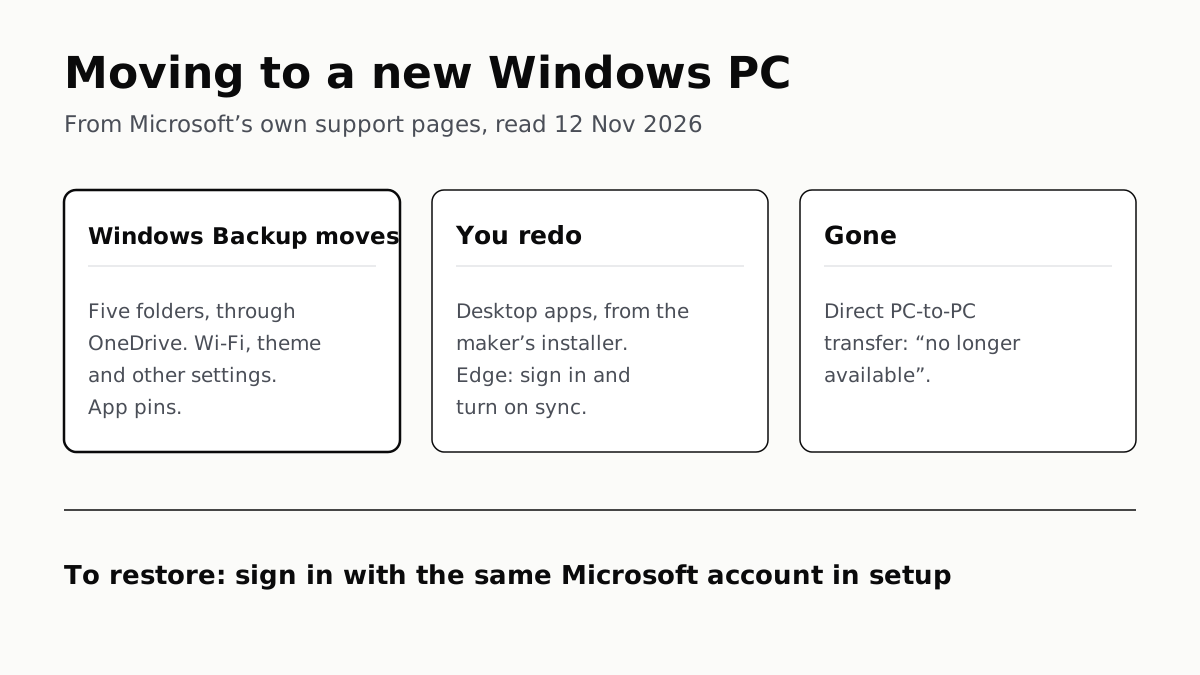
Sign in with the same Microsoft account during setup to restore. Files travel through OneDrive, whose free tier is 5 GB.
Migration Assistant Moves Your Old Mac or PC to a New Mac
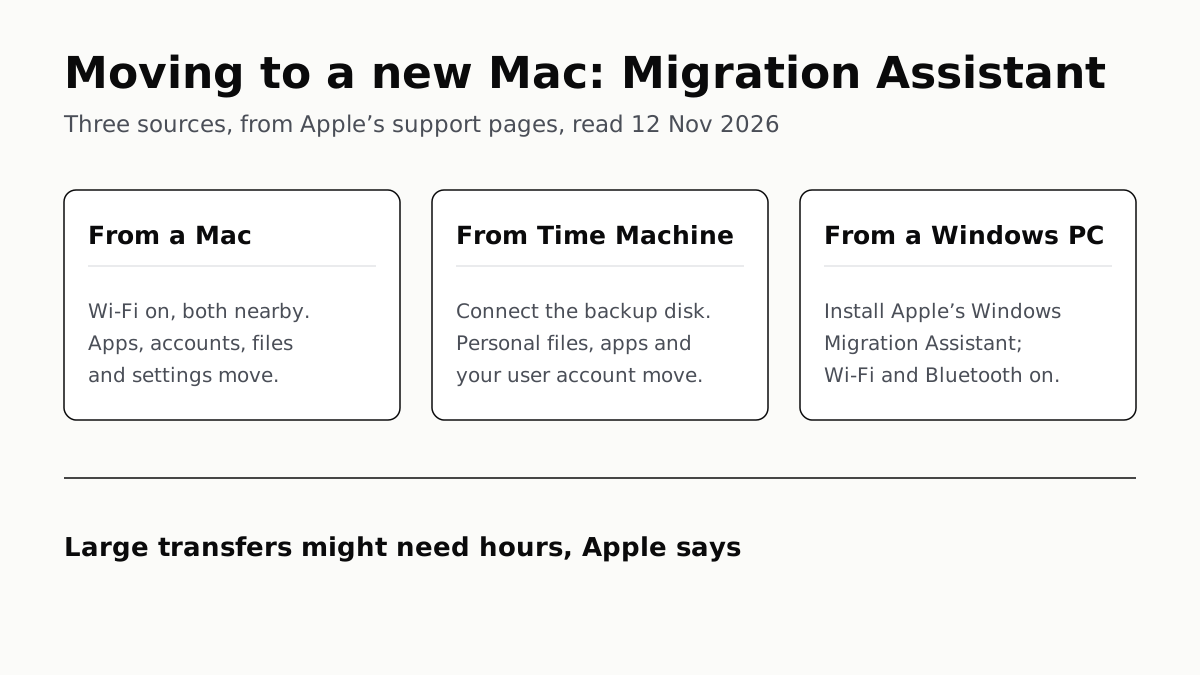
It comes with your Mac. A PC needs Apple’s Windows Migration Assistant, and Apple warns large transfers might need hours.
A Mac Can Run Windows, but Apple Silicon Means No Boot Camp
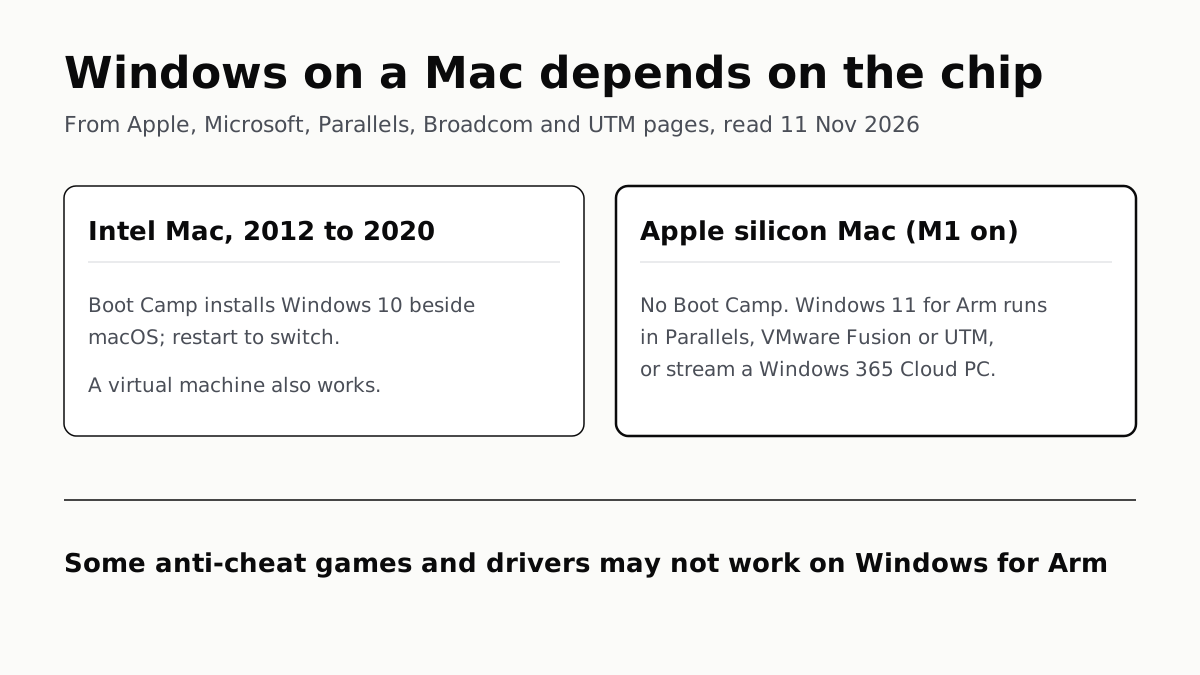
Microsoft authorizes Parallels on M1 to M3; Fusion and UTM are free. All run Windows 11 for Arm, where some games may not work.
Windows 11 Pro Adds BitLocker, Remote Desktop and VMs
Home can encrypt the drive on supported laptops. Pro adds a Remote Desktop host, Hyper-V, Windows Sandbox and domain join.