Windows Backup Moves Files and Settings, Not Desktop Apps
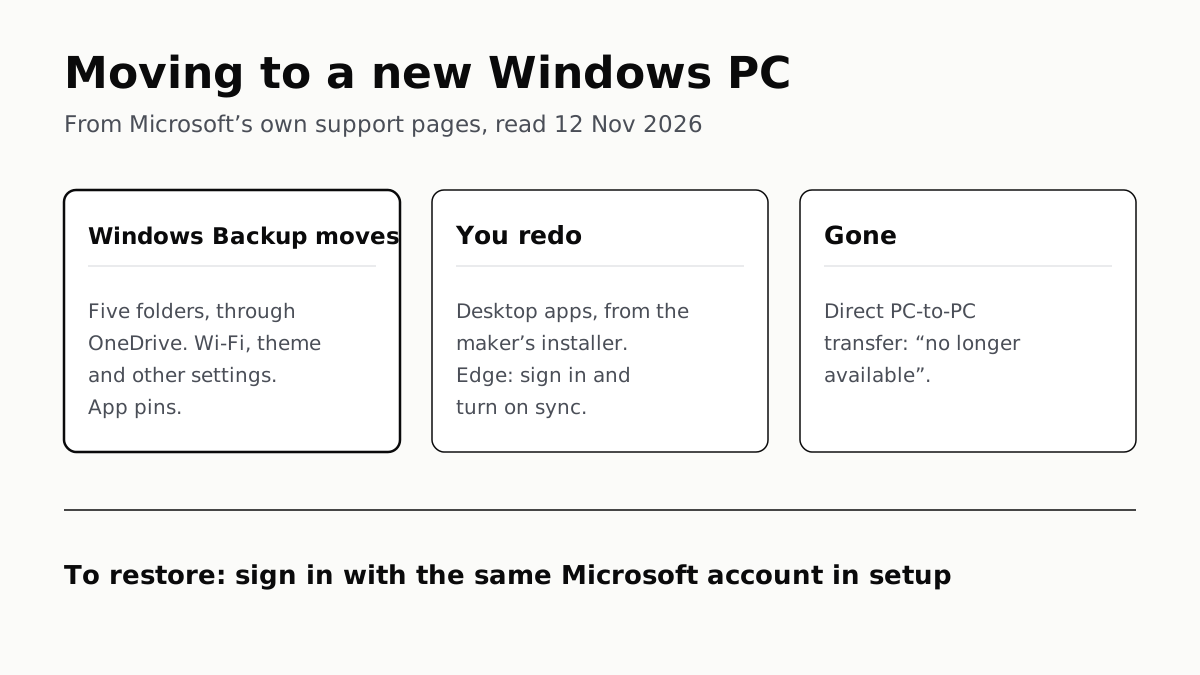
Sign in with the same Microsoft account during setup to restore. Files travel through OneDrive, whose free tier is 5 GB.
If you buy through our links, we may earn a commission. It never affects our verdicts or scores — how that works. As an Amazon Associate I earn from qualifying purchases.
Back up the old PC with Windows Backup while signed in with a personal Microsoft account, then sign in with the same account when you set up the new Windows 11 PC and choose to restore. Your settings, Wi-Fi networks and app pins come back, and files return through OneDrive; desktop apps you installed from the web have to be installed again.
Microsoft’s direct PC-to-PC transfer is gone. Its support page now reads “This feature is no longer available. Use Windows Backup and Restore instead,” and the 10 September 2026 Release Preview notes say the same.
What moves, item by item
| Item | Does Windows Backup move it? | The alternative |
|---|---|---|
| Desktop, Documents, Pictures, Videos, Music | Yes, synced to OneDrive (5 GB free) | Copy to an external drive in File Explorer |
| Other folders (Downloads, Favorites, other drives) | Not in its Folders list | Upload to OneDrive, or copy to an external drive |
| Microsoft Store apps | Pin restored; select it to reinstall | Reinstall from the Microsoft Store |
| Desktop apps not in the Store | Pin restored; sends you to the web for the installer | The maker’s installer, and your licence or sign-in |
| Wi-Fi networks and passwords | Yes: “Accounts, Wi-Fi network and passwords” | Re-enter them |
| Wallpaper, colour, theme, Start layout | Yes, if OneDrive has room | Set them again |
| Accessibility, language and dictionary | Yes | Set them again |
| Printers, mouse, File Explorer, notification settings | Yes, with “Other Windows settings” on | Set them again |
| Edge favorites, passwords, history, extensions | Microsoft points to Edge sync instead | Sign in to Edge and turn on sync |
| A work or school account | No: “Work or school Microsoft accounts won’t work” | Ask your employer’s IT |
Step 1: back up the old PC
Microsoft’s instructions apply to Windows 11 and Windows 10, so the old PC can run either.
- Check you are on a Microsoft account: Settings › Accounts › Your info. If you see Sign in with a Microsoft account instead, you are on a local account; select it.
- Open Start, type backup and select Windows Backup. The same controls are at Settings › Accounts › Windows backup.
- Expand Folders and turn on the folders you want in OneDrive. Microsoft lists five: Desktop, Documents, Pictures, Videos and Music.
- Turn on the settings you want: Installed apps, Accessibility, Accounts, Wi-Fi network and passwords, Personalization, Language preferences and dictionary and Other Windows settings. Some are on by default and show Backed up.
- Select Back up.
Storage is the catch. A free Microsoft account comes with 5 GB of OneDrive, and Microsoft warns that personalization “will not be backed up if you have insufficient OneDrive storage.” If your folders are bigger, you can buy more OneDrive storage, or copy the large folders to an external drive (below).
If the old PC still runs Windows 10, Microsoft’s page notes that support ended on 14 October 2025, though extended security updates now run to October 2027 for PCs enrolled in them. Either way, the backup above works on it.
Step 2: restore during setup on the new PC
When the new PC asks you to sign in during setup, use the same Microsoft account. Microsoft says: “We’ll see that you have backups and ask you if you would like to restore one.” If you have backed up more than one PC, select More options to pick the right one.
A 2023 Windows Experience Blog footnote says restore needs Windows 11 version 22H2 or later and a network connection during setup, so connect to Wi-Fi before you reach the sign-in screen.
Your files are not copied during setup. Microsoft says they “can be restored anytime by signing in to OneDrive with the same Microsoft account”, and they then appear in File Explorer under OneDrive. To keep new files backed up, open OneDrive’s settings, go to Sync and backup, select Manage backup and pick your folders.
Apps: what you will reinstall
For apps, Windows Backup saves what Microsoft’s settings catalog calls a “List of installed apps”. Microsoft’s backup page says “Your apps’ pins are restored where you left them”: Store apps reinstall when you select the pin, and “For apps that aren’t available in the Store, you’ll be directed to the web to download the installer.”
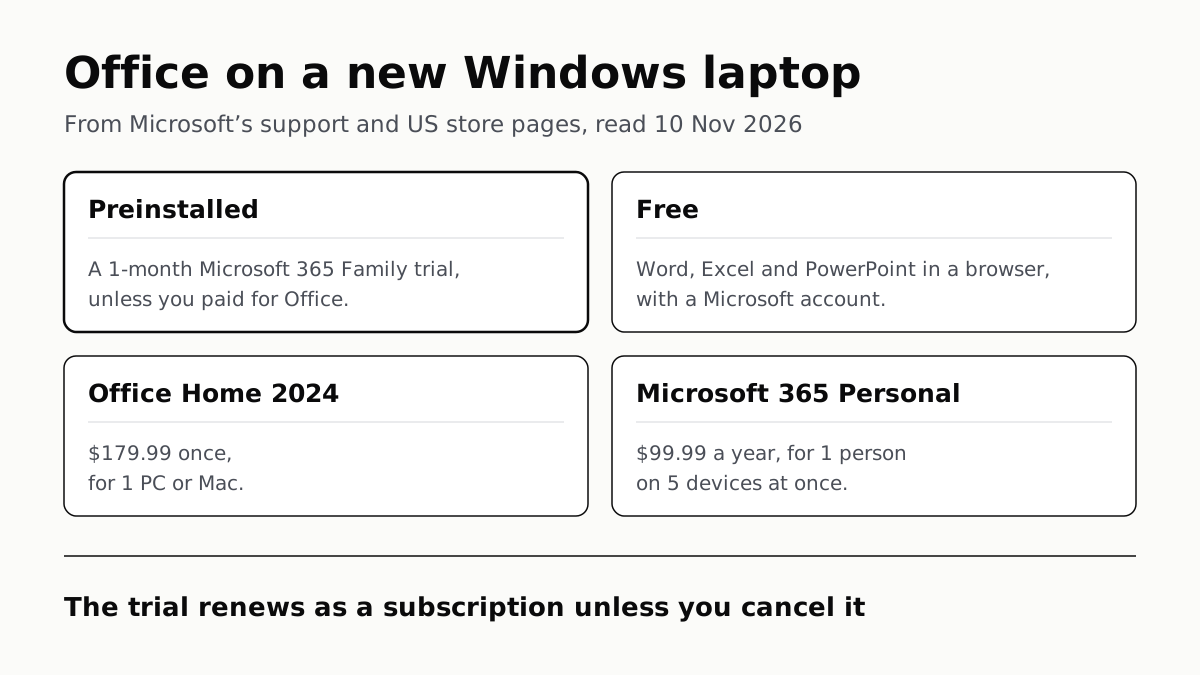
So for anything you bought outside the Store, have the licence key or the account it is tied to before you wipe the old PC. If Office is one of them, the copy Microsoft preinstalls on a new laptop is a one-month trial unless you paid for Office with it. Antivirus is another you may not need to bring: Windows 11 already has one built in.
The Remember my apps switch is not available on work or school accounts.
Passwords and Edge
Windows Backup’s Accounts, Wi-Fi network and passwords setting covers Windows’ own saved networks and sign-ins. Browser passwords are separate. For Edge, Microsoft’s backup page says to “sign in to Microsoft Edge and turn on sync”. Once signed in, Edge “syncs your favorites, passwords, history, extensions, settings, open tabs, autofill form entries … payment info, and other data types” across the devices you use with that account. Sign in to Edge on the old PC first, so its data is in the cloud before you need it. Check what syncs at Settings › Profiles › Sync in Edge.
Without a Microsoft account: an external drive
Microsoft documents a manual route that needs no account: copy your folders to a USB drive, SD card or external hard drive in File Explorer, select Eject, then copy them onto the new PC. Its page reminds you to include Documents, Desktop, Downloads, Favorites, Music, Pictures and Videos. This moves files only; settings and app lists stay behind.
After the move
To delete the cloud copy of your settings once you no longer need it, Microsoft says to turn off backup, then open your Microsoft account’s Devices page and select Clear stored settings under Cloud synced settings.
Questions people ask
How do I transfer everything from my old PC to my new Windows 11 laptop?
Run Windows Backup on the old PC while signed in with a personal Microsoft account, then sign in with the same account when you set up the new laptop and choose to restore. Files come back through OneDrive; Store apps reinstall from their pins; other desktop apps need their installers again.
Does Windows Backup transfer my apps?
It restores the app pins where you left them. Microsoft says Store apps reinstall when you select the pin, and for apps that are not in the Store you are sent to the web to download the installer. What Windows Backup saves is a list of your installed apps.
Is there still a way to transfer directly from PC to PC?
Not from Microsoft. Its support page for the setup-time transfer now says “This feature is no longer available. Use Windows Backup and Restore instead,” and the 10 September 2026 Release Preview notes say Windows Backup PC-to-PC Migration is no longer available.
Do I need a Microsoft account to move to a new PC?
For Windows Backup, the restore during setup and OneDrive, yes, and it must be a personal account: Microsoft says work or school accounts won’t work with Windows Backup. Copying files to a USB drive or external hard drive needs no account.
Will my saved passwords move to the new PC?
Windows Backup has a setting called “Accounts, Wi-Fi network and passwords”. Browser passwords are separate: for Edge, Microsoft’s backup page says to sign in to Edge and turn on sync, which carries favorites, passwords, history and extensions.
What if my files are bigger than 5 GB of OneDrive?
Microsoft says more OneDrive storage is available to buy, and Microsoft 365 plans include more. The free alternative it documents is copying the files to an external drive or USB stick in File Explorer and copying them back on the new PC.
How we researched this
No one at bitcritiq has handled this product. Everything here comes from published sources, listed below.
- What this cannot tell you
- Microsoft’s pages do not list which desktop apps can be reinstalled from the Store and which cannot; that depends on each app, so we describe what Windows does with each kind rather than naming apps. The Windows Backup page does not say whether Edge data is part of a Windows backup; it sends readers to Edge’s own sync, so our table says the same. The restore requirement (Windows 11 version 22H2 or later, online during setup) comes from a 2023 blog footnote; we did not find it restated on the current support page. Microsoft does not say when the PC-to-PC transfer stopped working on every PC, only that it is no longer available. We did not move a PC ourselves.
How we chose this, and what we did
- Why this subject
- New-laptop season brings the question of how to get everything off the old PC. bitcritiq had covered Office, antivirus, S mode and Windows 11 Pro on a new laptop, but not the move itself. This answers it from Microsoft’s own support pages, item by item, for a move from a Windows 10 or Windows 11 PC to a Windows 11 PC, and checks whether Microsoft’s direct PC-to-PC transfer still exists.
- How we looked at it
- Everything is from Microsoft’s own pages, read through a browser on 12 November 2026: the Microsoft Support articles ‘Back up and restore with Windows Backup’ (which applies to Windows 11 and Windows 10, with its collapsed sections read from the page text), ‘Windows Backup Settings Catalog’, ‘Transfer your files and settings to a new Windows PC’, ‘Move your files to a new Windows PC’, ‘Move files to a new Windows PC using OneDrive’, ‘Move your files to a new Windows PC using an external storage device’ and ‘Sign in to sync Microsoft Edge across devices’; the Windows Insider Blog post announcing Release Preview Builds 26100.9539/26200.9539 (10 September 2026); and the Windows Experience Blog post ‘How to get the latest Windows 11 innovations’ (26 September 2023) for the restore requirement. The statement that the folder backup covers five folders was counted from the Windows Backup page’s own list (Desktop, Documents, Pictures, Videos and Music); the control is the external-drive page on the same site, which names further folders (Downloads and Favorites) to copy by hand. The statement that the PC-to-PC transfer is gone rests on two first-party notices that agree: the support article’s own banner and the Release Preview post.
What this rests on
6 claims, all official. Nothing here was measured by bitcritiq — see how we test for why. Open a claim to read the source it came from.
Windows Backup stores its backup with a personal Microsoft account; work or school accounts do not work.Official
Microsoft Support, Back up and restore with Windows Backup: “Your backed-up information will be stored with your Microsoft account, so getting back to your things on a new PC is as easy as signing in.” and “Currently, the Windows Backup app is focused on consumer devices … Work or school Microsoft accounts won't work.”
The folder backup syncs Desktop, Documents, Pictures, Videos and Music to OneDrive, and a free Microsoft account includes 5 GB.Official
Microsoft Support, Back up and restore with Windows Backup: “Your free Microsoft account comes with 5 GB of OneDrive cloud storage” and “You can back up your Desktop, Documents, Pictures, Videos, and Music folders by toggling the switch for each folder to On”.
The settings Windows Backup offers are installed apps, accessibility, accounts with Wi-Fi networks and passwords, personalization, language preferences and other Windows settings.Official
Microsoft Support, Back up and restore with Windows Backup: “The available options are: Installed apps Accessibility Accounts, Wi-Fi network and passwords Personalization like Wallpaper, color, theme, start layout, etc. … Language preferences and dictionary Other Windows settings”.
On restore, Store apps reinstall from their pins; apps not in the Store send you to the web for the installer.Official
Microsoft Support, Back up and restore with Windows Backup: “Your apps' pins are restored where you left them. Apps that are available in the Microsoft Store can be restored by selecting on the app pin to get started. For apps that aren’t available in the Store, you’ll be directed to the web to download the installer”.
Microsoft’s direct PC-to-PC transfer during setup is no longer available.Official
Microsoft Support, Transfer your files and settings to a new Windows PC: “This feature is no longer available. Use Windows Backup and Restore instead.” Windows Insider Blog, 10 September 2026: “Windows Backup PC-to-PC Migration is no longer available.”
Edge favorites and passwords move through Edge’s own sync when you sign in.Official
Microsoft Support, Sign in to sync Microsoft Edge across devices: “When you’re signed in, Microsoft Edge syncs your favorites, passwords, history, extensions, settings, open tabs, autofill form entries … payment info, and other data types across the devices you use with this account.”
Sources 9
- Back up and restore with Windows Backup — Microsoft SupportOfficialaccessed Nov 12, 2026
- Windows Backup Settings Catalog — Microsoft SupportOfficialaccessed Nov 12, 2026
- Transfer your files and settings to a new Windows PC — Microsoft SupportOfficialaccessed Nov 12, 2026
- Move your files to a new Windows PC — Microsoft SupportOfficialaccessed Nov 12, 2026
Show 5 more · 5 official or standards
- Move files to a new Windows PC using OneDrive — Microsoft SupportOfficialaccessed Nov 12, 2026
- Move your files to a new Windows PC using an external storage device — Microsoft SupportOfficialaccessed Nov 12, 2026
- Sign in to sync Microsoft Edge across devices — Microsoft SupportOfficialaccessed Nov 12, 2026
- Announcing Windows 11 Release Preview Builds 26100.9539/26200.9539 — Windows Insider Blog, 10 September 2026Officialaccessed Nov 12, 2026
- How to get the latest Windows 11 innovations — Windows Experience Blog, 26 September 2023Officialaccessed Nov 12, 2026
Pass it on
Know someone weighing this up? Send them the answer.
bitcritiq.com/t78jThe link is permanent: it opens this article for good, even if the title changes.
No email, no account
Follow bitcritiq
Every new article, in whatever reader you already use.
Subscribe by RSSAll the ways to follow
Using Chrome on Android? Open the browser menu and tap Follow. New articles then turn up in the Following tab in Discover.
read next
Migration Assistant Moves Your Old Mac or PC to a New Mac
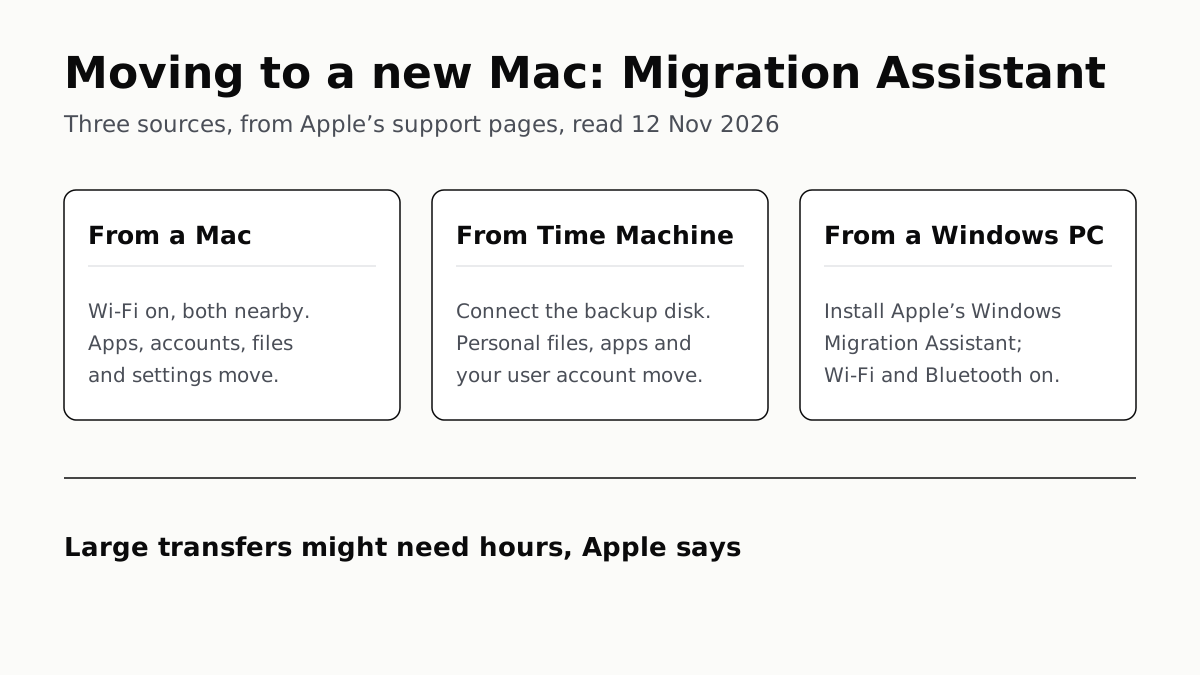
It comes with your Mac. A PC needs Apple’s Windows Migration Assistant, and Apple warns large transfers might need hours.
A Mac Can Run Windows, but Apple Silicon Means No Boot Camp
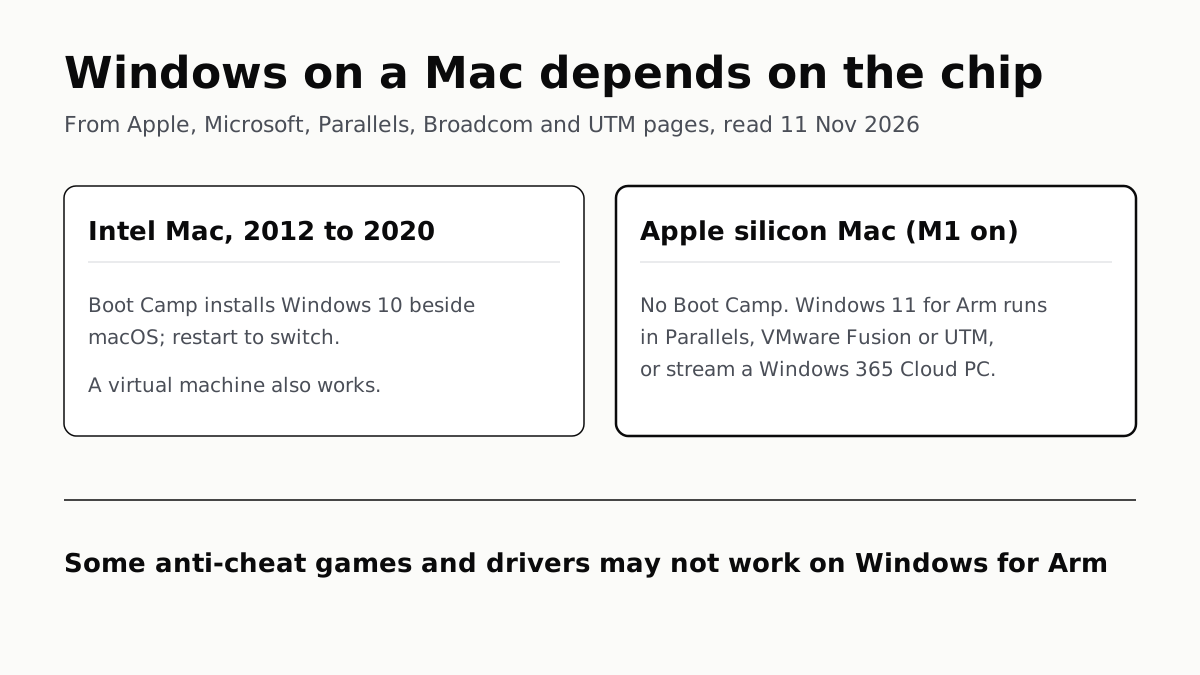
Microsoft authorizes Parallels on M1 to M3; Fusion and UTM are free. All run Windows 11 for Arm, where some games may not work.
Windows 11 Pro Adds BitLocker, Remote Desktop and VMs
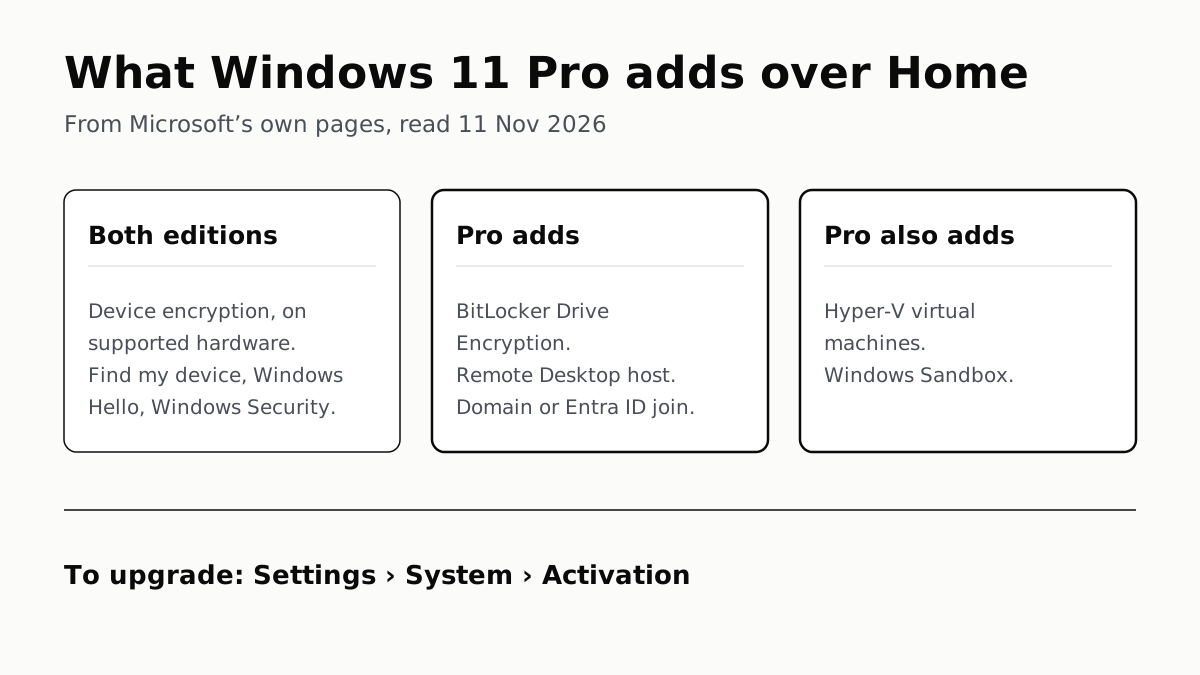
Home can encrypt the drive on supported laptops. Pro adds a Remote Desktop host, Hyper-V, Windows Sandbox and domain join.
Office on a New Windows Laptop Is a Trial Unless You Paid
It is a one-month Microsoft 365 Family trial. Word, Excel and PowerPoint stay free in a browser, or you can buy Office once.