Resetting a Steam Deck Wipes Every Game and Local Save
If it boots, the reset is in Settings, under System. If not, Valve has two more routes, and two repairs that keep your games.
If you buy through our links, we may earn a commission. It never affects our verdicts or scores — how that works. As an Amazon Associate I earn from qualifying purchases.
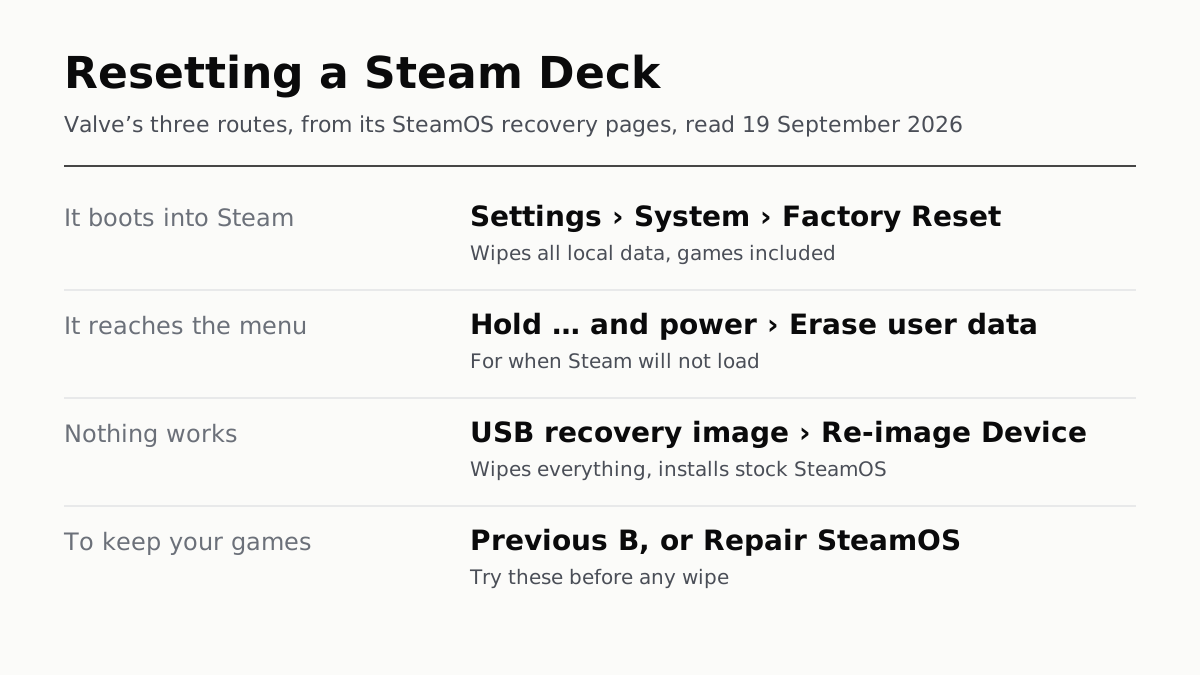
If the Deck boots, the reset is at Steam › Settings › System › Factory Reset, and it clears all local data, games included. If it will not load Steam, hold the … button while powering on and choose Erase user data. If nothing works, Valve’s USB recovery image wipes and reinstalls everything.
What survives is whatever lives off the device: your library, and the saves of games that use Steam Cloud. A save that was never synced goes with the reset.
Before you reset
- Check which games sync saves. Valve’s Steam Cloud page says each developer decides what the cloud stores, and the store page shows a Steam Cloud logo when a game uses it. A game without it keeps its progress on the Deck only.
- Go online first. Valve notes that playing in Offline Mode “will keep games from syncing until you’ve gone back online”. A Deck that has been offline for a week may be holding progress the cloud has never seen.
- Deal with the microSD card yourself. Valve’s recovery page does not mention microSD cards at all. If the card goes with the Deck, format it at Steam › Settings › System › Format SD card, which is Valve’s own route. If it stays with you, take it out.
- Plug the Deck in. Valve recommends it for the recovery-menu steps, and a reset is not something to interrupt at 3% battery.
If it boots: Factory Reset
- Press the Steam button and open Settings, then System.
- Scroll down to the Factory Reset option and select Factory Reset.
The Re-install SteamOS part of it may need an internet connection, because it downloads fresh copies of any system files that have been modified. Valve says you can switch that option off if you cannot connect. Valve describes the whole operation as clearing all local data “including games, etc.” — so treat anything installed or downloaded in Desktop Mode as part of that too.
If Steam will not load: the recovery menu
- Hold the power button for 10 seconds to shut the Deck down completely.
- Hold the … button and press power.
- Keep holding … until a menu labelled SteamOS appears.
- Choose ERASE USER DATA FROM DECK.
If you want the Deck working again rather than empty, stop at step 3. The same menu offers Previous B, which rolls SteamOS back to the last version that worked while retaining installed games and saves, in Valve’s words. If a recent update broke it, that fixes the Deck without a wipe.
If nothing works: the USB recovery image
This is the route for a Deck that will not reach either of the menus above, or that someone has put another operating system on.
- Download the SteamOS recovery image from Valve.
- Write it to a USB key of at least 8GB. Valve suggests Rufus on Windows and Balena Etcher on a Mac or Linux.
- Shut the Deck down and plug the key in. Valve’s instructions allow a hub, which is one job a USB-C hub or dock earns its keep on.
- Hold Volume Up and press power. Let go of Volume Up at the chime.
- Choose Boot Manager, then EFI USB Device. The screen goes dark for about a minute.
- From the desktop that loads, pick your option.
Valve lists three there. Re-image Device is a full factory reset: user info, games, applications and any other operating system are wiped and replaced with stock SteamOS. Repair SteamOS reinstalls the system while attempting to keep your games and personal content. Recovery tools is a command prompt for boot-partition work, and not something a seller needs.
Valve’s own installation steps call the wipe Wipe Device & Install SteamOS, a line above the list that calls it Re-image Device. Both describe the same wipe; the label on your screen may be either.
Before you sell or give it away
Reset it, then switch it on before it leaves. After a USB re-image, Valve says the Deck reboots into the SteamOS welcome experience, and its setup guide says first-time setup asks for Wi-Fi so the new owner can log into their own Steam account. If it shows your library instead, the reset did not run.
Nothing on Valve’s recovery pages describes a lock that follows the Deck to its next owner — no equivalent of the Activation Lock that bricks a hand-me-down phone. The risk runs the other way: a Deck sold still signed in is a device with access to your account.
If it has already gone, signed in, open Account Details › Manage Steam Guard on Steam and deauthorize your devices. Valve says this deauthorizes “all computers or devices that have access to your Steam account” — your own included, so each one will ask for a Steam Guard code next time.
What to actually do
- Selling it: go online, confirm your saves are in Steam Cloud, remove or format the microSD card, then Settings › System › Factory Reset.
- It broke after an update: try Previous B in the recovery menu before wiping anything.
- It will not boot at all: the USB image, and Repair SteamOS before Re-image Device.
- Unsure whether a game syncs: look for the Steam Cloud logo on its store page. If it is missing, assume the save lives only on the Deck. Games added in Desktop Mode, where the Deck behaves like the Linux PC it is, are outside Steam Cloud unless they sync some other way.
How we researched this
No one at bitcritiq has handled this product. Everything here comes from published sources, listed below.
- What this cannot tell you
- We have not reset a Steam Deck; this is Valve's procedure, not a record of ours. Valve's recovery page does not mention microSD cards, Steam Cloud or the Steam account at all, so this page says nothing about what a reset does to a card beyond Valve's own route for formatting one. Whether a given game's saves are in Steam Cloud is the developer's choice, and Valve says you may need the developer or community to find out which files are synced. Valve updates these pages; its two installer pages already name the wipe option differently.
How we chose this, and what we did
- Why this subject
- Readers are asking two versions of one question: how to clear a Steam Deck before selling or giving it away, and how to rescue one that has stopped working. Valve answers both on a single support page, updated on 18 September 2026, but it also documents two repairs that keep your games, and those are the ones worth trying first on a Deck that is misbehaving rather than leaving.
- How we looked at it
- Every step, menu name and warning is taken from Valve's Steam Support pages — SteamOS Recovery and Troubleshooting, SteamOS Installation and Repair, Steam Cloud, Steam Guard, and the Steam Deck basic use guide — read on 19 September 2026. Valve's help pages load their text by script, so it was read from the page data rather than the rendered view. Menu names are Valve's own spelling.
What this rests on
6 claims, all official. Nothing here was measured by bitcritiq — see how we test for why. Open a claim to read the source it came from.
On a Steam Deck that boots, the factory reset is under Steam › Settings › System, and it clears all local data, including games, and reinstalls Steam and SteamOS.Official
Valve's recovery page: 'For situations where you want to clear all local data (including games, etc.) and reinstall Steam / SteamOS', press the Steam button, go to Settings and then System, scroll to the Factory Reset option and select the Factory Reset button. It says this option can be used if the device can boot successfully into Steam.
The Re-install SteamOS part of the reset may need an internet connection, and can be switched off.Official
Valve's recovery page: the 'Re-install SteamOS' option may require an active internet connection, downloading original versions of modified system files; if you cannot or do not want to connect, you can disable it.
A Deck that will not load Steam can be wiped from the SteamOS boot menu, reached by holding the ... button while powering on.Official
Valve's recovery page: power down fully by holding the power button for 10 seconds, hold the '...' button and press power, keep holding until a menu labelled 'SteamOS' appears, then choose 'ERASE USER DATA FROM DECK', which 'will erase any local user data'.
Two of Valve's recovery options are designed to keep installed games and saves: rolling back to the previous OS, and Repair SteamOS.Official
Valve's recovery page says the rollback recovers a last known good OS 'while retaining user data (e.g. installed games, saves, etc.)', selected as 'Previous B'. Its installation page says Repair SteamOS reinstalls SteamOS 'while attempting to preserve your games and personal content'.
When nothing else works, Valve's USB recovery image and its Re-image Device option perform a full factory reset.Official
Valve's installation page: write the SteamOS image to a USB key of 8GB minimum, hold Volume Up and press power, choose Boot Manager and 'EFI USB Device'; 'Re-image Device - This performs a full factory reset - all user info, installed games, applications, or operating systems will be wiped and replaced with stock SteamOS.'
Whether a game's saves survive depends on the game, because each developer decides what Steam Cloud stores.Official
Valve's Steam Cloud page: developers 'are able to completely customize how The Steam Cloud is used for their games, including which user files are uploaded', the store page shows a Steam Cloud logo if a game uses it, and with cloud disabled progress 'will only be saved locally on the machine where the progress was made'.
Sources 5
- SteamOS Recovery and Troubleshooting — Steam SupportOfficialaccessed Sep 19, 2026
- SteamOS Installation and Repair — Steam SupportOfficialaccessed Sep 19, 2026
- Steam Cloud — Steam SupportOfficialaccessed Sep 19, 2026
- Steam Guard — Steam SupportOfficialaccessed Sep 19, 2026
- Steam Deck - Basic Use & Troubleshooting Guide — Steam SupportOfficialaccessed Sep 19, 2026
No email, no account
Follow bitcritiq
Every new article, in whatever reader you already use.
Subscribe by RSSAll the ways to follow
Using Chrome on Android? Open the browser menu and tap Follow. New articles then turn up in the Following tab in Discover.
read next
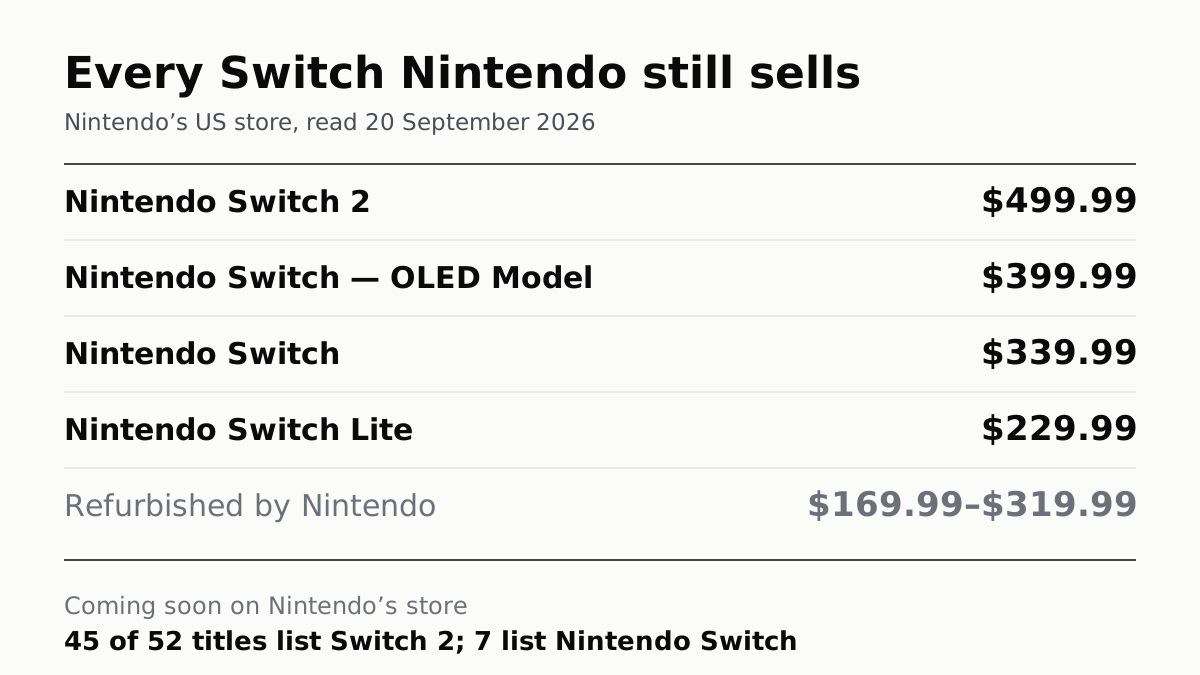
Nintendo Still Sells Three Old Switch Models, From $229.99
The OLED is $399.99, a hundred under a Switch 2. Of the 52 games Nintendo lists as coming soon, seven play on the original.
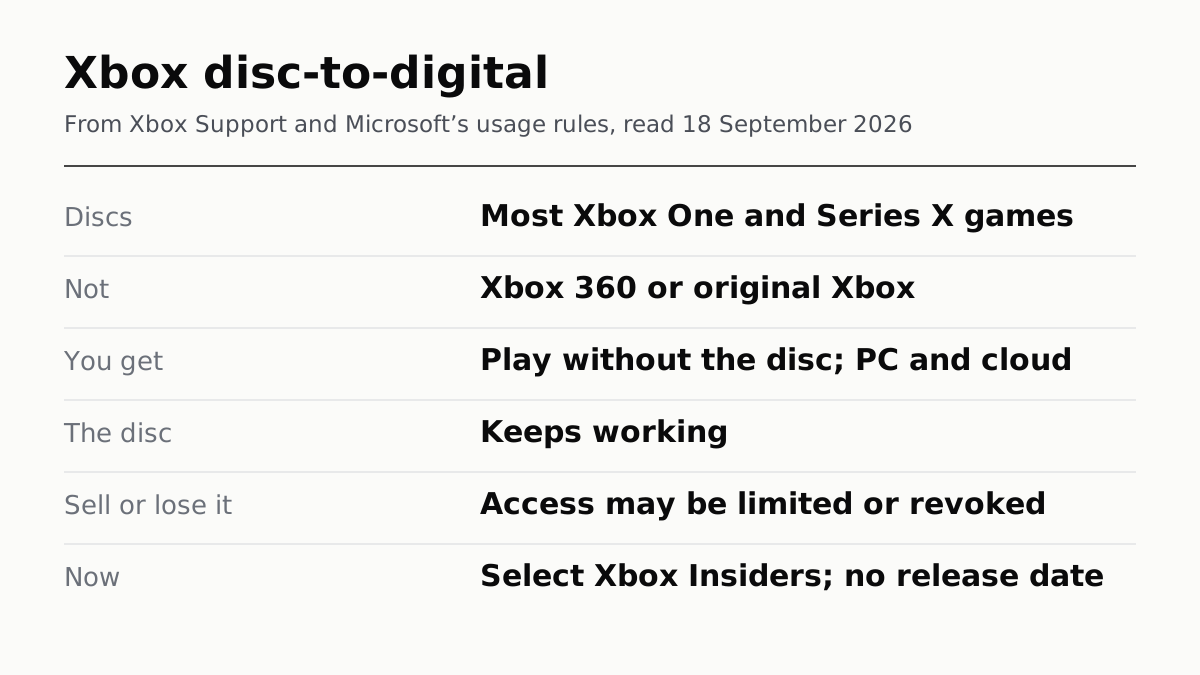
Xbox's Digital Copy of Your Disc Lasts While You Keep It
Disc-to-digital gives Xbox One and Series X discs a digital licence. Sell or lose the disc and Microsoft says access may be revoked.
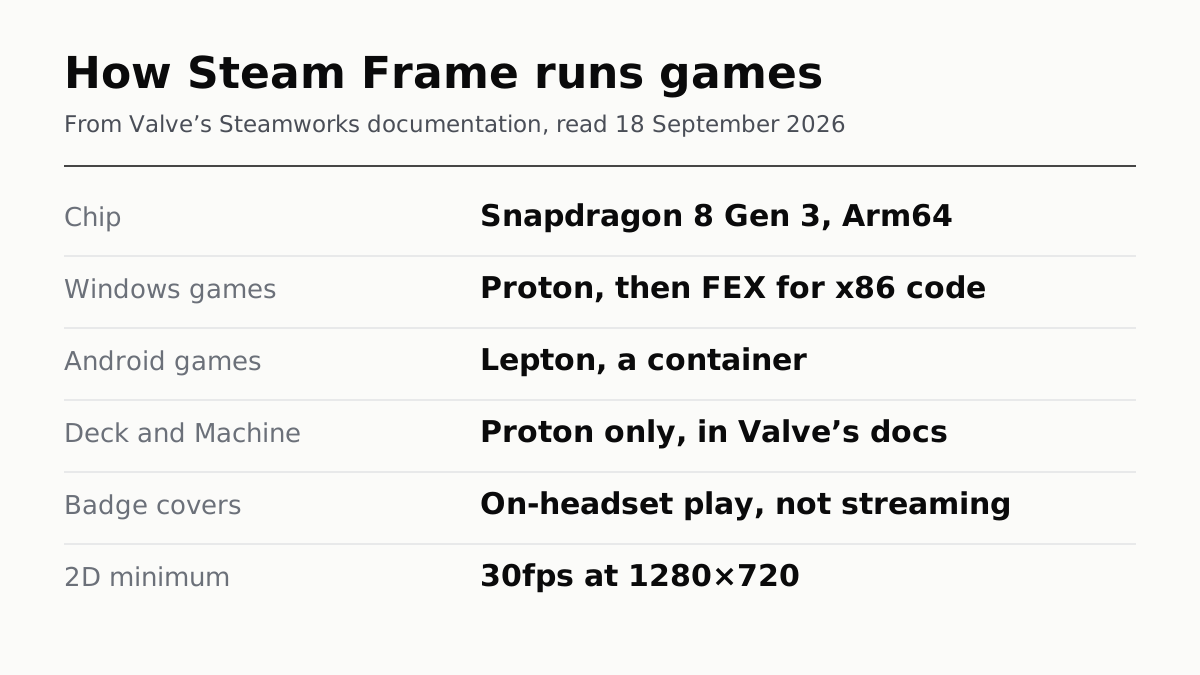
Proton, FEX and Lepton: How Steam Frame Runs Your Games
Steam Frame's Arm chip runs Windows games through two translation layers, Android ones in a container. Its badge ignores streaming.
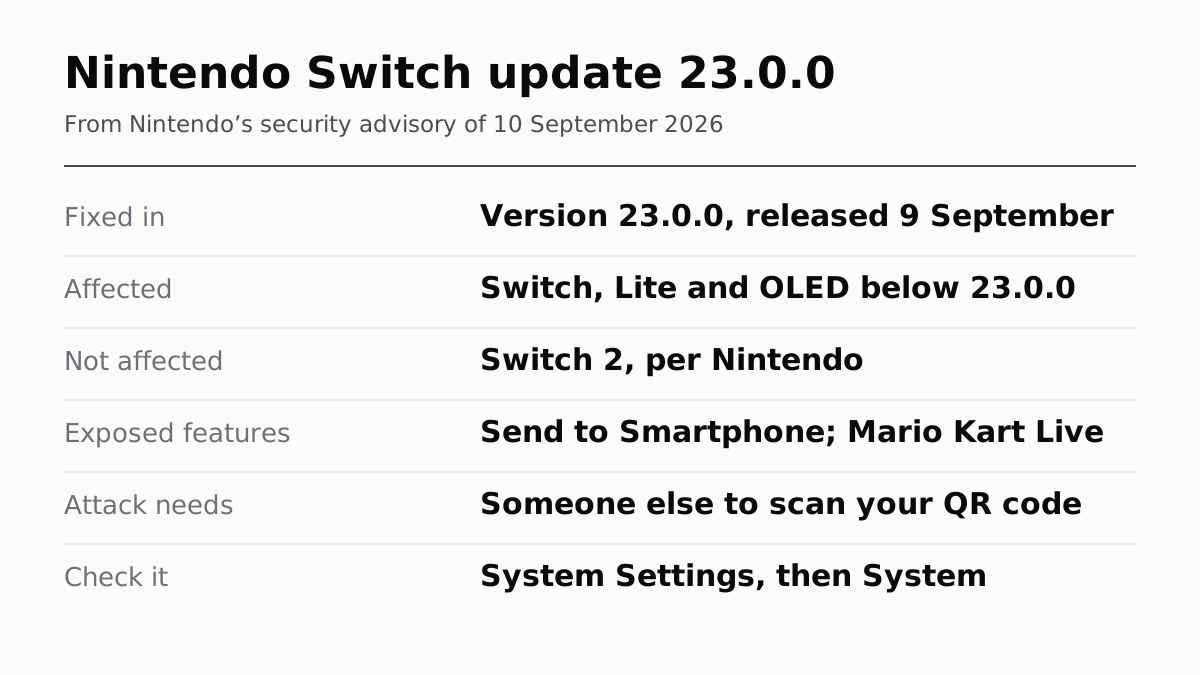
Switch Update 23.0.0 Fixes a Flaw That Needs Your QR Code
Nintendo's advisory covers the original Switch, Lite and OLED. The attack only works if someone else scans the code on your screen.