Apple’s Guide Turns Off Apple Intelligence on Mac in 8 Steps
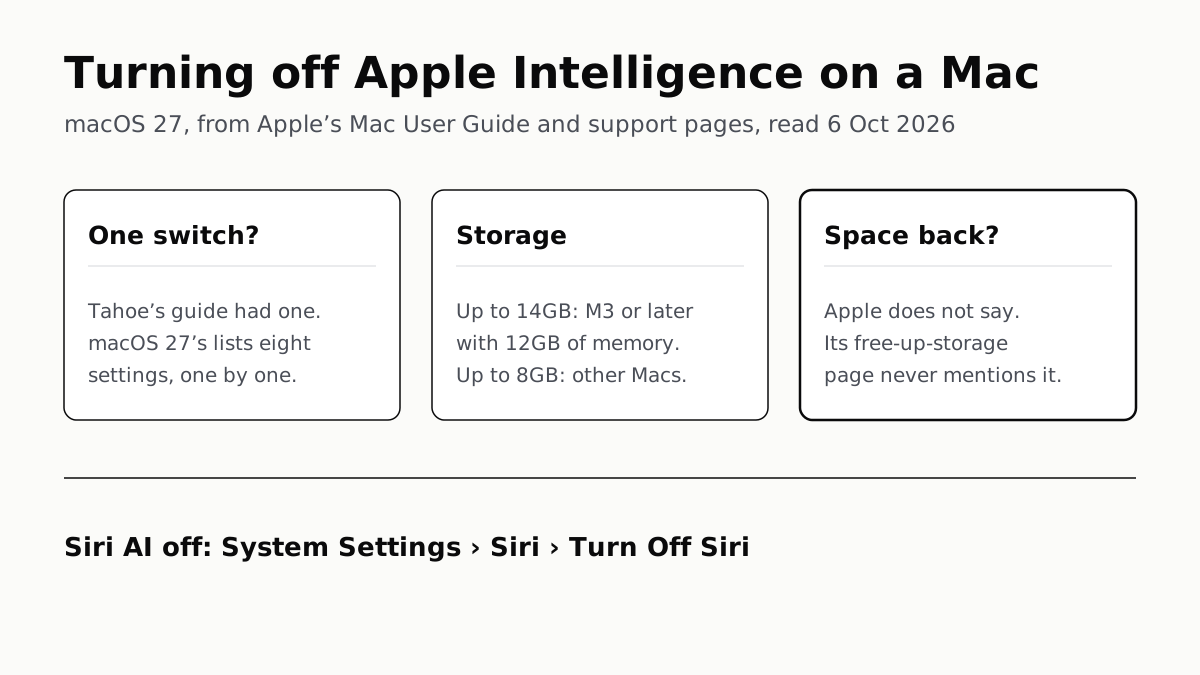
Tahoe’s single switch is gone from Apple’s macOS 27 guide, and Apple doesn’t say turning features off frees its up to 14GB.
If you buy through our links, we may earn a commission. It never affects our verdicts or scores — how that works. As an Amazon Associate I earn from qualifying purchases.
On a Mac running macOS 27 Golden Gate, you turn Apple Intelligence off one feature at a time: Apple’s guide lists eight separate settings, starting with Siri AI under System Settings › Siri. The single Apple Intelligence switch that Apple’s macOS Tahoe guide described does not appear in its macOS 27 version.
Turning features off is not the same as getting storage back. Apple says Apple Intelligence uses up to 14GB on some Macs, and none of its pages that we read says switching features off frees any of it.
This is the Mac counterpart to our iPhone guide to turning off Apple Intelligence. The ideas match; the places do not, and most of the Mac switches live in the apps’ own Settings menus rather than in System Settings.
Before you start
- Check your macOS version. The steps below are from Apple’s macOS 27 Mac User Guide. On macOS Tahoe 26, Apple’s guide gives one switch instead: System Settings › Apple Intelligence & Siri, then the button next to Apple Intelligence.
- Check your Mac. Apple Intelligence in macOS 27 runs on any Mac with M1 or later and on MacBook Neo, which covers every Mac that can install macOS 27.
- In the EU, expect Siri AI too. Apple’s footnote says Siri AI “will not be initially available in the EU on iOS, iPadOS, and watchOS”. macOS is not named in that exclusion.
Turn off each feature
- Siri AI. Open System Settings, click Siri in the sidebar, click Turn Off Siri, then click Turn Off Siri again to confirm. This turns Siri off entirely. To keep an assistant without the AI, click Turn On Siri afterwards and select Use Siri Classic.
- Notification summaries. In System Settings, click Notifications, then Summarize Notifications, and turn it off.
- Messages summaries. In Messages, choose Messages › Settings and turn off Summarize Messages.
- Mail summaries. In Mail, choose Mail › Settings, click Viewing, and turn off Summarize Message Previews.
- Mail smart replies. In the same window, click Composing and turn off Personalize Smart Replies.
- Voicemail suggestions. In the Phone app, choose Phone › Settings, click Calls, and turn off Suggestions in Voicemail.
- Journal writing prompts. In Journal, choose Journal › Settings › General and turn off Get Writing Prompts.
- Call Context cards. Apple’s table gives no switch of its own here and points to Siri’s App Access settings, covered below.
What turning it off does, and does not, give back
| You turn off | What changes, per Apple’s pages |
|---|---|
| Siri AI | Siri is off, unless you then choose Siri Classic |
| A summary or smart-reply setting | That feature, in that one app |
| Any of the eight | Apple says nothing about storage being freed |
| Improve Siri & Apple Intelligence | Apple’s permission to store and review samples of your requests, and to train models on them |
Storage
Apple’s requirements article gives two figures for the Mac:
| Mac | Storage Apple says Apple Intelligence uses |
|---|---|
| M3 or later, with at least 12GB of unified memory | Up to 14GB |
| Other supported Macs: M1, M2, MacBook Neo (affiliate link to Amazon, opens in a new tab), and M3 or later with less memory | Up to 8GB |
Those are Apple’s maximums, not a measurement of any particular Mac.
What Apple does not say is that turning features off gives the space back. Its macOS 27 turn-off page never mentions storage, though it carries the usual footnote about usage limits. The storage line on the requirements page points to Apple’s “Free up storage space on Mac” article, and that article — which covers apps, Mail, old iPhone backups and System Data — does not mention Apple Intelligence at all.
So if space is the reason you are here, we cannot tell you that switching these settings off recovers any of it, because Apple has not said so. Tools that delete the model files directly are outside Apple’s route, and outside this guide.
The settings that are about your data
Apple’s Mac guide says Siri AI “can search your photos, mail, messages, calendar, and more”. Three settings govern what it draws on and what Apple keeps:
- Per app. In System Settings › Siri › App Access, select an app and turn off Learn from this application and Show Siri Suggestions in application. This is also where Apple sends you for Call Context cards.
- Training. In System Settings › Privacy & Security › Analytics & Improvements, turn off Improve Siri & Apple Intelligence. Apple says opting in lets it store and review samples of your audio, transcripts and request data, and that it “can also use this data to train foundation models”.
- A record of what left your Mac. In Privacy & Security, click Apple Intelligence Report, choose the last 15 minutes or 7 days, then Export Activity. The file, Apple_Intelligence_Report.json, lists the requests your Mac sent to Private Cloud Compute, the server side that Apple says does not store your data or make it accessible to Apple.
Apple’s Siri privacy statement adds that turning off both Siri and Dictation deletes the transcripts stored on your device for personalisation, though it gives the paths for iPhone only.
Using an assistant and letting its maker learn from you are separate agreements with separate switches, the same split we found in whether ChatGPT trains on your chats.
Locking it rather than switching it off
For a shared Mac, or to stop the settings being turned back on, Screen Time holds the controls. Go to System Settings › Screen Time › Content & Privacy Restrictions › Siri. Under Allowed Siri Version, choose Don’t Allow Siri, Siri AI (Beta) or Siri Classic; under Capabilities, set items such as Broad World Knowledge or Writing Assistance to Blocked. Apple points parents to its Apple Devices for Kids and Families guide for a child’s Mac.
Questions people ask
How do I turn off Apple Intelligence on my Mac?
On macOS 27, one feature at a time. Siri AI is under System Settings, Siri, Turn Off Siri; notification summaries are under Notifications; Messages, Mail, Phone and Journal each have the switch in their own Settings menu. Apple’s macOS 27 guide lists eight settings and no single switch.
Does turning off Apple Intelligence free up storage on a Mac?
Apple does not say it does. Its turn-off page never mentions storage, and its Free up storage space on Mac article does not mention Apple Intelligence at all. Turn features off for what they do, not on the expectation of space back.
How much storage does Apple Intelligence use on a Mac?
Up to 14GB on a Mac with M3 or later and at least 12GB of unified memory, and up to 8GB on other supported Macs, according to Apple. Those are maximums, not a measurement of your Mac.
Where is the Apple Intelligence toggle in macOS 27?
Apple’s macOS 27 guide does not describe one. On macOS Tahoe 26 it was under System Settings, Apple Intelligence & Siri, as a button next to Apple Intelligence. The macOS 27 guide instead lists each feature’s own setting.
How do I turn off Siri AI but keep Siri on a Mac?
Turn Siri off under System Settings, Siri, then click Turn On Siri and select Use Siri Classic. Screen Time can also lock the choice: Content & Privacy Restrictions, Siri, Allowed Siri Version.
Does Apple use my Siri requests to train Apple Intelligence?
Only if Improve Siri & Apple Intelligence is on. Apple says that setting lets it store and review samples of your requests and use them to train foundation models. On a Mac it is under Privacy & Security, Analytics & Improvements.
How we researched this
No one at bitcritiq has handled this product. Everything here comes from published sources, listed below.
- What this cannot tell you
- We have not run macOS 27, so what we say about a single switch is about Apple’s guide, not about every screen in System Settings. The storage figures are Apple’s stated maximums; we have not measured how much space Apple Intelligence uses on any Mac, or whether any of it is released when features are turned off, and Apple’s pages do not say. Third-party tools that delete model files are outside Apple’s route and outside this guide. Apple’s Siri privacy statement gives its settings paths for iPhone only.
How we chose this, and what we did
- Why this subject
- Our iPhone guide to turning off Apple Intelligence draws steady search traffic, and Mac owners ask the same question with two differences: the settings sit in different places, several inside the apps’ own Settings menus, and the storage Apple Intelligence uses is a bigger share of a small Mac SSD than people expect. This is the Mac counterpart, written for macOS 27 Golden Gate.
- How we looked at it
- Every step and figure is from Apple’s own pages, read in a browser on 6 October 2026: the macOS 27 Mac User Guide pages on turning off and restricting Apple Intelligence, getting started with Apple Intelligence and with Siri AI, customizing Siri, Siri restrictions in Screen Time, and Apple Intelligence and privacy; the macOS Tahoe 26 version of the getting-started page, for comparison; Apple Support 121115 (requirements and storage), 102624 (freeing up storage on a Mac) and 127070 (Improve Siri & Apple Intelligence); and Apple’s Siri, Dictation & Privacy statement.
What this rests on
6 claims, all official. Nothing here was measured by bitcritiq — see how we test for why. Open a claim to read the source it came from.
Apple’s macOS 27 guide turns Apple Intelligence off feature by feature; the single switch its macOS Tahoe guide described does not appear.Official
The macOS 27 page ‘Turn off and restrict access to Apple Intelligence features on Mac’ gives a table of separate settings (Siri AI, Messages, email and notification summaries, Personalized Smart Replies, voicemail suggestions, Call Context cards, Journal prompts). The macOS Tahoe 26 guide says: “Turn off Apple Intelligence: Go to the System Settings app, click Apple Intelligence & Siri, then click the button next to Apple Intelligence.” The macOS 27 getting-started page has no such section.
Turning off Siri AI on a Mac means turning Siri off; Siri Classic is the way back to an assistant.Official
Mac User Guide, macOS 27: “click Siri in the sidebar, then click Turn Off Siri. Click Turn Off Siri again to confirm.” And: “To use Siri Classic instead of Siri AI, follow the steps above to turn off Siri. Click Turn On Siri, then select Use Siri Classic.”
Apple Intelligence uses up to 14GB of storage on Macs with M3 or later and at least 12GB of unified memory, and up to 8GB on other supported Macs.Official
Apple Support 121115: “Up to 14 GB of storage on device for … Mac models with M3 and later and at least 12GB of unified memory” and “Up to 8 GB of storage for other Apple Intelligence-enabled iPhone, iPad, Mac, and Apple Vision Pro models.”
Apple’s pages do not say that turning Apple Intelligence features off frees that storage.Official
The macOS 27 turn-off page never mentions storage, though it carries Apple’s usage-limit footnote. Support 121115 states the storage figures and links to ‘Free up storage space on Mac’ (102624), which covers apps, Mail, iPhone backups and System Data but does not mention Apple Intelligence.
If you opt in to Improve Siri & Apple Intelligence, Apple can use samples of your requests to train foundation models; the Mac setting is under Privacy & Security.Official
Apple Support 127070: “If you opt in to Improve Siri & Apple Intelligence, Apple can also use this data to train foundation models.” On Mac: “click Privacy & Security. Click Analytics & Improvements, then turn Improve Siri & Apple Intelligence … on or off.”
A Mac can export a report of the requests it sent to Private Cloud Compute.Official
Mac User Guide, macOS 27: “You can generate a report of requests your Mac has sent to Private Cloud Compute.” Under Privacy & Security, Apple Intelligence Report, for the last 15 minutes or 7 days, saved as Apple_Intelligence_Report.json.
Sources 11
- Turn off and restrict access to Apple Intelligence features on Mac — Mac User Guide, macOS 27Officialaccessed Oct 6, 2026
- Use Apple Intelligence on your Mac — Mac User Guide, macOS Tahoe 26Officialaccessed Oct 6, 2026
- Get started with Apple Intelligence on your Mac — Mac User Guide, macOS 27Officialaccessed Oct 6, 2026
- How to get the next generation of Apple Intelligence — Apple Support 121115Officialaccessed Oct 6, 2026
Show 7 more · 7 official or standards
- Free up storage space on Mac — Apple Support 102624Officialaccessed Oct 6, 2026
- Get started with Siri AI on Mac — Mac User Guide, macOS 27Officialaccessed Oct 6, 2026
- Customize Siri on Mac — Mac User Guide, macOS 27Officialaccessed Oct 6, 2026
- Change Siri Restrictions settings in Screen Time on Mac — Mac User Guide, macOS 27Officialaccessed Oct 6, 2026
- Apple Intelligence and privacy on Mac — Mac User Guide, macOS 27Officialaccessed Oct 6, 2026
- Turn Improve Siri & Apple Intelligence or Improve Siri & Dictation on or off — Apple Support 127070Officialaccessed Oct 6, 2026
- Siri, Dictation & Privacy — AppleOfficialaccessed Oct 6, 2026
Pass it on
Know someone weighing this up? Send them the answer.
bitcritiq.com/2tvbThe link is permanent: it opens this article for good, even if the title changes.
No email, no account
Follow bitcritiq
Every new article, in whatever reader you already use.
Subscribe by RSSAll the ways to follow
Using Chrome on Android? Open the browser menu and tap Follow. New articles then turn up in the Following tab in Discover.
read next
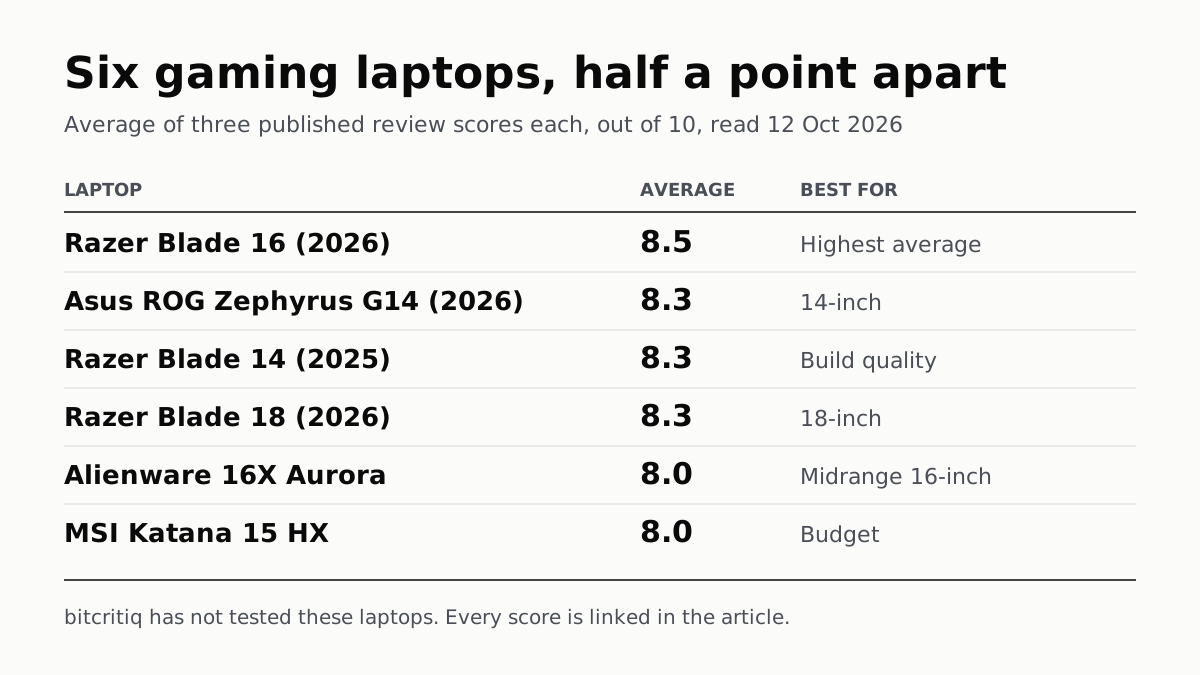
Razer Blade 16 Tops Gaming Laptop Reviews, by Half a Point
Eighteen review scores from eight outlets, all read on 12 October. Six laptops land within half a point, so pick by size and price.
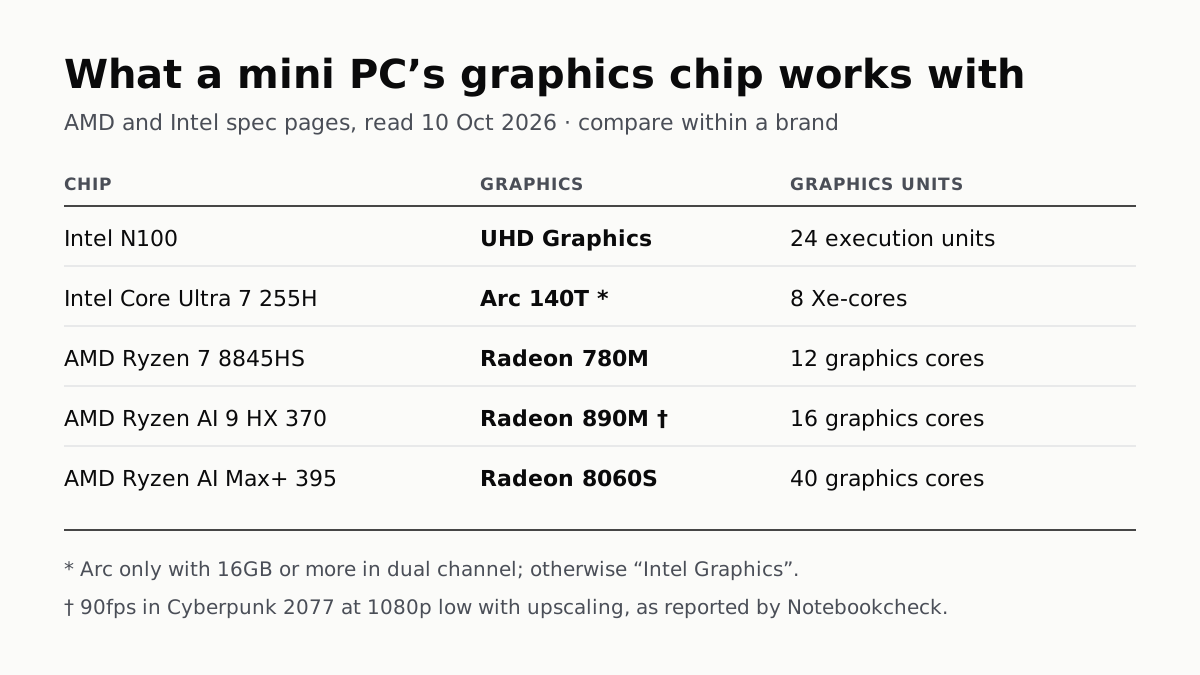
A Mini PC Can Game, but Its Graphics Chip Sets the Ceiling
Balatro's minimum is integrated graphics; Cyberpunk 2077's is a GTX 1060. A Radeon 890M ran Cyberpunk at 1080p low in one reported test.
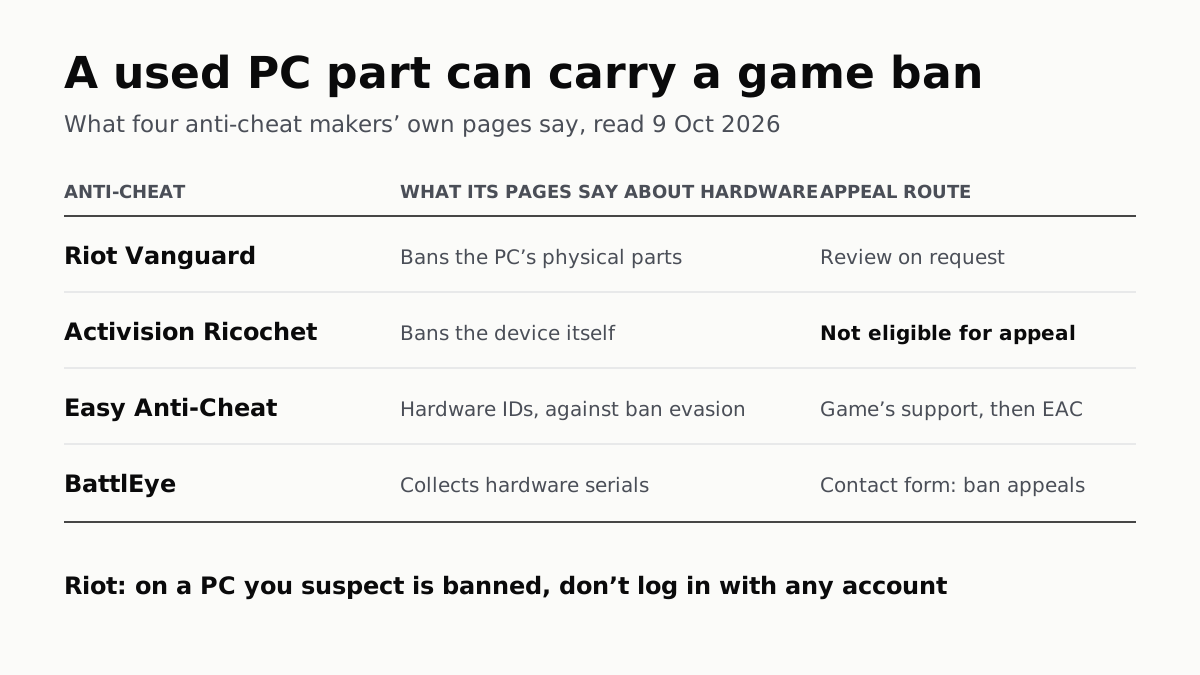
A Used PC or CPU Can Carry Its Last Owner’s Game Ban
Riot and Activision ban hardware, not only accounts. Riot will re-check one on request; Activision rules out an appeal.
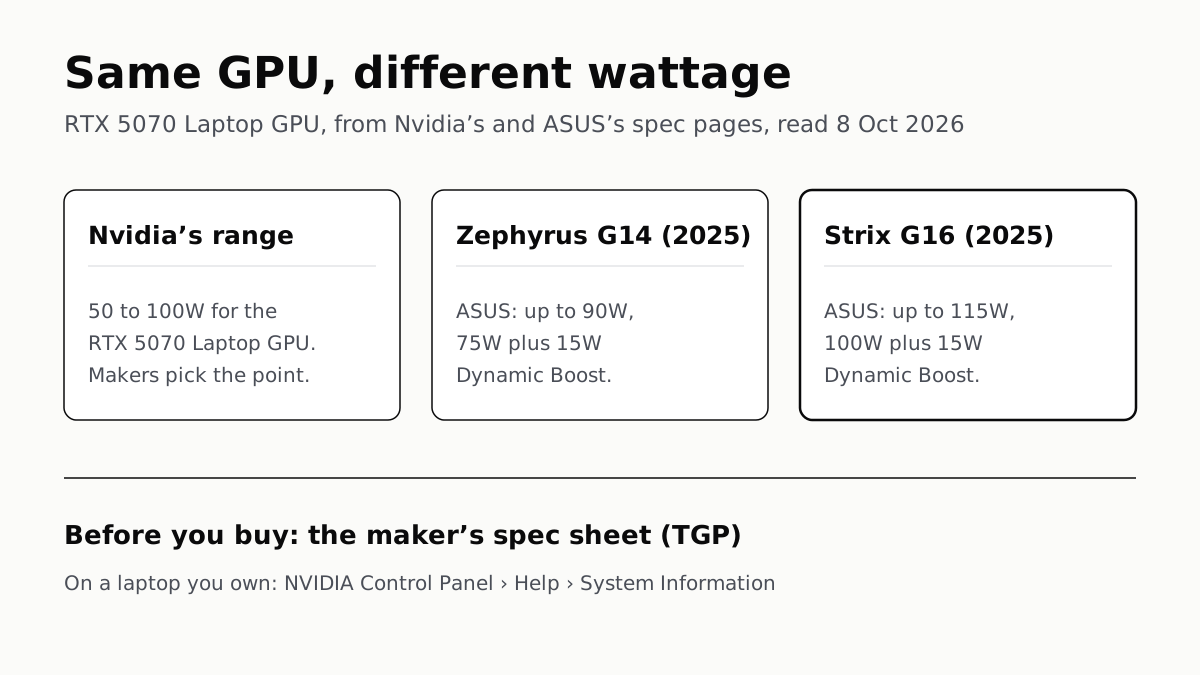
The Same RTX 5070 Laptop GPU Runs at 90W or 115W
Nvidia publishes a power range for each laptop GPU and the maker picks a point in it. The spec sheet, or Nvidia Control Panel, shows which.