A USB-C Hub Runs Two Monitors Only if Your Laptop Allows It
M1 and M2 MacBook Airs drive one external display, and macOS lacks MST, so an MST hub mirrors. DisplayLink is the way round.
If you buy through our links, we may earn a commission. It never affects our verdicts or scores — how that works. As an Amazon Associate I earn from qualifying purchases.
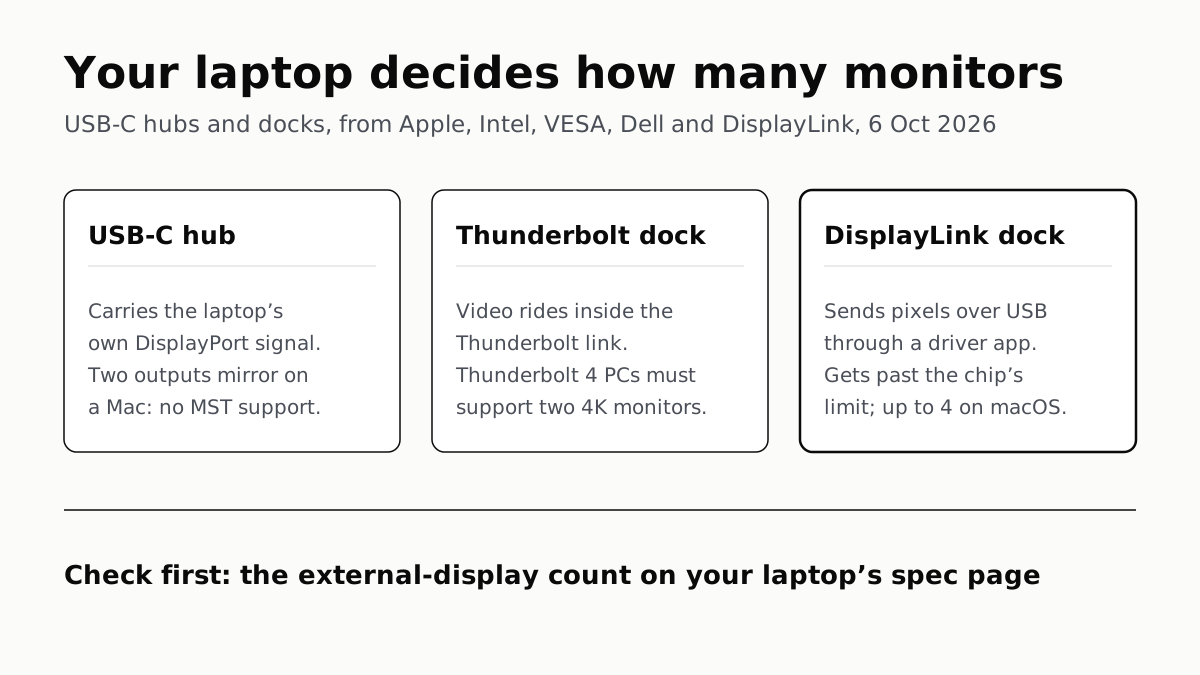
Whether a USB-C hub runs two monitors is decided mostly by your laptop: its USB-C port has to output DisplayPort video, its chip has to drive two external displays, and on a Mac a hub that splits one signal across two outputs mirrors them, because macOS lacks the DisplayPort feature that does the splitting. A Thunderbolt or USB4 dock carries video differently, and a DisplayLink dock gets past the chip’s limit with a driver.
The word on the box matters less than you would expect. VESA, which writes the DisplayPort standard, says USB-IF defines a hub as USB only, with no video, and that a hub-shaped product with an HDMI port is in its terms a dock. Shops call both things hubs. What separates them is how the picture reaches the monitor.
Three ways a hub or dock carries video
| Kind | How the picture travels | Monitors | The catch |
|---|---|---|---|
| USB-C hub with HDMI or DisplayPort | The laptop’s own DisplayPort signal, passed through the USB-C port (DisplayPort Alt Mode) | One per laptop port, unless the hub splits it with MST | The port must support Alt Mode; on a Mac, split outputs mirror |
| Thunderbolt or USB4 dock | DisplayPort carried inside the Thunderbolt or USB4 link | Intel requires Thunderbolt 4 computers to support two 4K monitors | Still capped by the laptop’s own display limit |
| DisplayLink dock | Pixels sent over ordinary USB and drawn by a driver app | Up to four DisplayLink screens on macOS | Needs the app and a Screen Recording permission |
Alt Mode also shares wires with fast USB. VESA’s figures: a USB-C port can carry 4K at 60Hz alongside USB 3.1 data, or 5K with only USB 2.0 data alongside it. So a hub that gives the monitor all of the port’s high-speed wires leaves its USB ports at USB 2.0 speed.
Why the two monitors mirror
DisplayPort has a feature called Multi-Stream Transport, or MST, which VESA describes as its way of driving several displays from one output. A hub or dock with two video outputs on one USB-C plug can use it to feed both.
Dell’s support article on its Thunderbolt docks says plainly that macOS lacks MST: monitors on the dock’s DisplayPort outputs “are mirrored” on a Mac, while extended desktops over MST work on Dell’s own business laptops. Its fix for a Mac is to put one monitor on the dock’s Thunderbolt port and the other on a DisplayPort or HDMI output.
Apple’s display-count pages do not mention MST; they talk about “a supported hub” and “daisy-chaining” instead. But its dual-monitor page gives the matching advice: if a display on a hub or dock will only mirror, connect it to a port on the Mac directly.
On Windows, MST support depends on the laptop. Dell states it for its commercial notebooks; for any other machine, the maker’s page has to say so.
How many monitors your Mac allows
Apple publishes a count for each model, and its pages add that a hub or daisy-chain “does not increase the maximum number of displays that you can connect”.
| Mac | External displays, per Apple |
|---|---|
| MacBook Air M1 or M2 | 1, up to 6K at 60Hz |
| MacBook Neo | 1, up to 4K at 60Hz, from the left USB-C port only |
| MacBook Air M3, MacBook Pro M3 | 2, with the lid closed |
| MacBook Air M4 or M5 (affiliate link to Amazon, opens in a new tab); MacBook Pro M4, M4 Pro or M5 | 2 |
| MacBook Pro M2 Pro or M3 Pro | 2 |
| MacBook Pro M5 Pro | 3 |
| MacBook Pro M2 Max, M3 Max, M4 Max or M5 Max | 4 |
On a base M1 or M2 MacBook Air, no MST hub and no Thunderbolt dock adds a second screen; Dell’s article blames “a limitation of the chip”.
DisplayLink is the exception. Its docks send pixels over USB, so DisplayLink calls them virtual displays “not directly connected to the graphics card”, and says macOS allows up to four. The costs are in its own documents: the DisplayLink Manager app must run, it needs Screen Recording permission to “capture pixels and send them to your USB peripheral”, and its 14.1 release notes say protected video from iTunes and other players will not show on the built-in screen while DisplayLink screens are connected. Apple’s display pages do not mention DisplayLink at all.
How much charging power gets through
A hub with a charging input passes power to the laptop and keeps some for itself. StarTech, which makes hubs, says the share is commonly 4W to 15W; one of its hubs keeps 7.4W, so a 60W charger delivers 52.6W to the laptop. StarTech also says a hub passes no power at all if the laptop’s USB-C port does not support USB Power Delivery.
The laptop sets limits too. Dell’s Thunderbolt docks deliver up to 130W to Dell’s business laptops but up to 96W to a Mac. Intel requires Thunderbolt 5 computers to accept up to 140W on at least one port, and sets no charging requirement for USB4; its pages disagree on the Thunderbolt 4 figure. Windows lists “the charger is connected through an external hub or dock” among the causes of its slow-charger warning.
The charger and cable cap it as well: a 65W charger rarely delivers 65W, and a cable’s logo states its wattage if it is certified.
Read your laptop’s spec page before buying
- Find “DisplayPort” against the USB-C port. Apple’s M2 MacBook Air page, for example, lists “Native DisplayPort output over USB-C”. VESA says a DP symbol may appear by the port, but that many video-capable ports carry none, so the spec page is the better test.
- Find the external-display count. If it says one, a two-monitor hub cannot extend to two screens without DisplayLink.
- Check for Thunderbolt. Intel says to look for the Thunderbolt icon by the port or check the maker’s I/O specification. A Thunderbolt dock needs a Thunderbolt or USB4 port to work as one.
- Check which port. MacBook Neo (affiliate link to Amazon, opens in a new tab) drives a display from one specific port. On Windows, Microsoft says to plug into “the USB-C port on your PC that supports DisplayPort Alternate Mode”, and shows “Display connection might be limited” when you have not.
- Check charging. The port has to support USB Power Delivery for pass-through to work.
A Thunderbolt or USB4 port earns its keep beyond monitors too: it is also what decides whether an external GPU works. If you are choosing a laptop this season, the display count belongs on the list of things you cannot upgrade later.
Questions people ask
Why won’t my USB-C hub run two monitors?
Usually one of three things. The laptop’s chip may drive only one external display, as base M1 and M2 MacBook Airs do. The hub may split one DisplayPort signal with MST, which macOS does not support, so both screens mirror. Or the USB-C port may not output video at all.
What is the difference between a USB-C hub and a dock?
In the standards’ terms, a hub carries only USB data; anything that also outputs DisplayPort is a dock. Shops use both words loosely. The difference that matters is how video travels: the laptop’s own DisplayPort signal, a Thunderbolt link, or DisplayLink over USB.
Can a MacBook Air run two external monitors?
M4 and M5 MacBook Airs support two with the lid open. The M3 supports two only with the lid closed. M1 and M2 MacBook Airs support one, and MacBook Neo one at up to 4K 60Hz. A DisplayLink dock with its driver app is the route past those limits.
Why do my two monitors show the same thing on a Mac?
If both are on one hub or dock’s HDMI or DisplayPort outputs, the hub is probably using MST, which macOS does not support, so it mirrors. Apple’s advice is to connect the display to a port on the Mac directly. On a Thunderbolt dock, Dell says to use the dock’s Thunderbolt port for one screen.
Does a USB-C hub reduce charging power?
Yes, by the hub’s own share. StarTech says pass-through hubs commonly keep 4W to 15W; one of its hubs keeps 7.4W, leaving 52.6W of a 60W charger. Windows lists a charger connected through a hub or dock as one cause of its slow-charger warning.
How do I know if my USB-C port supports video?
Read the laptop’s spec page. Apple, for example, lists DisplayPort against its Thunderbolt / USB 4 ports. A DP or Thunderbolt symbol by the port helps, but VESA says many ports support video without one. Windows warns “Display connection might be limited” if the port cannot.
How we researched this
No one at bitcritiq has handled this product. Everything here comes from published sources, listed below.
- What this cannot tell you
- We have not tested any hub or dock. Apple publishes no statement about MST; that macOS lacks it comes from Dell’s support article, consistent with Apple’s own advice to connect directly when a hub only mirrors. Whether a particular Windows laptop extends over an MST hub depends on that laptop, and we found no Microsoft page that states it generally; Dell states it only for its own business notebooks. Intel’s pages disagree on Thunderbolt 4 charging power (100W in a footnote, 140W in its table), so we give neither as fact. The DisplayLink protected-content limit is from its 14.1 release notes; the current release is 17.0, whose notes we did not read. The pass-through power figures are StarTech’s, for its own hubs.
How we chose this, and what we did
- Why this subject
- “USB-C hub vs dock” and “why won’t my USB-C hub run two monitors” are the questions behind our trends seed “usb c hub”, with laptop buying season ahead. The usual answer online is a product list. The real answer is in the laptop maker’s own pages and in the standards bodies’ definitions, which no single page collects.
- How we looked at it
- Read through a browser on 6 October 2026: Apple Support 101571 (MacBook Pro), 122212 (MacBook Air), 126473 (MacBook Neo), 117373 (dual monitors on M3), the M1 and M2 MacBook Air tech specs, and 119850 (USB-C Digital AV Multiport Adapter); Intel’s Thunderbolt overview and comparison table; VESA’s DisplayPort over USB-C page and FAQ; Microsoft Support’s Fix USB-C problems in Windows; Dell knowledge-base articles 000124312 and 000125234; DisplayLink’s Manager app article and its 14.1 release notes; StarTech’s article on Power Delivery pass-through. Absence control: Apple’s display-count pages 101571 and 122212 mention “a supported hub” and “daisy-chaining” but contain neither “MST”, “Multi-Stream” nor “DisplayLink”.
What this rests on
6 claims, all official. Nothing here was measured by bitcritiq — see how we test for why. Open a claim to read the source it came from.
In USB-IF's terms a hub carries only USB and does not support Alt Modes; a hub-shaped product that outputs DisplayPort is, in VESA's terms, a dock.Official
VESA DisplayPort FAQ: “the USB IF (Implementers Forum) defines a “hub” as a product that only supports USB, and in particular does NOT support Alt Modes, including the DisplayPort Alt Mode. The sort of “hub” product that also supports DisplayPort Alt Mode is not identified as a “hub”, but is instead identified as a “dock”.”
macOS does not support DisplayPort Multi-Stream Transport, so two monitors on a dock's DisplayPort outputs mirror on a Mac.Official
Dell knowledge base 000124312: MST support for Extended Desktop mode is “Yes” on Dell commercial notebooks and “No (workaround required)” on Apple USB-C hosts; “This limitation is due to a lack of support for Multi-Stream Transport in macOS.” “The displays are mirrored if both the monitors are connected using the DisplayPort on the dock.”
M1 and M2 MacBook Airs support one external display, and a hub does not raise any Mac's display limit.Official
Apple tech specs, MacBook Air (M1, 2020) and (M2, 2022): “One external display with up to 6K resolution at 60Hz.” Apple Support 101571 and 122212: “Using a supported hub or daisy-chaining displays can enable up to 2 displays over a single Thunderbolt port, but does not increase the maximum number of displays that you can connect.”
Intel requires Thunderbolt 4 computers to support two monitors at 4K or above.Official
Intel Thunderbolt overview, Thunderbolt 4: “Dual monitor support at up to 4K minimum resolution.” Its FAQ: Thunderbolt 4 enables “support for dual 4K monitors”.
DisplayLink on a Mac needs the DisplayLink Manager app with Screen Recording permission, and macOS supports at most four such virtual displays.Official
DisplayLink Support: enable “Screen Recording” “to allow the DisplayLink Manager app to capture pixels and send them to your USB peripheral”; “macOS supports a maximum of 4 virtual displays whatever their technology. Virtual displays are defined as displays not directly connected to the graphics card (GPU).”
Pass-through hubs commonly keep 4W to 15W for themselves, so a laptop gets less than the charger's rating.Official
StarTech.com: “some amount of power (commonly between 4W and 15W, depending on I/O) is reserved for hub/downstream ports. This means if a hub like our HB30C4AFPD (that reserves 7.4W) is used with a 60W USB-C power adapter, only 52.6W will be provided to the laptop.”
Sources 14
- How many displays can be connected to MacBook Pro — Apple Support 101571Officialaccessed Oct 6, 2026
- How many displays can be connected to MacBook Air — Apple Support 122212Officialaccessed Oct 6, 2026
- How many displays can be connected to MacBook Neo — Apple Support 126473Officialaccessed Oct 6, 2026
- Use dual monitors with your MacBook Air and MacBook Pro with M3 chip — Apple Support 117373Officialaccessed Oct 6, 2026
Show 10 more · 10 official or standards
- MacBook Air (M1, 2020) — Tech Specs, Apple SupportOfficialaccessed Oct 6, 2026
- MacBook Air (M2, 2022) — Tech Specs, Apple SupportOfficialaccessed Oct 6, 2026
- Thunderbolt Technology: A Universe of Possibilities — IntelOfficialaccessed Oct 6, 2026
- DisplayPort over USB-C — VESAOfficialaccessed Oct 6, 2026
- FAQ — VESA DisplayPortOfficialaccessed Oct 6, 2026
- Fix USB-C problems in Windows — Microsoft SupportOfficialaccessed Oct 6, 2026
- Dell Thunderbolt Docks and Apple USB-C Hosts — Dell knowledge base 000124312Officialaccessed Oct 6, 2026
- DisplayLink Manager App for macOS: Introduction, Installation & Scope — DisplayLink SupportOfficialaccessed Oct 6, 2026
- DisplayLink Manager Graphics Connectivity 14.1 release notes — SynapticsOfficialaccessed Oct 6, 2026
- What is USB-C Power Delivery (PD) pass-through? — StarTech.comOfficialaccessed Oct 6, 2026
Pass it on
Know someone weighing this up? Send them the answer.
bitcritiq.com/bw24The link is permanent: it opens this article for good, even if the title changes.
No email, no account
Follow bitcritiq
Every new article, in whatever reader you already use.
Subscribe by RSSAll the ways to follow
Using Chrome on Android? Open the browser menu and tap Follow. New articles then turn up in the Following tab in Discover.
read next
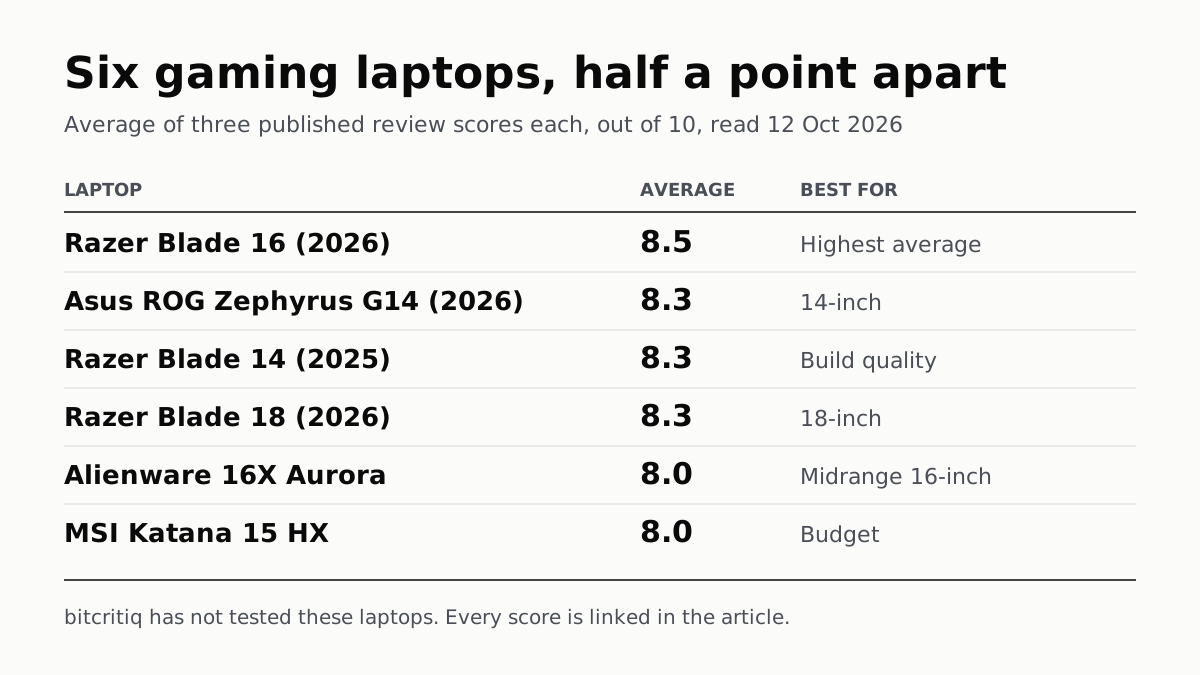
Razer Blade 16 Tops Gaming Laptop Reviews, by Half a Point
Eighteen review scores from eight outlets, all read on 12 October. Six laptops land within half a point, so pick by size and price.
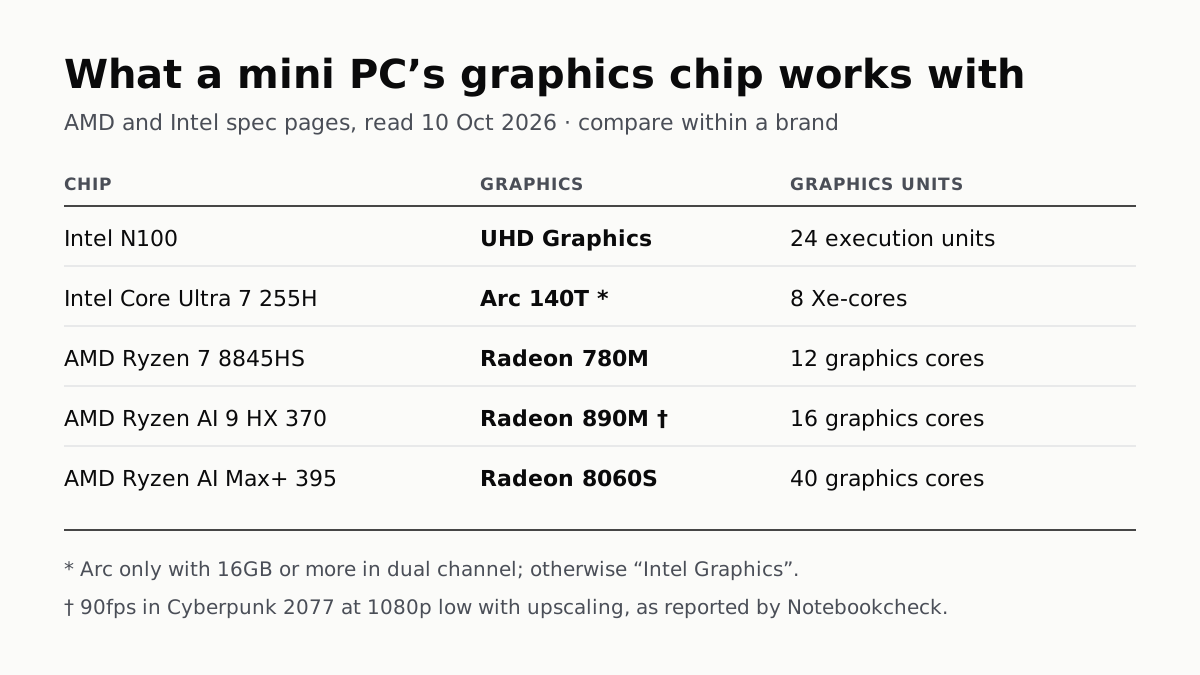
A Mini PC Can Game, but Its Graphics Chip Sets the Ceiling
Balatro's minimum is integrated graphics; Cyberpunk 2077's is a GTX 1060. A Radeon 890M ran Cyberpunk at 1080p low in one reported test.

A Used PC or CPU Can Carry Its Last Owner’s Game Ban
Riot and Activision ban hardware, not only accounts. Riot will re-check one on request; Activision rules out an appeal.
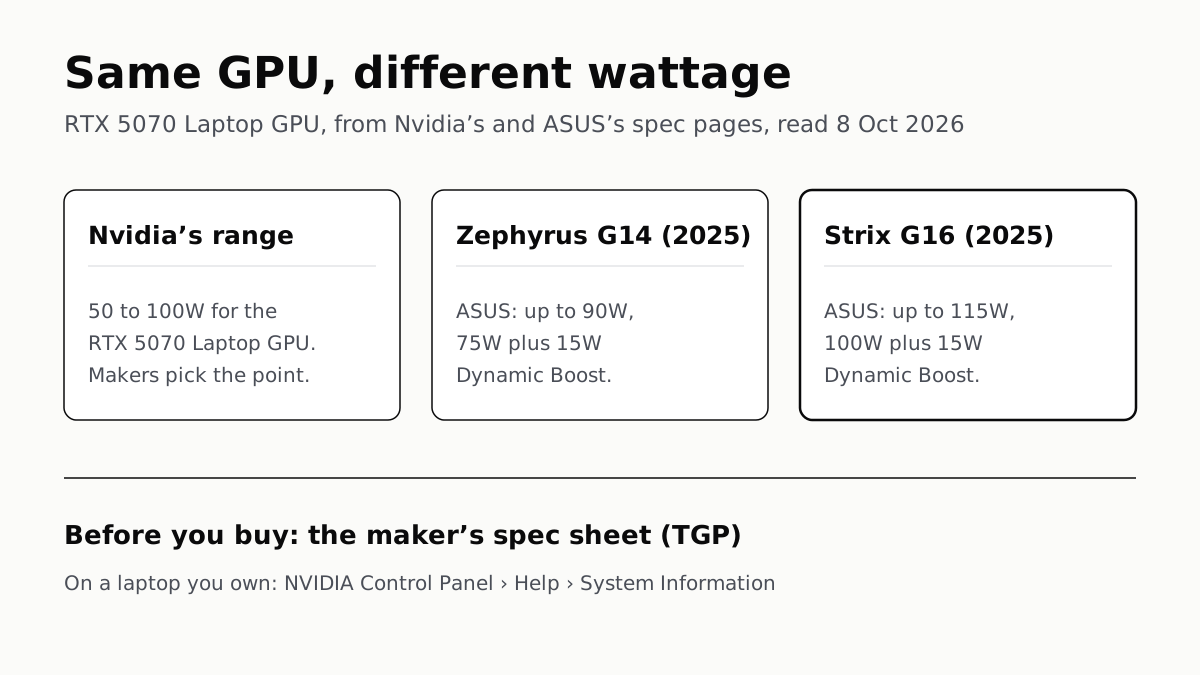
The Same RTX 5070 Laptop GPU Runs at 90W or 115W
Nvidia publishes a power range for each laptop GPU and the maker picks a point in it. The spec sheet, or Nvidia Control Panel, shows which.