When an iPad Says Not Charging, Apple Blames the Port
Apple's order of checks, the 15W minimum it sets for other adapters, and the two statuses that mean the iPad chose to stop.
If you buy through our links, we may earn a commission. It never affects our verdicts or scores — how that works. As an Amazon Associate I earn from qualifying purchases.
Not Charging in the status bar means the iPad is connected but not getting enough power. Apple says the message appears when a Mac or Windows computer doesn’t provide enough power to charge the iPad. Plug it into a wall adapter instead, and if that does not work, Apple’s next checks are a different adapter or cable, the temperature, and a force restart.
A computer that is switched off or asleep does not count as a power source. Apple warns that an iPad plugged into a computer that is turned off may drain instead of charge.
First, check what the iPad is telling you
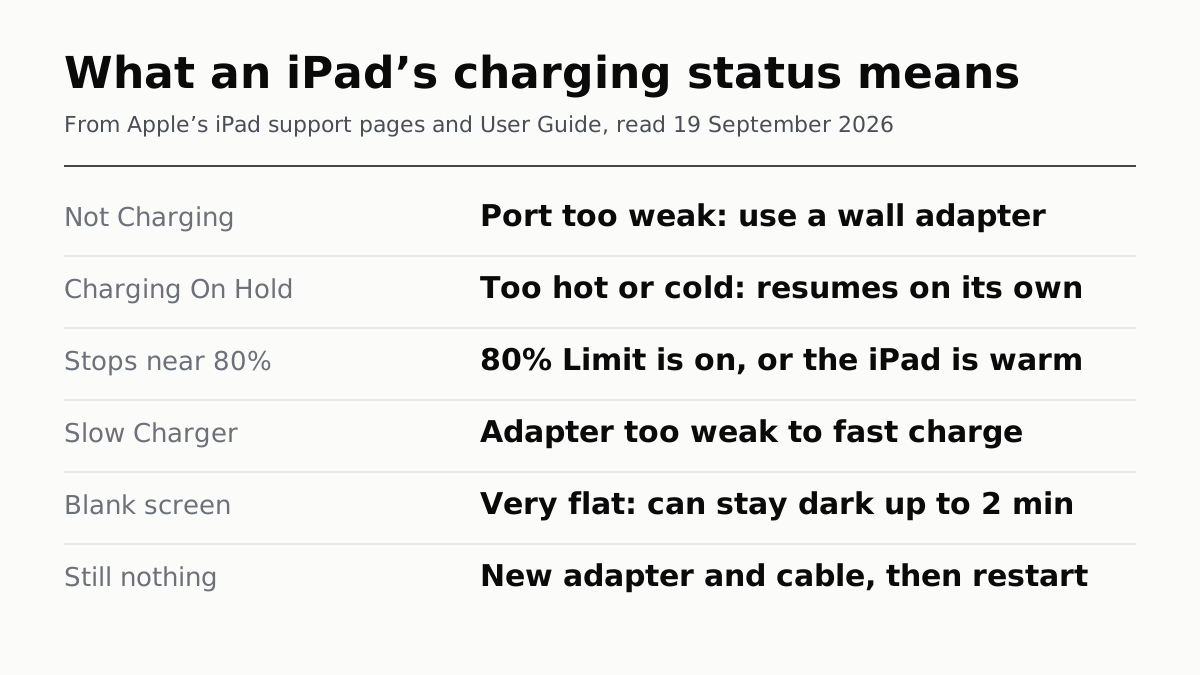
Apple’s sign that charging is working is a lightning bolt on the battery icon in the status bar, or a large battery icon on the Lock Screen. What you see instead points to different causes:
- Not Charging in the status bar. The source is too weak; start at step 1.
- Charging On Hold on the Lock Screen. The iPad is too hot or too cold and has paused itself; see When the iPad stops on purpose, below.
- It stops at about 80 percent. Either 80% Limit is on or the iPad is warm; see the same section.
- A black screen, or a nearly empty battery picture. Apple says a very flat iPad may stay blank for up to 2 minutes after you plug it in, then need up to 10 minutes of charging before you can use it. Leave it plugged in before deciding it is dead.
Apple’s checks, in Apple’s order
This is the sequence on Apple’s support page If your iPad won’t charge. Try each before the next.
- Use the right cable. Apple says preferably the one that came with the iPad. Which cable that is depends on the model: USB-C iPads use a USB-C cable, and Lightning models use a Lightning to USB-C cable. If your computer only has USB-A ports, a USB-C iPad needs a USB-A to USB-C cable.
- Plug into a real power source. Apple lists four: a USB power adapter in a working outlet, a USB 2 or later port on a computer that is on and not asleep, a powered USB hub or dock or other Apple-certified accessory, or a compatible Magic Keyboard connected to power. Apple says it is best to use the adapter that came with the iPad.
- Try a different power adapter or a different cable. If the iPad charges with the second set, the first adapter or cable was the problem.
- Check the temperature. Apple says to make sure the iPad isn’t too hot or too cold.
- Force restart. Without a Home button: press and quickly release the volume button nearest the top button, then the one farthest from it, then hold the top button until the iPad restarts. With a Home button: hold the top (or side) button and the Home button together until the Apple logo appears.
Apple also says not to charge an iPad from a keyboard unless the keyboard has a high-power USB port. A Magic Keyboard with USB-C is different: it passes power through from its own cable and adapter.
How much power the adapter needs
For an adapter that is not Apple’s, the iPad User Guide sets a recommended minimum: at least 15W over USB-C, at 5 to 15V and 3A.
Apple’s own in-box adapters run from 10W on the oldest iPads to 20W on recent ones, including iPad (10th generation), iPad Pro (M4) and iPad Air (M2), with a note that some regions ship those without a charger. Apple says any Mac USB-C adapter also works, and that a higher-wattage one, like a Mac laptop’s, charges a USB-C iPad faster.
Two thresholds are worth knowing:
- 7.5W or less. Apple says charging “might take longer than expected” on a wired charger this weak. On an iPad that supports fast charging, a weak charger also triggers a Slow Charger message in Settings, under Battery.
- 60W or more. Apple’s fast-charge claim for iPad Pro (M5), 50 percent in around 30 minutes, needs a USB-C adapter of at least that rating and a USB-C cable.
A bigger number on the brick is a ceiling, not a promise: the iPad takes what it asks for. Why a 65W charger rarely charges anything at 65W covers that negotiation. Apple’s safety page says third-party cables and adapters should comply with USB 2.0 or later and with applicable safety standards, and says to stop using a cable that is frayed or an adapter that has been dropped and cracked.
When the iPad stops on purpose
Two statuses look like a fault and are the iPad protecting its battery.
Charging On Hold. Apple’s wording on the Lock Screen is “Charging On Hold. Charging will resume when iPad returns to normal temperature.” It pauses or slows charging when the iPad is too hot or too cold, and Apple says this protection can’t be turned off. Apple’s advice is to charge between 0° and 35° C, keep it out of direct sun and hot cars, warm it gradually in the cold, and take off the case if it heats up while charging. It applies on iPadOS 18 or later. Why devices get hot, and when to worry covers the rest of what heat does.
Stuck at 80 percent. On iPad Pro (M4) and later, iPad Air (M2) and later, iPad mini (A17 Pro) and iPad (A16), a setting called 80% Limit stops charging at about 80 percent and resumes at 75. To check it, open Settings, tap Battery, then Battery Health. Turn off 80% Limit, then tap Allow Until Tomorrow for a one-off full charge or Set Limit to 100% to keep it off. With the limit on, Apple says the iPad will still charge to 100 percent occasionally to keep the percentage accurate.
Apple’s guide also says every charge slows after about 80 percent, and says software might limit charging above 80 percent when the battery is warmer than recommended. Apple’s iPhone article describes Optimized Battery Charging; none of the seven iPad charging pages we read mention it, though all of them discuss charging, so we do not claim the iPad has it.
The port
Apple’s iPad pages give one instruction about the port itself: if you suspect liquid in the charging port, do not plug the cable in. They do not tell you to clean it. Apple’s iPhone page does say to remove any debris from the charging port, and an iPad with the same symptom may have the same cause, but that is Apple’s advice for iPhone, not for iPad.
When Apple says to get it looked at
Apple’s iPad troubleshooting page stops at the force restart and hands you to its support request form. Its iPad safety page says that if the iPad is damaged or malfunctions, contact Apple or an Apple Authorized Service Provider, and that only a trained technician should repair the battery.
So the practical cut-off is this: if the iPad does not charge from a known-good wall adapter and a second cable, at room temperature, after a force restart, every check Apple offers has been done. Before booking a repair, see what battery health the iPad reports under Settings, Battery, Battery Health, if your model has it. If you are weighing a repair yourself, what Apple’s and Samsung’s self-repair programmes cover is a separate question; Apple’s iPad safety page reserves battery work for trained technicians.
How we researched this
No one at bitcritiq has handled this product. Everything here comes from published sources, listed below.
- What this cannot tell you
- We have not tested any iPad, adapter or cable for this piece. Apple does not rank causes by how often they happen, so the order here is the order Apple lists its checks in, not a likelihood ranking. Apple's iPad pages do not tell you to clean the port, and its iPhone page does; we report that difference rather than borrowing the iPhone advice. Menu names are from iPadOS 27 and may differ on older versions.
How we chose this, and what we did
- Why this subject
- Why won't my iPad charge is a perennial question, and Engadget ran a fix-list on it on 19 September 2026. Apple answers it across six separate pages, and the one titled If your iPad won't charge never mentions the Not Charging message at all; that explanation sits in the iPad User Guide. This piece puts Apple's answers in one place, in Apple's order.
- How we looked at it
- Every step, status and figure is from Apple: the support articles If your iPad won't charge (published 9 December 2025), About charging and maintaining your iPad battery (27 January 2026), About Apple USB power adapters (11 July 2024), Fast charge your iPad (29 July 2026) and Charge and connect with the USB-C port on your iPad, plus the iPadOS 27 iPad User Guide pages on charging, the power adapter, charge limits, Thermally Limited Charging and safety. All read on 19 September 2026. Engadget is listed as the prompt, not as a source for any step.
What this rests on
6 claims, all official. Nothing here was measured by bitcritiq — see how we test for why. Open a claim to read the source it came from.
Apple says the Not Charging message appears when the connected computer does not provide enough power to charge the iPad.Official
iPad User Guide, Charge the iPad battery: 'If your Mac or Windows device doesn't provide enough power to charge iPad, a Not Charging message appears in the status bar.' The same page warns that an iPad connected to a computer that is turned off 'may drain instead of charge'.
Apple's troubleshooting order is: the right cable and power source, then a different adapter or cable, then temperature, then a force restart.Official
Apple Support 102612 (published 9 December 2025) lists, in this order: connect a USB charging cable to a power adapter, a USB 2 or later port on a computer that is on and not asleep, a powered hub or dock, or a compatible Magic Keyboard; if it still won't charge, use a different power adapter or cable and keep the iPad within operating temperatures; then force it to restart.
For a third-party adapter, Apple's recommended minimum is 15W over USB-C, at 5 to 15V and 3A.Official
iPad User Guide, Power adapter and charge cable: a third-party adapter 'should meet these recommended specifications', including 'Output Voltage/Current: 5 to 15 V / 3 A', 'Minimum Power Output: 15 W' and 'Output Port: USB-C'. Apple Support 120548 lists the 20W adapter as the in-box one for iPad (10th generation), iPad Pro (M4) and iPad Air (M2), among others, noting some regions ship no charger.
In heat or cold, iPadOS can pause charging and show Charging On Hold, and this cannot be turned off.Official
iPad User Guide, Understand Thermally Limited Charging: 'You might see a message on the Lock Screen such as "Charging On Hold. Charging will resume when iPad returns to normal temperature."' It recommends charging between 0° and 35° C and says the protections 'can't be turned off' and apply to iPadOS 18 or later.
On supported iPads, the 80% Limit setting stops charging at about 80 percent by design.Official
Apple Support 118418 (published 27 January 2026) lists iPad Pro (M4) and later, iPad Air (M2) and later, iPad mini (A17 Pro) and iPad (A16), and says with 80% Limit the iPad 'will charge up to about 80 percent and then stop charging', resuming at 75 percent. The setting is in Settings, Battery, Battery Health.
Apple's iPad pages warn against plugging in when liquid may be in the port but give no port-cleaning step, which its iPhone page does.Official
iPad User Guide, Charge the iPad battery: 'If you suspect there may be liquid in the charging port of iPad, don't plug the charging cable into it.' The words debris and lint appear on none of the four iPad charging and safety pages read, while each contains its own charging steps as a control. Apple Support 108805, for iPhone, says 'Remove any debris from the charging port on the bottom of your device'.
Sources 12
- If your iPad won't charge — Apple Support 102612Officialaccessed Sep 19, 2026
- Charge the iPad battery — iPad User Guide (iPadOS 27)Officialaccessed Sep 19, 2026
- Power adapter and charge cable for iPad — iPad User Guide (iPadOS 27)Officialaccessed Sep 19, 2026
- About Apple USB power adapters — Apple Support 120548Officialaccessed Sep 19, 2026
Show 8 more · 7 official or standards
- Charge and connect with the USB-C port on your iPad — Apple Support 108894Officialaccessed Sep 19, 2026
- Fast charge your iPad — Apple Support 125066Officialaccessed Sep 19, 2026
- About charging and maintaining your iPad battery — Apple Support 118418Officialaccessed Sep 19, 2026
- Set a charge limit on iPad — iPad User Guide (iPadOS 27)Officialaccessed Sep 19, 2026
- Understand Thermally Limited Charging on iPad — iPad User Guide (iPadOS 27)Officialaccessed Sep 19, 2026
- Important safety information for iPad — iPad User Guide (iPadOS 27)Officialaccessed Sep 19, 2026
- If your iPhone or iPod touch won't charge — Apple Support 108805Officialaccessed Sep 19, 2026
- Why Is Your iPad Not Charging (And How To Fix It) — Engadget, 19 September 2026accessed Sep 19, 2026
No email, no account
Follow bitcritiq
Every new article, in whatever reader you already use.
Subscribe by RSSAll the ways to follow
Using Chrome on Android? Open the browser menu and tap Follow. New articles then turn up in the Following tab in Discover.
read next
The Charging Pad Is Not What Ages Your Battery
CarPlay Ultra Adds the Gauges. Your Car Decides.
An iPhone Battery From Apple Costs $69 to $129