Turn Off Priority Notifications All at Once or Per App
Apple’s iOS 27 guide gives one master switch, two per-app toggles and a Lock Screen shortcut. It needs an iPhone 15 Pro or newer.
If you buy through our links, we may earn a commission. It never affects our verdicts or scores — how that works. As an Amazon Associate I earn from qualifying purchases.
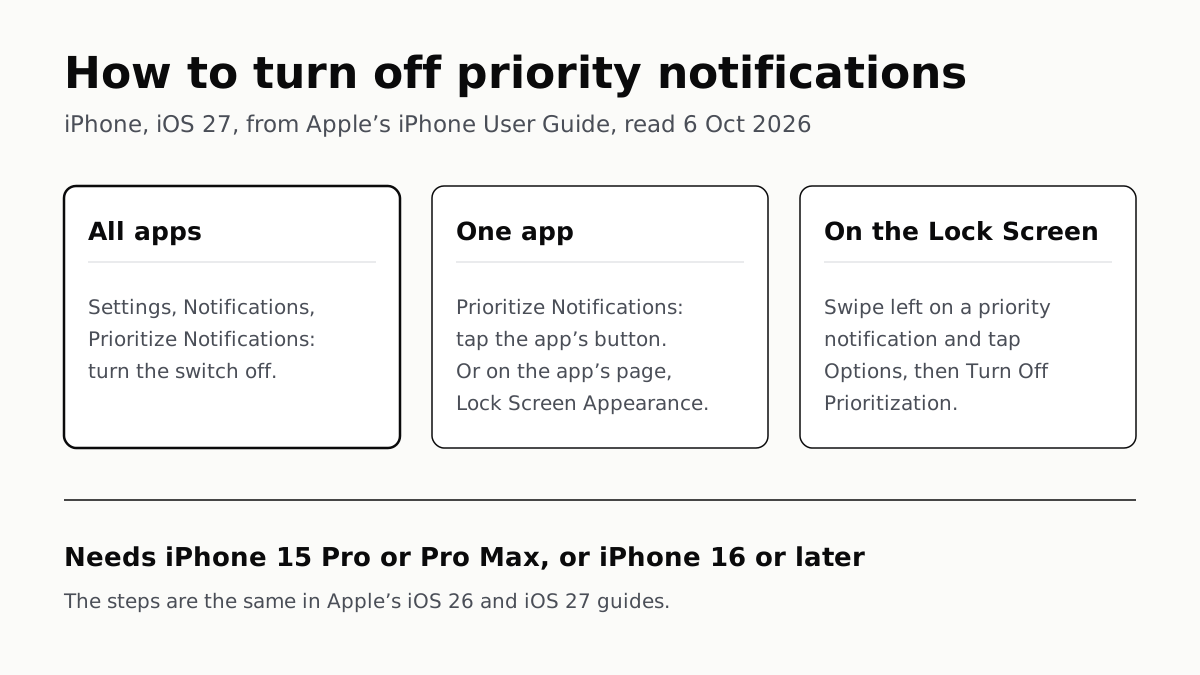
Open Settings, tap Notifications, tap Prioritize Notifications and turn the switch off. That stops priority notifications for every app; to keep them for some apps, use the button next to each app on the same screen instead. The steps are from Apple’s iOS 27 iPhone User Guide, and its iOS 26 edition gives the same ones.
Priority notifications is an Apple Intelligence feature: your iPhone decides which notifications “have priority over others” and puts them “at the top of the stack”. Apple’s guide does not explain how it decides.
The four ways to turn it off
| What you want | Where | What to tap |
|---|---|---|
| Off for all apps | Settings › Notifications › Prioritize Notifications | Turn Prioritize Notifications off |
| Off for one app | Settings › Notifications › Prioritize Notifications | The button next to the app |
| Off for one app | Settings › Notifications › the app’s name | Prioritize Notifications, under Lock Screen Appearance |
| Off for all apps, from the Lock Screen | A priority notification | Swipe left, Options, Turn Off Prioritization |
Off for every app
- Open the Settings app.
- Tap Notifications.
- Tap Prioritize Notifications, then turn Prioritize Notifications off.
This switch is about prioritisation only. Stopping an app’s notifications altogether is a different setting, Allow Notifications, on that app’s own page under Settings › Notifications.
Off for some apps, on for others
If the feature works for messages but keeps promoting a shopping app, you do not have to lose all of it. Apple gives two routes to the same per-app switch:
- In Settings › Notifications › Prioritize Notifications, tap the button next to the app.
- Or go to Settings › Notifications, tap the app under Notification Style, and turn Prioritize Notifications off under Lock Screen Appearance.
The second route is useful when you are already in an app’s notification page to change its sounds or banners.
From the Lock Screen, when one arrives
When a priority notification appears on the Lock Screen, swipe left on it and tap Options. Apple lists two choices there:
- Turn Off Prioritization turns off priority notifications for all apps.
- For one app, Apple’s instruction is to tap Turn Off All [app] Notifications.
That second label reads wider than “stop prioritising this app”, and Apple’s guide does not say which it does. If you want to keep the app’s notifications and lose only the priority treatment, the per-app switch in Settings is the unambiguous route.
Which iPhones have it
On iOS 27, Apple lists Apple Intelligence for the iPhone 15 Pro, iPhone 15 Pro Max, and iPhone 16 models or later. If your iPhone is not on that list, Apple does not offer the feature on it. That includes the iPhone 15 and 15 Plus, which run iOS 27 without Apple Intelligence; the full split is in which iPhones get iOS 27, and which get Siri AI.
On a supported phone, Apple adds that Apple Intelligence “is not available in all languages or regions”. Its footnote lists the supported Siri and device languages, including English, French, German, Japanese, Spanish and Chinese.
The settings beside it
Apple puts priority notifications on one page with two related features, and each has its own switch:
| Feature | What it does, per Apple | Where it is |
|---|---|---|
| Notification summaries | Summarises long or stacked notifications | Settings › Notifications › Summarize Notifications |
| Reduce Interruptions Focus | Shows notifications that might need immediate attention, silences the rest | Settings › Focus, the add (+) button, then Reduce Interruptions |
| Priority notifications | Moves the notifications it judges important to the top | Settings › Notifications › Prioritize Notifications |
Turning off priority notifications leaves summaries as they were, and the reverse. If what you want is every Apple Intelligence feature gone, Apple’s guide does not give one switch for that; it lists nine separate settings, which we set out in how to turn off Apple Intelligence on iPhone.
One naming wrinkle in Apple’s own pages
Apple’s support article on notifications (108781, dated 14 September 2026) still describes the feature as it arrived in iOS 18.4. It calls the switch Priority Notifications and says priority items appear at the top of Notification Center. The iOS 26 and iOS 27 editions of the iPhone User Guide call the main switch Prioritize Notifications and say the top of the stack. So if the name on your screen differs slightly from the steps above, look under Notifications for either label: both of Apple’s pages put the setting there.
Questions people ask
How do I turn off priority notifications in iOS 27?
Open Settings, tap Notifications, tap Prioritize Notifications, then turn Prioritize Notifications off. That stops it for every app. The steps are the same in Apple’s iOS 26 guide.
Can I turn off priority notifications for just one app?
Yes. On the Prioritize Notifications screen, tap the button next to that app. Or open Settings, Notifications, tap the app, and turn Prioritize Notifications off under Lock Screen Appearance. Both leave the rest of the app’s notifications alone.
Why don’t I see Prioritize Notifications on my iPhone?
It is an Apple Intelligence feature. On iOS 27 Apple lists it for the iPhone 15 Pro, iPhone 15 Pro Max and iPhone 16 models or later, with a supported language and region. An iPhone 15 or 15 Plus can run iOS 27 but does not get it.
What do priority notifications do on iPhone?
Apple Intelligence decides which notifications have priority over others and puts those at the top of the notification stack. Apple’s guide does not say how it makes that decision.
Is turning off priority notifications the same as turning off notification summaries?
No. They are separate switches on the same Notifications screen: Prioritize Notifications and Summarize Notifications. Turning one off leaves the other as it was.
Does turning off priority notifications stop notifications?
The Settings switches control prioritisation; stopping an app’s notifications is a separate Allow Notifications setting. Be careful with the Lock Screen option labelled “Turn Off All [app] Notifications”: Apple lists it as the per-app route, but the label reads wider, so the Settings route is the safer one.
How we researched this
No one at bitcritiq has handled this product. Everything here comes from published sources, listed below.
- What this cannot tell you
- We have not run iOS 27 on an iPhone; the menu paths are Apple’s, as written. Apple’s Lock Screen instruction for a single app names the button “Turn Off All [app] Notifications”, and the guide does not say whether that stops only prioritisation or every notification from the app; we have not been able to settle it. Apple’s pages do not explain how the iPhone decides which notifications are a priority, and Apple Support 108781 still describes the feature as it was in iOS 18.4, with a slightly different setting name.
How we chose this, and what we did
- Why this subject
- Search Console shows readers searching “ios 27 turn off priority notifications” and landing on our guide to turning off Apple Intelligence, which gives the feature one row in a table of nine. This page answers that one question: where the switch is, how to keep the feature for some apps and not others, and which iPhones have it at all.
- How we looked at it
- Every step is quoted from Apple’s iPhone User Guide, read through a browser on 6 October 2026: the iOS 27 edition of “Summarize notifications and reduce interruptions with Apple Intelligence on iPhone”, compared line by line with the iOS 26 edition of the same page; the iOS 27 edition of “Change notification settings on iPhone” for the per-app toggle; and the iOS 27 edition of “Turn off and restrict access to Apple Intelligence features on iPhone” as a cross-check of the master switch. Apple Support article 108781 (published 14 September 2026) was read for its own description of the feature.
What this rests on
6 claims, all official. Nothing here was measured by bitcritiq — see how we test for why. Open a claim to read the source it came from.
On iOS 27, priority notifications are turned off for every app under Settings, Notifications, Prioritize Notifications.Official
iPhone User Guide (iOS 27): “Tap Notifications. Tap Prioritize Notifications, then turn Prioritize Notifications on. To turn off priority notifications, turn Prioritize Notifications off.”
Prioritisation can be switched off for one app while staying on for others, from two places in Settings.Official
iPhone User Guide (iOS 27): “To change which notifications you want to prioritize, tap the button next to an app.” Change notification settings (iOS 27): “If you use Priority Notifications, turn Prioritize Notifications on or off under Lock Screen Appearance.”
A priority notification on the Lock Screen offers a shortcut to turn off prioritisation for all apps.Official
iPhone User Guide (iOS 27): “Turn off all Priority Notifications: Swipe left, tap Options, then tap Turn Off Prioritization.”
On iOS 27 the feature needs an iPhone 15 Pro, iPhone 15 Pro Max, or an iPhone 16 model or later.Official
iPhone User Guide (iOS 27): “Apple Intelligence on iOS 27 or later is available on an Apple Intelligence-enabled iPhone 15 Pro, iPhone 15 Pro Max, or iPhone 16 model or later. Apple Intelligence is not available in all languages or regions.”
The steps for priority notifications are the same in Apple’s iOS 26 and iOS 27 guides.Official
The “Turn priority notifications on” section of the iOS 26 and iOS 27 editions of the same iPhone User Guide page carries identical steps, including the two Lock Screen options.
Priority notifications appear at the top of the notification stack.Official
iPhone User Guide (iOS 27): “Priority notifications appear at the top of the stack, so you can catch up on what you may have missed.”
Sources 5
- Summarize notifications and reduce interruptions with Apple Intelligence on iPhone (iOS 27) — iPhone User GuideOfficialaccessed Oct 6, 2026
- Summarize notifications and reduce interruptions with Apple Intelligence on iPhone (iOS 26) — iPhone User GuideOfficialaccessed Oct 6, 2026
- Change notification settings on iPhone (iOS 27) — iPhone User GuideOfficialaccessed Oct 6, 2026
- Turn off and restrict access to Apple Intelligence features on iPhone (iOS 27) — iPhone User GuideOfficialaccessed Oct 6, 2026
- Use notifications on your iPhone or iPad — Apple Support 108781Officialaccessed Oct 6, 2026
Pass it on
Know someone weighing this up? Send them the answer.
bitcritiq.com/5ukkThe link is permanent: it opens this article for good, even if the title changes.
No email, no account
Follow bitcritiq
Every new article, in whatever reader you already use.
Subscribe by RSSAll the ways to follow
Using Chrome on Android? Open the browser menu and tap Follow. New articles then turn up in the Following tab in Discover.
read next
Chargers Rated 100–240V Need Only a Plug Adapter Abroad
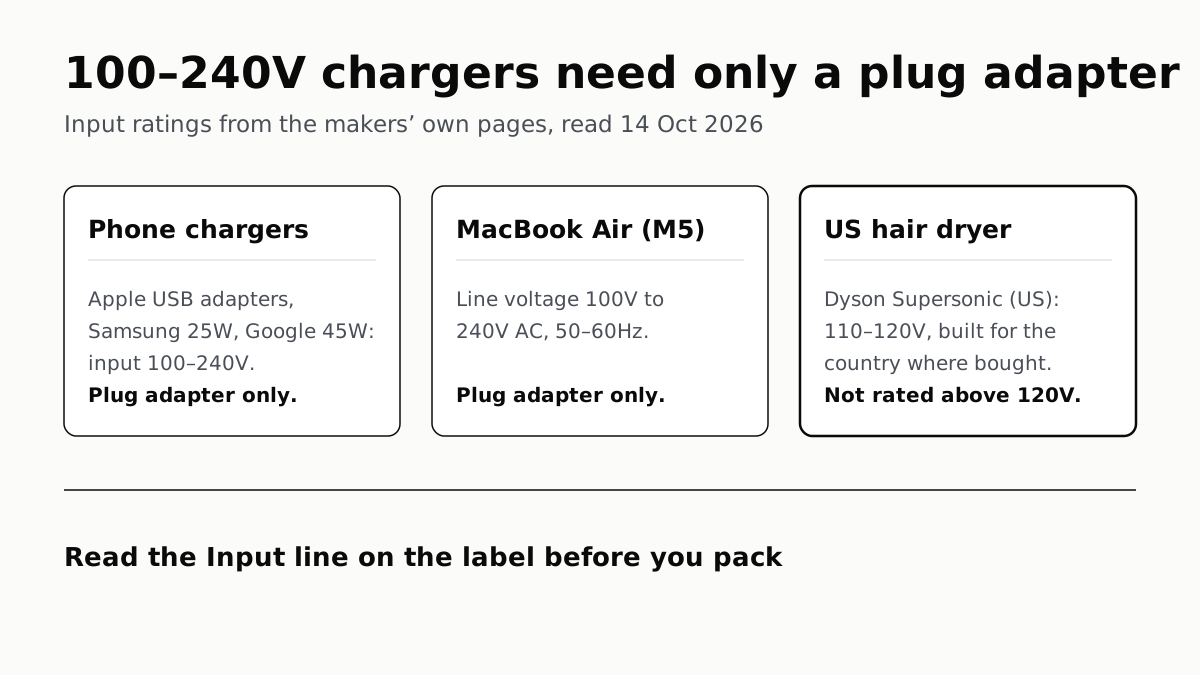
Apple, Samsung and Google rate their chargers, and the MacBook Air, for 100–240V. A hair dryer built for 110–120V is a different case.
Send Your AirTag Link to United, Delta, American, JetBlue
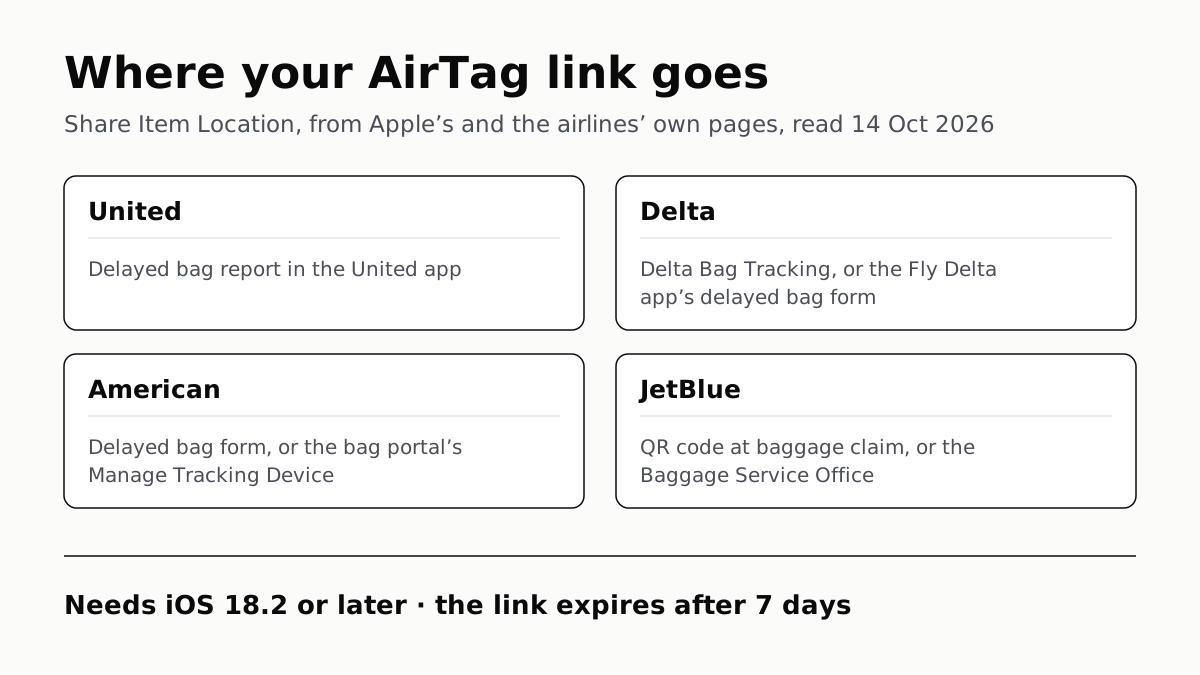
Find My’s Share Item Location makes a seven-day link a bag agent can open. Apple says more than 50 airlines accept it.
Family Link Works From an iPhone. Screen Time Needs Apple
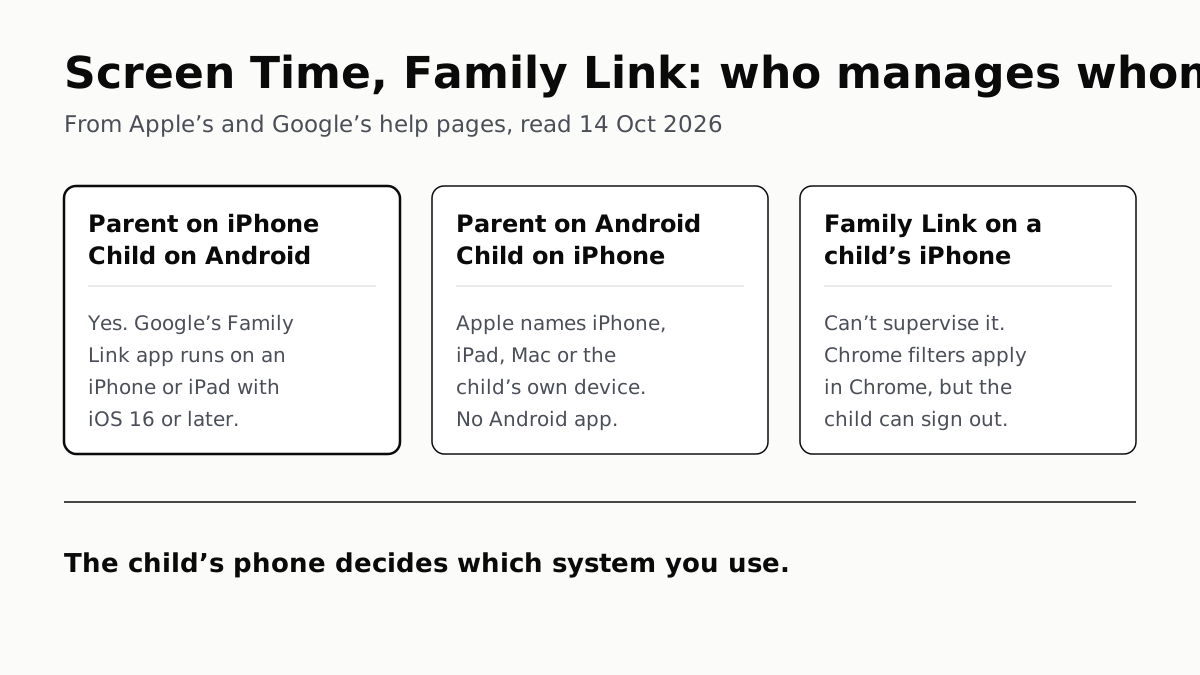
Neither app supervises the other maker’s phones. App limits, downtime, web filters and more, side by side, with iOS 27’s changes.
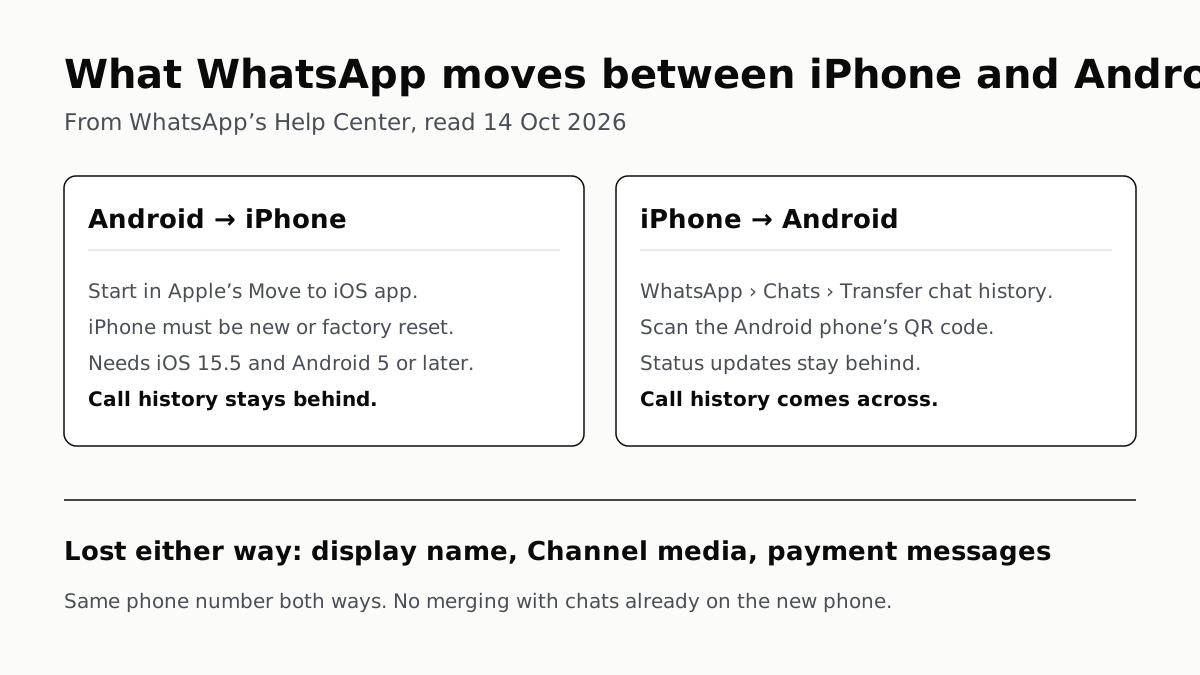
WhatsApp Chats Can Cross Between iPhone and Android
Messages, media and settings move both ways. Display names, Channel media and payment messages don’t, and call logs reach Android alone.