Turn Off Siri Suggestions in Settings › Siri › Suggestions
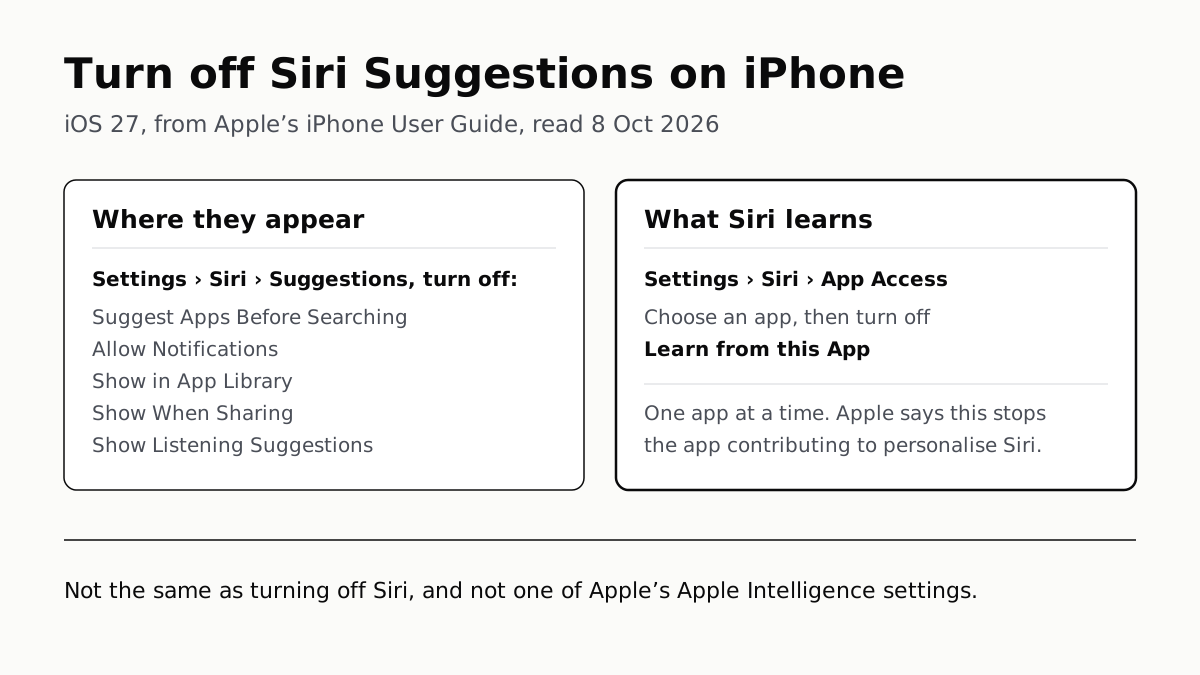
iOS 27 moved them: five switches decide where suggestions appear, and a per-app Learn from this App switch decides what Siri learns.
If you buy through our links, we may earn a commission. It never affects our verdicts or scores — how that works. As an Amazon Associate I earn from qualifying purchases.
Open Settings, tap Siri, tap Suggestions and turn off the five switches there; that stops Siri Suggestions appearing in search, notifications, the App Library, the Share sheet and listening suggestions. To stop Siri learning from an app as well, go to Settings › Siri › App Access, pick the app and turn off Learn from this App. Both are from Apple’s iOS 27 iPhone User Guide.
Apple treats Siri Suggestions as separate from Siri itself and from Apple Intelligence. Turning them off leaves Siri answering requests, and none of the nine settings in Apple’s iOS 27 guide to turning off Apple Intelligence is a Siri Suggestions switch.
Where suggestions appear, and the switch for each
All of these start in the Settings app, on iOS 27.
| Where you see suggestions | Setting | What it controls, per Apple |
|---|---|---|
| Search, before you type | Siri › Suggestions › Suggest Apps Before Searching | Suggested apps in search |
| Notifications | Siri › Suggestions › Allow Notifications | Suggestions as notifications |
| App Library | Siri › Suggestions › Show in App Library | Suggestions in the App Library |
| Share sheet | Siri › Suggestions › Show When Sharing | Suggestions when sharing |
| Music and audio | Siri › Suggestions › Show Listening Suggestions | Suggestions when you might want to listen |
| Home Screen, one app | Siri › App Access › the app › Show on Home Screen | That app’s suggestions on the Home Screen |
| Suggested app, one app | Siri › App Access › the app › Suggest App | Whether that app is suggested |
| Notifications, one app | Siri › App Access › the app › Suggestion Notifications | That app’s suggestion notifications |
| Learning, one app | Siri › App Access › the app › Learn from this App | Whether Siri learns how you use it |
| App Clips | Siri › App Clips › Learn From App Clips, Show in Search, Suggest App Clips | Learning from, and showing, App Clips |
| Location | Privacy & Security › Location Services › System Services › Suggestions & Search | Whether your location refines suggestions |
Apple says the per-app options “may be different depending on the app you select and which version of Siri you’re using”, so not every app shows all four.
Turn them off everywhere
- Open Settings and tap Siri.
- Tap Suggestions.
- Turn off Suggest Apps Before Searching, Allow Notifications, Show in App Library, Show When Sharing and Show Listening Suggestions.
These five decide where suggestions appear. They do not, on Apple’s description, stop Siri learning.
Stop Siri learning from an app
- In Settings › Siri, tap App Access.
- Choose an app.
- Turn off Learn from this App, and, if you want, Show on Home Screen, Suggest App and Suggestion Notifications.
- Repeat for each app you care about. For App Clips, tap App Clips under Siri and turn off Learn From App Clips.
Apple’s privacy statement says this is how “to stop apps from contributing information to personalize Siri”. It is a per-app switch; none of the Apple pages we read gives one learning switch for all apps at once.
Stop location refining suggestions
Go to Settings › Privacy & Security › Location Services › System Services and turn off Suggestions & Search. Apple’s Spotlight page says that with Location Services on, Spotlight “may use your location to refine suggestions”.
What turning them off does not do
- It does not turn off Siri. Turning off Siri is a separate control in Apple’s guides.
- It is not an Apple Intelligence setting. Apple’s iOS 27 Apple Intelligence page does not mention Siri Suggestions, Learn from this App or App Access.
- It does not change sync on its own. Apple says Siri settings and Siri Suggestions personalisation “will sync across your Apple devices using end-to-end encryption if you use iCloud”. To stop that, Apple’s iOS 27 guide says to turn off Siri in iCloud settings.
- It is not the same as Search’s own settings. Which apps appear in search is Settings › Search, then an app, then Show App in Search — the screen called Siri & Search before iOS 18, as we set out in what “Optimizing Search and Siri” means.
On the data, Apple’s privacy statement says Siri Suggestions use “local, on-device processing” on things like your Safari history, mail, messages and contacts, and that suggestions “are not stored on Apple servers”. Searches are different: Apple’s Search & Privacy statement says that when you type in Search, use Look Up or Safari search, “limited information will be sent to Apple to provide up-to-date suggestions”, tied to a 15-minute rotating identifier rather than your account.
Lock Screen, Safari and Look Up
Apple’s privacy statement lists suggestions “in searches, share sheet, calendar, Look Up, Visual Look Up, Safari, apps, and more”, and the iOS 18 guide described suggestions when you “glance at the Lock Screen”. The iOS 27 guide names no separate Siri Suggestions switch for the Lock Screen, Safari or Look Up. For suggestions that arrive as notifications, the switches it gives are Allow Notifications and each app’s Suggestion Notifications. Safari’s search-term suggestions come from your search engine and have their own switch: Settings › Apps › Safari › Search Engine Suggestions.
What changed from iOS 26
On iOS 26, Apple’s guide had a page called “Turn Siri Suggestions on or off”, with per-app settings under Siri › Apps (or Apple Intelligence & Siri › Apps) and switches named Show in App, Show on Home Screen, Suggest App and Suggestion Notifications. In the iOS 27 guide that page is gone, and its address redirects to the guide’s front page. The settings are now in “Change Siri settings”, under Suggestions and App Access.
Apple’s own pages do not agree on the names. Its Siri privacy statement, dated 14 September 2026, tells you to turn off “Show in App Library”, “Show in Spotlight”, “Show When Sharing” or “Show When Listening”, and gives the per-app path as Siri › Apps. The iOS 27 guide says Suggest Apps Before Searching, Show Listening Suggestions and App Access. We have followed the version-specific guide; if your screen shows the privacy statement’s names instead, both pages put them under Settings › Siri.
On a Mac the per-app switches are under System Settings › Siri › App Access, as part of turning off Apple Intelligence on a Mac.
Questions people ask
How do I turn off Siri suggestions?
On iOS 27, open Settings, tap Siri, then Suggestions, and turn off Suggest Apps Before Searching, Allow Notifications, Show in App Library, Show When Sharing and Show Listening Suggestions. To stop Siri learning from an app as well, go to Siri › App Access, choose the app and turn off Learn from this App.
How do I stop Siri suggestions on my lock screen?
Apple’s iOS 27 guide does not name the Lock Screen. The switches it gives for suggestions as notifications are Allow Notifications under Settings › Siri › Suggestions, for all of them, and Suggestion Notifications under Siri › App Access for one app.
Does turning off Siri suggestions turn off Siri?
No. Apple lists them as separate settings: suggestions under Settings › Siri › Suggestions and App Access, and Turn Off Siri as its own control. Turning suggestions off leaves Siri answering requests.
Are Siri Suggestions part of Apple Intelligence?
Apple does not treat them as one. Its iOS 27 guide to turning off Apple Intelligence lists nine settings, none of them Siri Suggestions, and Apple’s privacy statement describes Siri Suggestions as on-device learning with switches of their own under Settings › Siri.
Does turning off Siri suggestions stop my iPhone learning from me?
Not by itself. The Suggestions switches control where suggestions appear. Apple says the way to stop an app contributing information to personalise Siri is to turn off Learn from this App for that app, under Settings › Siri › App Access in iOS 27.
Where did Siri Suggestions go in iOS 27?
Into Settings › Siri. On iOS 26, Apple’s guide had a separate page and put the per-app settings under Siri › Apps. The iOS 27 guide folds them into its Siri settings page, with a Suggestions screen and an App Access screen.
How we researched this
No one at bitcritiq has handled this product. Everything here comes from published sources, listed below.
- What this cannot tell you
- We have not run iOS 27 on an iPhone; the paths are Apple’s, as written, and Apple says the per-app options differ by app and by which version of Siri you use. Apple’s iOS 27 guide does not name the Lock Screen, Safari, Look Up or the keyboard as places with their own Siri Suggestions switch, so for those we report what Apple’s other pages say and do not guess at a switch. Apple’s privacy statement and its iOS 27 guide name the switches differently, and we cannot tell from outside which wording is on the screen; we give the guide’s.
How we chose this, and what we did
- Why this subject
- Search Console shows readers searching “turn off siri suggestions” and landing on our guide to turning off Apple Intelligence, which does not cover Siri Suggestions at all. Our Mac guide mentions the per-app switches for macOS only. This page answers the iPhone question for iOS 27, where Apple has moved the settings and dropped the page that used to explain them.
- How we looked at it
- Every setting name is quoted from Apple’s pages, read through a browser on 8 October 2026: the iOS 27 edition of the iPhone User Guide page “Change Siri settings on iPhone”, compared with its iOS 26 edition; the iOS 26 and iOS 18 editions of “Turn Siri Suggestions on or off on iPhone”; the iOS 27 editions of “Search with Spotlight”, “Search for websites in Safari” and “Turn off and restrict access to Apple Intelligence features”; and Apple’s Siri, Dictation & Privacy and Search & Privacy statements, both dated 14 September 2026. Absence claims were checked by counting phrases in the page text against a control on the same page: the iOS 27 Siri settings page has no “Lock Screen” while “Home Screen” appears twice; the iOS 27 Apple Intelligence turn-off page has no “Siri Suggestions” while “Turn Off Siri” and “Summarize Notifications” each appear twice; the Search & Privacy statement has no “Siri Suggestions” while “Spotlight” and “Look Up” both appear. The iOS 27 address for the old Siri Suggestions topic (iph6f94af287) redirects to the guide’s welcome page, while the iOS 26 and iOS 18 addresses load.
What this rests on
6 claims, all official. Nothing here was measured by bitcritiq — see how we test for why. Open a claim to read the source it came from.
On iOS 27, where suggestions appear is set by five switches under Settings, Siri, Suggestions.Official
iPhone User Guide, iOS 27, Change Siri settings: “Tap Siri. Tap Suggestions, then do any of the following”, listing Suggest Apps Before Searching, Allow Notifications, Show in App Library, Show When Sharing and Show Listening Suggestions.
Per app, iOS 27 puts the learning switch and the display switches under Settings, Siri, App Access.Official
iPhone User Guide, iOS 27: “Tap App Access, select an app from the list, then turn on ‘Learn from this App.’” and “turn on Show on Home Screen, Suggest App, or Suggestion Notifications.” It adds that the options “may be different depending on the app you select and which version of Siri you’re using.”
Turning off Learn from this App stops that app contributing information to personalise Siri.Official
Siri, Dictation & Privacy (14 September 2026): “To stop apps from contributing information to personalize Siri, go to Settings > Siri > Apps > [app name], then tap to turn off Learn from this App.”
Apple says Siri Suggestions learn on the device and are not stored on Apple’s servers, but the personalisation syncs through iCloud.Official
Siri, Dictation & Privacy: Siri Suggestions “uses local, on-device processing to learn how you use your devices and apps” and suggestions “are not stored on Apple servers or shared with other third-party apps”; “Your Siri settings and Siri Suggestions personalization will sync across your Apple devices using end-to-end encryption if you use iCloud.”
Siri Suggestions are not among the settings in Apple’s iOS 27 guide to turning off Apple Intelligence.Official
The iOS 27 page “Turn off and restrict access to Apple Intelligence features on iPhone” contains no instance of “Siri Suggestions”, “Learn from” or “App Access”, while “Turn Off Siri” and “Summarize Notifications” each appear twice.
Apple’s privacy statement and its iOS 27 guide name the switches differently.Official
Siri, Dictation & Privacy (14 September 2026) says to turn off “Show in App Library”, “Show in Spotlight”, “Show When Sharing”, or “Show When Listening” under Settings > Siri, and gives the per-app path as Settings > Siri > Apps. The iOS 27 guide lists Suggest Apps Before Searching and Show Listening Suggestions under Siri › Suggestions, and the per-app path as Siri › App Access.
Sources 9
- Change Siri settings on iPhone — iPhone User Guide, iOS 27Officialaccessed Oct 8, 2026
- Change Siri settings on iPhone — iPhone User Guide, iOS 26Officialaccessed Oct 8, 2026
- Turn Siri Suggestions on or off on iPhone — iPhone User Guide, iOS 26Officialaccessed Oct 8, 2026
- Siri Suggestions on iPhone — iPhone User Guide, iOS 18Officialaccessed Oct 8, 2026
Show 5 more · 5 official or standards
- Search with Spotlight on iPhone — iPhone User Guide, iOS 27Officialaccessed Oct 8, 2026
- Search for websites in Safari on iPhone — iPhone User Guide, iOS 27Officialaccessed Oct 8, 2026
- Turn off and restrict access to Apple Intelligence features on iPhone — iPhone User Guide, iOS 27Officialaccessed Oct 8, 2026
- Siri, Dictation & Privacy — Apple (dated 14 September 2026)Officialaccessed Oct 8, 2026
- Search & Privacy — Apple (dated 14 September 2026)Officialaccessed Oct 8, 2026
Pass it on
Know someone weighing this up? Send them the answer.
bitcritiq.com/bm54The link is permanent: it opens this article for good, even if the title changes.
No email, no account
Follow bitcritiq
Every new article, in whatever reader you already use.
Subscribe by RSSAll the ways to follow
Using Chrome on Android? Open the browser menu and tap Follow. New articles then turn up in the Following tab in Discover.
read next
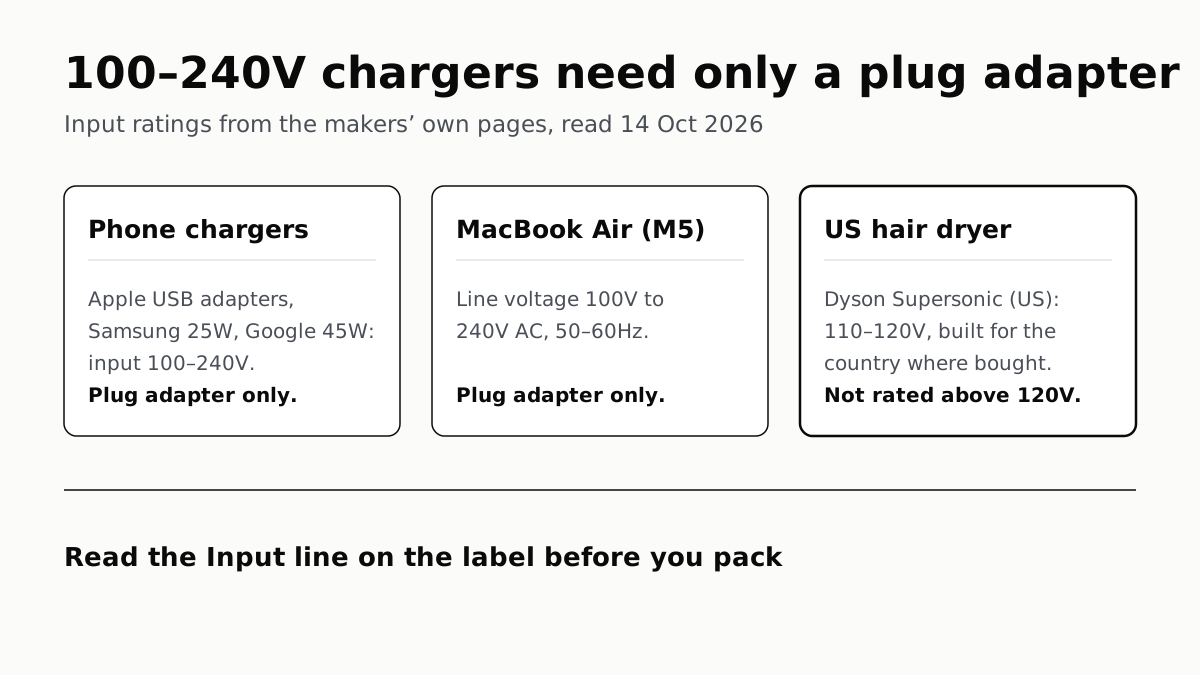
Chargers Rated 100–240V Need Only a Plug Adapter Abroad
Apple, Samsung and Google rate their chargers, and the MacBook Air, for 100–240V. A hair dryer built for 110–120V is a different case.
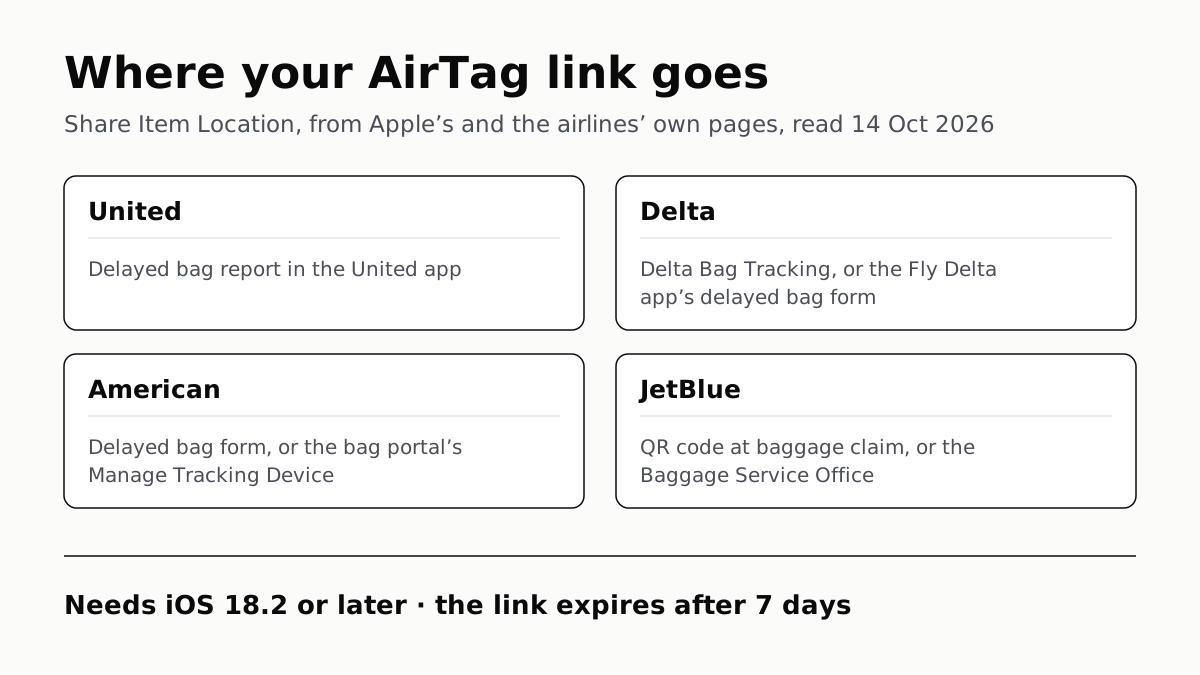
Send Your AirTag Link to United, Delta, American, JetBlue
Find My’s Share Item Location makes a seven-day link a bag agent can open. Apple says more than 50 airlines accept it.
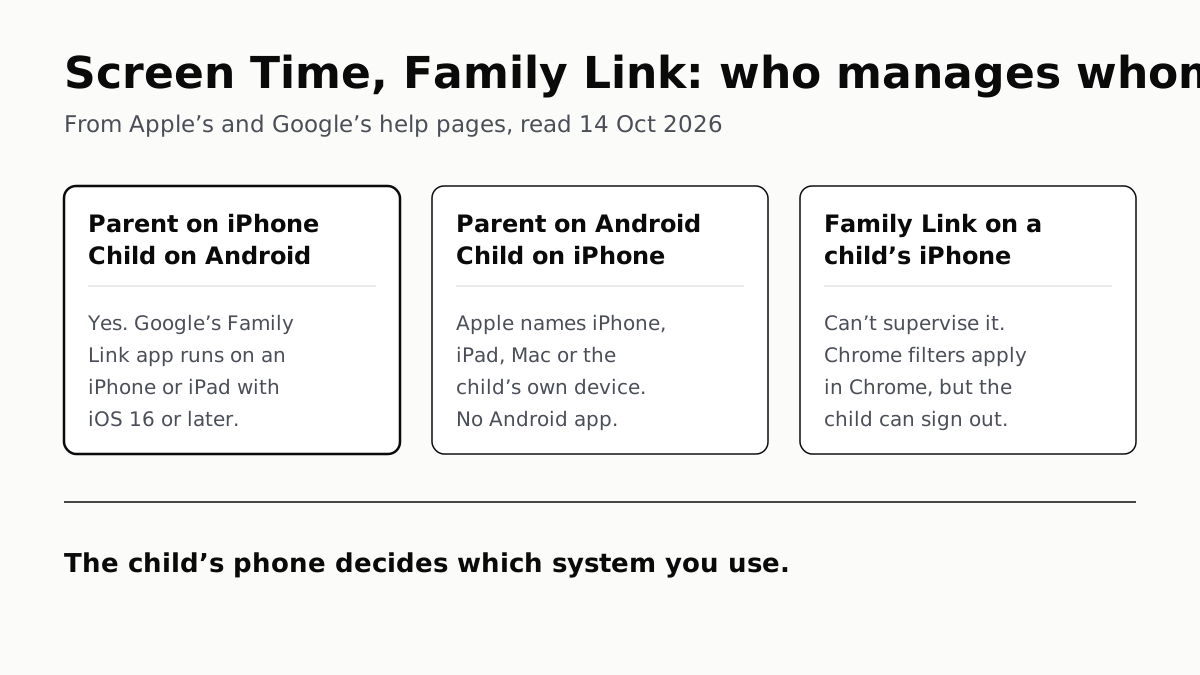
Family Link Works From an iPhone. Screen Time Needs Apple
Neither app supervises the other maker’s phones. App limits, downtime, web filters and more, side by side, with iOS 27’s changes.
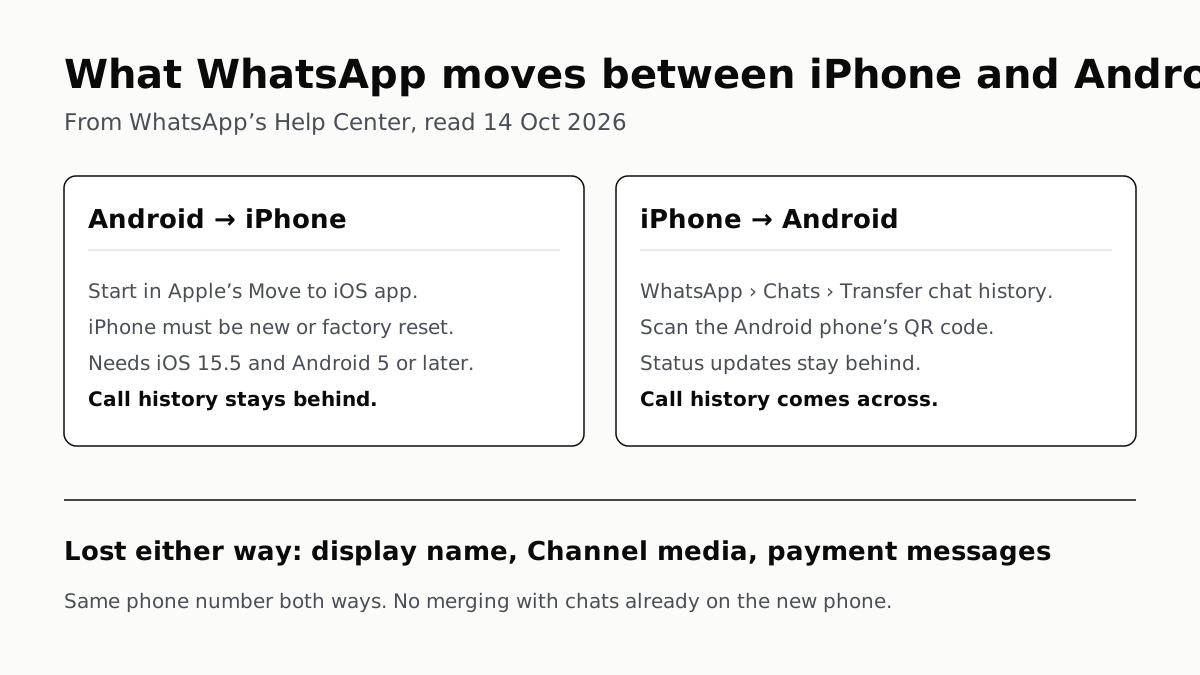
WhatsApp Chats Can Cross Between iPhone and Android
Messages, media and settings move both ways. Display names, Channel media and payment messages don’t, and call logs reach Android alone.