The TV Viewing Tracker Has a Different Name at Each Brand
Samsung, LG, Roku and Vizio all let you switch it off. LG and Roku say it also covers boxes plugged into the TV, not just its tuner.
If you buy through our links, we may earn a commission. It never affects our verdicts or scores — how that works. As an Amazon Associate I earn from qualifying purchases.
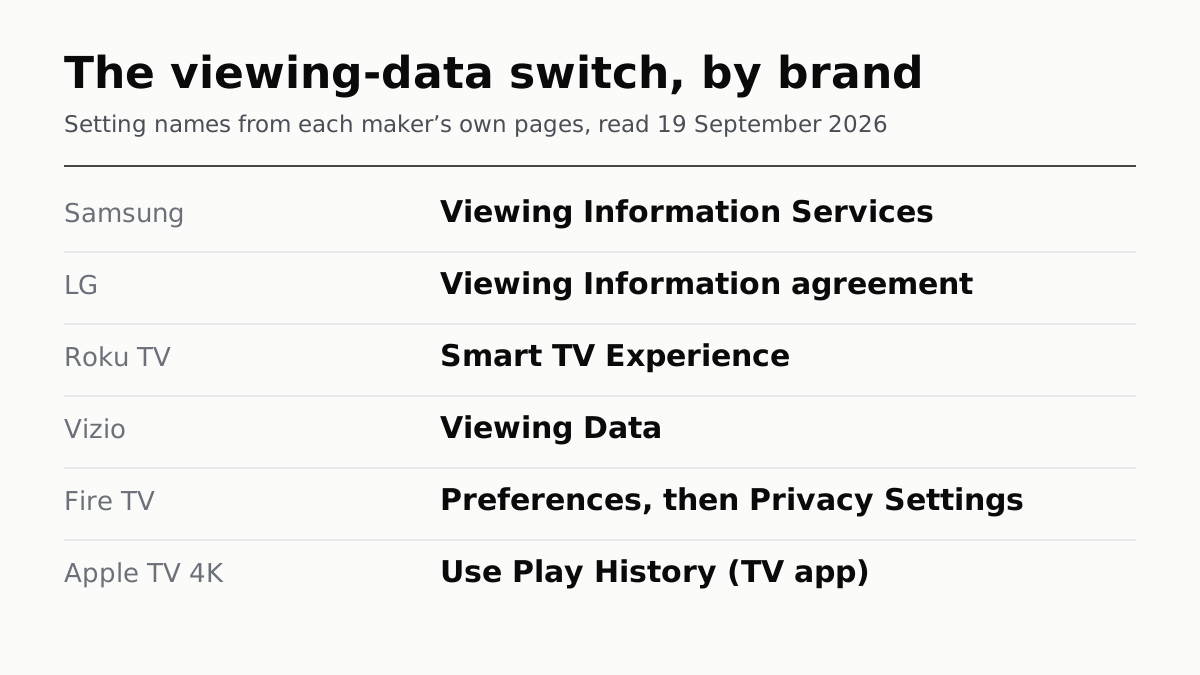
To stop a smart TV logging what you watch, turn off its automatic content recognition (ACR) setting. Each maker calls it something different. On Samsung it is Viewing Information Services, on LG the Viewing Information agreement, on a Roku TV Smart TV Experience, and on Vizio Viewing Data. The steps for each are below.
Do it even if everything you watch comes through a streaming stick or a cable box. LG says its ACR can work on HDMI-connected devices, and Roku says its version covers connected devices, including cable and satellite boxes. Using a separate box instead of the TV’s own apps does not keep your viewing away from LG or Roku while the setting is on.
The Verge’s TV reviewer wrote on 19 September, after a Gamers Nexus video about LG sets, that TV makers are tracking what you watch unless you opt out. What the makers themselves say is narrower and differs by brand. It is set out brand by brand below.
The setting, by brand
| Brand | What it is called | Where |
|---|---|---|
| Samsung | Viewing Information Services | Settings (Samsung gives no exact path) |
| LG | Viewing Information agreement; Live Plus | Support › Privacy & Terms; General › System › Additional Settings |
| Roku TV | Smart TV Experience | Settings › Privacy › Smart TV Experience |
| Vizio | Viewing Data | All Settings › Privacy and Legal |
| Fire TV | Privacy Settings | Settings › Preferences › Privacy Settings |
| Apple TV 4K | Use Play History | Settings › Apps › TV |
Menus move between model years. LG’s user guide says the items available “differ depending upon model”, so if a path does not match your TV, look for the setting’s name instead.
LG
LG says ACR is off by default and runs only if you accepted the Viewing Information Agreement. Its statement says you can withdraw that agreement or turn ACR off in settings, and that data collection stops when you do.
- Press the settings button on the remote, then go to Support › Privacy & Terms › User Agreements. LG’s 2025 webOS guide puts the agreements here. Withdraw the Viewing Information agreement. If you do not want ads based on it either, withdraw LG’s separate Interest-Based Cross Device Advertising agreement too.
- Go to General › System › Additional Settings and set Live Plus to Off. LG’s guide describes Live Plus as extras “related to the content you’re watching”.
- In Support › Privacy & Terms › Advertisement, turn Limit AD Tracking on.
- To clear what has already been collected, the same menu has Delete My Personal Information › Delete Viewing Information. It needs a network connection.
One detail from LG’s statement cuts against the usual advice. LG’s ACR works on Live TV, HDMI inputs and LG Channels, and LG says it does not operate inside third-party streaming apps such as Netflix or YouTube. On an LG set with the agreement accepted, a box plugged into HDMI is in scope and the TV’s own Netflix app is not.
Samsung
Samsung’s support page says ACR “only runs if you opted in” to Viewing Information Services when you set up the TV, and that you can opt out at any time in the Settings menu. It does not give a menu path, and we could not find a current one on any Samsung page, so we are not printing one. In Settings, look for Viewing Information Services and turn it off.
The privacy notice for the service says what it can identify: the channels, programs, games, shopping services and apps you use. Samsung adds that it does not record the content on your screen. A second setting, Interest-Based Advertisements, decides whether ads are picked for you. Samsung says viewing data goes into ad targeting only when both are on, so turning off Viewing Information Services keeps it out even if you leave ads alone.
Roku TV
Roku’s own page gives the path: Settings › Privacy › Smart TV Experience, where the switch is labelled Use info from TV inputs. Turn it off. The steps are Roku’s, so they apply to any TV running Roku’s software, whatever name is on the bezel.
Two limits, both in Roku’s words. Data collected while the setting was on “will be retained by Roku and may still be shared with third parties”. And the setting does not affect what Roku collects from its streaming channels. For that, Roku points to Personalize Ads in the same settings menu. Its separate Limit third-party ad tracking option asks channel providers to stop using the advertising ID, which Roku says it “cannot guarantee” they will respect. Roku also says a factory reset removes that preference.
Vizio
On a Vizio TV running VIZIO OS:
- Press MENU or the gear button on the remote.
- Go to All Settings › Privacy and Legal.
- Highlight Viewing Data and press the right arrow to set it to Off.
Vizio says that turning Viewing Data off deletes the logs already collected from its database. That is the opposite of Roku, which keeps them. Vizio also says it collects no viewing data in Canada, or from a TV that is not connected to the internet.
Fire TV and Google TV
Amazon does not use the term ACR on its Fire TV privacy page. Its controls are all in Settings › Preferences › Privacy Settings: turn off Device Usage Data and Collect App Usage Data, and use Interest-based Ads to tell apps not to build an ad profile from the advertising ID. On smart TVs built around Fire TV, the same menu is where Amazon lets you stop sending it information on what you watch through an antenna. On some models you can also change these settings from your Amazon account at amazon.com/mycd.
On Google TV sets, Google’s help page covers the advertising ID: Settings › Privacy › Ads › Delete advertising ID. Google says this stops apps using that ID for personalised ads, though they may still target ads on other information. Google’s page does not mention any setting for identifying what is on screen.
Apple TV 4K
Apple’s box is a different case. The viewing history Apple documents is the Apple TV app’s own: in Settings › Apps › TV, turn off Use Play History, which drives its recommendations and Continue Watching. Clear Play History in the same place removes what the app has recorded across your devices. The Verge’s reviewer suggests going further: take the TV off the network entirely and watch through a separate box. He uses an Apple TV 4K, which he reports does not use ACR.
If you move to an external box, turn the TV’s own setting off anyway. On LG and Roku sets, the TV can still recognise what a connected box plays while the setting is on.
The brands we left out
We found no first-party page giving a viewing-data switch for Hisense, for TCL’s Google TV sets or for current Sony TVs, so we have not printed steps for them. Two things we did find:
- TCL’s Google TV settings guide lists an item called Automatic Content Recognition under picture settings. TCL describes it only as switching to a matching picture mode when FILMMAKER MODE or IMAX content is detected. TCL does not say whether it is also a viewing-data switch, so do not rely on it as one.
- Sony’s Samba Interactive TV is listed by Sony for older Bravia models, with KDL, XBR and KD model numbers. On the Android TV sets among them, Sony gives the path as Settings › System Preferences › Samba Interactive TV (or Interactive TV Settings) › Disable.
What none of these switches does
They stop the TV identifying what is on screen. They do not stop Netflix, YouTube or any other app recording what you watch inside it. Roku says channel operators “may collect information about your use of their channels”, and each app has its own privacy settings.
If you are choosing a new set, the privacy menus are worth a look alongside the specs that actually separate price tiers. Our TV shortlist is built from review scores and does not rank privacy. And if you connect a box and your streams start stalling, a clean speed test does not rule out the network.
How we researched this
No one at bitcritiq has handled this product. Everything here comes from published sources, listed below.
- What this cannot tell you
- We have not used any of these menus ourselves. Paths move between model years, and LG and Google both say options differ by model. Samsung's own pages name the setting but give no current menu path, so we do not print one. We found no first-party page giving a viewing-data switch for Hisense, for TCL's Google TV sets or for current Sony models, so they are not covered. None of these switches stops a streaming app from recording what you watch inside that app.
How we chose this, and what we did
- Why this subject
- The Verge published 'It's not just LG. Every TV company is spying on you' on 19 September 2026, after a Gamers Nexus video about LG TVs, and LG had already answered with a statement on its newsroom. The question readers bring is practical: which switch stops the TV logging what they watch. Each maker gives the feature its own name, so a generic answer does not help anyone find it.
- How we looked at it
- Every setting name and menu path is from the maker's own support, privacy or user-guide pages, read on 19 September 2026: Samsung's ACR support answer and its Viewing Information Services privacy notice; LG's newsroom statement on smart TV privacy and its 2025 webOS user guide for the US; Roku's Smart TV Experience and third-party ad tracking notices; Vizio's Viewing Data support article; Amazon's Fire TV privacy settings FAQ; Apple's Apple TV 4K user guide; and Google's and TCL's pages on the Google TV advertising ID. The Verge is used only for context, labelled as reported.
What this rests on
6 claims, 5 official and 1 reported. Nothing here was measured by bitcritiq — see how we test for why. Open a claim to read the source it came from.
On LG TVs, ACR is off unless you accept the Viewing Information Agreement, and it can be withdrawn or turned off in settings. It covers Live TV, HDMI-connected devices and LG Channels, but not third-party streaming apps.Official
LG's statement: 'ACR is an optional feature that is turned off by default. To enable ACR, a user must accept LG's Viewing Information Agreement' and 'Users can withdraw from these agreements at any time and also can turn off ACR in TV settings.' It 'may operate on supported content sources such as Live TV, HDMI-connected devices, and LG Channels. It does not operate within third-party streaming apps such as Netflix or YouTube'.
On a Roku TV the switch is Settings > Privacy > Smart TV Experience. It covers the antenna and connected devices, and data gathered before you turn it off is kept.Official
Roku: 'you can disable this feature by going to Settings > Privacy > Smart TV Experience.' ACR recognises what is viewed through 'the Roku TV's antenna, and devices connected to your Roku TV, including cable and satellite set top boxes.' 'If you enable this feature and later disable it, the data that was collected or used while the feature was enabled will be retained by Roku and may still be shared with third parties'.
On Vizio TVs running VIZIO OS the path is All Settings > Privacy and Legal > Viewing Data, and turning it off deletes the stored logs.Official
Vizio Support: 'Press the MENU or Gear button... Go down to All Settings. Select Privacy and Legal. Highlight Viewing Data. Press RIGHT arrow to change setting to Off.' And: 'When you turn off collection of Viewing Data (if it was previously turned on), logs of Viewing Data will be deleted from our database.'
Samsung's ACR runs only if you opted in to Viewing Information Services, and Samsung says you can opt out in the TV's Settings menu, without giving a path.Official
Samsung US Support: ACR 'only runs if you opted in by consenting to the Viewing Information Services notice when you set up your TV', and to opt out 'simply go to the Settings menu on your Smart TV and adjust your preferences.' The Viewing Information Services notice says what it identifies includes the 'channels, programs, games, shopping services, and applications you use'.
Fire TV's controls sit in Settings > Preferences > Privacy Settings, including a separate opt-out for antenna viewing on smart TVs with Fire TV.Official
Amazon's FAQ gives Settings > Preferences > Privacy Settings > Device Usage Data, > Collect App Usage Data and > Interest-based Ads, and says 'On smart TVs with Fire TV, you may opt out of providing information to Amazon on your use of over-the-air TV content received through an antenna connected directly to your TV via Settings > Preferences > Privacy Settings.'
The Verge reported on 19 September 2026 that TV makers generally track what you watch unless you opt out, after a Gamers Nexus video about LG TVs.Reported
The Verge, 19 September 2026: 'they're all tracking what you watch unless you opt out.' The piece was written in response to a Gamers Nexus video focused on LG, and names ACR features including 'Enhanced Viewing, Smart TV Experience, and Samba Interactive TV'.
Sources 13
- Samsung Smart TV Automatic Content Recognition (ACR) Feature — Samsung US SupportOfficialaccessed Sep 19, 2026
- Viewing Information Services U.S. Privacy Notice — Samsung Smart Hub terms and privacyOfficialaccessed Sep 19, 2026
- Understanding Privacy On LG Smart TVs — LG U.S. NewsroomOfficialaccessed Sep 19, 2026
- webOS TV User Guide, 2025, US English — LG ElectronicsOfficialaccessed Sep 19, 2026
Show 9 more · 8 official or standards
- Smart TV Experience — RokuOfficialaccessed Sep 19, 2026
- Limit third-party ad tracking — RokuOfficialaccessed Sep 19, 2026
- How to turn Viewing Data On, Off, or Delete — Vizio SupportOfficialaccessed Sep 19, 2026
- Privacy Settings FAQs for Fire TV Products, Fire Tablets and Kindle E-readers — Amazon Customer ServiceOfficialaccessed Sep 19, 2026
- Adjust Apple TV app settings on Apple TV 4K — Apple SupportOfficialaccessed Sep 19, 2026
- Change ad settings for your Google TV — Google TV HelpOfficialaccessed Sep 19, 2026
- TCL Google TV Settings and User Manual Guide — TCL SupportOfficialaccessed Sep 19, 2026
- Enable or disable Samba TV — Sony USA SupportOfficialaccessed Sep 19, 2026
- It's not just LG. Every TV company is spying on you — The Verge, 19 September 2026accessed Sep 19, 2026
No email, no account
Follow bitcritiq
Every new article, in whatever reader you already use.
Subscribe by RSSAll the ways to follow
Using Chrome on Android? Open the browser menu and tap Follow. New articles then turn up in the Following tab in Discover.
read next
PS Audio and Naim Each Lost a Disc Product to Drive Supply
Three TV Platforms Publish an Update Promise. Three Do Not
Bose Ultra Open Earbuds 2nd Gen: Two More Hours, Same $299